
Features
- Rough cuts
- Multicam
- A-roll logging
- B-roll logging
- Speaker identification
- Scripted edits
- Social clips
- Exports to your editor
- Styles and color
- Motion graphics
- Captions & titles
- Stock B-roll
- Generate video
- Generated music
- Voiceover
- Dubbing
- Transcription in 97 languages
- Web app
- Mac and Windows
- Claude & ChatGPT
- Recipes
- Agents
- API + MCP
Solutions

How to Edit Instagram Reels
A Reel is rarely cut from one long recording. It is usually a handful of phone clips, a few shots from a proper camera and one line said to camera, put together so the first second stops the scroll. This guide covers that kind of Reel for a small business, a creator or a brand account. If you want to cut many clips out of one long video instead, see the Shorts guide.
The short answer
Open on your strongest shot or line in the first second, keep the whole Reel to one idea, and cut it to music so every change of shot lands on a beat. Edit in 9:16, crop any horizontal footage so the subject stays centred, and keep on-screen text out of the bottom fifth and the right edge, where Instagram puts its caption and buttons. Most Reels work best between 7 and 30 seconds. In Eddie you describe the order of shots, then ask for the vertical crop, the beat cuts, the text and the export in plain words.
The deliverables
What you will end up with
- A 20 to 30 second Reel that opens on its strongest shot.
- Horizontal camera footage reframed to 9:16 without losing the subject.
- Cuts that land on the beat of the music, and one slow-motion moment.
- A hook title and captions placed where Instagram's buttons do not cover them.
- A finished MP4 and a still frame to use as the cover.
6 steps
Step by step
- 01Bring in the clips and the track
- 02Build the Reel around the hook
- 03Reframe to vertical
- 04Cut on the beat and slow one moment
- 05Add the hook text and captions
- 06Export the Reel and a cover frame
Step 1
Bring in the clips and the track
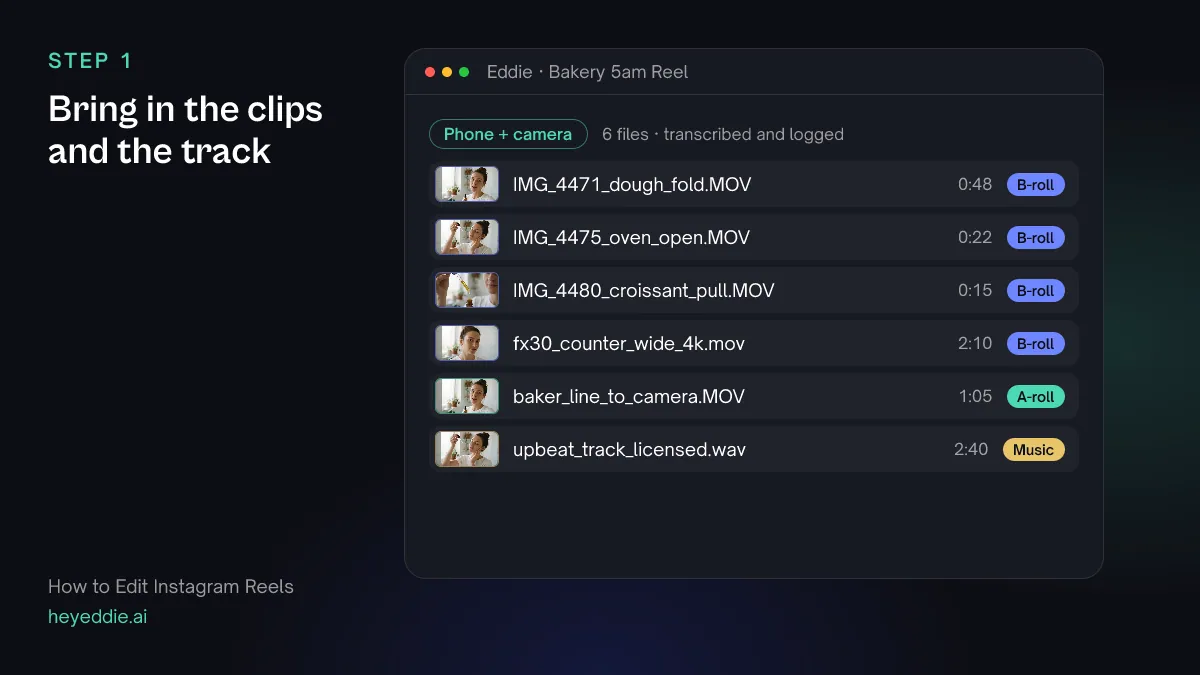
Upload the phone clips, any camera footage and the music you have the rights to use. Shoot vertical on the phone when you can; horizontal camera footage works too if it is 4K, because you will crop it.
What Eddie does
- Logs each clip by what it shows and rates the strongest stretches inside it.
- Transcribes the clip where someone talks to camera.
What you get: Every clip described, so you can ask for shots by what is in them.
Step 2
Build the Reel around the hook
Decide what the first second shows before anything else. A Reel lives or dies on it: movement, a reveal or a surprising line. Then put the rest in an order that pays it off, and give a total length.
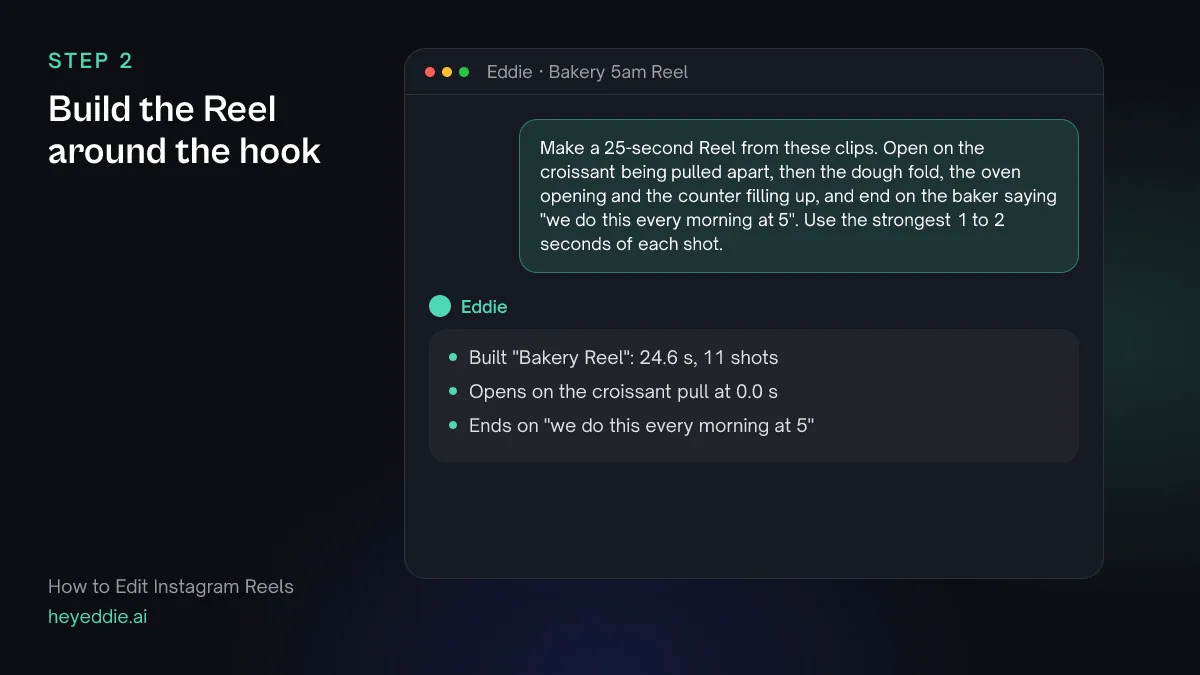
What you type “Make a 25-second Reel from these clips. Open on the croissant being pulled apart, then the dough fold, the oven opening and the counter filling up, and end on the baker saying "we do this every morning at 5". Use the strongest 1 to 2 seconds of each shot.”
What Eddie does
- Builds a sequence from the stretches you named, trimmed to their strongest moment.
- Adds the baker's line at the end and reports the finished length.
What you get: A first cut that starts on the hook, not on a lead-in.
Step 3
Reframe to vertical
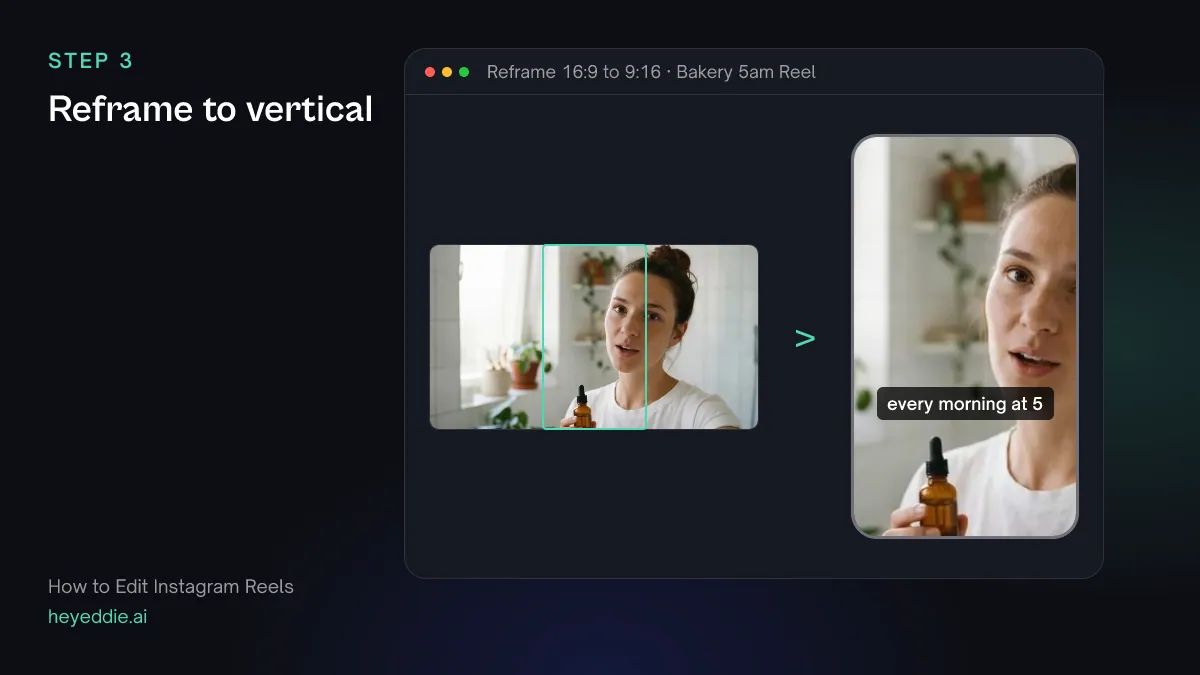
Set the canvas to 9:16. Phone clips shot vertically fill it as they are. For horizontal camera shots, say which part of the frame matters, so the crop keeps the hands or the face rather than the empty middle.
What you type “Make the Reel 9:16. Crop the wide counter shots to the right third of the frame where the trays are, and crop the baker's line to a close-up on her face.”
What Eddie does
- Sets a vertical canvas on the edit.
- Crops each shot to the region you named, and places a close-up on the presenter's detected face.
What you get: Every shot fills the phone screen with the subject in frame.
Step 4
Cut on the beat and slow one moment
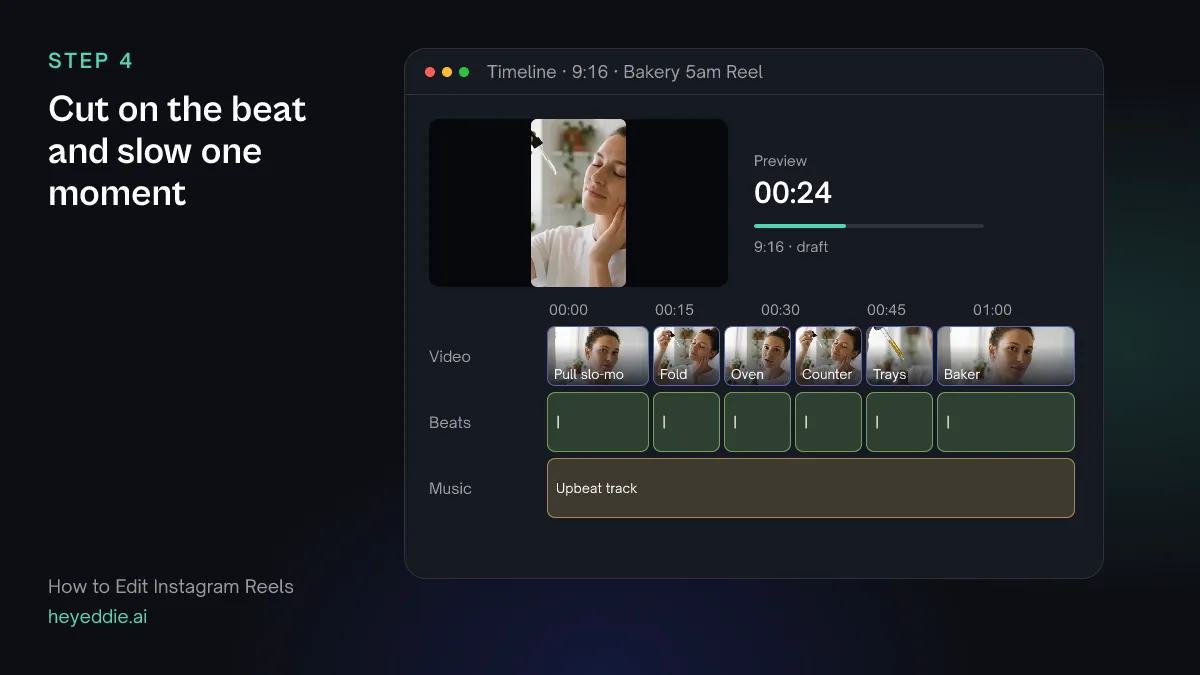
Cuts that hit the beat make a Reel feel edited rather than assembled. Pick one moment to slow down, usually the hook or the reveal, and leave the rest at full speed.
What you type “Put my upbeat track under the Reel, snap every cut to the nearest beat without cutting into the baker's line, and ramp the croissant pull down to slow motion and back.”
What Eddie does
- Attaches the track, measures its beat grid and moves the cut points onto beats, never into the middle of a spoken word.
- Applies a speed ramp, such as 100% to 40% to 100%, on the shot you named.
What you get: A Reel that moves with its music.
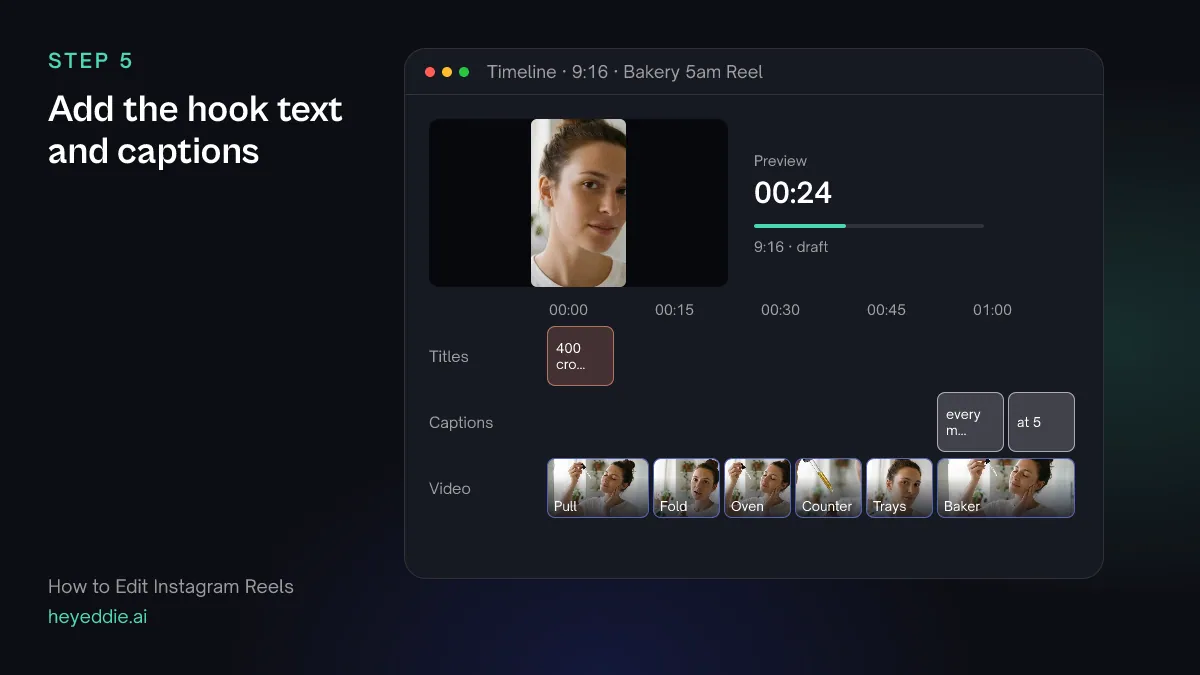
Step 5
Add the hook text and captions
Many people watch Reels muted, so put the hook in words too. Keep text in the upper and middle part of the frame: the bottom fifth holds Instagram's caption and the right edge holds its buttons.
What you type “Add a hook title "400 croissants before sunrise" near the top for the first 2 seconds, and punch captions on the baker's line, 2 words per card, placed just above the middle of the lower half.”
What Eddie does
- Places the title at the position and time you named.
- Adds captions from the word timings in the punch look, at the size and position you chose.
What you get: A Reel that reads clearly with the sound off.
Step 6
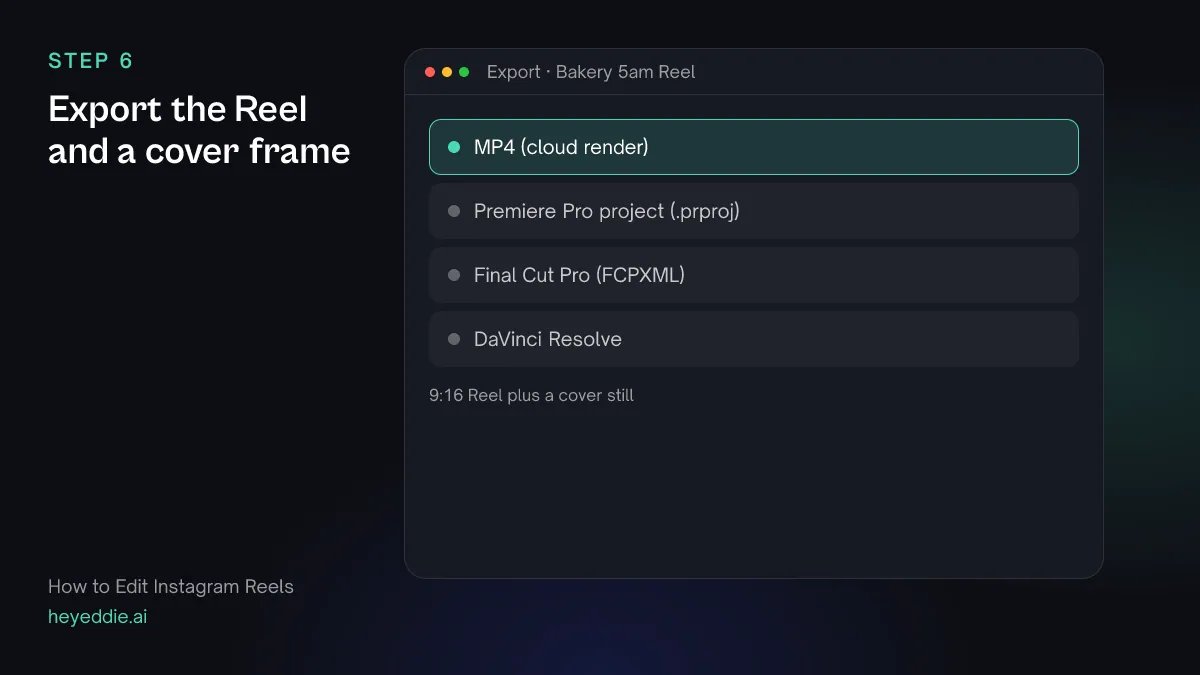
Export the Reel and a cover frame
Download the Reel as an MP4 and upload it from your phone or a desktop browser. Pick a cover frame too, because the profile grid shows the cover, not the first frame.
What you type “Export the Reel as a 1080 by 1920 MP4 with web loudness, and export a still of the croissant pull at its slowest point for the cover.”
What Eddie does
- Renders the vertical edit in the cloud with the titles and captions burned in.
- Exports the frame you chose as a still image.
What you get: A Reel ready to post and a cover image to go with it.
Craft
What makes it work
- Decide the first second first
- Choose the opening shot before you build anything else. If the first second is a slow pan or a logo, people swipe before the good part arrives.
- Shoot more cutaways than you think
- A 25-second Reel cut on the beat can use ten or more shots. Film each action from two or three angles and close up, so you are not repeating a shot to fill a gap.
- Keep text out of the app's way
- Instagram covers the bottom of the frame with your caption and the right edge with its buttons. Put titles and captions in the upper two thirds, away from the right side.
- Loop the ending
- Reels replay automatically. An ending that flows back into the first shot, or a last line that answers the hook, makes the second watch feel natural.
- Leave room in the music
- If someone speaks, keep the music low under the line and bring it back up after. A spoken line fighting a loud track gets skipped.
FAQ
Questions
- How long should an Instagram Reel be?
- Instagram accepts Reels of up to a few minutes, but most that hold attention are 7 to 30 seconds and carry one idea. Make it as long as the idea needs and no longer, then ask Eddie for that target length.
- What size should a Reel be?
- Vertical 9:16, usually 1080 by 1920 pixels. Eddie sets the canvas to 9:16 and renders the MP4 at that size.
- Can I use a trending sound from Instagram?
- Songs from Instagram's own music library can only be added inside the Instagram app. If you plan to do that, export the Reel without music and add the sound when you post. Use a track as a file in Eddie only if you have the rights to it.
- Can I edit a Reel from horizontal footage?
- Yes. Eddie crops each shot to the part of the frame you name, or to a close-up on the speaker's face. Horizontal 4K footage keeps the crop sharp; 1080p footage cropped to vertical looks soft.
- Does Eddie post the Reel to Instagram for me?
- No. Eddie renders an MP4 that you upload to Instagram yourself, from your phone or from a desktop browser.
- Is this different from cutting Reels out of a podcast or a long video?
- Yes. This guide builds one Reel from a set of short clips. To cut several Reels from one long recording, follow the Shorts guide or the podcast clips guide; the export works the same way.
Edit your next Reel with Eddie
Sign up, add your footage and type the first prompt above. New accounts start with free credits.