How-to guidesPodcast clips
How to Make Podcast Clips for Social Media
A podcast clip is not a Short of one person. The best moments are exchanges: a question, a pushback, a laugh. That needs a layout that shows both people and captions that make clear who says what. This guide covers the clip workflow; for editing the full episode, see the multicam podcast guide.
The short answer
Sync the cameras, find exchanges of 30 to 90 seconds where both people say something worth hearing, and lay them out vertically with one speaker in the top half and the other in the bottom. Colour each speaker's captions differently so viewers can follow who is talking. Eddie syncs the angles, finds the exchanges, stacks the speakers and captions them from prompts.
What you will end up with
- Four to six vertical clips of real exchanges, not single monologues.
- A stacked 9:16 layout with host on top and guest below.
- Captions coloured by speaker.
- A square version for LinkedIn from the same edits.
Step by step
Step 1
Import and sync the cameras
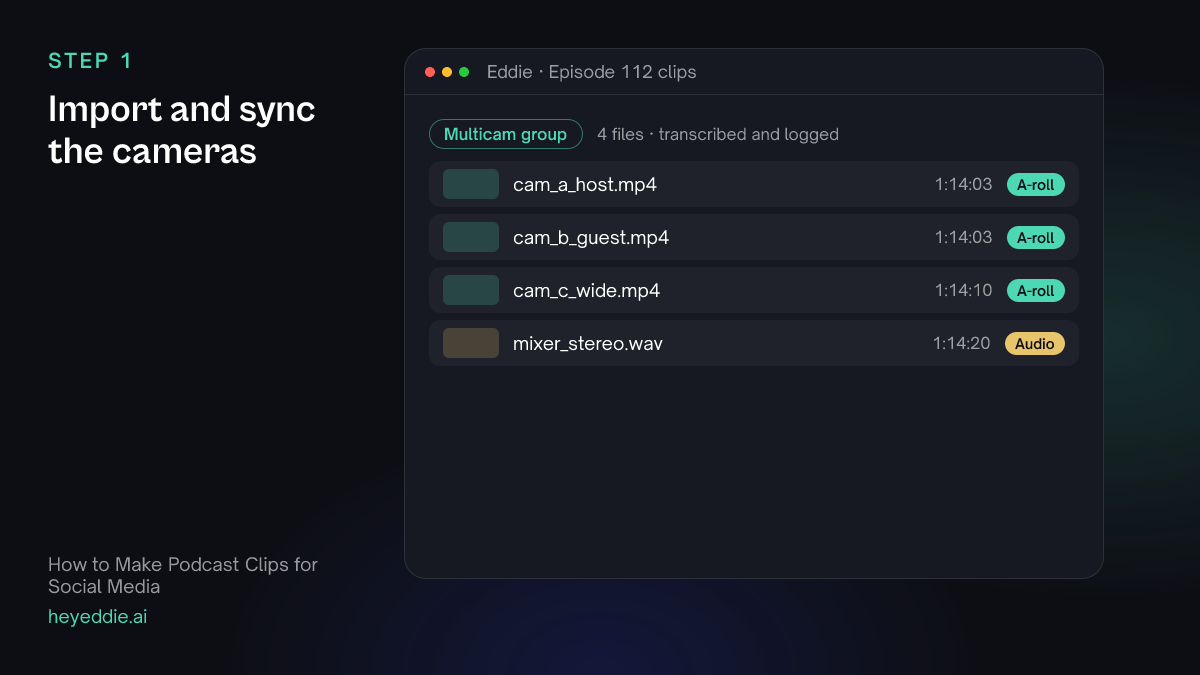
Upload every camera and the audio recorder, or send a multicam clip from Premiere Pro, Resolve or Final Cut Pro through the desktop app. Eddie syncs them by sound.
What you type “Sync all three cameras and the mixer audio as one multicam group, and use the mixer audio for every cut.”
What Eddie does
- Measures each file's sync offset against a reference camera and groups them.
- Sets the mixer recording as the group's audio.
What you get: One synced recording you can cut between angles.
Step 2
Find the exchanges
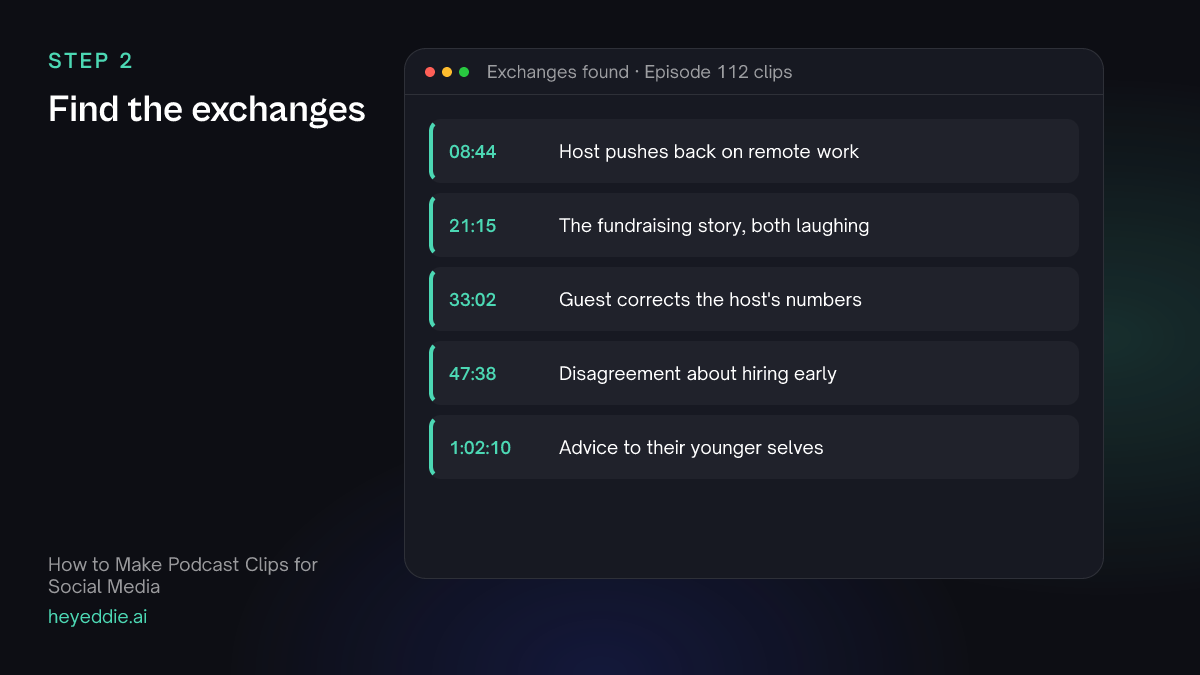
Ask for back-and-forth moments specifically. Single-speaker answers make good Shorts too, but exchanges are what podcast clips do best.
What you type “Find 5 exchanges of 30 to 90 seconds where the host and the guest disagree, laugh, or build on each other's point. Each must make sense on its own. Make each one its own edit and name it after the topic.”
What Eddie does
- Reads the speaker-labelled transcript for turns between the two speakers.
- Builds five edits and names each one by topic.
What you get: Five clip edits, each a complete exchange.
Step 3
Stack the speakers vertically
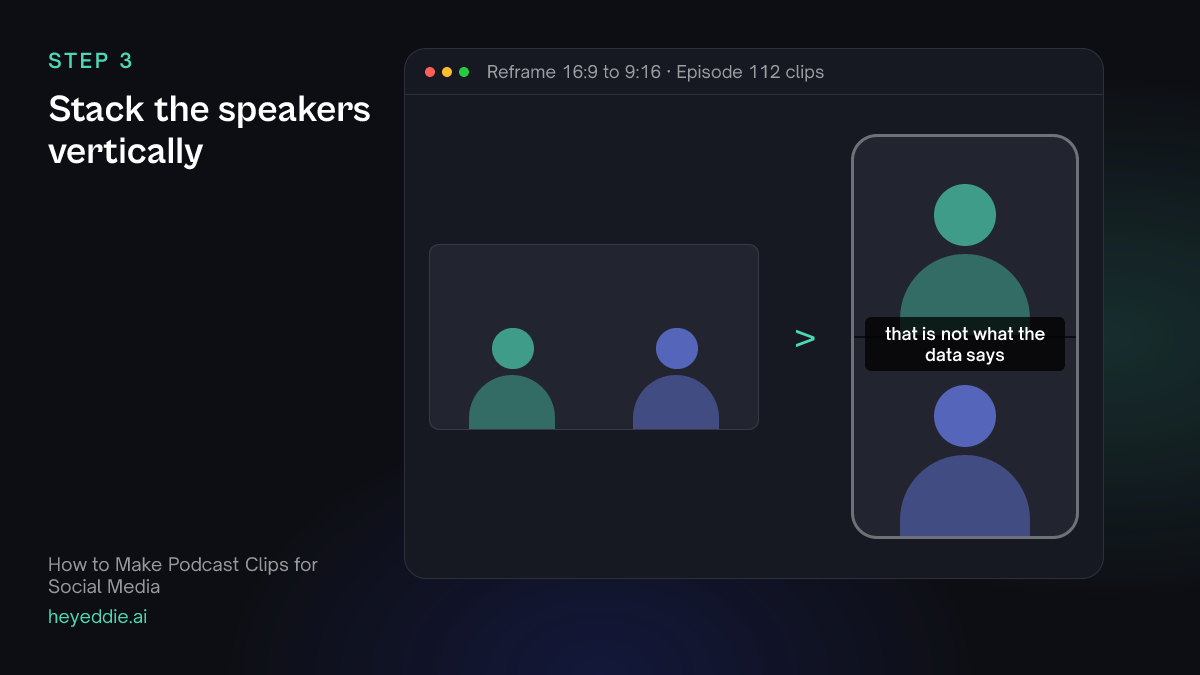
Put the host's camera in the top half and the guest's in the bottom half of a 9:16 frame. Both faces stay on screen, so viewers see the reaction as well as the line.
What you type “Make all five clips vertical with the host's camera on top and the guest's camera below, each cropped to a close-up of their face.”
What Eddie does
- Sets a vertical canvas and places the two angles as stacked layers.
- Crops each layer to the speaker's detected face.
What you get: Stacked vertical clips that show both people at once.
Step 4
Caption each speaker in their own colour
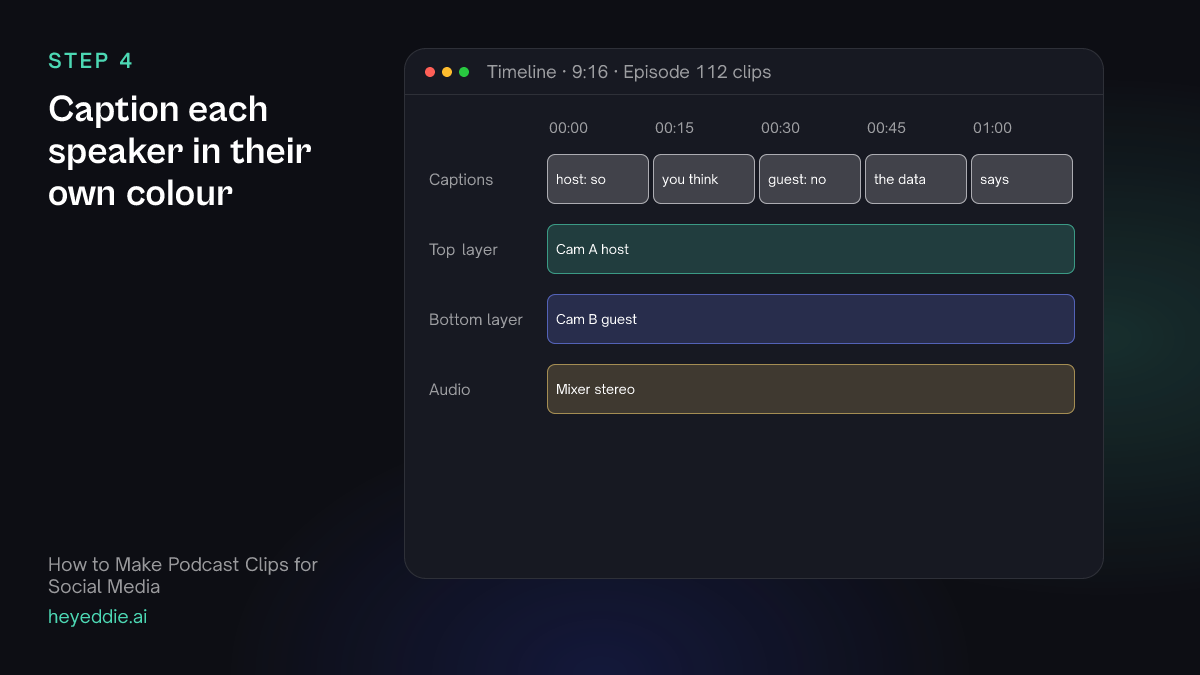
With two people on screen, colour tells the viewer who is talking faster than names do.
What you type “Add social captions to all five clips in the middle of the frame, between the two speakers. Make the host's words white and the guest's words yellow.”
What Eddie does
- Builds captions from the word timings and colours each speaker's words.
- Places them where they do not cover either face.
What you get: Clips viewers can follow with the sound off.
Step 5
Export vertical and square
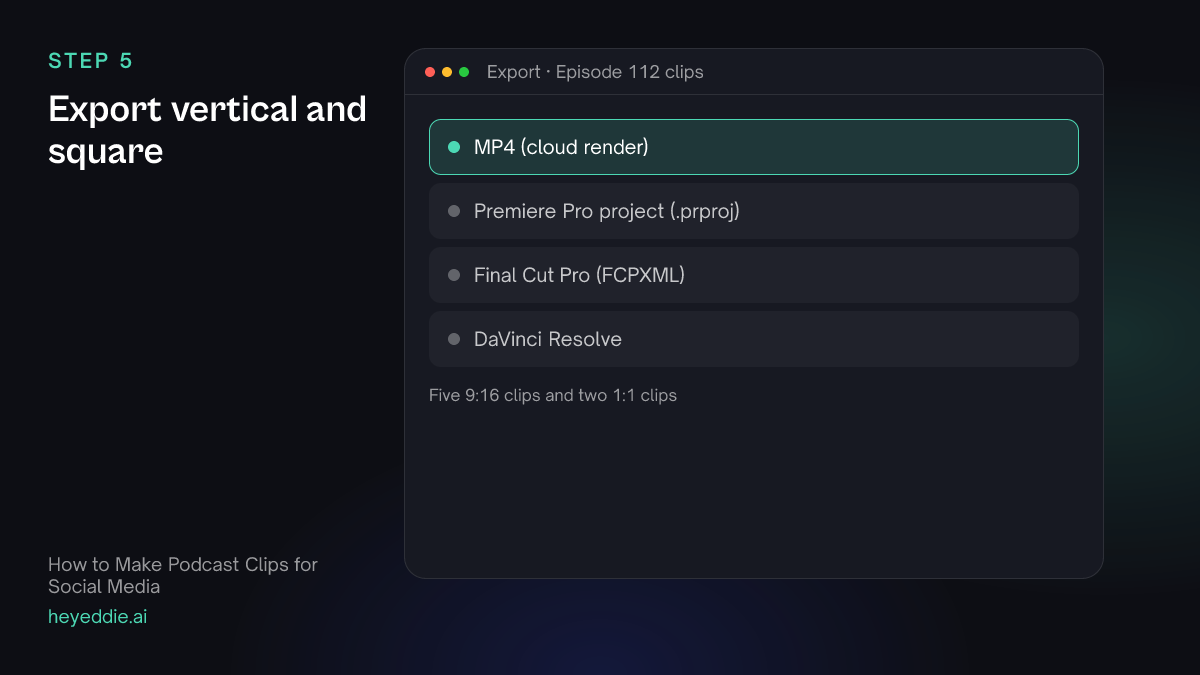
Export the vertical clips for Shorts, Reels and TikTok. If you post to LinkedIn, ask for square versions of the same edits.
What you type “Export all five as vertical MP4s. Then make a square version of the two strongest for LinkedIn with the speakers side by side, and export those too.”
What Eddie does
- Renders the vertical clips in the cloud.
- Re-lays the two clips you chose on a square canvas with the speakers side by side, then renders them.
What you get: Seven files from one episode.
What makes it work
- Exchanges beat monologues
- A clip where the guest pushes back on the host travels further than a long answer, because the viewer watches the reaction.
- Use the best microphone for every cut
- Camera audio on a podcast is room sound. Set the mixer or lav recording as the group's audio once, and every clip uses it.
- Keep the speaker's face the same size
- Close-up crops at the same zoom on both halves look deliberate. Ask Eddie to keep crops consistent across segments.
- Title the clip, not the episode
- "Episode 112" means nothing on a feed. A hook title that names the argument does.
- Post clips while the episode is new
- Clips work best in the week the episode comes out, when they point listeners to something they can play right now. Cut them the day you publish, and schedule one a day.
Questions
- Do I need separate cameras for each speaker?
- A camera per speaker gives the best stacked layout. With one wide camera in 4K, Eddie can crop each half of the frame to one speaker instead.
- Can Eddie switch angles automatically for the full episode?
- Yes. That is the full-episode workflow in the multicam podcast guide. This guide is for the short clips.
- My podcast was recorded remotely. Does this work?
- Yes, if you have a separate video file for each person. Eddie syncs them by sound like any multicam recording.
- Can I export the clips to Premiere Pro instead?
- Yes. A Premiere Pro project keeps the multicam clips as real multicam, so you can change angles there.
- How many clips should I make from one episode?
- Four to six is a good number for a weekly show: enough for one a day without reusing the same moment. Ask Eddie for more candidates than you need and pick the best.