How-to guidesCorporate
How to Edit Corporate Videos
Corporate video has two audiences: the viewers, and the people who must approve it. The edit has to be clear for the first and safe for the second, with names spelled right, nothing confidential on screen, and the brand applied the same way every time. This guide covers announcements, culture pieces, internal updates and brand stories.
The short answer
Agree the message first, then cut the interviews to deliver it in two or three minutes. Add name titles, your logo and brand style, blur anything confidential on screen, and send a review link so stakeholders comment on the cut instead of in an email chain. Eddie builds the cut from a brief, applies the branding, handles the blurring and creates the review link.
What you will end up with
- A two to three minute edit that delivers one agreed message.
- Lower thirds with each speaker's name and role, in your brand style, with your logo.
- Confidential screens, badges or whiteboards blurred.
- A review link stakeholders can comment on at the timecode, without an account.
Step by step
Step 1
Import the interviews and brand assets
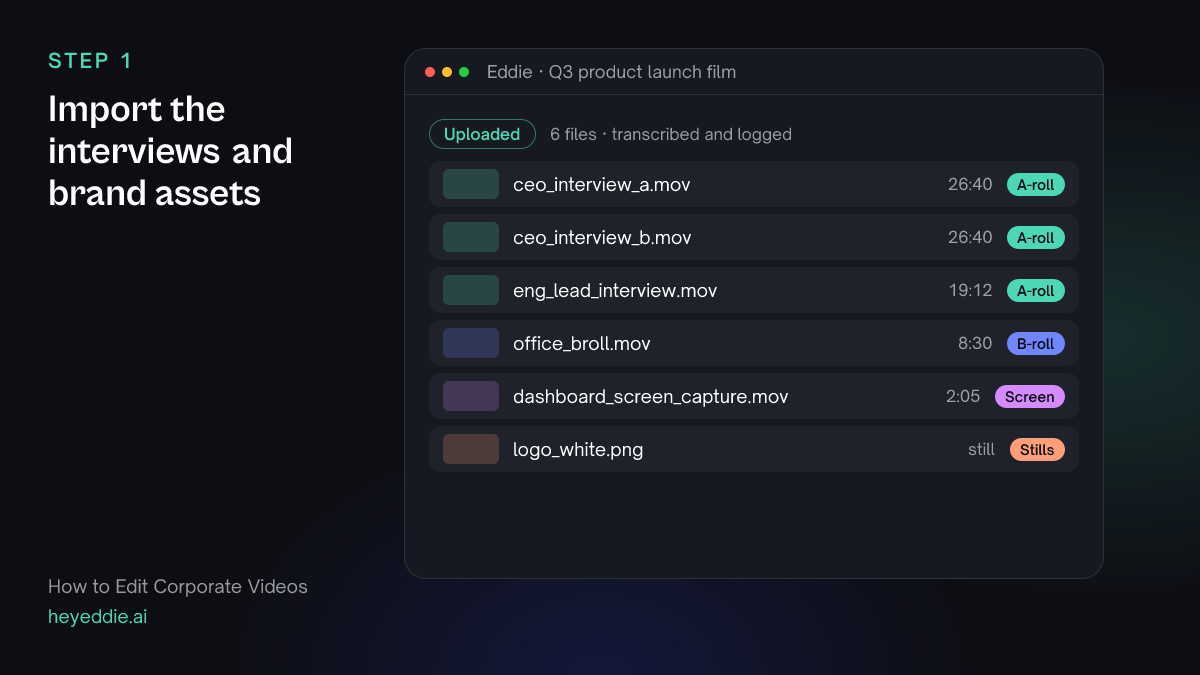
Upload the interviews, the office b-roll and any screen captures. Add your logo to the project, or use the workspace's Brand kit if your team has one.
What Eddie does
- Transcribes the interviews and names the speakers, which you can correct.
- Logs the b-roll and keeps the logo ready for a watermark.
What you get: Everything the film needs, in one searchable project.
Step 2
Brief the cut like you would brief an editor
Give Eddie the message, the audience and the length. Name the points each speaker should make. A specific brief gets an approvable first cut.
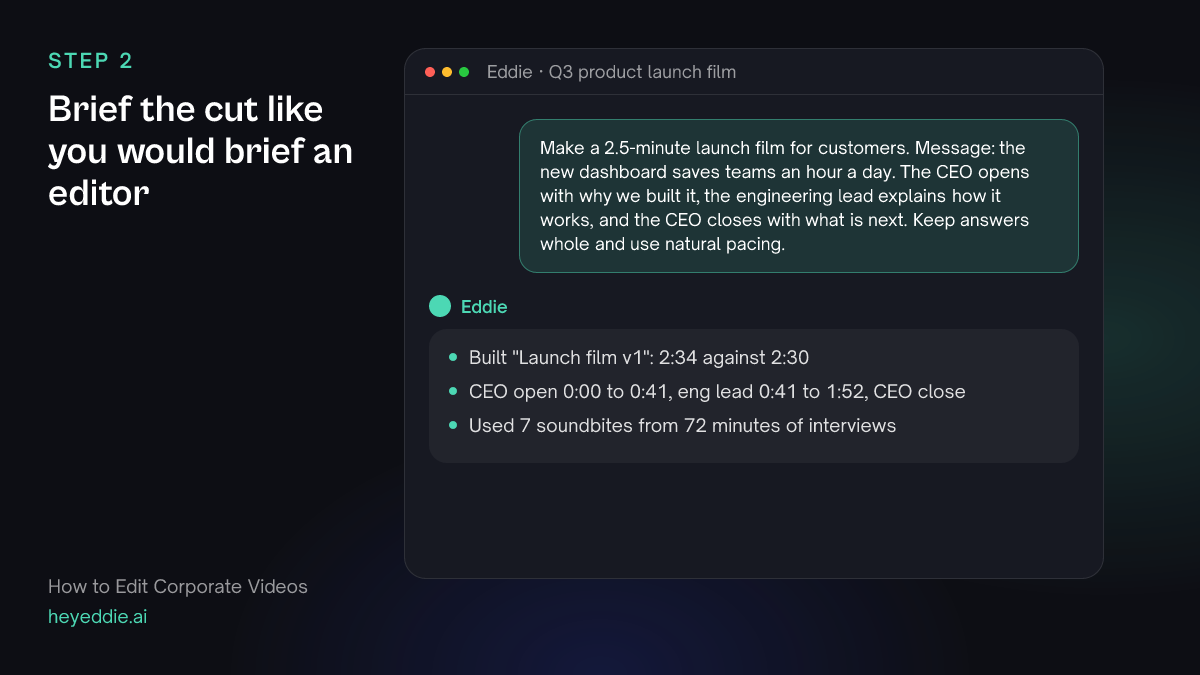
What you type “Make a 2.5-minute launch film for customers. Message: the new dashboard saves teams an hour a day. The CEO opens with why we built it, the engineering lead explains how it works, and the CEO closes with what is next. Keep answers whole and use natural pacing.”
What Eddie does
- Selects the soundbites that make each point, in the order you set.
- Builds the edit to the length and reports what it used from each interview.
What you get: A structured first cut that follows the brief.
Step 3
Apply names, logo and brand style
Lower thirds, a consistent graphics style and a logo make the film look like it came from your company, not from a phone.
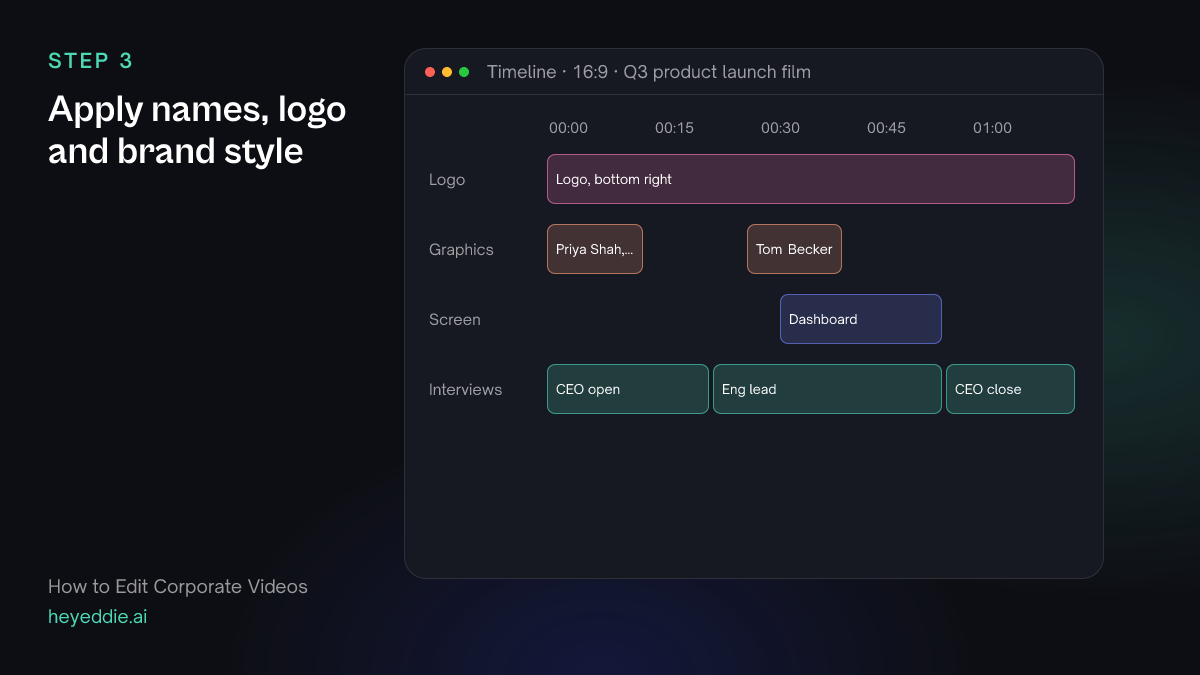
What you type “Add lower thirds: "Priya Shah, CEO" and "Tom Becker, Head of Engineering" the first time each appears. Use our brand style pack for the graphics, put the logo in the bottom right at small size for the whole film, and show the dashboard screen capture while Tom explains how it works.”
What Eddie does
- Adds lower-third graphics from its template set at each speaker's first appearance.
- Applies one style pack to every graphic on the edit and places the logo as a watermark.
- Places the screen capture over the matching explanation.
What you get: A branded cut with every speaker named.
Step 4
Blur anything confidential
Office b-roll catches things legal will flag: customer names on a screen, a roadmap on a whiteboard, an ID badge. Blur them before anyone outside the team sees the cut.
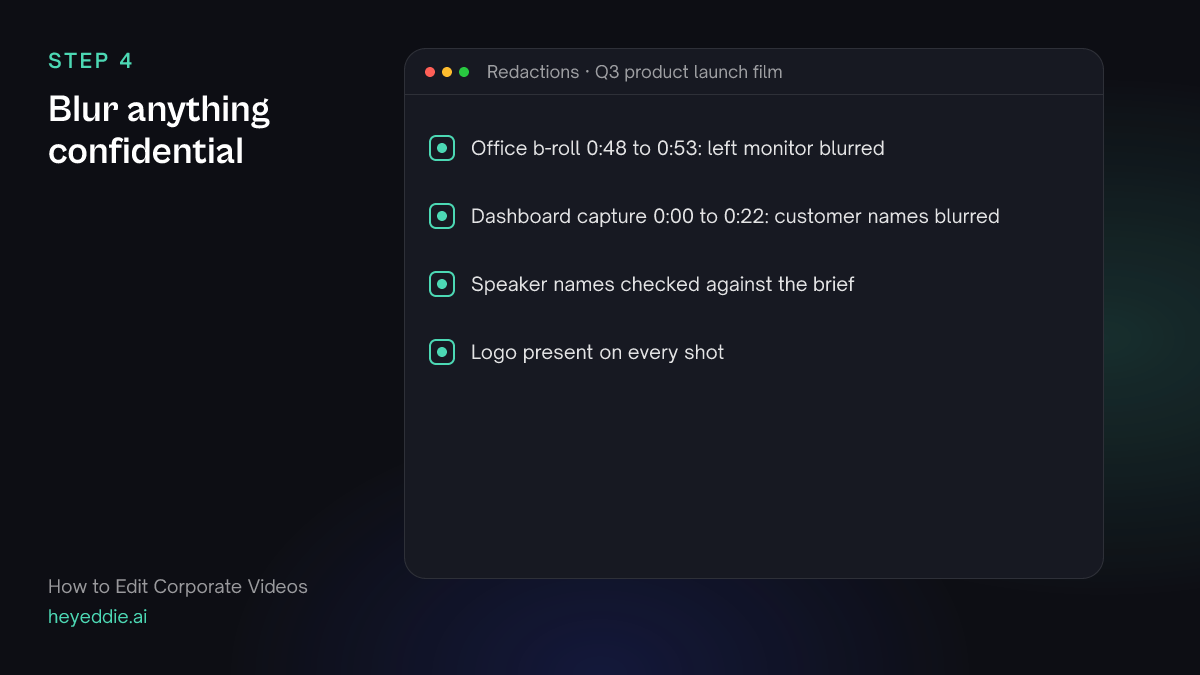
What you type “In the office b-roll at 0:48, blur the monitor on the left desk, and in the dashboard capture blur the customer names in the table on the right.”
What Eddie does
- Blurs each region you described for the time it is on screen, in the player, the render and the exports.
- Lists every blurred region so you can check it.
What you get: A cut that is safe to circulate.
Step 5
Send it for approval
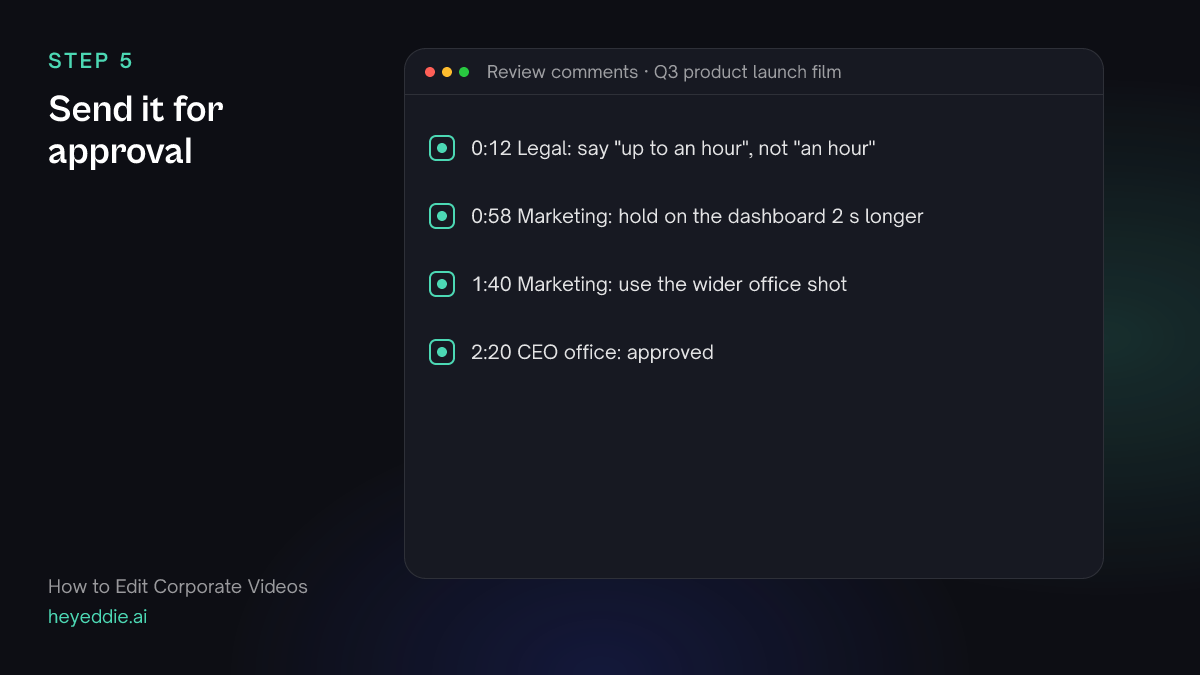
Share a review link instead of a file. Stakeholders watch the cut in a browser and leave comments at the exact moment they mean.
What you type “Give me a review link for the launch film so the marketing and legal teams can leave comments at the timecode.”
What Eddie does
- Creates a review page for the edit that needs no Eddie account to open.
- Collects every comment on the timeline, where Eddie can read and act on them.
What you get: Notes on the cut, in one place, at the right moments.
Step 6
Export the approved version
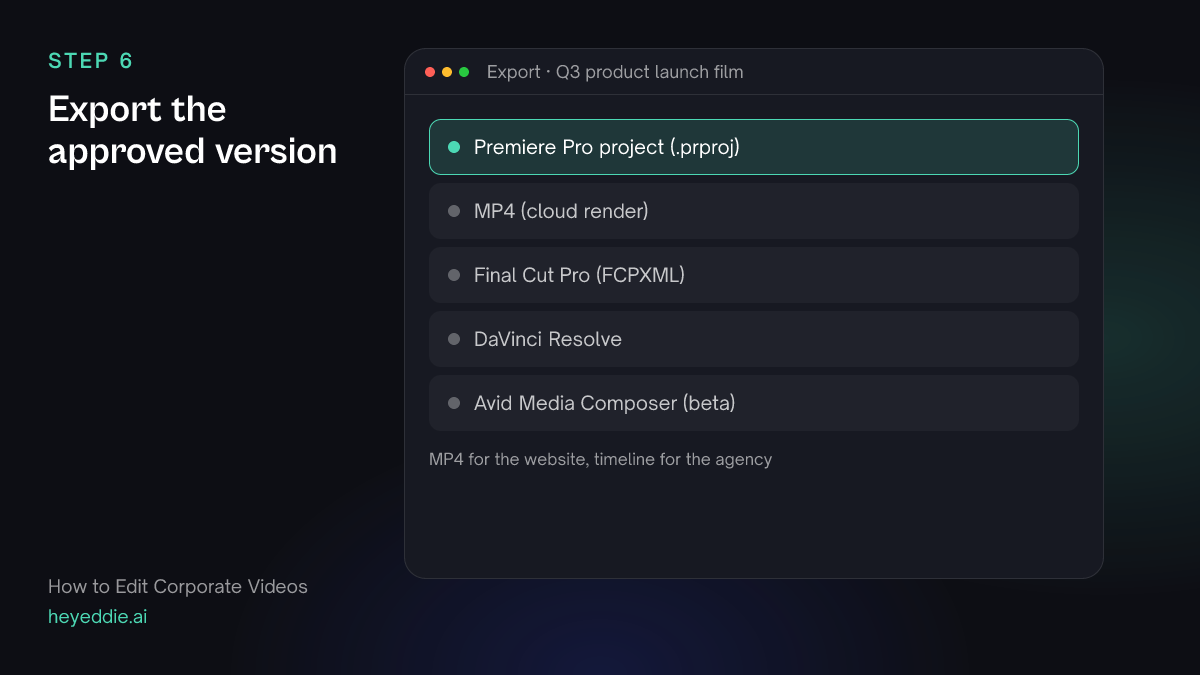
Deliver MP4s for the website and social, or a timeline for your agency or in-house editor to finish.
What you type “Export the approved launch film as a 1080p MP4 with broadcast loudness, and as a Premiere Pro project for the agency.”
What Eddie does
- Renders the MP4 in the cloud at the loudness target you chose.
- Writes a Premiere Pro project that points at the original files.
What you get: The approved film, and an editable version.
What makes it work
- One message per film
- A corporate film that tries to say five things says none. Write the one sentence the viewer should remember and put it in the prompt.
- Spell names before you add titles
- Correct the speaker names and any product names in the transcript first. Titles and captions built after that are right everywhere.
- Blur early, not at the end
- Redact before the first review link goes out. Once a cut with a customer name on screen has been forwarded, it is too late.
- Keep the brand in one place
- A style pack and a Brand kit logo mean every film from the team looks the same, without anyone copying settings by hand.
Questions
- Is Eddie secure enough for internal company footage?
- Eddie offers enterprise plans with single sign-on, central admin and a choice of where it runs. See the enterprise page or contact sales for details.
- Can several people comment on a cut?
- Yes. A review link lets anyone with the link watch the edit and leave comments at a timecode, without an Eddie account.
- Can Eddie add our logo automatically?
- Eddie places the project's Brand kit logo, or a logo image you upload, as a watermark over the whole edit or part of it.
- Can our agency finish the film in their own editor?
- Yes. Export a Premiere Pro, Final Cut Pro or DaVinci Resolve timeline. It points at the original media, so the agency relinks and finishes as usual.