How-to guidesTraining
How to Edit Training Videos
Training videos have to be followed, not just watched. A new employee pauses, rewinds and copies each step. They may be watching on a shop floor with no sound, in a second language, or with a screen reader. This guide covers procedures, onboarding, safety and software training for teams.
The short answer
Cut the recording so each step of the procedure is its own short section with a title, show the screen or the hands doing the task while the trainer explains it, add captions, and blur anything confidential. Then send it for approval, and make accessible and translated versions for staff who need them. Eddie builds the steps, titles, captions, blurring, audio description and review link from prompts.
What you will end up with
- A video where each step is a titled section that is easy to find again.
- The task on screen while the trainer explains it.
- Captions, and confidential details blurred.
- An audio-described version and a translated version for the staff who need them.
Step by step
Step 1
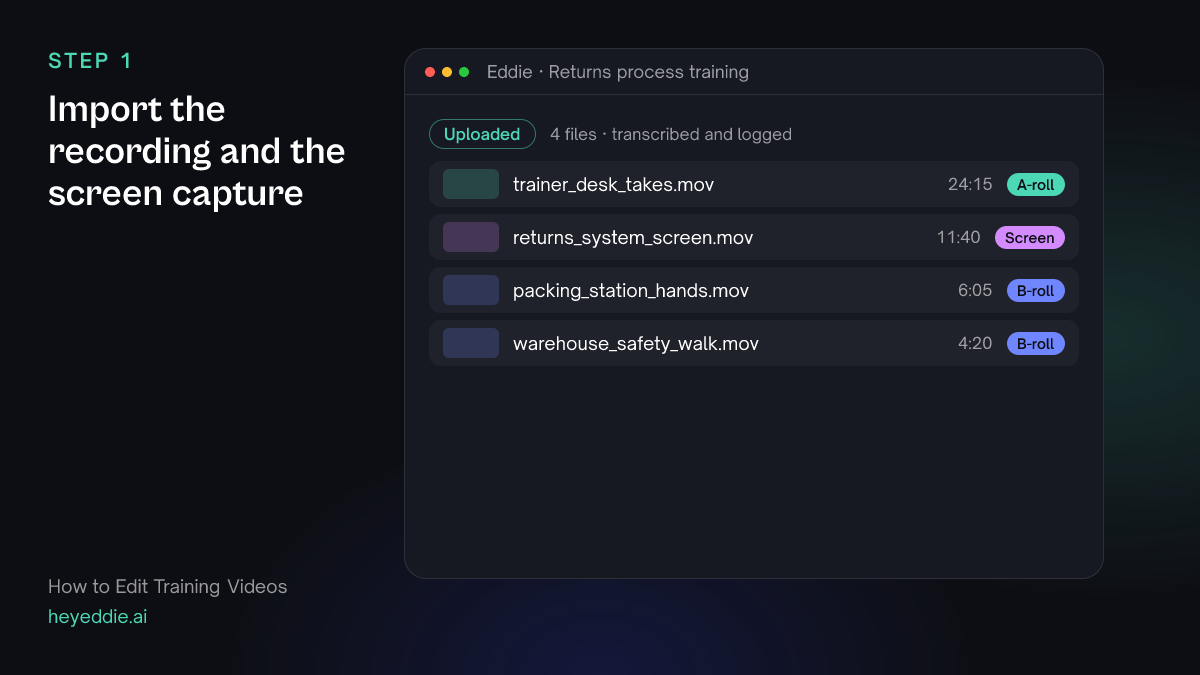
Import the recording and the screen capture
Upload the trainer's recording, the screen recording of the software and any footage of the physical task. Eddie transcribes the trainer and tags the screen recording.
What Eddie does
- Transcribes the trainer and keeps the best take of repeated steps.
- Tags the screen recording and logs the hands-on footage.
What you get: Everything the training needs, matched by what is said and shown.
Step 2
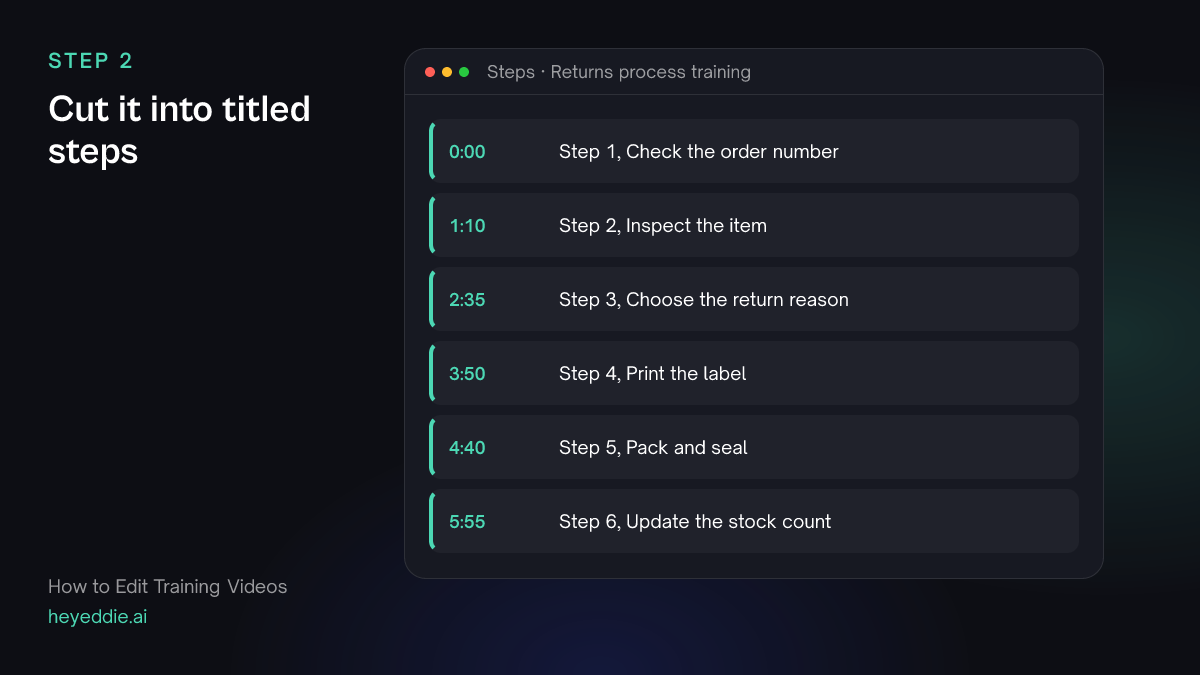
Cut it into titled steps
Ask for one section per step, each with a title. Learners come back to a training video to find one step; titles make that possible.
What you type “Edit the returns training into 6 steps, one section each, following the order in the trainer's recording. Put a numbered title at the start of each step, such as "Step 1, Check the order number". Natural pacing, with a short pause after each instruction.”
What Eddie does
- Builds the edit in six sections from the trainer's best takes.
- Places a numbered title at the start of each section.
What you get: A procedure that reads like a checklist.
Step 3
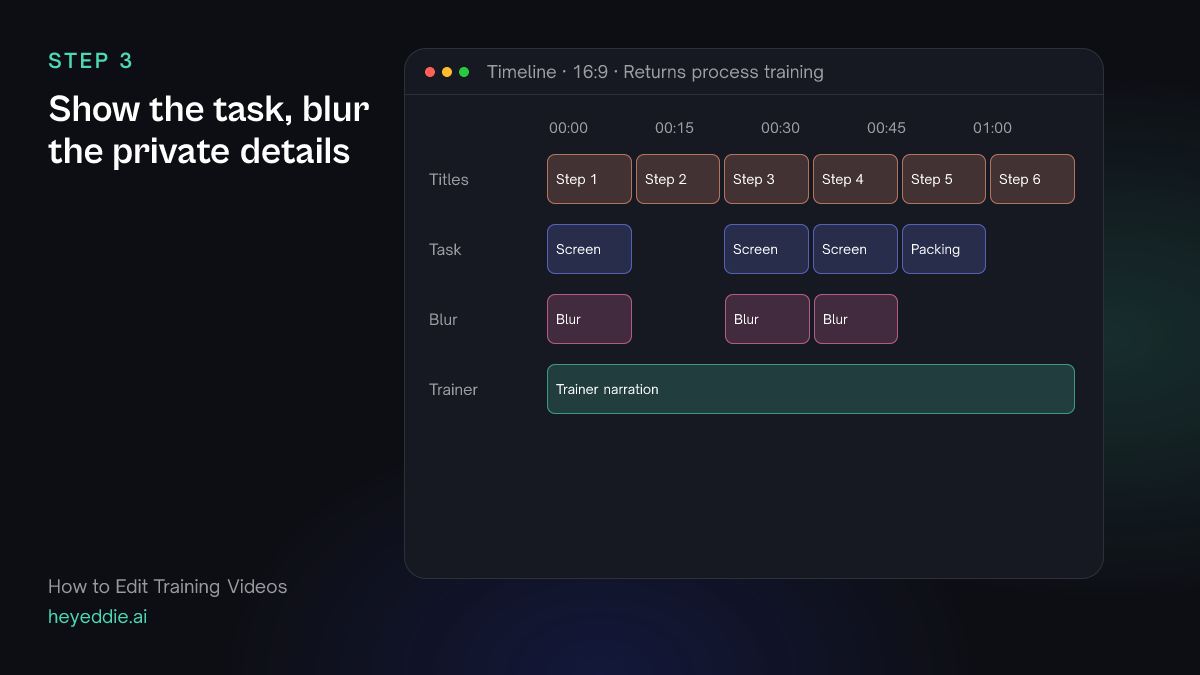
Show the task, blur the private details
Put the screen recording over the software steps and the hands-on footage over the packing steps. Blur customer names and addresses on the screen.
What you type “Show the returns system screen recording during steps 1, 3 and 4, and the packing station footage during step 5. Blur the customer name and address panel on the screen recording wherever it appears.”
What Eddie does
- Places your screen and hands-on footage over the matching steps.
- Blurs the panel you described every time it is on screen.
What you get: Learners see each action, and no customer data is shown.
Step 4
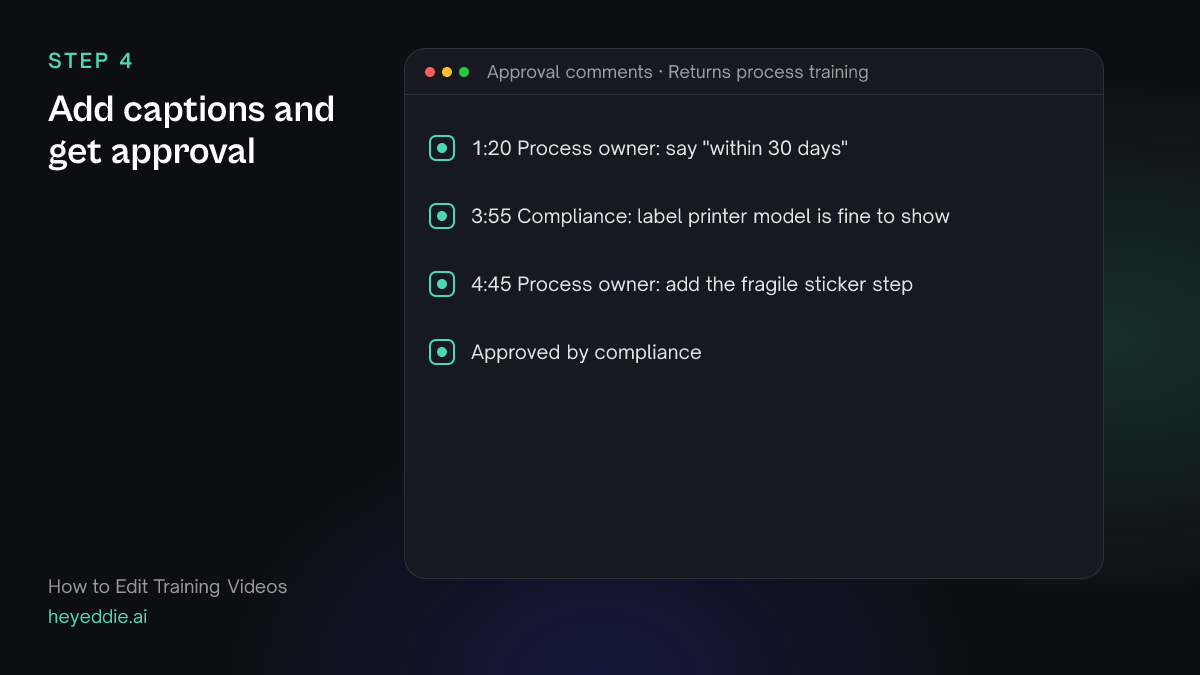
Add captions and get approval
Captions are essential on a noisy floor. Then send a review link to the process owner and compliance so they approve the exact wording.
What you type “Add minimal captions at the bottom, then give me a review link so the process owner and compliance can comment at the timecode.”
What Eddie does
- Adds captions from the word timings.
- Creates a review page that needs no Eddie account, and collects comments on the timeline.
What you get: An approved, captioned training video.
Step 5
Make accessible and translated versions
Staff who are blind or have low vision need audio description; staff who work in another language need a dubbed version. Make both from the approved edit.
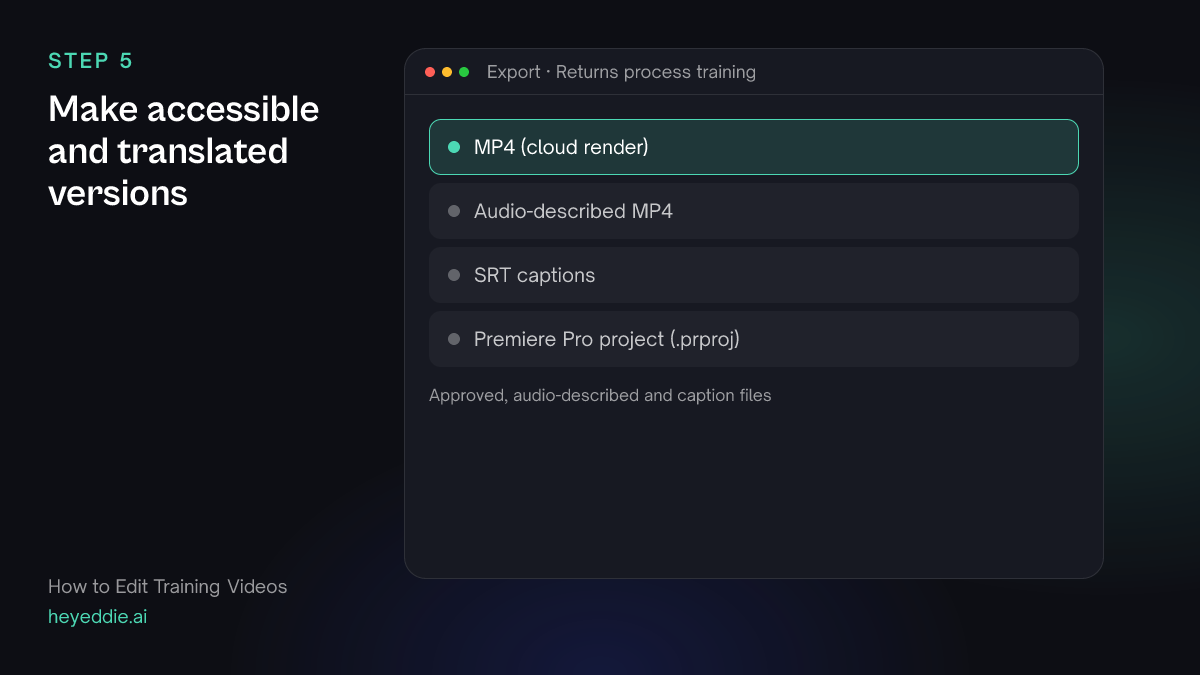
What you type “Make an audio-described version of the approved training for staff with low vision, then export the approved version and the audio-described version as MP4s.”
What Eddie does
- Writes and voices a description wherever the picture carries information the narration does not, as a new edit beside the original.
- Renders both versions. Caption files such as SRT download from the web app's Export menu.
What you get: One training, usable by everyone on the team.
What makes it work
- One step, one section
- Learners rewind to a step, not to a minute. Titled sections make the video work as a reference.
- Show hands and screens
- Narration alone does not teach a procedure. Film the hands doing it and capture the screen.
- Blur before review
- Remove customer data before the review link goes out, not after compliance spots it.
- Plan for every learner
- Captions, audio description and translation are cheaper to make from the approved edit than to retrofit later.
Questions
- Can Eddie make training videos accessible?
- Yes. Eddie adds captions, and it can make an audio-described version of an edit for blind and low-vision viewers, with a still-frame pause wherever a description needs more time.
- Can I translate a training video?
- Eddie can dub a finished edit into another language, placing the translated lines where the originals land. See the dubbing page for details.
- Can I update one step without redoing the video?
- Yes. Re-record the step, add it to the project and ask Eddie to replace that section.
- Is it safe for internal content?
- Eddie offers enterprise plans with single sign-on and a choice of where it runs. Blur customer data before you share a review link.