On this page
In Summary An AI edit is only worth anything if you can keep working on it. Eddie exports five formats, and the NLE timelines relink to your original camera files. The single most useful thing on this page is the DaVinci Resolve import setting that makes a perfectly valid timeline appear to do nothing at all.
The short answer
This is the step where AI editing usually collapses. You get a flat MP4, the client asks for one change, and you start again from the rushes.
Export a timeline instead. Your original camera files relink, the cut arrives as clips you can trim, and the last 10% happens where it always happened: in your NLE, with your plugins, your LUTs and your keyboard shortcuts.
All NLE exports are free. So are cloud MP4 renders.
EddieU export walkthroughs
The footage in this walkthrough
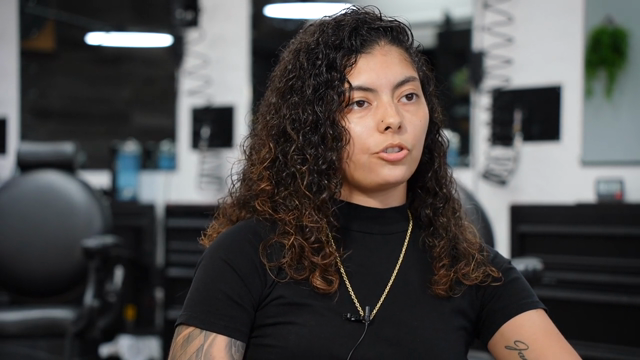
Three interviews with Jessica Hernandez and her daughter Alizé, who run Simply Men's Barbershop in West Chester, PA: 1 hour 4 minutes, 13,675 words of transcript, 3 speakers separated automatically.
The five formats, and what each one carries
| Format | For | Carries |
|---|---|---|
| FCPXML | Final Cut Pro | Cut, crops, grades, b-roll, vertical layout, multicam clip |
| FCPXML (Resolve flavour) | DaVinci Resolve | Cut, crops, grades, b-roll, multicam clip. Not the vertical layout |
| Premiere XML | Premiere Pro | Cut, crops, grades, b-roll, layout, alternates stacked under each clip |
| OTIO | OpenTimelineIO pipelines | Cut, with layout as metadata |
| MP4 | A finished video | Everything, baked in |
The NLE files are generated server-side from the edit itself, not from a render, which is why the crops and grades arrive as adjustable parameters rather than burned-in pixels.
The Resolve import setting nobody tells you about
If you take one thing from this page, take this. It cost us a day, we pinned it on Resolve Studio 21 in July 2026, and it is the single most common reason a Resolve import "does not work".
Resolve's FCPXML importer is all-or-nothing about media resolution. With the Load XML dialog's default option "Automatically import source clips into media pool" switched on, a timeline whose media references do not resolve to real files on this machine is rejected silently. No error dialog. No timeline. File > Import > Timeline simply appears to do nothing.
Cloud projects always hit this, because their media is referenced by bare filename for relink-by-name rather than by a path on your disk. So the import that appears broken is in fact a valid timeline being discarded without a message.
Import it like this instead:
- File > Import > Timeline, choose the file.
- In the Load XML dialog, uncheck "Automatically import source clips into media pool", then click Ok. The timeline appears with offline (red) clips.
- Add your camera files to the Media Pool, right-click the offline clips and Relink. Resolve matches them by filename.
Eddie ships those instructions inside the file itself, as a comment at the top of the XML, and repeats them in the response when you export. We would rather the fix travel with the file than live in a support article you find an hour later. Fully local projects never see the comment, because they never hit the problem.
For the wider Resolve workflow, see editing interviews in DaVinci Resolve with AI.
What Premiere and Final Cut receive
- Final Cut Pro gets a real multicam clip where the take was multicam: the chosen angle written as the video source, the group's reference angle as the audio source, kept as separate entries so audio does not scatter across tracks.
- Premiere Pro gets the chosen angle on the timeline, with every alternate angle stacked on the lanes directly beneath it in group order, video enabled but hidden behind the top clip and audio muted. Revealing another angle is a visibility toggle, not a re-sync.
More on both in how to cut a multicam interview or podcast automatically, and the per-NLE guides: Premiere Pro and Final Cut Pro.
When you just want the video
The MP4 is a real cloud render from your original files, not a re-encode of a preview, with crops, grades, b-roll overlays, titles, captions, motion graphics, music with auto-ducking and voice-over all baked in. The rules, so you can plan around them:
- 1080p by default, or source quality up to 4K.
- Output capped at 10 minutes. Longer cuts: render in the Eddie desktop app, or export a timeline.
- 30 renders per workspace per day, one at a time.
- An unchanged edit re-downloads from cache without using quota.
- A render takes a minute or two. Ask again for the link if it is not ready.
- Free. The quota above is the limit, not the price.
Documents, not timelines
Some deliverables are neither. A transcript, a shot log, a CSV of segments and speakers, an SRT or VTT subtitle file, a summary as a PDF or Word document: all of those are built as files with a download link, for free. Those links last 30 days.
The subtitle case is the important one, because captions do not travel into NLE timelines. See the next section.
What will not survive the handoff
- Captions do not go into an NLE timeline. They are baked into MP4 renders and they render over the player. Premiere, Final Cut, Resolve and OTIO do not receive a caption track. If you are finishing in an NLE, export an SRT alongside the timeline and style it in your project. More in how to add captions to a video automatically.
- The vertical layout does not go to Resolve. The Resolve flavour deliberately hands over the full-frame cut. If the deliverable is vertical and you finish in Resolve, take the MP4 or rebuild the reframe there.
- You still need your media. A timeline is a set of references. Relinking needs the original camera files on a disk you can reach.
- Colour, mix and titles are still your job. That is the point. The export exists so the machine hands you an assembly and then gets out of the way.
FAQ
Do exports cost credits? No. NLE timelines and cloud MP4 renders are both free. The MP4 daily quota still applies.
Are my original files modified? No. The edit references them, and the export relinks to them.
Which format for Avid? There is no file to pick. Eddie does not export an EDL. Avid Media Composer is supported in beta through the Eddie desktop app, which writes the cut into your open project as a new sequence.
Why is my Resolve import doing nothing? Almost certainly the "Automatically import source clips into media pool" setting. See above.
Can I export straight from ChatGPT or Claude? Yes, over the same MCP connector, and the download link comes back in the chat. See how to edit video with ChatGPT and how to edit video with Claude.
What if my cut is longer than 10 minutes and I need an MP4? Render it in the Eddie desktop app, or export a timeline and render from your NLE.
The barbershop project ships inside Eddie, so you can build a cut and export it to your own NLE without importing anything first. Open it and prompt it.