On this page
In Summary You remove filler by naming it, not by finding it. Ask for every "um" in a source and Eddie cuts every occurrence at word level, reversibly, for free. The parts worth knowing before you start: it will not decide what counts as filler, word cuts leave jump cuts on a single camera, and cutting a source does not shorten an edit you already built from it.
The short answer
Filler removal is a search-and-cut problem, and the search is the expensive half. In a 30 minute interview an "um" might appear a hundred times, and every one of them costs you a scrub, a zoom, two trims and a ripple.
The workflow that removes the scrubbing is: address the filler by its text, in the transcript, and let the tool find every instance and cut it at word level. In Eddie that is one call, and it is free. Through the MCP connector you never see the call at all, because you just say it:
Cut every "um" and "you know" out of the second interview.
The footage in this walkthrough
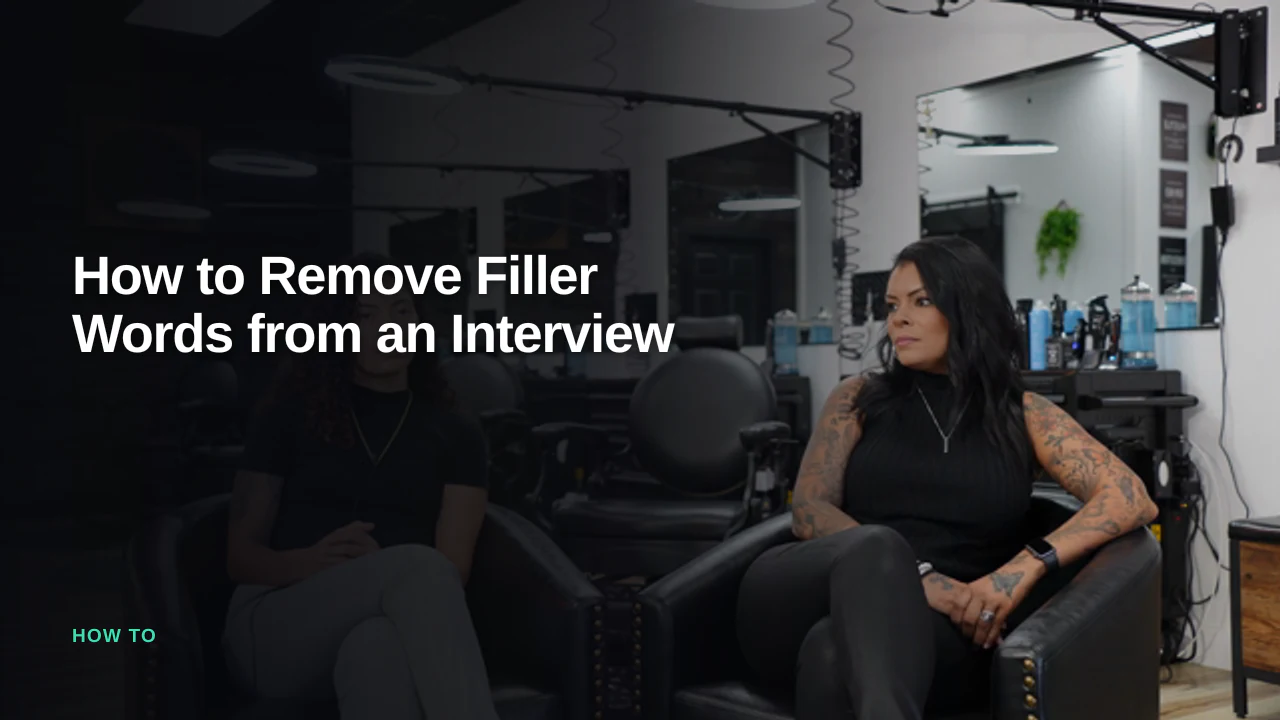
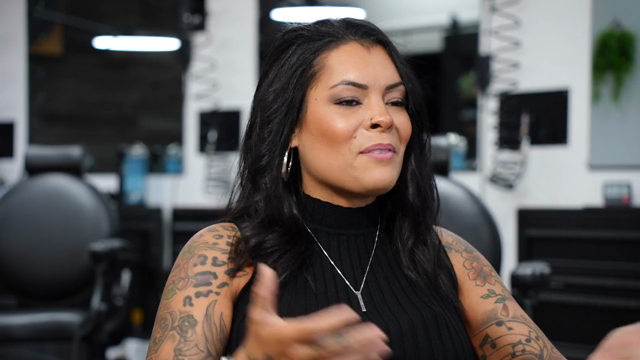
The same shoot as the rest of these guides: three interviews with Jessica Hernandez and her daughter Alizé, who run Simply Men's Barbershop in West Chester, PA.

- 3 interviews, 8:20, 24:59 and 30:38, 1 hour 4 minutes total
- 13,675 words of transcript once processed
- 3 speakers separated automatically, plus interviewers
That word count is the useful number here. 13,675 words is roughly a 55 page script. Reading it for filler is not a task; it is an afternoon.
We are not going to tell you how many "um"s are in it, because we have not counted them and a number we made up would be worth nothing to you.
Step 1: Read before you cut
Filler is addressed by the exact wording in the transcript, so look at the transcript first. Ask for the source list, then the transcript, or search inside one source for a phrase without pulling the whole thing back.
The point of reading first is that filler is not a fixed list. "You know" is filler when it punctuates a sentence and it is not filler in "you know what she told me". Which is why the next step matters.
Step 2: Name the filler, not the timecode
The cut targets text. A phrase like um with occurrence set to all removes every instance in that source in one pass. That is the mode you want for genuine verbal tics: um, uh, like, you know, I mean, and the stutter starts such as I, I think.
Three behaviours are worth knowing, because they are the difference between a tool you can trust with a client's interview and one you cannot:
- Ambiguity stops the cut. If you name a phrase that appears several times and you did not say "all", Eddie returns the list of occurrences with their timecodes and context, and changes nothing. You choose, then it cuts.
- Implausible matches are refused. If the matched span is far longer than the phrase could physically take to say, the cut is rejected with the measured span and the expected maximum. This guard exists because of a real failure: a short phrase once resolved to scattered words across a 30 second stretch, and cutting it would have removed 30 seconds of the interview. It now refuses and tells you to narrow the target.
- Everything is reversible. The same target with restore set un-cuts it. The original media is never touched.
Step 3: Deal with the jump cuts
This is the part most "AI removes filler" claims skip. Cutting words out of the middle of a shot removes time from the picture as well as the audio, so on a single locked-off camera you get a jump cut at every removal. That is fine, and often invisible, for a fast social cut. It is not fine for a sit-down interview intended to look untouched.
Your options, in order of how much work they are:
- Cover with another angle. If the interview is multicam, switch angle on the segments where you cut. Covering a jump cut is the single best use of a second camera. See how to cut a multicam interview or podcast automatically.
- Cover with b-roll. A cutaway over the cut hides it completely.
- Leave it. Jump cuts are a house style now. Own it rather than half hiding it.
There is also the opposite problem: cut too tight and people start talking over each other's breaths. Eddie can put a pause back into a specific spot when a cut lands too close.
Step 4: Know what happened to your existing edits
The one genuinely surprising behaviour, and the one we would rather you read here than discover on a deadline.
Filler cuts apply to the source. They do not retroactively shorten an edit you already built from that source. An edit is a curated snapshot: you chose those soundbites, in that order, and Eddie will not silently re-cut them underneath you.
So the response to a filler cut includes an impact report covering every saved edit that references that source, and flags the ones that still contain material you just removed. Rebuild those, or run the same removal on the edit. The order that avoids the problem entirely: clean the source first, build the edit second.
Captions behave correctly either way. The caption track is built from the edit's transcript with word cuts applied, so a filler you removed does not reappear as a caption word. See how to add captions to a video automatically.
What it will not do
- It will not decide what filler is. There is no "clean this up" button that reads taste. You (or the model, on your instruction) name the words. That is deliberate: an automatic pass that quietly deletes every "like" will eventually delete a real one.
- It does not remove breaths, lip smacks or room tone. This is transcript-driven and works on words. Non-verbal noise is a job for your NLE or your mix.
- It does not fix pacing. Removing filler makes an interview tighter, not better. A rambling answer with the "um"s gone is a rambling answer.
- It does not touch your original files. Nothing is destructive, which is also why you can undo any of it.
FAQ
Does removing filler cost credits? No. Removing content is free, and so is restoring it.
Can I remove one specific "you know" and keep the rest? Yes. Name the surrounding words as context, or pass the occurrence number, or scope the cut to a single transcript segment.
Will the cuts survive into Premiere or Resolve? Yes. Word cuts are part of the edit that gets serialised, so the exported timeline is already tightened. See how to export an AI edit to Premiere Pro, DaVinci Resolve or Final Cut.
Can I do this from ChatGPT or Claude rather than in the app? Yes, over the same MCP connector. See how to edit video with ChatGPT and how to edit video with Claude.
Is there an undo? Yes. Repeat the same target with restore, and the words come back.
Want to try it on the same barbershop interviews rather than your own footage? It is the demo project inside Eddie, open it and prompt it.