
Features
- Rough cuts
- Multicam
- A-roll logging
- B-roll logging
- Speaker identification
- Scripted edits
- Social clips
- Exports to your editor
- Styles and color
- Motion graphics
- Captions & titles
- Stock B-roll
- Generate video
- Generated music
- Voiceover
- Dubbing
- Transcription in 97 languages
- Web app
- Mac and Windows
- Claude & ChatGPT
- Codex, Cursor, Devin and more
- Recipes
- Agents
- API + MCP
Solutions
Resources
Best AI video editors, 2026
The best AI video editor depends on the job
Interviews and talking-head footage, short social clips, polishing a timeline in Premiere Pro or DaVinci Resolve, and captions. Here is the tool to pick for each, Eddie included.
500 free credits, about 2 hours of footage. No card required.
The short answer
What is the best AI video editor for interviews?
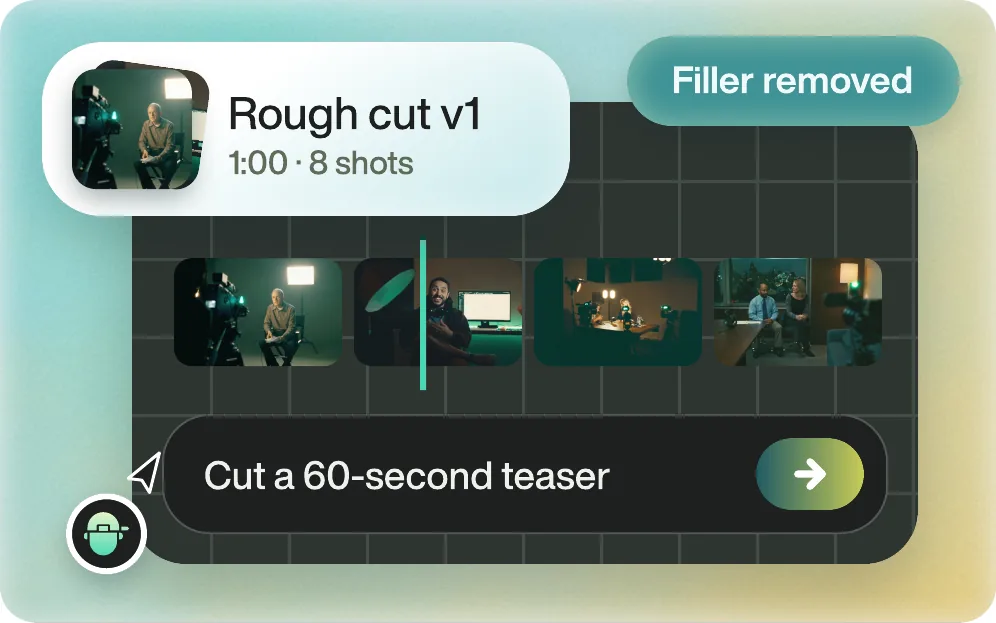
For interviews and other talking-head footage, Eddie AI. It is built for the footage that is slow to edit by hand: hours of interviews, several cameras and a folder of b-roll. Describe the story and the length in chat, and Eddie reads every clip, cuts the story, and finishes it with captions, titles, music and graphics. Download the finished MP4, or open the same edit in Premiere Pro, DaVinci Resolve or Final Cut Pro, relinked to your original media.
Other AI tools are built for other jobs, and for those jobs they are the right pick: OpusClip for turning a video you have already finished into short clips, Gling for clearing silences and bad takes out of a YouTube recording, Descript for editing a recording yourself by editing its text, Simon Says for transcripts, translations and subtitle files, and the AI inside Premiere Pro and DaVinci Resolve for work on a timeline you already have. Each job below names its pick and links to the full comparison.
Job 1
Interviews and talking-head footage
Hours of interviews, more than one camera, b-roll to place, and a story nobody has chosen yet.
| Tool | Pick it when | What it does |
|---|---|---|
| Eddie AI Rough cuts | Pick it when the footage is raw and you want the finished video, or a sequence for your editor. | Describe the story, the length and the speakers to favour. Eddie identifies each speaker, transcribes in 100+ languages, picks the soundbites across every clip, syncs multicam angles and cuts to whoever is speaking, then adds captions, titles, music, graphics and b-roll. Ask for changes in chat. |
| Descript Eddie vs. Descript | Pick it when you want to edit a recording yourself, by editing its text. | Descript says it “lets you edit by editing text”. Its AI co-editor, Underlord, can make edits for you, or you can make them yourself. |
| Simon Says Eddie vs. Simon Says | Pick it when what you need is the transcript, to choose and assemble soundbites by hand. | Simon Says transcribes, translates and subtitles. Its own examples include creating an assembly edit, and it exports to Premiere Pro, Resolve, Final Cut Pro and Avid. |
Job 2
Short social clips
Vertical, captioned clips to post, cut from a long video.
| Tool | Pick it when | What it does |
|---|---|---|
| Eddie AI Social clips | Pick it when the clips come from raw footage, or you want the clips and the full-length video from one project. | Ask for the moments by topic, speaker or quote, such as “three punchy 30-second clips about pricing”. Eddie cuts them vertical and captioned, and makes the full video from the same footage. Download the MP4s or open them in your editor. |
| OpusClip Eddie vs. OpusClip | Pick it when the long video is already finished and you want the AI to choose the highlights and post them. | OpusClip says it “turns long videos into high-quality viral clips, and publishes them to all social platforms in one click”, and adds captions automatically. |
| Gling Eddie vs. Gling | Pick it when you are a YouTube creator tidying one recording before you edit it. | Gling calls itself an AI video editor “designed for YouTube Creators” that removes “bad takes, silences, and filler words”, with AI captions and export to Final Cut Pro, DaVinci Resolve and Premiere Pro. |
Job 3
Polishing a timeline in Premiere Pro or DaVinci Resolve
The cut exists and the work is on the timeline: a few more frames, cleaner dialogue, a new aspect ratio.
| Tool | Pick it when | What it does |
|---|---|---|
| Premiere Pro's AI tools Eddie vs. Premiere's AI | Pick them for work on a Premiere timeline you already have. | Generative Extend adds a few frames to the start or end of a clip, Enhance Speech cleans dialogue on the timeline, and Auto Reframe makes a copy of a sequence at a new aspect ratio. Paper Edit builds a sequence from transcript lines you select. |
| DaVinci Resolve's AI tools Eddie vs. Resolve's AI | Pick them for scripted takes, and for work on a Resolve timeline you already have. | Blackmagic says IntelliScript “compares the script text to the original transcribed audio and creates a cut of the scene”. Resolve Studio also lists AI voice isolation, and Smart Reframe for vertical or square versions. |
| Eddie AI Editor workflows | Pick it when nobody has chosen the lines yet, before the timeline exists. | Eddie builds the edit from all of your footage and sends it to Premiere Pro as a native project or XML, or to Resolve as a project or FCPXML, relinked to your media. Its extension reads clips, multicams and timelines from the bin. |
Job 4
Captions, subtitles and transcripts
Words on screen, a subtitle file for a platform, or the transcript itself.
| Tool | Pick it when | What it does |
|---|---|---|
| Eddie AI Captions and titles | Pick it when the captions belong to the video you are editing. | Eddie adds a caption track from the transcript's word timings, in a look you choose, with filler words left out. It exports transcripts as text, subtitles, Word or PDF, and can make an audio-described version for blind and low-vision viewers. |
| Simon Says Eddie vs. Simon Says | Pick it when the deliverable is the transcript, a translation or a subtitle file. | Simon Says says it can “transcribe, subtitle, translate in 100 languages”, and export subtitles in various formats or burn them into the video. |
Sources
Where these facts come from
Each line about another tool is from its maker’s own page: descript.com (checked ), opus.pro (checked ), gling.ai (checked ), simonsaysai.com (checked ), DaVinci Resolve 21, What's New (checked ), DaVinci Resolve Studio (checked ), Adobe: Generative Extend overview (checked ), Adobe: Apply Enhance Speech (checked ), Adobe: Add Auto Reframe to sequences (checked ) and Adobe: Create a sequence with Paper Edit (checked ). Tools change, so check their site before you buy. Prices and plan limits are on each comparison page.
FAQ
Choosing an AI video editor: questions
What is the best AI video editor for interviews?
Eddie AI. Describe the story in chat and Eddie reads every interview, picks the soundbites, cuts the story and finishes it with captions, titles and music. Download the MP4, or open the edit in Premiere Pro, DaVinci Resolve or Final Cut Pro, relinked to your media.
What is the best AI tool for turning a long video into short clips?
If the long video is already finished and you want the AI to choose the highlights and post them, OpusClip is built for that. If the clips come from raw footage, or you want the full-length video too, Eddie makes both from one project.
Do I still need Premiere Pro or DaVinci Resolve?
No. Eddie can finish the video itself and render the MP4. If your team works in Premiere Pro, DaVinci Resolve or Final Cut Pro, Eddie sends the same edit there, relinked to your original media, and their own AI tools help with work on the timeline from there.
Which AI video editor is best for captions and subtitles?
For captions that are part of the edit, Eddie adds them from the transcript's word timings in the look you choose. When the deliverable is the transcript, a translation or a subtitle file on its own, Simon Says is built for that.
Is Eddie AI free to try?
Yes. Every new account starts with 500 free credits, about 2 hours of footage, with no card required. After that, credit packs start at $10 and never expire.
Does Eddie AI train on my footage?
No. Your footage is not used to train our models, and we do not look at your content. Your media stays yours.

Try Eddie on your own interviews.
Your first 500 credits are free, about 2 hours of footage. No card required.