
Contact salesSign inSign up
PricingGet the appContact salesSign in
Features
- Rough cuts
- Multicam
- A-roll logging
- B-roll logging
- Speaker identification
- Scripted edits
- Social clips
- Exports to your editor
- Styles and color
- Motion graphics
- Captions & titles
- Stock B-roll
- Generate video
- Generated music
- Voiceover
- Dubbing
- Transcription in 97 languages
- Web app
- Mac and Windows
- Claude & ChatGPT
- Codex, Cursor, Devin and more
- Recipes
- Agents
- API + MCP
Solutions
Resources


Edit video with Gemini CLI
Add Eddie with one command, sign in once, and ask Gemini for the edit from your terminal.
Add Eddie with one command
Then run /mcp auth eddie inside Gemini CLI and sign in to your Eddie account in the browser. Gemini CLI keeps the server in its settings.json.
Ask for an edit
Message it like a teammate:
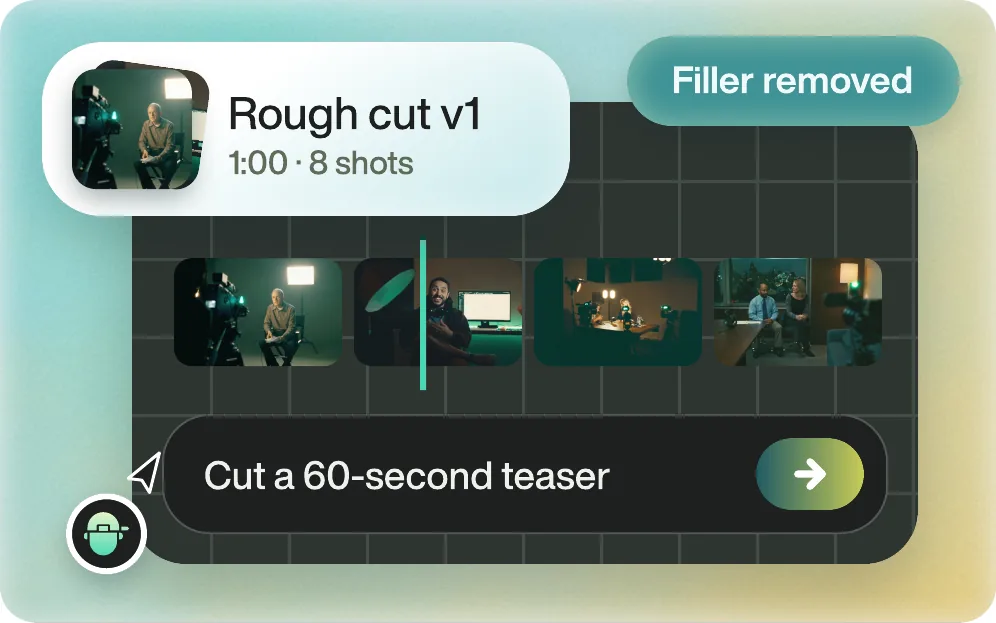
Gemini CLI calls Eddie's tools, builds the edit in your Eddie project and replies with the share link.
- Import your footage in the Eddie app first. Your agent edits what is in your Eddie projects.
- Gemini CLI is for organizations on Gemini Code Assist Standard or Enterprise, or Code Assist for GitHub. Free and Google AI Pro or Ultra accounts moved to Antigravity CLI on June 18, 2026.
- Sign in with your Eddie account when asked. There is no key to paste. New accounts get 500 free credits. Connector details
About Gemini CLI: from Gemini CLI docs: MCP servers, Gemini CLI README, checked Nov 17, 2026. The Eddie connector URL is https://mcp.heyeddie.ai/api/mcp.
Other agents
Eddie works in these too


Coding agents



From raw footage to finished edit.
Start with one prompt. Your first 500 credits are free.
Get started for free500 free creditsBook a demo