English · Audio description
Make an extended audio-described version
You need a version of your video that blind and low-vision viewers can follow. Eddie writes and voices the descriptions, pauses the picture where the dialogue leaves no room, and gives you a new edit to export.
Step by step
Step 01
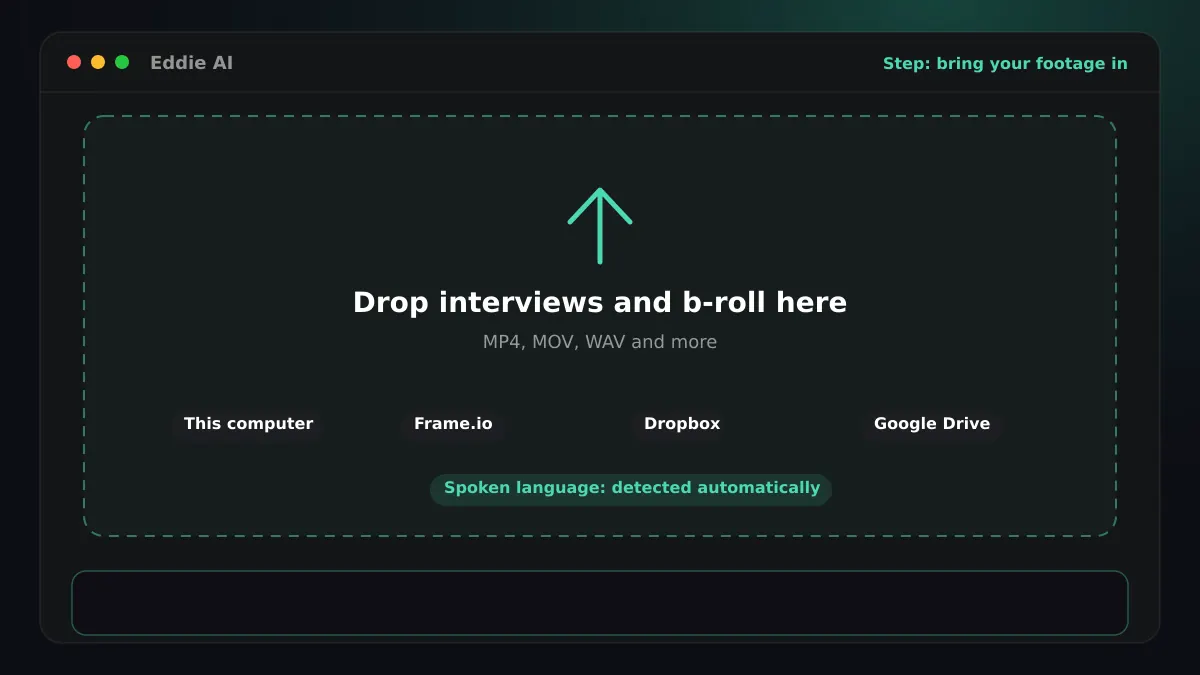
Bring your English interviews in
- You ask
- Upload the interviews, or add them from Frame.io, Dropbox, Google Drive or your editor's bin.
- Eddie does
- Eddie imports the interviews and any b-roll, from the browser or from the desktop app, which also reads bins in Premiere Pro, DaVinci Resolve and Final Cut Pro. It analyses every file before you can prompt, so no edit is built on half the footage.
- You get
- One project with every source, analysed and searchable.
Step 02
Transcribe the English
- Eddie does
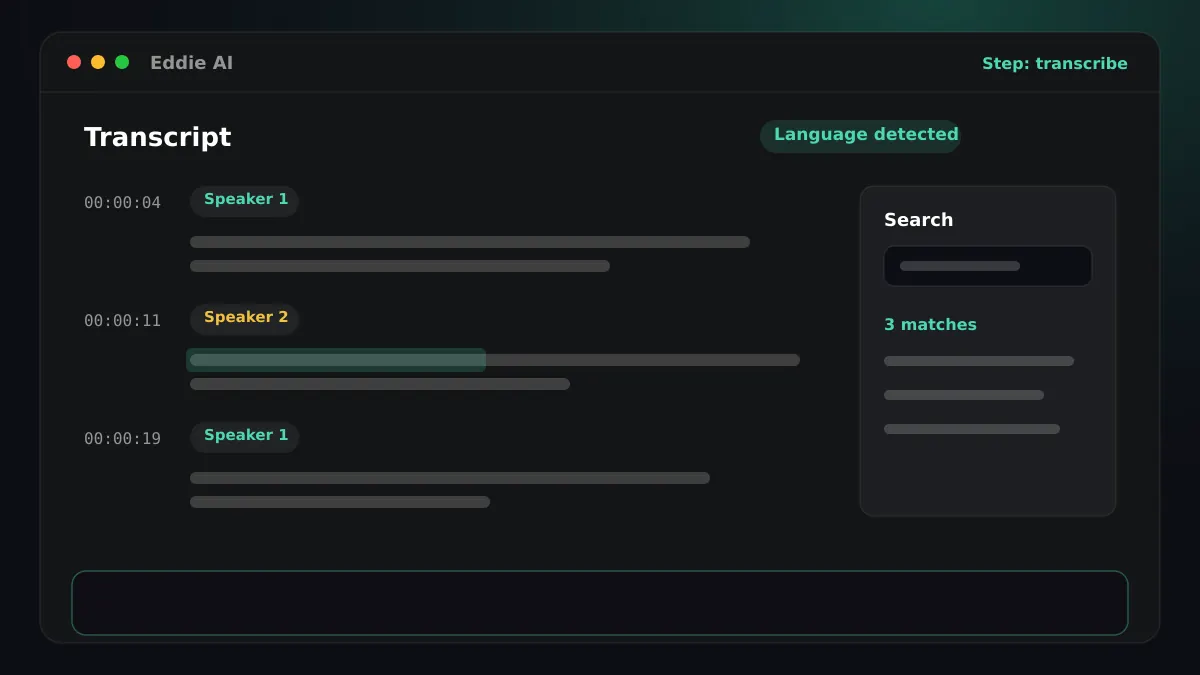
- Eddie detects English on its own, so you do not have to choose it. If an interview switches between languages, Eddie detects that too. British, Indian, Australian and other English accents are transcribed as English. It labels the speakers and keeps a timing for every word.
- You get
- An English transcript in Latin script that you can search and cut from. Ask Eddie to fix a misheard name everywhere it appears, or to rename “Speaker 1”, and every word keeps its timing.
Step 03
Ask for the audio description
- You ask
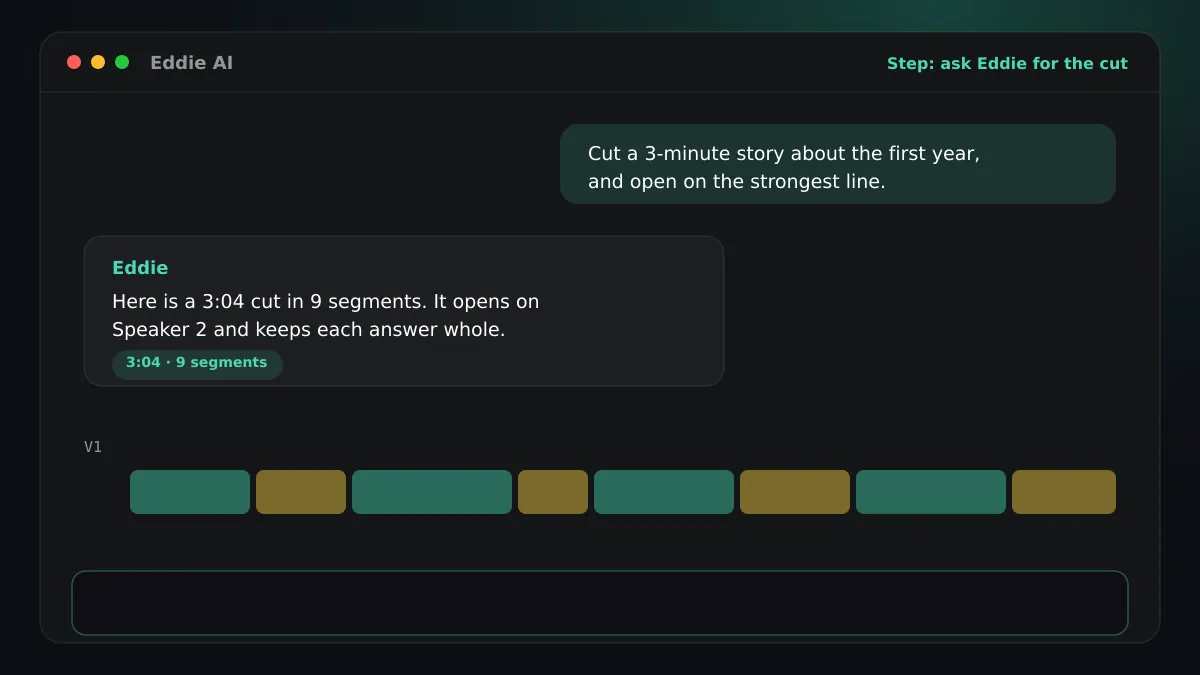
- “Make an extended audio description of this edit with the female voice.”
- Eddie does
- Eddie quotes the price first and starts nothing. When you confirm, it describes what is on screen in each gap in the speech. A single video needs no edit first.
- You get
- A price, then a job that finishes a few minutes later.
Step 04
Eddie writes, voices and places the descriptions
- Eddie does
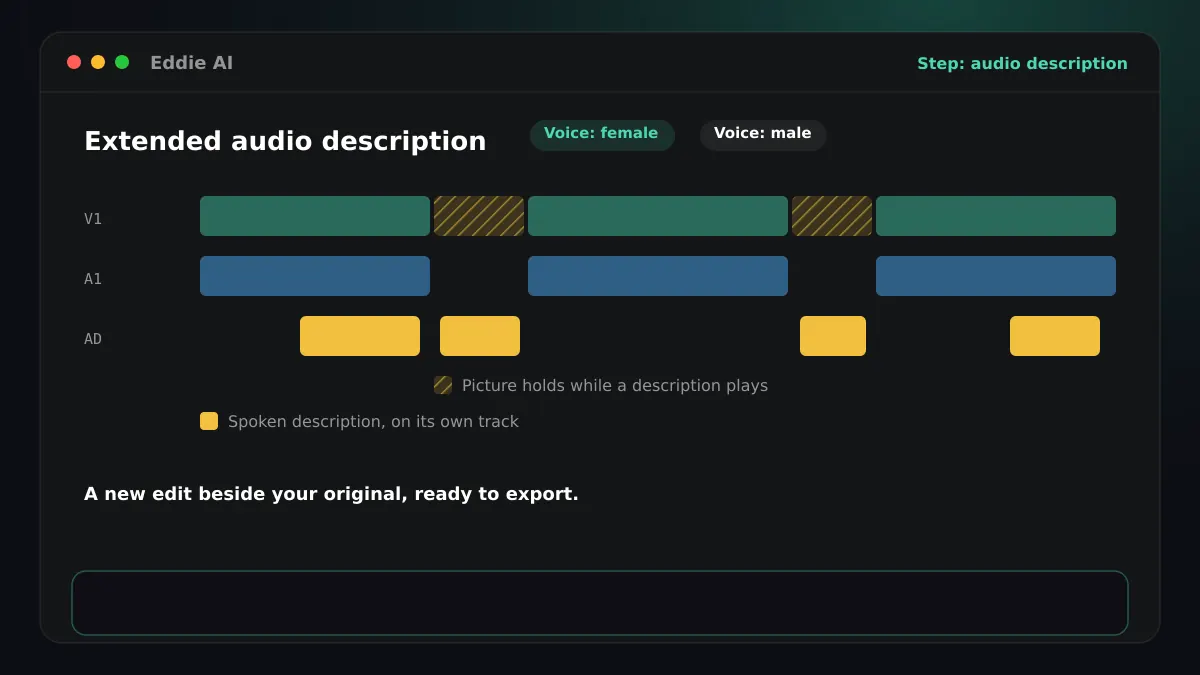
- Each description is spoken in a female or male voice and placed on the voice-over track. In extended mode, the picture holds on a still frame wherever a description needs more time than the gap allows. Standard mode uses only the existing pauses.
- You get
- A new edit named after the original with “(extended AD)”. The original is not changed.
Step 05
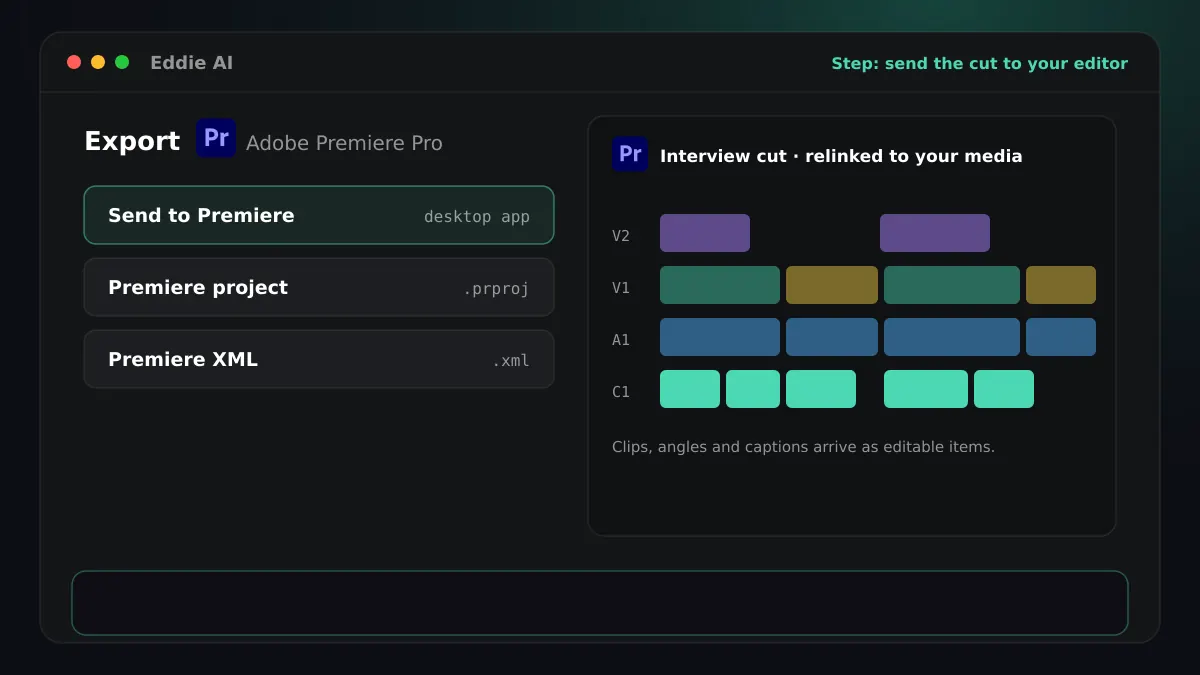
Export it like any edit
- You ask
- “Export the described version as an MP4.” Or ask for an MP3 of the described soundtrack.
- Eddie does
- The described edit exports to MP4 or to your editor like any other edit. Add music after the description, so it plays as one bed under the whole edit, pauses included.
- You get
- An audio-described MP4 or timeline, or an MP3 of the soundtrack.
Good to know for English
Extended or standard
Extended is the default: it pauses the picture where speech leaves no room. Standard fits descriptions into the existing pauses only.
English only, for now
The description timing is measured on English speech and the checks are English rules, so audio description is offered for English programmes.
Finish English edits in your editor



Questions
- What does it cost?
- Credits per minute of the edit, quoted before anything starts and refunded in full if the job fails. The added pauses are free.
- Which voices are there?
- A female voice and a male voice. The female voice is the default.
- Can I edit the descriptions?
- Yes. Each description is an ordinary voice-over clip in a new edit, so you can trim, move or remove it.
Related guides
Also from Europe
Try it on your own footage
Make an audio-described version of your next video.