Bulgarian · Captions
Add Bulgarian captions you can still edit
You want Bulgarian captions that look designed, and you want to keep adjusting them in your editor. Eddie builds them from the word timings and carries them into each editor in the form that editor can change.
Step by step
Step 01
Bring your Bulgarian interviews in
- You ask
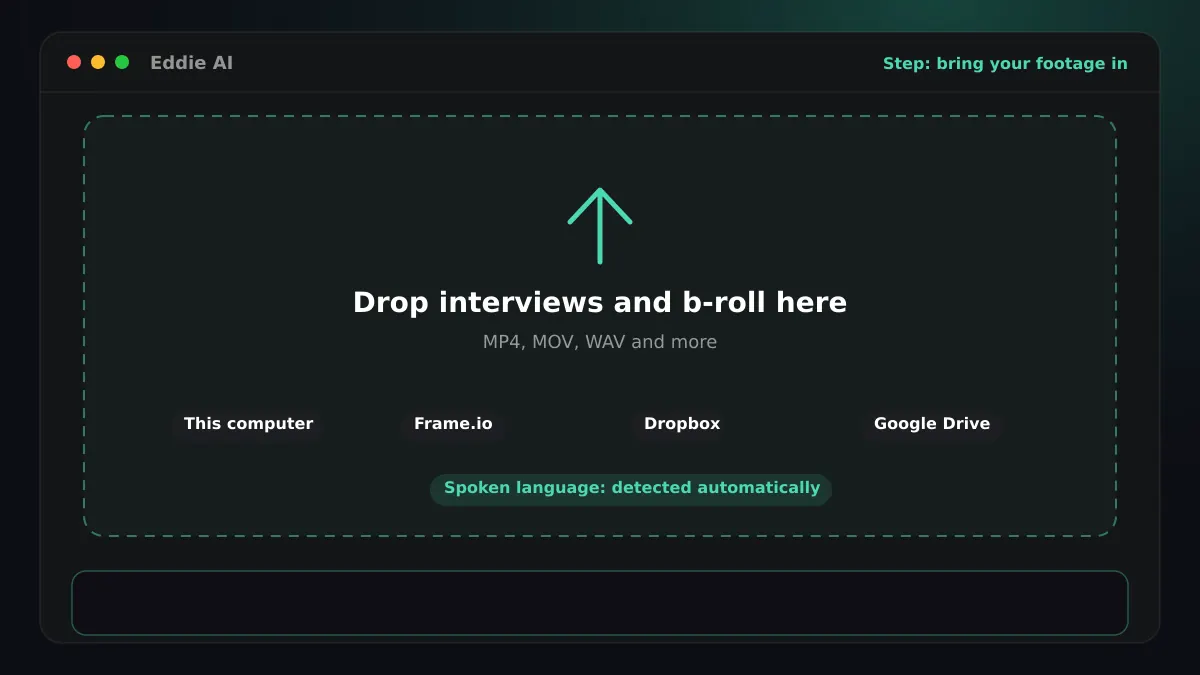
- Upload the interviews, or add them from Frame.io, Dropbox, Google Drive or your editor's bin.
- Eddie does
- Eddie imports the interviews and any b-roll, from the browser or from the desktop app, which also reads bins in Premiere Pro, DaVinci Resolve and Final Cut Pro. It analyses every file before you can prompt, so no edit is built on half the footage.
- You get
- One project with every source, analysed and searchable.
Step 02
Transcribe the Bulgarian
- Eddie does
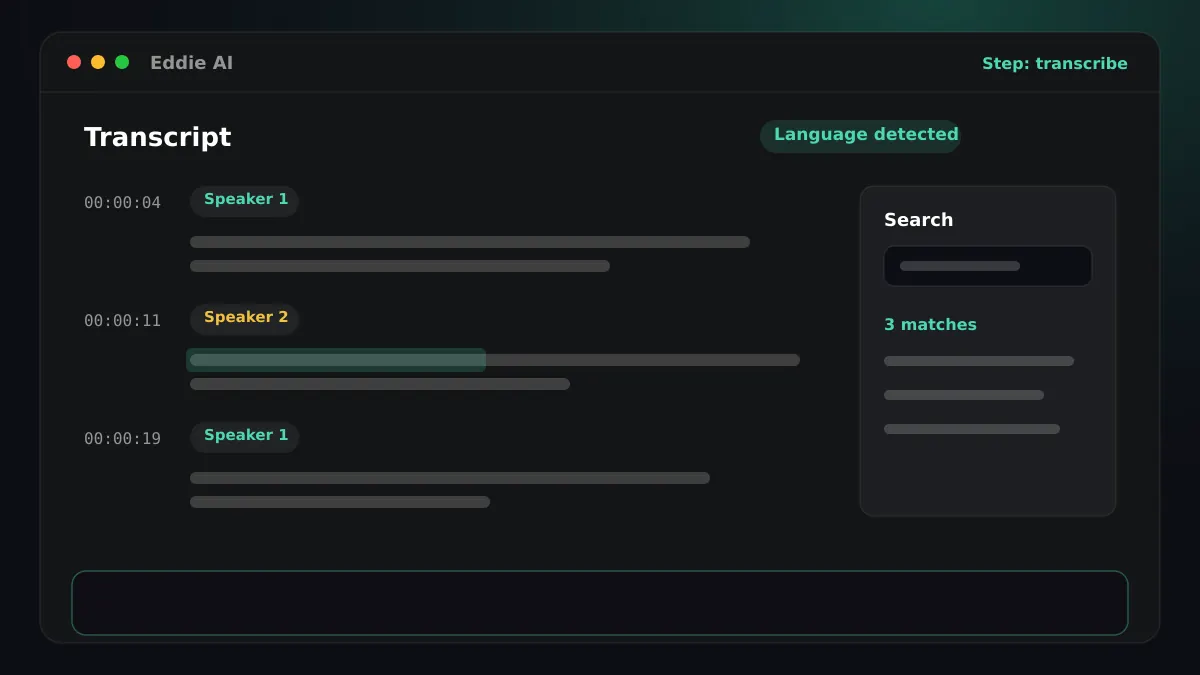
- Eddie detects Bulgarian on its own, so you do not have to choose it. If an interview switches between languages, Eddie detects that too. It labels the speakers and keeps a timing for every word.
- You get
- A Bulgarian transcript in Cyrillic script that you can search and cut from. Ask Eddie to fix a misheard name everywhere it appears, or to rename “Speaker 1”, and every word keeps its timing.
Step 03
Ask Eddie for the cut
- You ask
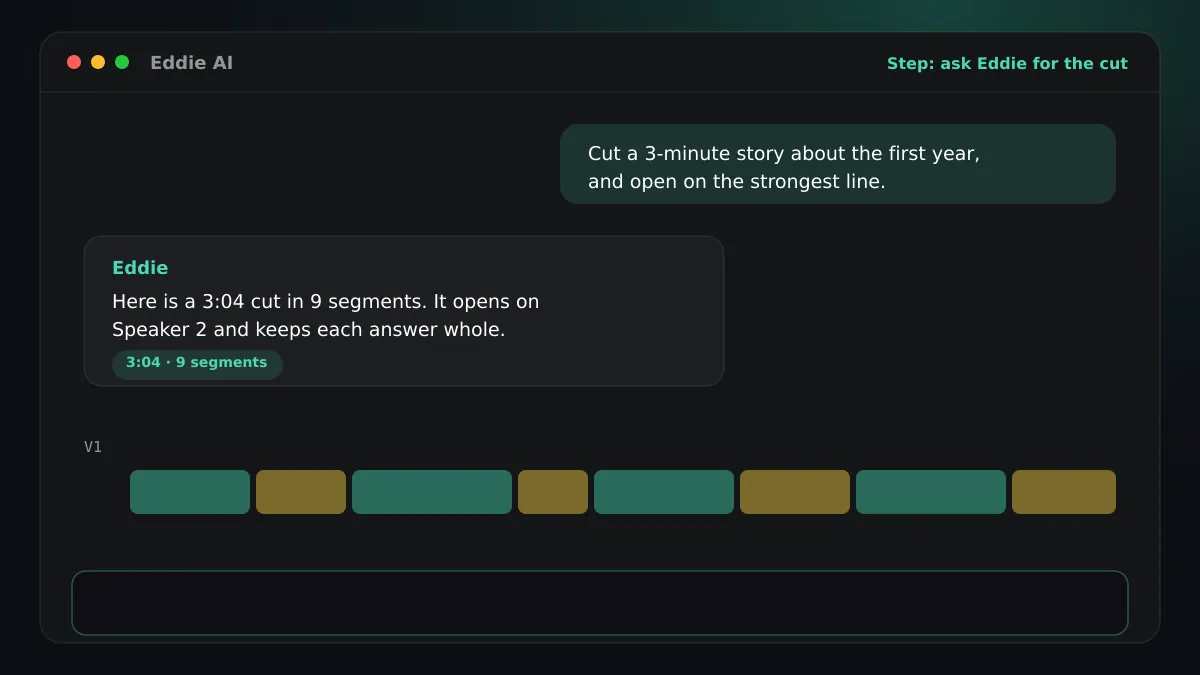
- “Cut a three-minute story about how the company started, and open on the strongest line.”
- Eddie does
- Eddie reads the Bulgarian transcript, picks the soundbites that answer your brief, proposes a story structure and builds the edit beat by beat. It tells you the finished length against your target. You can prompt in English about footage in any language.
- You get
- A rough cut you can watch, trim, reorder and refine in plain words.
Step 04
Add Bulgarian captions
- You ask
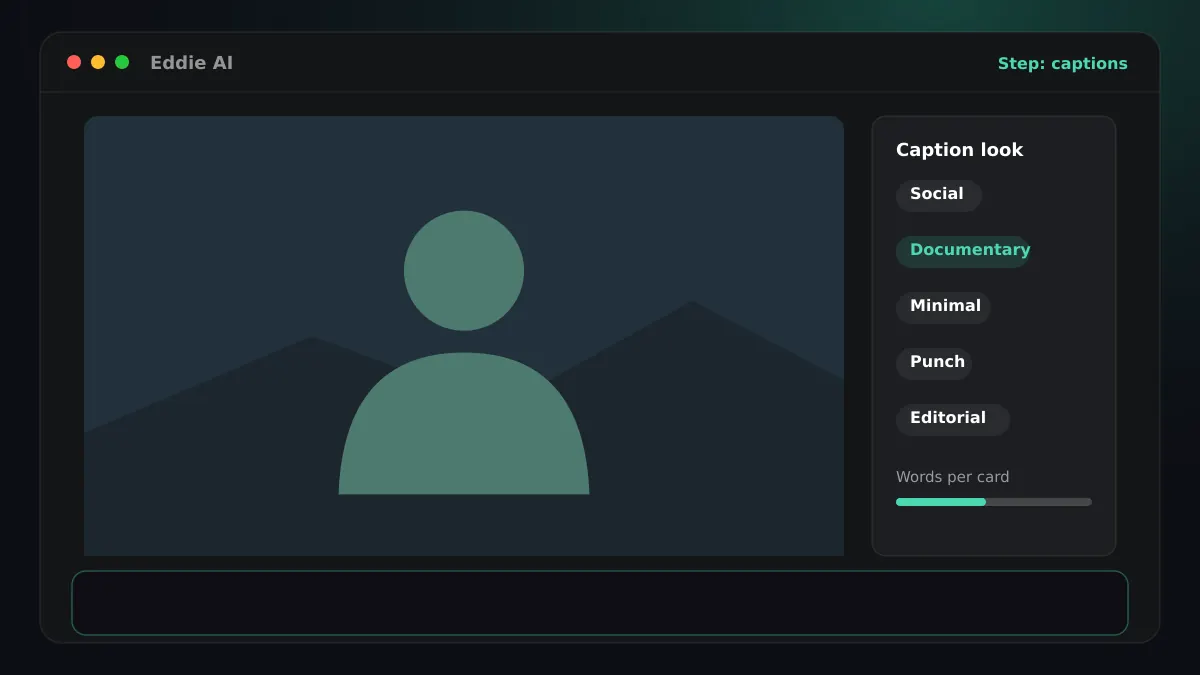
- “Add documentary captions, two lines at the bottom.”
- Eddie does
- Eddie builds the captions from the Bulgarian word timings, in one of five looks: social, documentary, minimal, punch or editorial. Filler words are left out of the caption text by default. Captions are the spoken words, never a translation.
- You get
- Captions in the player, ready to burn into an MP4 or carry into your editor, plus free SRT and VTT files. Bulgarian captions burn into the MP4 on the cloud export and on the desktop app's local export.
Step 05
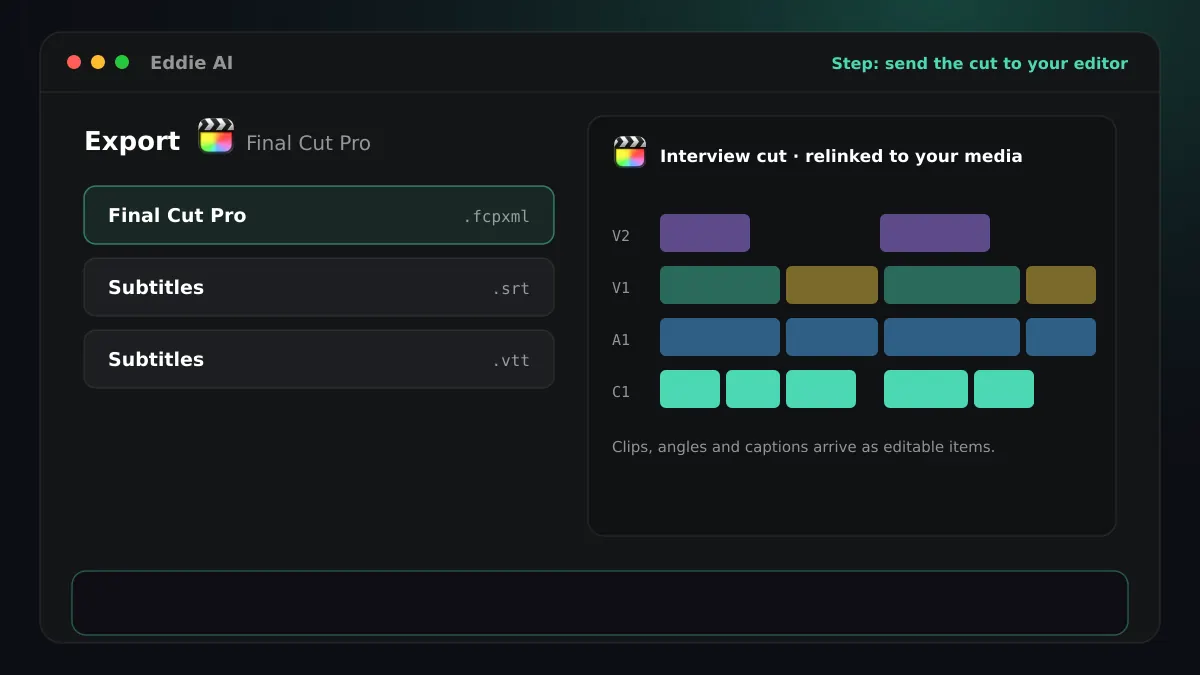
Carry the captions into your editor
- You ask
- “Export this edit for Final Cut Pro.”
- Eddie does
- Premiere: A Premiere project (.prproj) carries the captions on a caption track, in the caption font, size, position and colours. Premiere XML carries none, so add the free SRT file instead. Resolve: A Resolve project (.drp) puts the captions on a subtitle track. A Resolve FCPXML carries each caption card as its own title, with the caption font, size, colour and position. Final Cut: The FCPXML carries each caption card as its own connected Basic Title, with the caption font, size, colour and position, so you can restyle any card. The editing Mac needs the caption font installed. Media Composer: Captions do not travel inside the AAF. Download the SRT or VTT file for the caption step in Media Composer.
- You get
- Bulgarian captions as editable items in your editor, or a sidecar file where a format has none.
Good to know for Bulgarian
The script
Bulgarian is written in Cyrillic script.
Speaker colours
Give each speaker a caption colour. It shows in the player and the MP4, and an FCPXML carries it on each caption title.
Finish Bulgarian edits in your editor

Questions
- Which caption looks are there?
- Five: social, documentary, minimal, punch and editorial. Each one can be adjusted for words per card, style, colours, size and position, and changing the look is free.
- Will the word highlight survive in my editor?
- No. Editor files carry the text, timing, font, size, colour and position. The word highlight, the background band and the entrance motion stay in Eddie's player and MP4.
- Do I have to tell Eddie the interview is in Bulgarian?
- Eddie detects Bulgarian on its own, so you do not have to choose it. If an interview switches between languages, Eddie detects that too.
- Can Eddie translate Bulgarian captions into another language?
- No. Captions are always the spoken words, verbatim. Translating what the edit says is dubbing, which is a separate feature.
- Can Eddie make an audio-described version in Bulgarian?
- Not yet. Eddie's audio description is built and measured for English speech, so it is offered for English programmes only.
Related guides
Also from Europe
Try it on your own footage
Caption one Bulgarian interview and open it in your editor.