How-to guidesVlogs
How to Edit Vlogs
A vlog lives or dies on pace. Viewers forgive a soft shot; they leave during a ten-second pause while you find your words. This guide takes a day of mixed clips, some to camera and some of the world around you, and turns them into a tight vlog with clean sound.
The short answer
Put your talking-to-camera clips in story order, cut every pause and false start, and cover the jumps with the b-roll you shot along the way. Then fix what handheld footage always needs: shaky shots and wind noise. Finish with captions and a music bed. In Eddie you upload the day's clips, describe the story, and ask for each of those fixes in plain words.
What you will end up with
- A vlog that tells the day in order, with the pauses and retakes gone.
- B-roll over the cuts, so the jumps in your talking clips are hidden.
- Steadier handheld shots and voice audio without wind or hum.
- Captions for people watching with the sound off, and a music bed under the quiet parts.
Step by step
Step 1
Add the day's clips
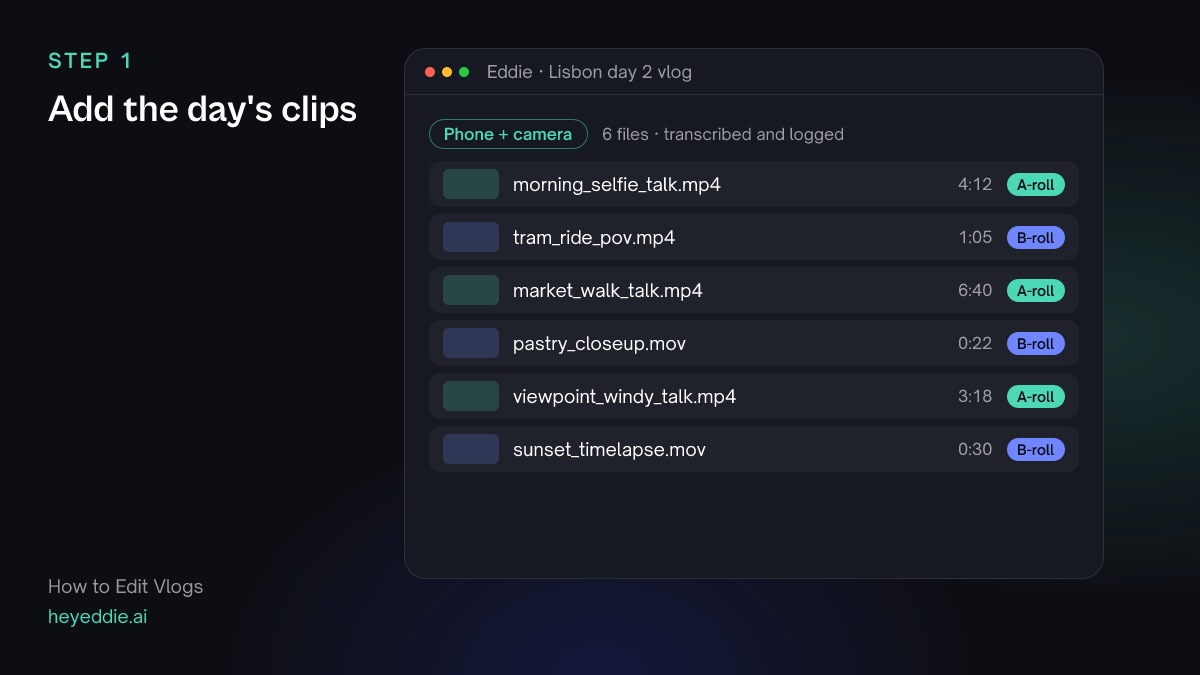
Upload everything you shot, phone and camera clips together, or pick the folder from Google Drive or Dropbox. Do not sort them first. Eddie transcribes every clip where you talk and describes every clip where you do not.
What Eddie does
- Transcribes your talking clips and splits them from your b-roll.
- Describes each b-roll clip, such as "tram interior, window light" or "close-up of pastries on a tray".
What you get: A searchable project: you can ask for "the bit where I talk about the tram" instead of scrubbing.
Step 2
Describe the story and the length
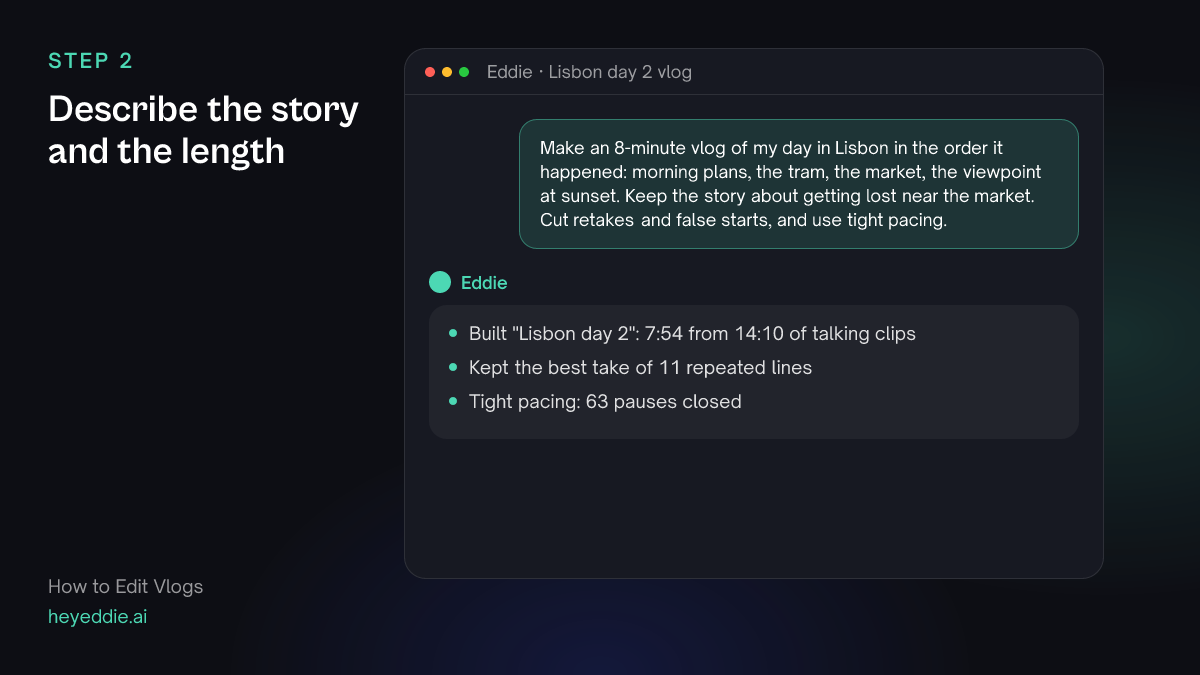
Tell Eddie the shape of the day and how long the vlog should be. Name the moments you want kept. Ask for tight pacing: a vlog should close almost every pause.
What you type “Make an 8-minute vlog of my day in Lisbon in the order it happened: morning plans, the tram, the market, the viewpoint at sunset. Keep the story about getting lost near the market. Cut retakes and false starts, and use tight pacing.”
What Eddie does
- Reads every talking clip and keeps the best take of each line you repeated.
- Builds the edit in the order you described, with tight pacing that closes most pauses.
- Reports how long the cut is and how much of your footage it used.
What you get: A first cut that already plays like a vlog, not like raw footage.
Step 3
Cover the jump cuts with b-roll
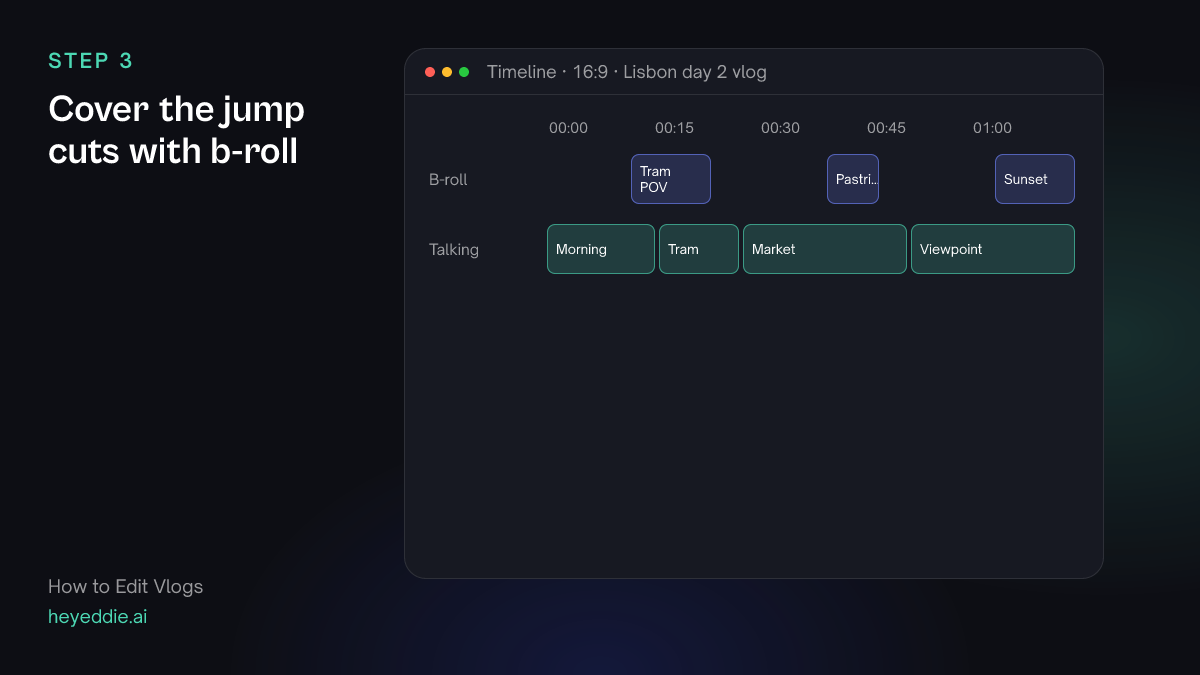
Tight pacing leaves jump cuts. Some are fine in a vlog; too many feel choppy. Put the shots you took of the places over the cuts where you talk about them.
What you type “Cover the jump cuts with my b-roll where it matches what I am talking about: the tram footage over the tram story, the pastry close-up over the market. If nothing of mine fits a moment, find stock footage instead.”
What Eddie does
- Places your own b-roll over the matching lines first.
- Searches stock footage for the gaps, and can generate a shot if stock has nothing. It quotes the credits before it places or generates anything.
What you get: Cuts that flow, with the place on screen while you talk about it.
Step 4
Fix the shaky shots and the wind
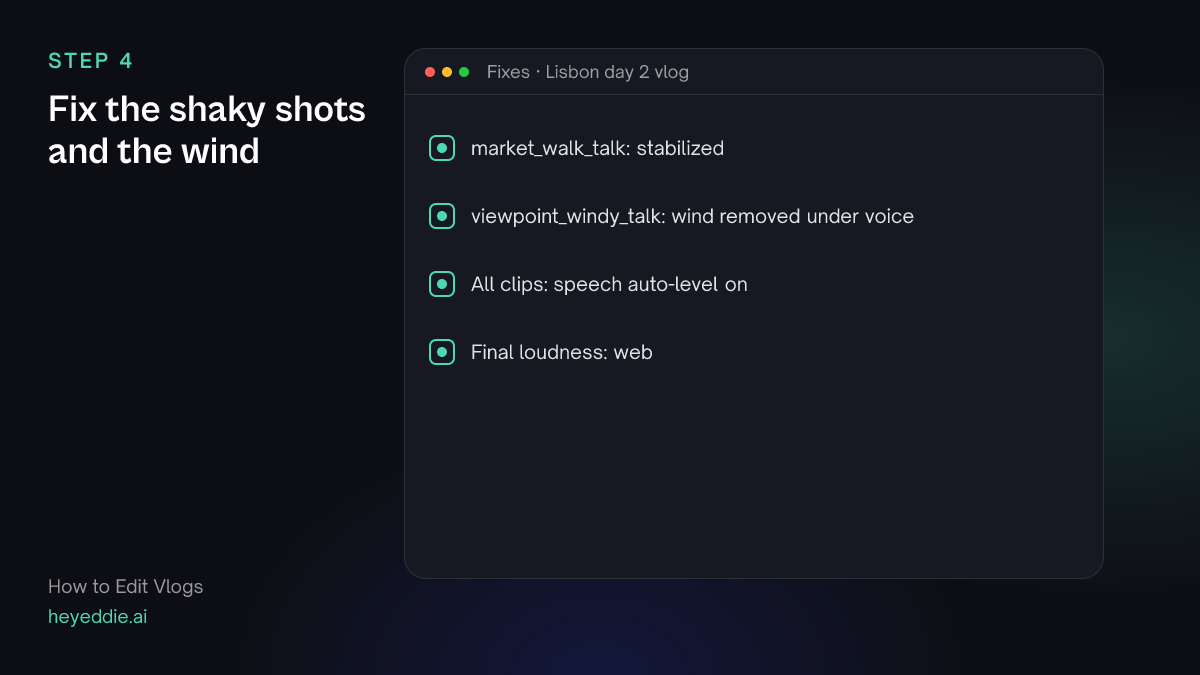
Handheld vlog footage is shaky, and outdoor audio carries wind. Ask for both fixes by naming the clips.
What you type “Stabilize the market walk, remove the wind from the viewpoint clip, and level my voice so every clip sounds the same volume.”
What Eddie does
- Stabilizes the clip you named and reuses the steady version in later edits.
- Runs a voice-isolation model on the windy clip to take the wind out from under your voice.
- Brings each clip's speech to one level before the mix.
What you get: Footage you can watch on a big screen, and a voice that does not jump in volume between clips.
Step 5
Add captions and music
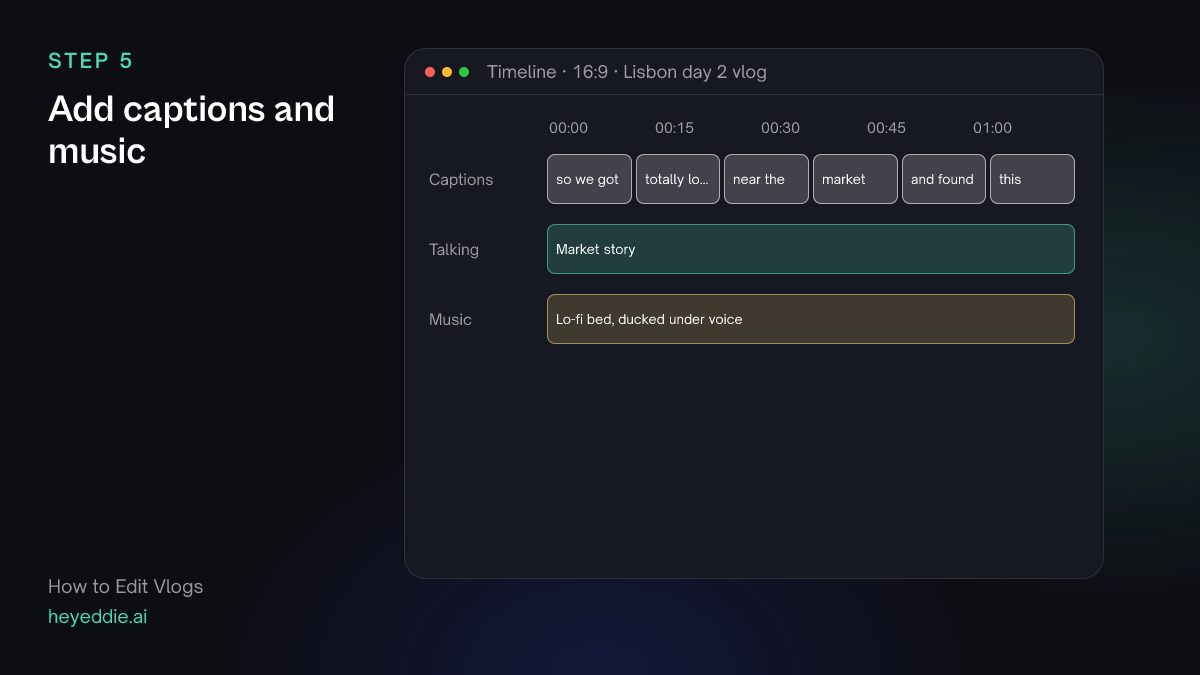
Many people watch vlogs on a phone with the sound off. Captions keep them. A soft music bed fills the b-roll moments where nobody talks.
What you type “Add social-style captions, three or four words at a time, near the bottom, and put a relaxed lo-fi track under the whole vlog, ducked under my voice.”
What Eddie does
- Times the captions from your words and leaves out filler words like um.
- Attaches the track and lowers it automatically whenever you speak.
What you get: A finished vlog that works with or without sound.
Step 6
Export it
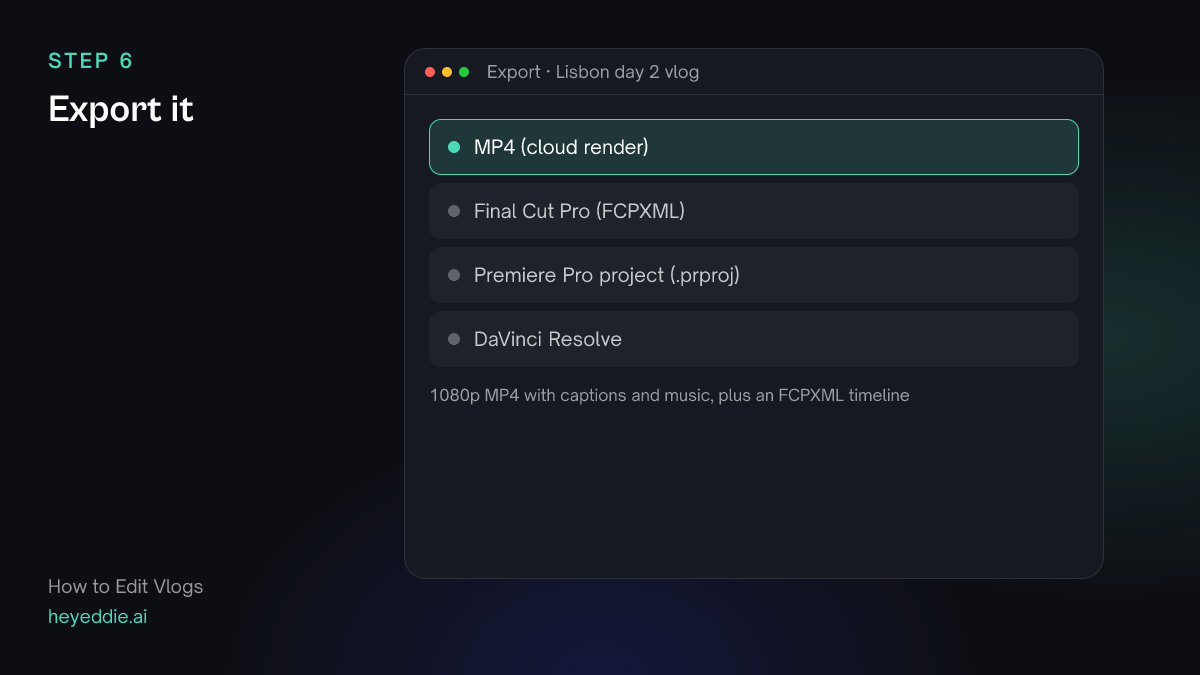
Download a finished MP4 to upload, or send the edit to your editing app if you like to do the last polish there.
What you type “Export the vlog as a 1080p MP4, and also as a Final Cut Pro timeline.”
What Eddie does
- Renders the MP4 in the cloud with captions and music mixed in.
- Writes an FCPXML that opens in Final Cut Pro as a timeline pointing at your original clips.
What you get: A file ready to upload, and an editable timeline if you want it.
What makes it work
- Say what happened while you film
- A line like "we just got off the tram" gives the edit something to hang the next scene on. It also gives Eddie words to find when you ask for that moment.
- Shoot more b-roll than you think
- Ten seconds of the place for every minute of talking is a good minimum. B-roll is what lets you cut your talking clips hard without the edit feeling choppy.
- Keep one mistake
- A vlog that removes every stumble can feel like an advert. If a mistake is funny or human, ask Eddie to keep it: "Keep the moment I drop the pastry."
- Fix audio before you add music
- Music hides nothing; it just competes. Clean the wind and level the voice first, then add the bed.
Questions
- Can Eddie edit vlogs shot on a phone?
- Yes. Phone clips import like any other video. Mixed frame rates and orientations are fine, and Eddie can rotate a clip that was filmed sideways.
- Does Eddie remove filler words and pauses?
- Tight pacing closes the pauses between lines. Captions leave filler words out by default. To cut particular words or lines from the audio, name them and Eddie marks them as removed.
- Can I make a short vertical version too?
- Yes. Ask for a 9:16 cut of the best minute, and Eddie builds it as a separate edit with a vertical canvas and a crop that follows your face.
- What if I forgot to film b-roll of something?
- Eddie can search stock footage for it, or generate a short shot when stock has nothing that fits. It always quotes the credits before it generates.