How-to guidesProduct videos
How to Edit Product Videos
A product video has a short script and lots of pictures: detail shots, the product in use, maybe a founder talking. The edit has to make each feature obvious in a few seconds. This guide works for launch videos, product pages, crowdfunding campaigns and ads.
The short answer
Lead with the problem the product solves, then show three features, each with a close detail shot and a short line of voice-over, and end on the product with a call to action. Add a callout graphic for each feature and keep the music light. In Eddie you write the voice-over lines, ask for the shots to match them, then add the callouts, music and an export in the size you need.
What you will end up with
- A 45 to 90 second video structured problem, three features, call to action.
- A voice-over, from your own recording or generated from your script.
- A callout graphic on each feature, in your brand style.
- A 4K master and social cutdowns.
Step by step
Step 1
Import the shots
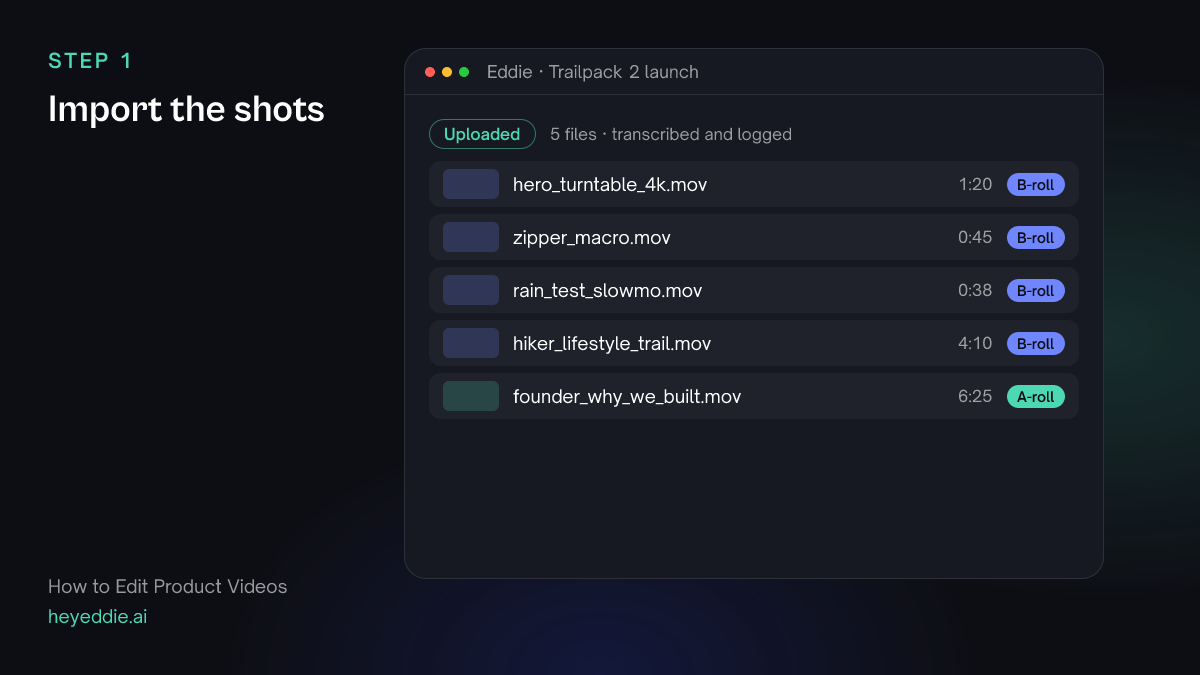
Upload the detail shots, the lifestyle footage and any founder interview. Clear names help, but Eddie also describes every shot, so you can ask for "the zipper close-up" whatever the file is called.
What Eddie does
- Logs each product shot by what it shows.
- Transcribes the founder interview.
What you get: A shot library you can ask for by feature.
Step 2
Lay the voice-over
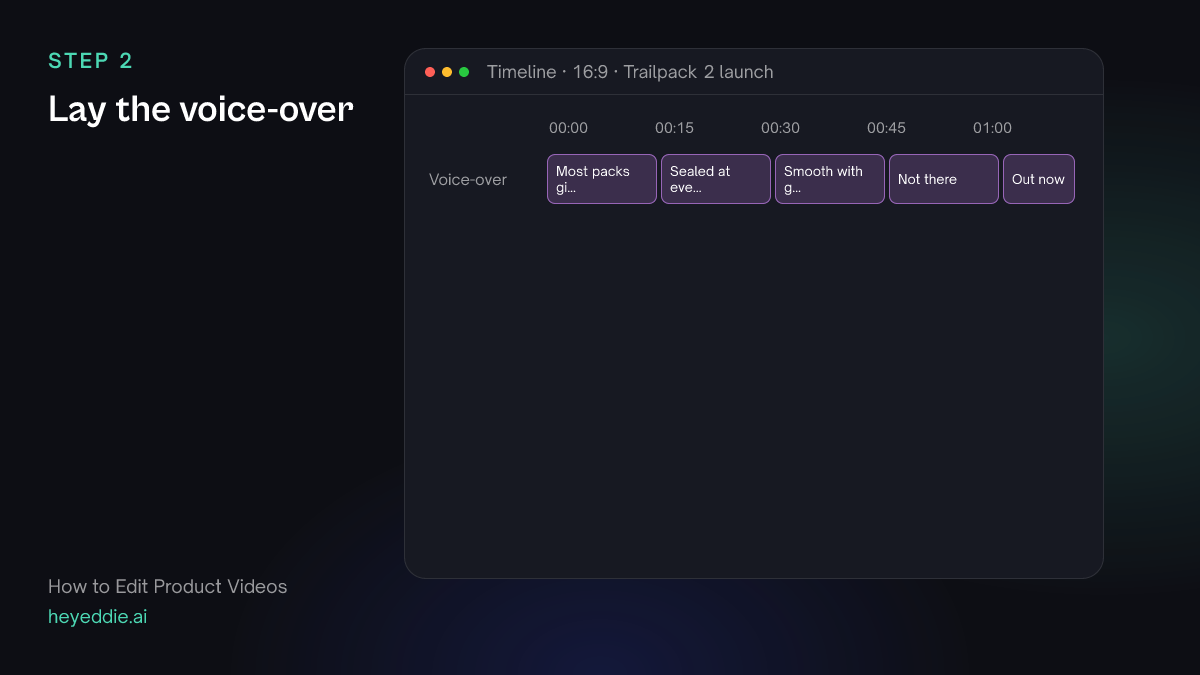
Write the script line by line. Use a recorded voice-over if you have one; otherwise Eddie can generate one from your lines and place each line where you want it.
What you type “Generate a voice-over in a warm, confident voice with these lines, one after another from the start: "Most packs give up when the weather turns." "Trailpack 2 is sealed at every seam." "The zip runs smooth with gloves on." "And it carries like it is not there." "Trailpack 2. Out now."”
What Eddie does
- Picks a voice that fits the description, or refuses with the reason if no voice fits, before anything is charged.
- Generates each line and places it on the voice-over track.
What you get: A timed voice-over to cut the pictures to.
Step 3
Match the shots to the lines
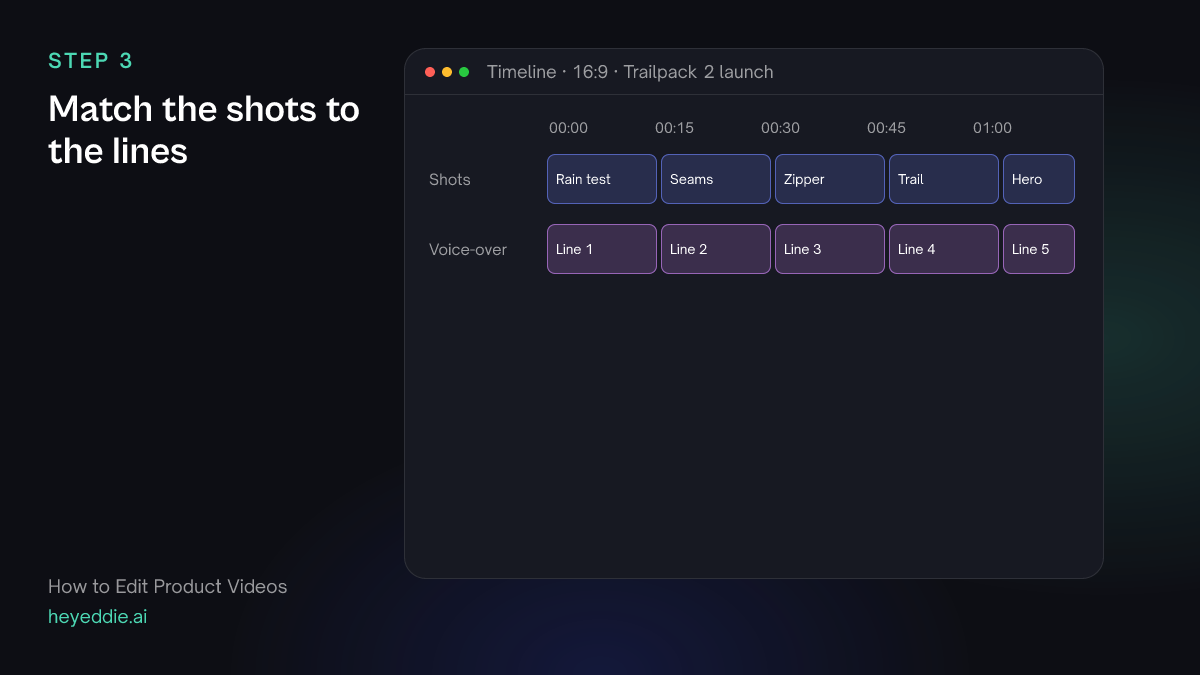
Each line gets the shot that proves it. Ask by feature, and Eddie finds the shot from its log.
What you type “Under the voice-over, show the rain test for the weather line, the seams close-up for the sealed line, the zipper macro for the zip line, the hiker on the trail for the carry line, and end on the turntable hero shot.”
What Eddie does
- Builds a sequence of your shots in the order of the lines.
- Trims each shot to the length of its line.
What you get: Pictures that prove every claim as it is said.
Step 4
Add callouts, music and polish
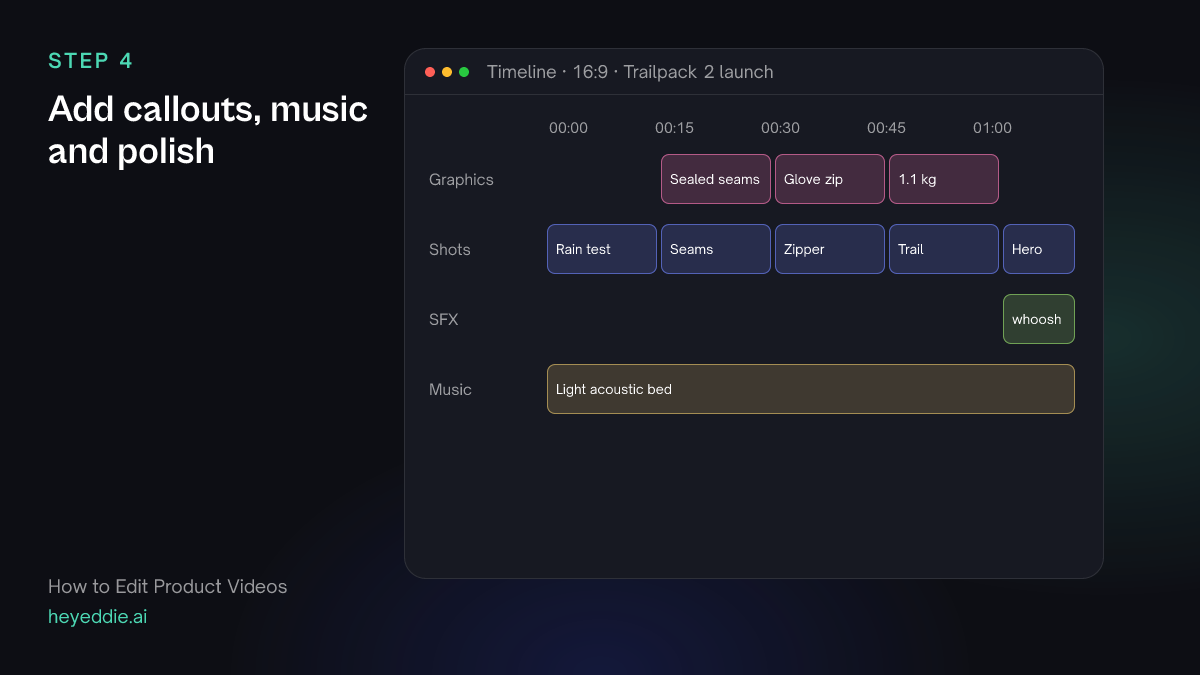
A short callout names each feature for viewers with the sound off. A light music bed and a soft background blur on the founder shot finish the look.
What you type “Add a stat callout "Sealed seams" on the seams shot, "Glove-friendly zip" on the zipper shot and "1.1 kg" on the trail shot, in our brand style. Add a light acoustic bed ducked under the voice, and a whoosh on the cut to the hero shot.”
What Eddie does
- Adds callout graphics from its template set in your style pack.
- Attaches or generates the music, ducked under the voice.
- Places a sound effect at the cut you named.
What you get: A finished product video that reads with or without sound.
Step 5
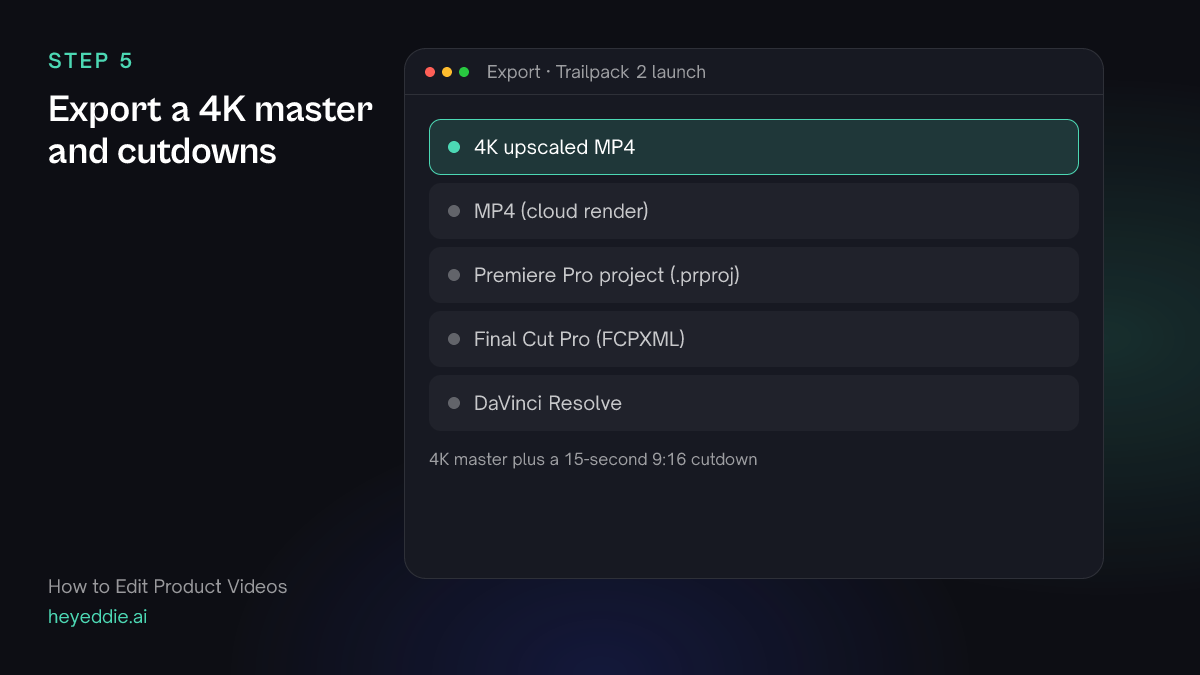
Export a 4K master and cutdowns
Product pages benefit from a sharp master. Make a 15-second cutdown for ads from the same edit.
What you type “Export the video as a 4K upscaled MP4, and make a 15-second vertical cutdown with only the rain test, the zipper and the hero shot.”
What Eddie does
- Quotes the credits for the 4K upscale, then delivers one 4K file of the whole edit when you confirm.
- Builds and renders the vertical cutdown.
What you get: A 4K master and an ad-length vertical version.
What makes it work
- One claim per shot
- If a shot cannot prove the line over it, change the line or find a better shot. Viewers believe what they see.
- Write the script short
- A product video line should fit in three seconds. If it does not, it is two lines.
- Shoot details in 4K
- Close detail shots are where viewers judge quality. Shoot them at the highest resolution you can and keep the master sharp.
- Keep the brand consistent
- Use one style pack for every callout so the video looks like your product page and your ads.
Questions
- Can Eddie write the voice-over for me?
- Eddie speaks the lines you write, in a voice you choose, and places them on the timeline. Write the script yourself, or draft it with Eddie in the conversation and approve it first.
- What if I do not have a shot for a feature?
- Eddie can search stock footage, or generate a short b-roll shot when your footage and stock have nothing that fits. For product claims, use real footage of your product.
- Can I add a founder talking to camera?
- Yes. Add an interview to the project and ask for a line from it at the start or the end. Eddie can blur the background behind the speaker for a cleaner look.
- Can I make several versions for ads?
- Yes. Ask for each version as its own edit, such as 30 seconds, 15 seconds and vertical, and export them together.