
Features
- Rough cuts
- Multicam
- A-roll logging
- B-roll logging
- Speaker identification
- Scripted edits
- Social clips
- Exports to your editor
- Styles and color
- Motion graphics
- Captions & titles
- Stock B-roll
- Generate video
- Generated music
- Voiceover
- Dubbing
- Transcription in 97 languages
- Web app
- Mac and Windows
- Claude & ChatGPT
- Recipes
- Agents
- API + MCP
Solutions
Resources

How to Edit Nonprofit Videos
Nonprofit video carries a responsibility other video does not. The people in it often trusted you at a hard moment of their lives, and the film will be seen by donors, funders and their own neighbours. A good edit shows them as people, not as a need, and shows only what they agreed to. This guide covers impact films, annual-report videos, gala screenings and the short appeals that go out with a fundraising email.
The short answer
A nonprofit video shows the change your work makes through one person's story, told in their own words and with their informed consent, then asks the viewer to do one thing. Build an impact film of two to three minutes around that story, add one number that shows the scale of the work, and end on a clear ask. Then cut 30 to 60 second appeals for email and social. Eddie finds the moments in the interviews, builds the story to length, blurs faces and details you must not show, adds captions and the ask, and makes the short versions.
The deliverables
What you will end up with
- A two-minute impact film built around one person's story, with what they agreed to written on the files.
- Faces and private details blurred wherever the consent does not cover them.
- Captions, one number on screen and an ask at the end.
- A 45-second donor appeal, a vertical version for social and a review link for the team.
7 steps
Step by step
- 01Import the interviews and write down the consent
- 02Find the story and the one number
- 03Build the impact film
- 04Blur faces and details you must not show
- 05Add captions, the number and the ask
- 06Make the donor appeal and a vertical version
- 07Review with the team, then export
Step 1
Import the interviews and write down the consent
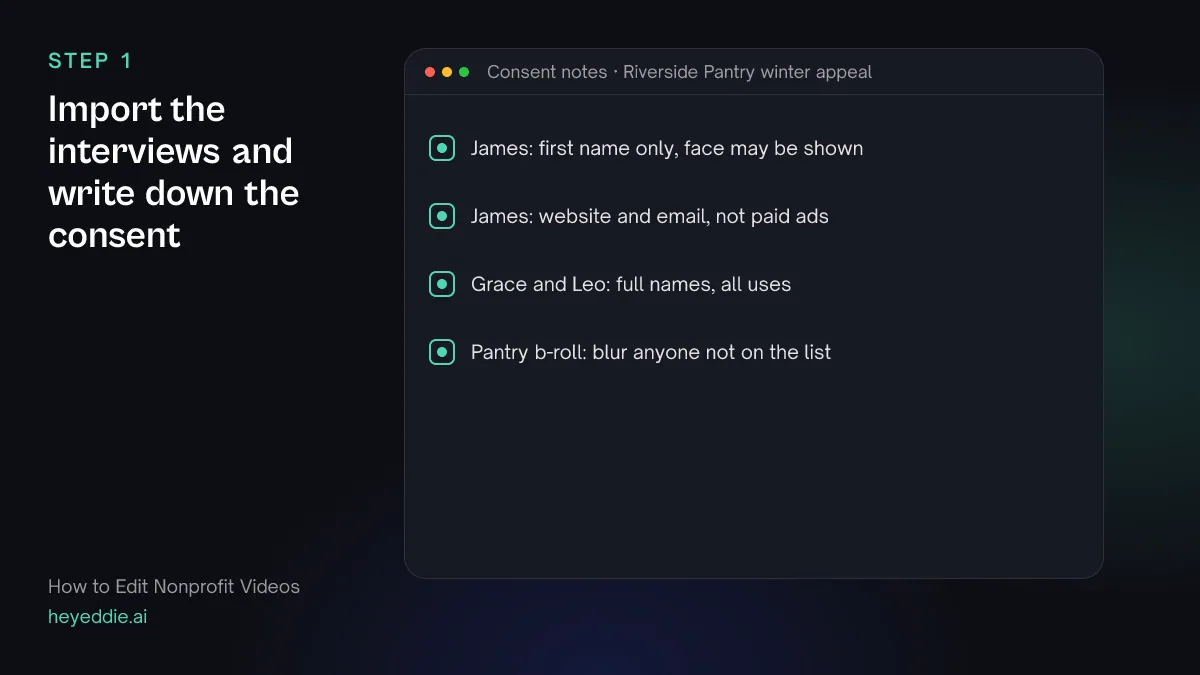
Upload the interviews and the b-roll. Before you cut anything, write down what each person agreed to: full name or first name, face shown or not, which uses. Put it on the files, so everyone who opens the project sees it.
What you type “Label James's interview "First name only, face may be shown, website and email only", and label the pantry b-roll "Blur anyone not on the release list".”
What Eddie does
- Transcribes the interviews and names the speakers, which you can correct.
- Adds the labels to the source files, where everyone on the project can see them.
What you get: A project where the consent travels with the footage.
Step 2
Find the story and the one number
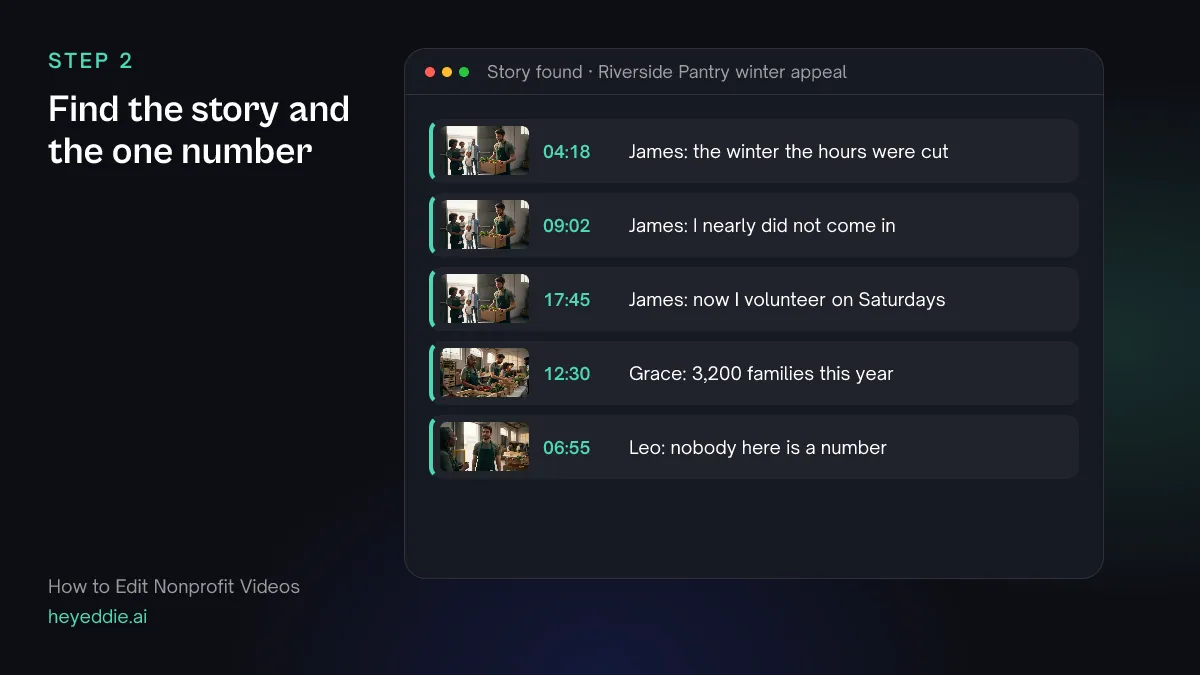
Ask for the person's story in their own order: before, the turning point, and now. Then ask for the lines where staff give figures, and pick one. A film with ten statistics has none.
What you type “Find where James talks about the winter before he came to the pantry, his first visit, and what is different now, and every line where Grace gives a number about the families we serve. List them with timestamps.”
What Eddie does
- Searches the transcripts for each part of the story and for lines with figures.
- Returns the passages with the speaker, the time and the words around them.
What you get: The spine of the film, and the number that gives it scale.
Step 3
Build the impact film
Let the person whose life changed carry the film, and use staff to give context, not to tell their story for them. Leave room for pauses; a breath before a hard sentence is part of what they said.
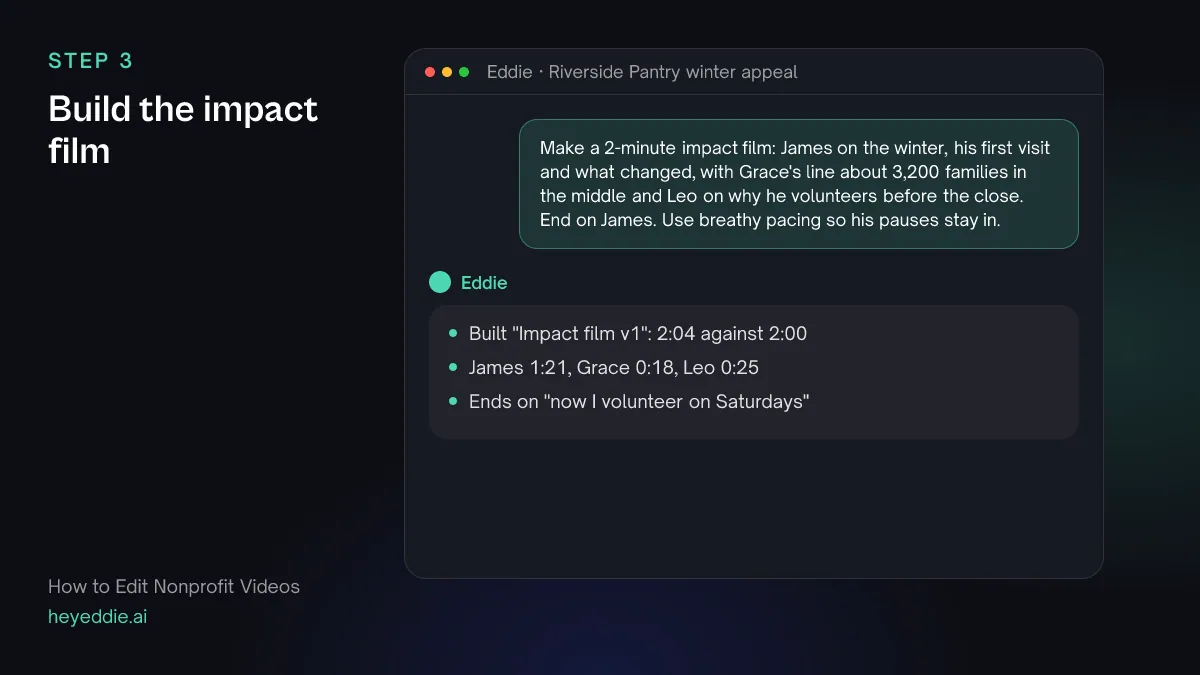
What you type “Make a 2-minute impact film: James on the winter, his first visit and what changed, with Grace's line about 3,200 families in the middle and Leo on why he volunteers before the close. End on James. Use breathy pacing so his pauses stay in.”
What Eddie does
- Builds the edit from the passages you named, in the order you set.
- Keeps more of each pause with breathy pacing and reports the finished length.
What you get: A film told by the person it is about.
Step 4
Blur faces and details you must not show
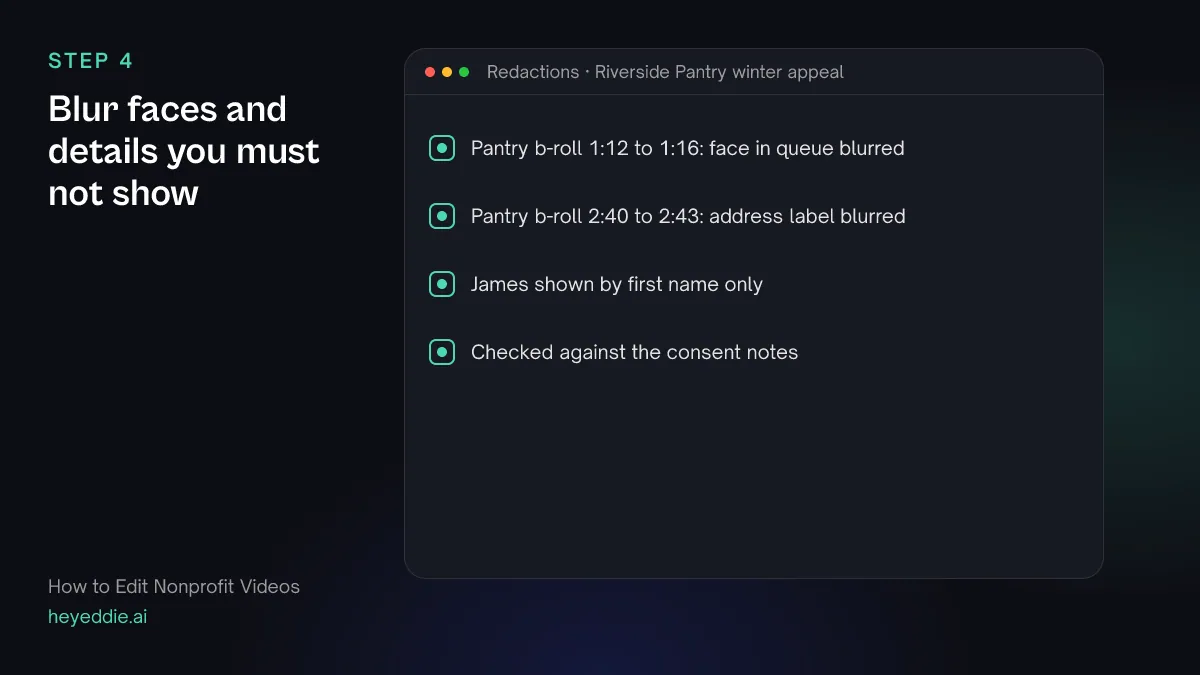
Go through the b-roll with the consent notes open. Blur anyone who is not on the release list, and anything that identifies a person who asked not to be identified, such as an address on a box or a name on a form.
What you type “In the pantry b-roll at 1:12, blur the face of the woman at the left of the queue, and at 2:40 blur the address label on the delivery box.”
What Eddie does
- Blurs each region you described for the time you gave, in the player and in rendered video.
- Keeps each region where you placed it; it does not follow a moving person, so give a short window or split the shot when someone walks across the frame.
What you get: A film that shows only what people agreed to.
Step 5
Add captions, the number and the ask
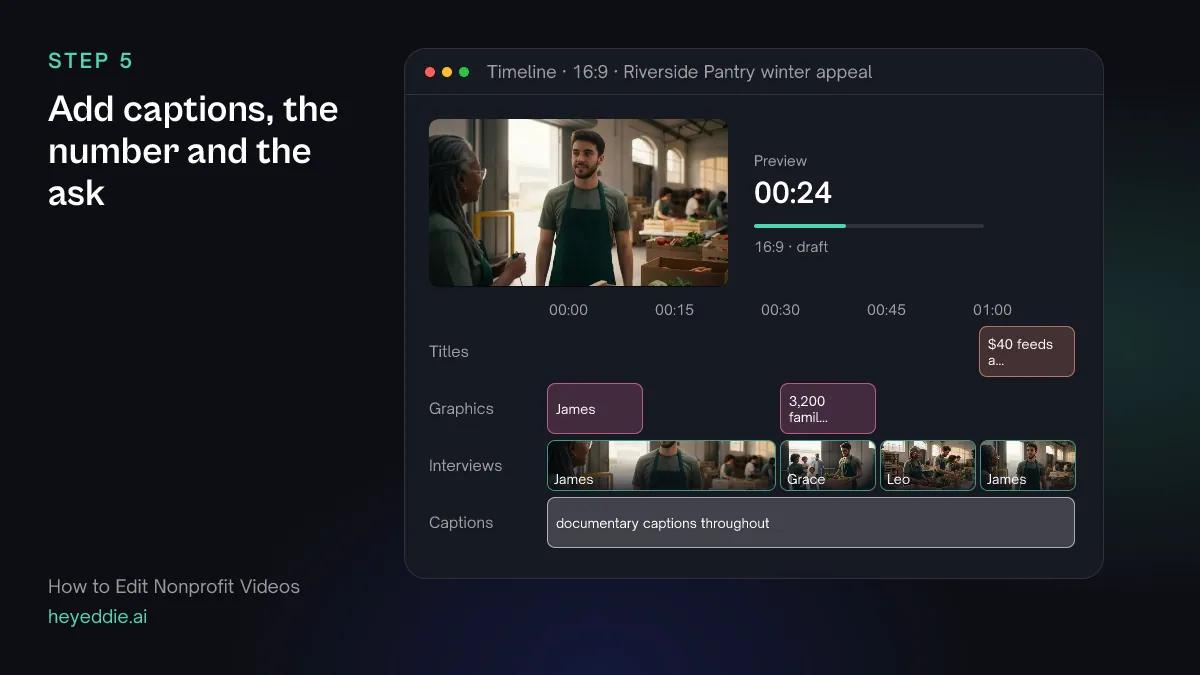
Many supporters watch with the sound off, so caption everything. Put the one number on screen when it is said, and end with a single, specific ask.
What you type “Add documentary captions at the bottom, a lower third "James, pantry visitor since 2024", a stat callout "3,200 families this year" when Grace says it, and an end title "$40 feeds a family for a week. Give today: link below" over the last 5 seconds.”
What Eddie does
- Adds captions from the word timings, leaving out filler words.
- Adds the lower third and the stat callout from its graphics templates, timed to the words.
- Writes the end title onto the title track.
What you get: A film that can be followed muted and ends with something to do.
Step 6
Make the donor appeal and a vertical version
An appeal email or a social post has room for one moment, the number and the ask. Build each short version as its own edit, so the impact film stays as it is.
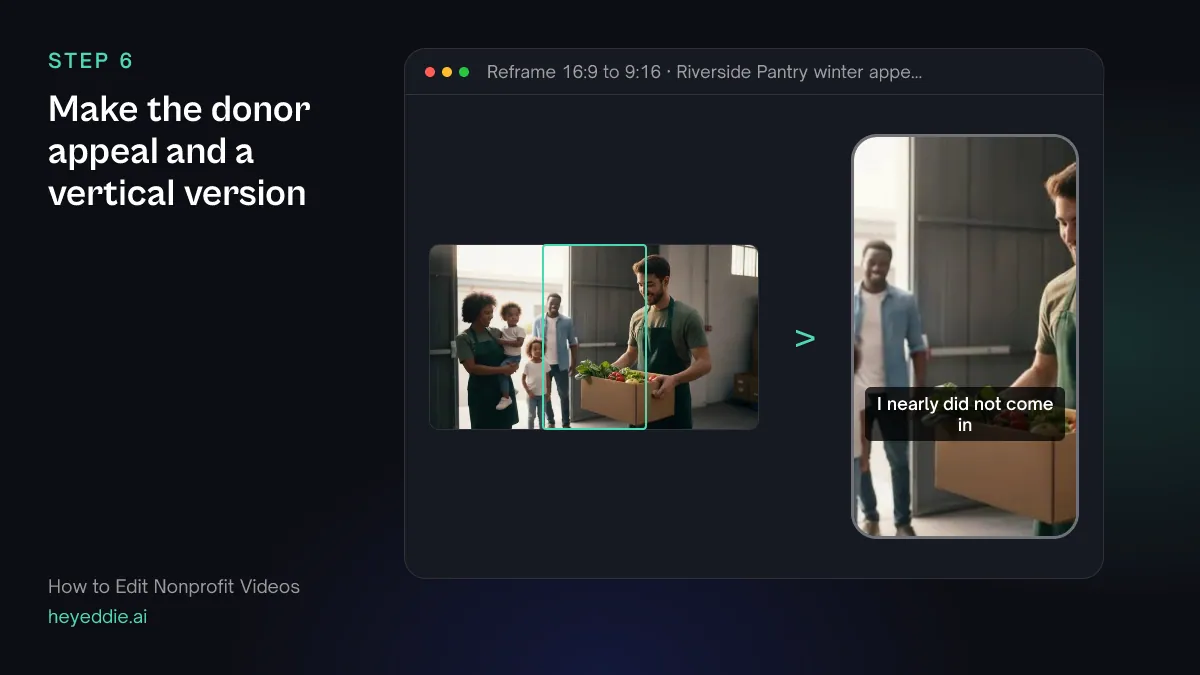
What you type “Make a 45-second donor appeal with James's first visit, the 3,200 families line and the ask, then a 9:16 version of it cropped to the speaker's face, with the captions moved to the middle of the frame.”
What Eddie does
- Builds the appeal as a new edit and reports its length.
- Sets a 9:16 canvas on the vertical version and crops each interview shot to the speaker's face.
- Moves the captions to the position you asked for.
What you get: An appeal for email and one for social, from the same story.
Step 7
Review with the team, then export
Send the cut to the people who know the person and the programme before anyone else sees it. If you can, show the person in the film their part, too.
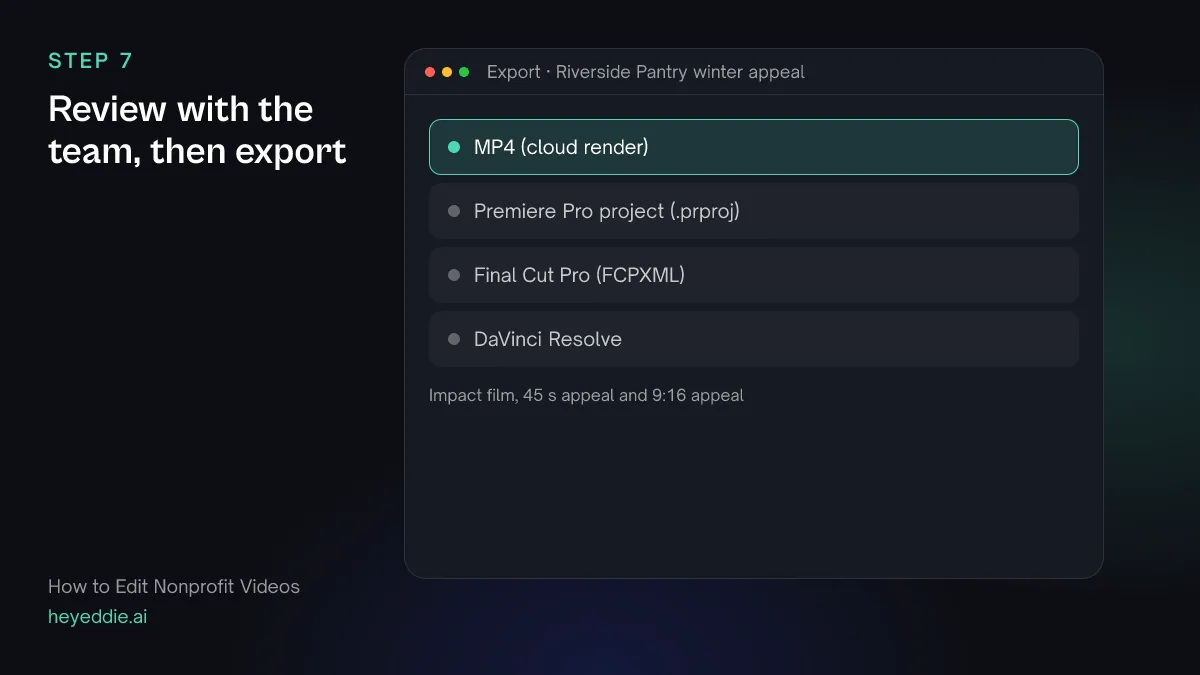
What you type “Give me a review link for the impact film so the programme team can check it, then export the film as a 1080p MP4 and the appeal and the vertical version as MP4s.”
What Eddie does
- Creates a review page where the team watches the cut and leaves notes at the timecode without an Eddie account.
- Renders each edit in the cloud, with the blurs and captions in the picture.
What you get: An approved film and appeals, ready to send.
Craft
What makes it work
- Consent is for each use
- Agreeing to be on the website is not agreeing to be in a paid ad. Ask about each use, write it down, and check the edit against it before every new placement.
- Show people as more than their need
- Include a line where the person talks about something other than the hardship: their job, their family, what they do now. It is truer, and donors respond to people, not cases.
- One number, said by a person
- A figure on a slide is easy to ignore. The same figure said by the director, with a callout on screen, is remembered.
- Make the ask concrete
- "Support our work" asks for nothing. "$40 feeds a family for a week" tells the viewer what their gift does.
- Caption everything
- Appeals are watched in inboxes and feeds with the sound off. Captions make the story land without audio.
FAQ
Questions
- How long should a nonprofit video be?
- Two to three minutes for an impact film on the website or at a gala, and 30 to 60 seconds for an appeal in an email or on social. Make the long film first and cut the appeals from it.
- Does Eddie check consent?
- No. Getting and recording consent is your job. Eddie helps you keep it visible, with labels on the files, and hides faces or details you must not show with a blur.
- Can I hide a person's face?
- Yes. Eddie blurs, pixelates or covers a rectangle of the picture for the time you give, in the player and in rendered MP4s. The region stays where you put it, so check shots where people move. Timeline files for other editors cannot carry the blur.
- How is this different from a documentary?
- A documentary explores a subject at length. A nonprofit video tells one short story and ends with an ask. The documentary guide covers longer films.
- What if we have no b-roll of the work?
- Eddie can search free stock footage for scenes you describe and quotes the credits before it places anything. Your own footage of the work is always more convincing, so film a few minutes of it when you interview.
- Can volunteers and board members review the cut?
- Yes. A review link lets anyone with the link watch the cut and leave comments at a timecode, without an Eddie account.
Edit your next impact film with Eddie
Sign up, add your footage and type the first prompt above. New accounts start with free credits.