
Features
- Rough cuts
- Multicam
- A-roll logging
- B-roll logging
- Speaker identification
- Scripted edits
- Social clips
- Exports to your editor
- Styles and color
- Motion graphics
- Captions & titles
- Stock B-roll
- Generate video
- Generated music
- Voiceover
- Dubbing
- Transcription in 97 languages
- Web app
- Mac and Windows
- Claude & ChatGPT
- Recipes
- Agents
- API + MCP
Solutions
Resources
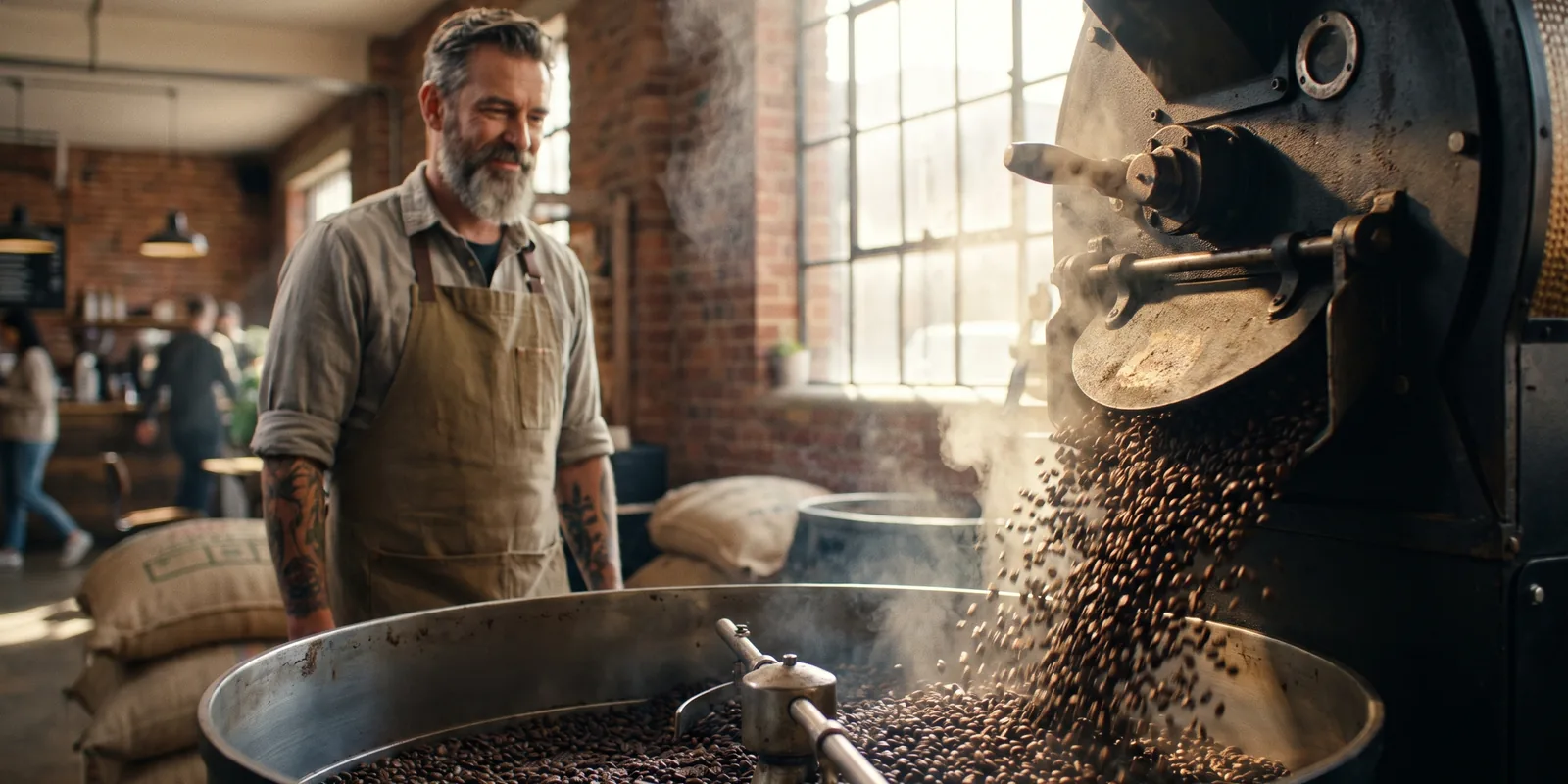
How to Edit Cooking Videos
Cooking footage is long and repetitive: twenty minutes of whisking, a sauce reducing, a cake in the oven. The viewer wants the opposite, a clear step at a time with the amounts in front of them. The edit is mostly about structure: what to show from above, what to say to camera, and what to skip. This guide covers recipe videos filmed with a face camera and an overhead camera, though one camera works too.
The short answer
A cooking video shows the finished dish first, then each step clearly enough that a viewer can cook along. Sync your face camera and overhead camera, use the overhead whenever your hands are working, put each step and every ingredient amount on screen, and cut or speed up the waiting. Make a full recipe video for YouTube and a 30 to 60 second vertical version for Reels, TikTok and Shorts. Eddie syncs the cameras by sound, finds each step in what you said, switches angles where you ask, adds step titles and ingredient callouts, and cuts the vertical version.
The deliverables
What you will end up with
- Both cameras synced, with the overhead angle on every step where your hands are working.
- A title for each step and an on-screen callout for every ingredient amount, timed to your words.
- Waiting sped up, and the finishing touch slowed down.
- An eight-minute recipe video and a 45-second vertical version.
6 steps
Step by step
- 01Import and sync both cameras
- 02Find each step and every amount
- 03Build the recipe video
- 04Put the steps and amounts on screen
- 05Speed up the waiting, add music
- 06Cut a vertical version and export
Step 1
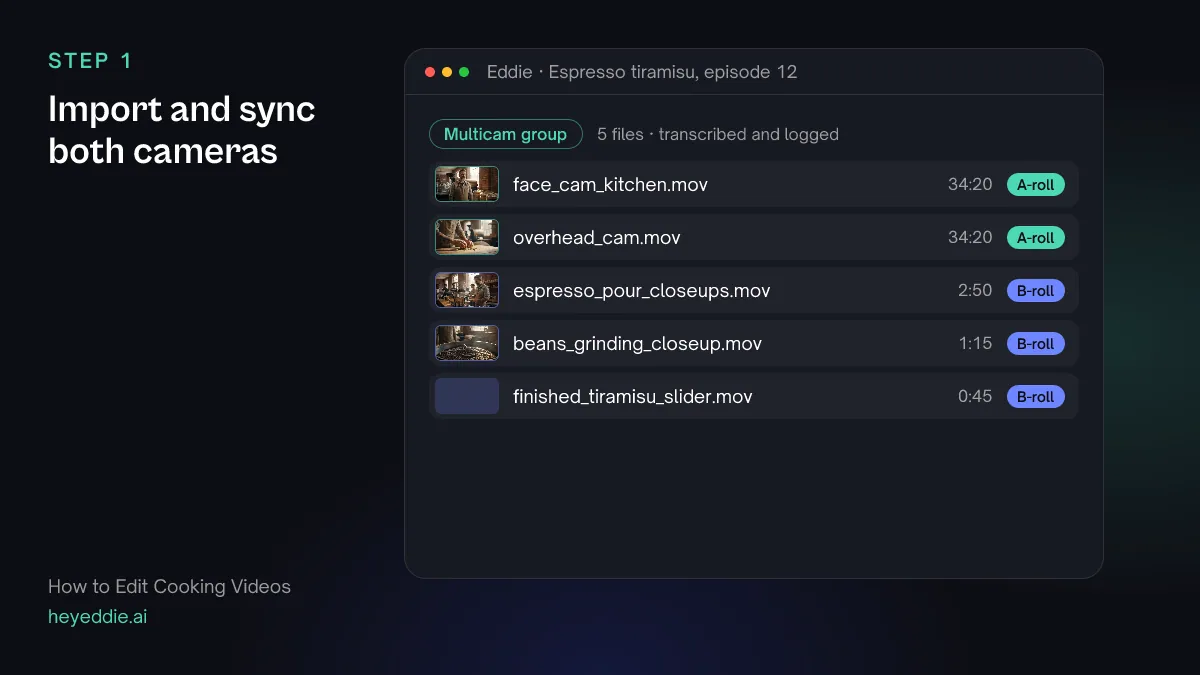
Import and sync both cameras
Upload the face camera, the overhead camera and any close-ups. Group the two main cameras as one recording, so every cut can switch between your face and your hands.
What you type “Sync the face camera and the overhead camera as one multicam group, and use the face camera's audio for every cut.”
What Eddie does
- Measures each camera's sync offset against the reference camera and groups them.
- Sets the face camera's audio as the group's audio, and logs the close-ups by what they show.
What you get: One synced recording you can cut between angles.
Step 2
Find each step and every amount
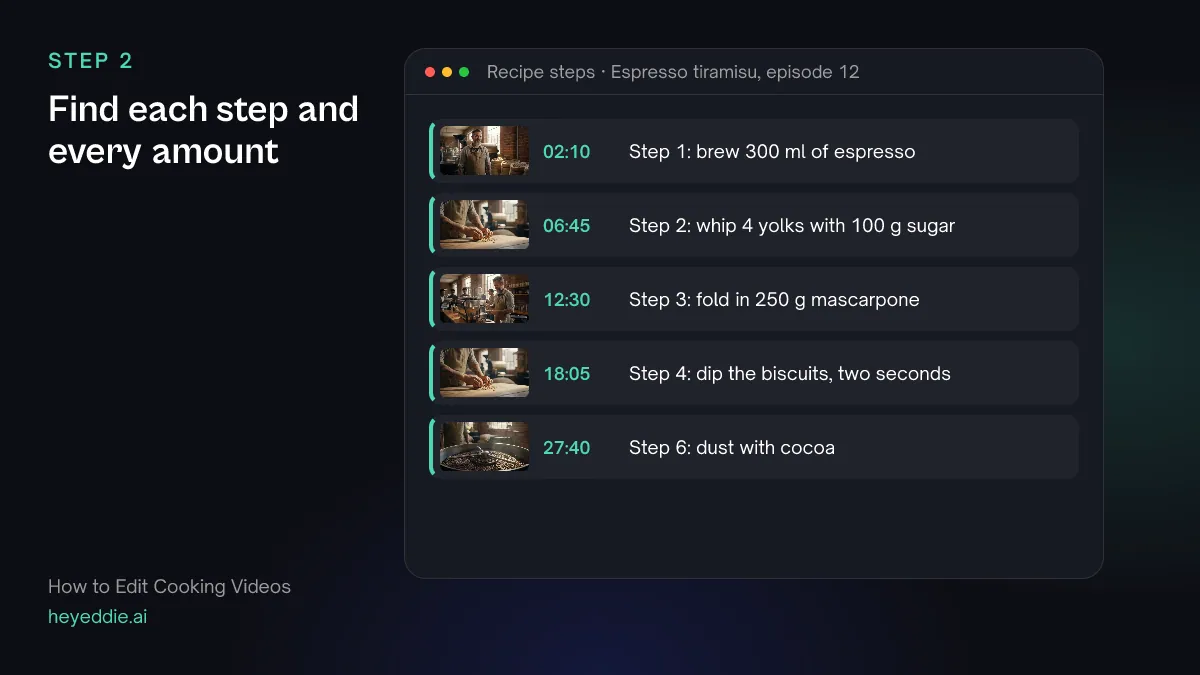
Your recipe is already in what you said. Ask for each step by name and for every place you say a quantity, and you have the skeleton of the video and its callouts.
What you type “Find where I start each step of the recipe: brewing the espresso, whipping the yolks and sugar, folding in the mascarpone, dipping the biscuits, layering, and dusting with cocoa. List each with its timestamp, and every place I say an amount.”
What Eddie does
- Searches the transcript for each step and for every quantity you said.
- Returns each one with its time and the words around it.
What you get: The recipe, step by step, with its amounts.
Step 3
Build the recipe video
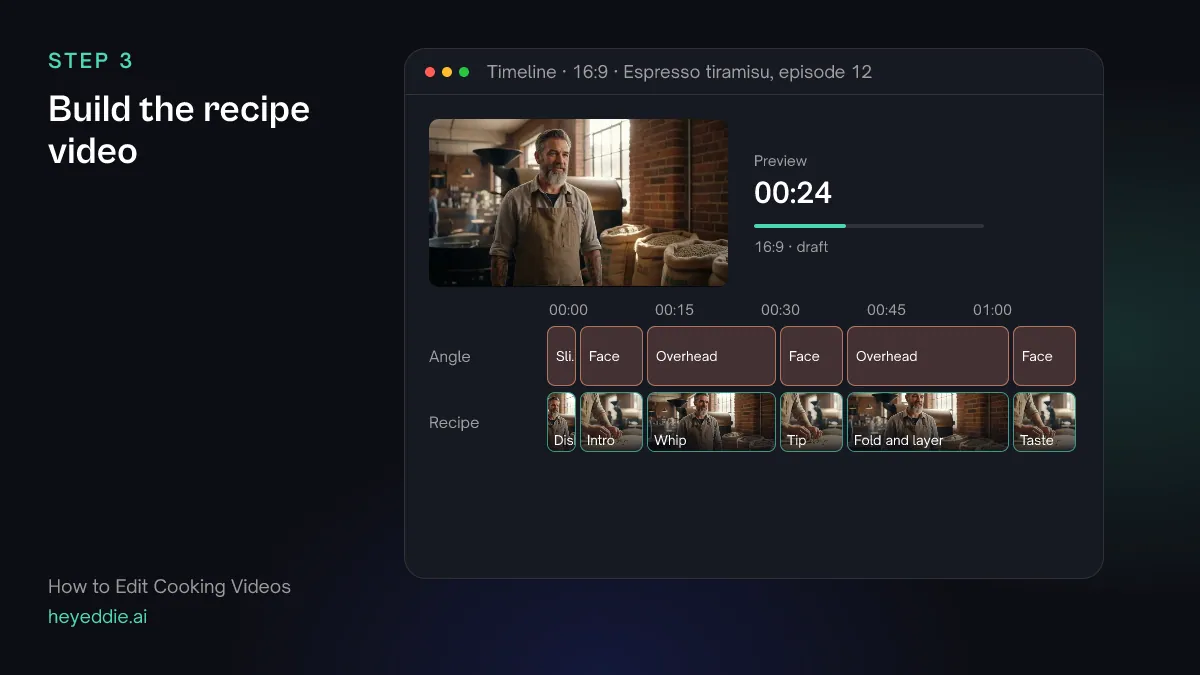
Start with the finished dish, so viewers know where they are going. Then go step by step: overhead for the work, face camera for the explaining. Cut the waiting out entirely.
What you type “Make an 8-minute recipe video: 10 seconds of the finished tiramisu first, then each step in order. Use the overhead camera for whipping, folding, dipping and layering, and the face camera when I explain. Cut out the wait while the espresso cools, and use tight pacing.”
What Eddie does
- Builds the edit from the steps in order and reports its length against the target.
- Assigns the overhead or face camera to each segment as you described.
What you get: A recipe video a viewer can cook along with.
Step 4
Put the steps and amounts on screen
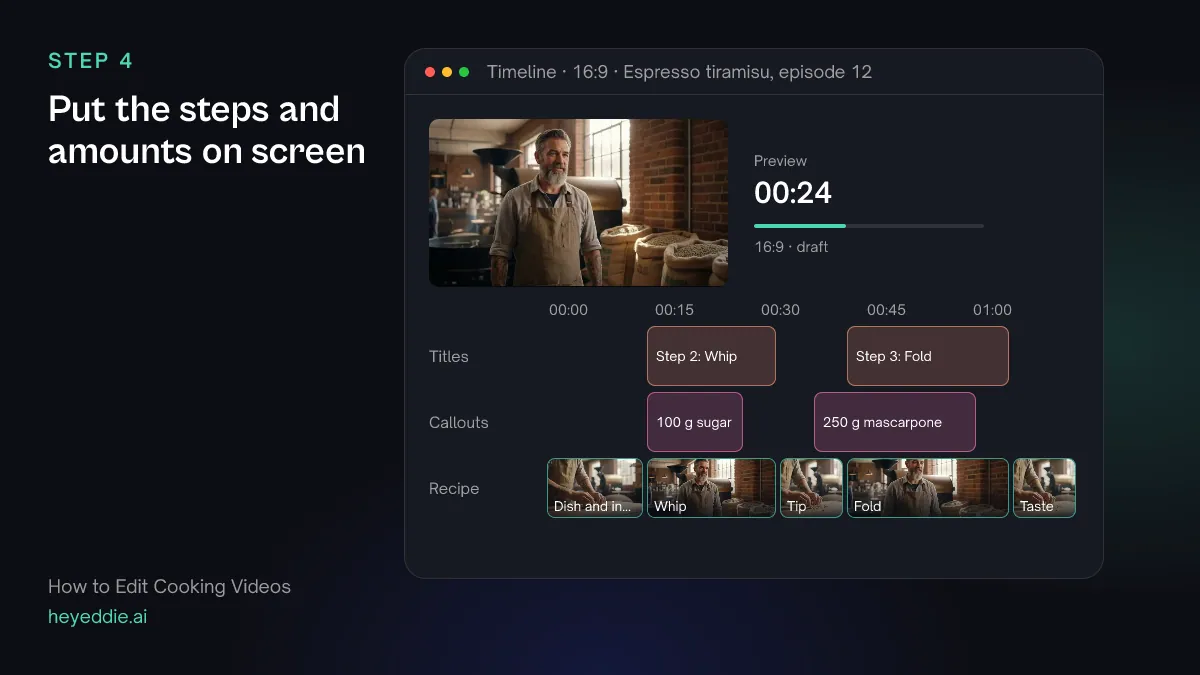
A viewer cooking along looks up, reads, and looks back down. Give them a title for each step and the amount of each ingredient at the moment you add it.
What you type “Add a title for each step, like "Step 3: Fold in the mascarpone", at the top left when the step starts, and a stat callout with the amount each time I add an ingredient, such as "250 g mascarpone".”
What Eddie does
- Writes the step titles onto the title track at the start of each step.
- Adds stat callouts from its graphics templates, timed to the words where you say each amount.
What you get: Every step and amount readable without rewinding.
Step 5
Speed up the waiting, add music
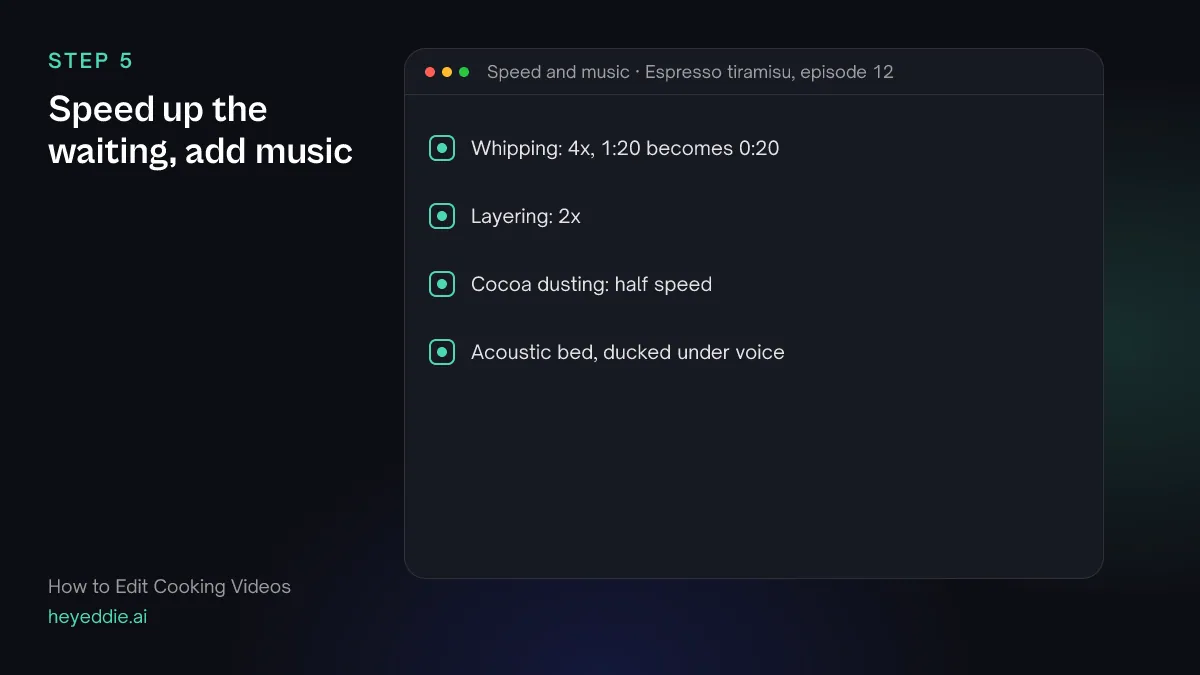
Some steps cannot be cut, only shortened: whipping, stirring, reducing. Speed them up so the viewer sees the change. Slow down the one moment that looks best, and put a quiet bed under it all.
What you type “Speed up the whipping to 4x and the layering to 2x, slow the cocoa dusting to half speed, and put a relaxed acoustic track from our music library under the video, ducked under my voice.”
What Eddie does
- Retimes each segment you named, and moves everything after it to match.
- Attaches the track and lowers it automatically whenever you speak.
What you get: A video that moves at the speed of the recipe, not the kitchen.
Step 6
Cut a vertical version and export
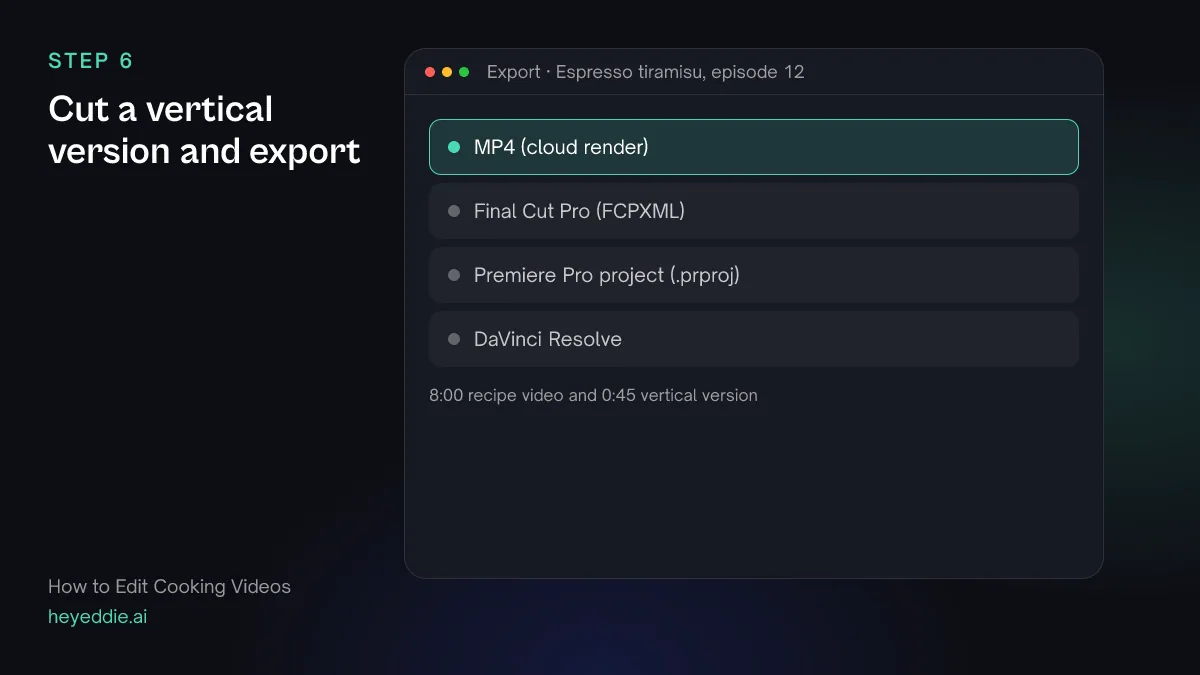
For Reels, Shorts and TikTok, show the dish, one shot per step and the amounts. Viewers save these to cook from later, so keep the titles in.
What you type “Make a 45-second vertical version with the finished dish first and one overhead shot per step, keeping the step titles and the amount callouts, with social captions. Export it and the full video as 1080p MP4s.”
What Eddie does
- Builds the short version as its own edit and sets a 9:16 canvas.
- Renders both edits in the cloud with titles, callouts, captions and music.
What you get: A full recipe video and a vertical one, from one cook.
Craft
What makes it work
- Show the dish first
- Viewers decide whether to cook along in the first few seconds. A look at the finished dish answers "is this worth it?" before you start.
- Say every amount out loud
- If you say "250 grams of mascarpone" as you add it, the callout can be timed to your words, and the video and the recipe never disagree.
- Hands from above, explanations to camera
- The overhead shows what to do; the face camera shows why. Switch at the moment you stop explaining and start working.
- Shorten, do not hide, the slow steps
- Cutting a step out entirely confuses a viewer who is cooking along. Speeding it up shows the change without the wait.
- Keep the light the same
- Cooking runs long and daylight moves. Use lamps you control, so the first step and the last look like the same kitchen.
FAQ
Questions
- Can I edit a cooking video filmed with one camera?
- Yes. With one camera, ask Eddie to crop tighter on the steps where your hands are working. A 4K file gives you room to crop and stay sharp.
- How long should a cooking video be?
- Long enough to show every step clearly: often 6 to 12 minutes on YouTube, and 30 to 60 seconds for a vertical version. A simple recipe can be shorter.
- Can Eddie give me the recipe as a document?
- Eddie can make a downloadable document from text you give it, such as your ingredient list and method, to share alongside the video.
- How is this different from a product video?
- A product video sells an object in a minute or two. A cooking video teaches a process step by step, so titles, amounts and pacing matter more than polish. The product video guide covers launch films.
- Can I finish the video in Final Cut Pro?
- Yes. Export a Final Cut Pro, Premiere Pro or DaVinci Resolve timeline that points at your original files, and finish it there.
Edit your next cooking video with Eddie
Sign up, add your footage and type the first prompt above. New accounts start with free credits.