Thai · Subtitle files
Make Thai subtitles (SRT and VTT)
You need a Thai subtitle file for YouTube, a streaming platform or a web player. Eddie transcribes the interview, lets you fix any word, and hands you SRT and VTT files timed to what the viewer hears.
Step by step
Step 01
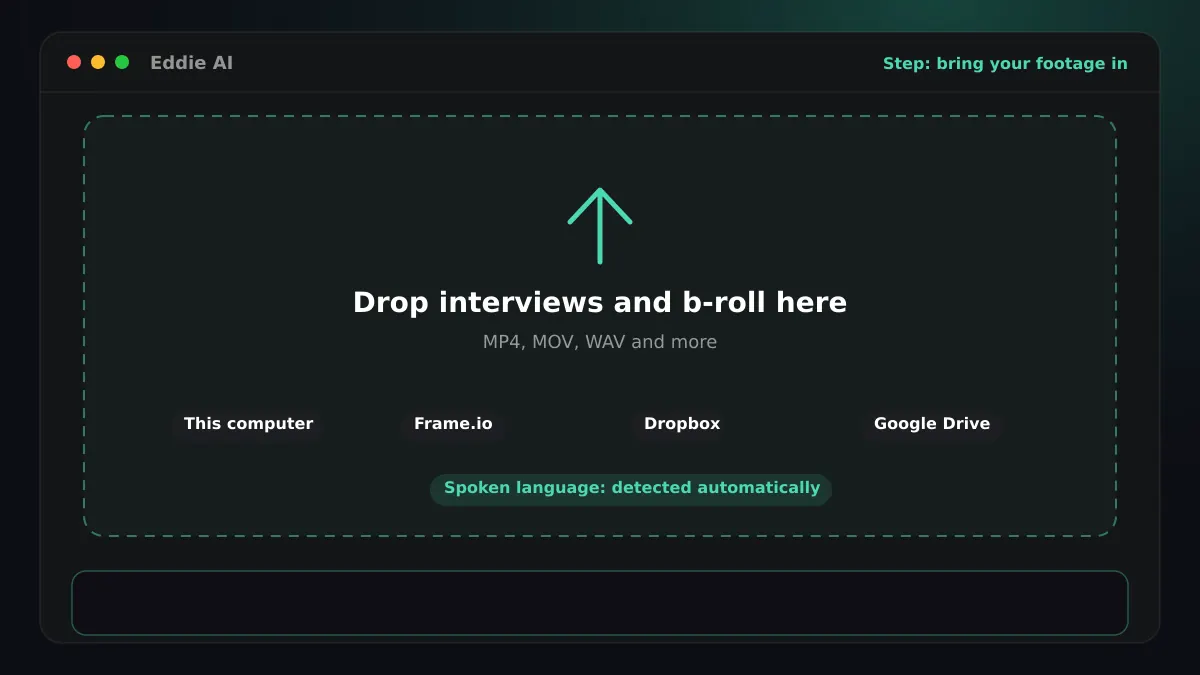
Bring your Thai interviews in
- You ask
- Upload the interviews, or add them from Frame.io, Dropbox, Google Drive or your editor's bin.
- Eddie does
- Eddie imports the interviews and any b-roll, from the browser or from the desktop app, which also reads bins in Premiere Pro, DaVinci Resolve and Final Cut Pro. It analyses every file before you can prompt, so no edit is built on half the footage.
- You get
- One project with every source, analysed and searchable.
Step 02
Transcribe the Thai
- Eddie does
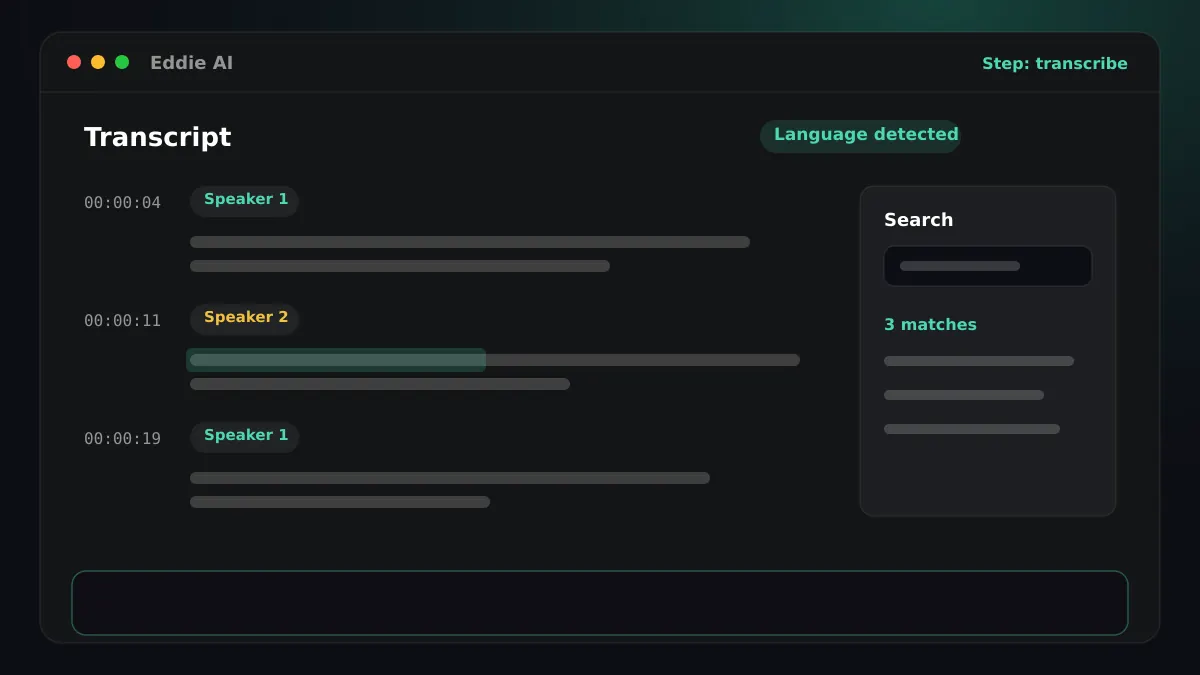
- Eddie detects Thai on its own, so you do not have to choose it. If an interview switches between languages, Eddie detects that too. It labels the speakers and keeps a timing for every word.
- You get
- A Thai transcript in Thai script that you can search and cut from. Ask Eddie to fix a misheard name everywhere it appears, or to rename “Speaker 1”, and every word keeps its timing.
Step 03
Cut it, or keep the whole interview
- You ask
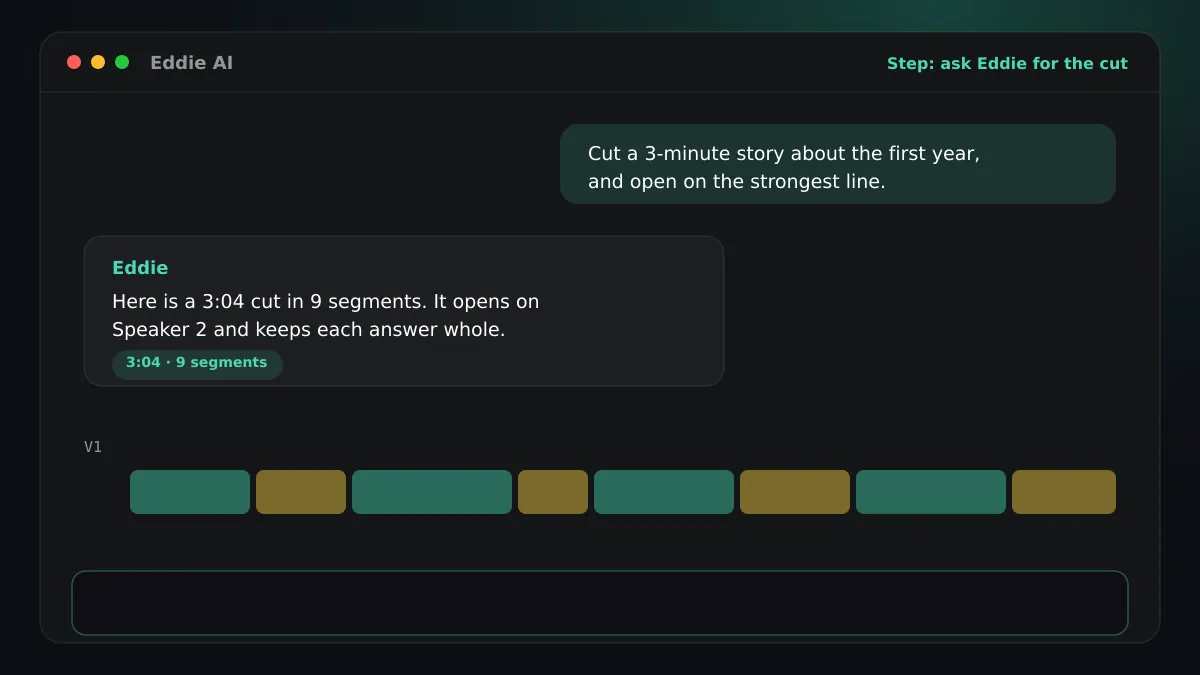
- “Cut a three-minute story about how the company started, and open on the strongest line.”
- Eddie does
- Subtitle a whole source as it is, or ask Eddie for a cut first. The subtitles of an edit are the words the edit plays, timed to the edit, not to the raw footage.
- You get
- The exact version you will publish.
Step 04
Download SRT or VTT
- Eddie does
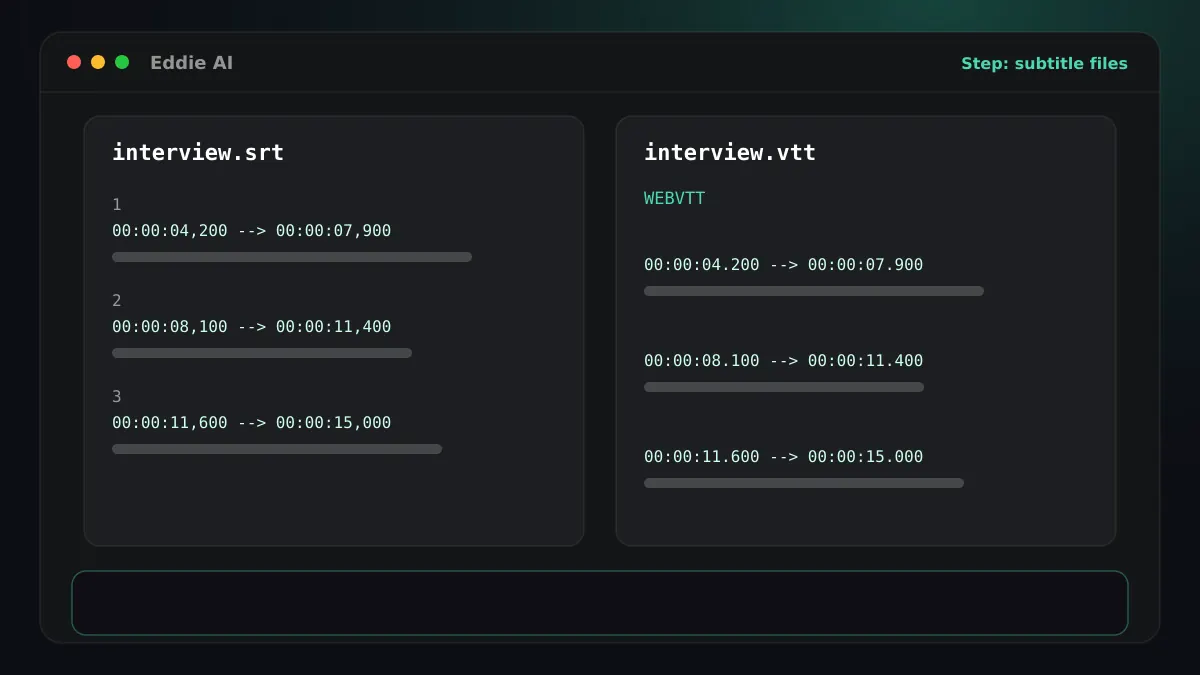
- Open Export and choose Transcript. Eddie writes the Thai text into an SRT, a VTT or a plain text file, in Thai script.
- You get
- Subtitle files that are free to download, as many times as you change the cut.
Step 05
Publish them
- Eddie does
- Take SRT to YouTube, social platforms and editors. Take VTT to a web page: an HTML5 video element reads it with a track tag.
- You get
- Thai subtitles your platform draws with its own fonts.
Good to know for Thai
The script
Thai is written in Thai script. Subtitle files store the text as Unicode, so any player that has a Thai font shows it as written.
SRT or VTT
SRT is the file editors and platforms ask for. VTT is the one web players read natively. Eddie writes plain cues in both.
Finish Thai edits in your editor




Questions
- Are the subtitle timings against my edit or the raw footage?
- From an edit, against the edit: the file lines up with the cut you export. From a source view, against that source.
- What do subtitle files cost?
- Nothing. Transcript, SRT and VTT downloads are free.
- Do I have to tell Eddie the interview is in Thai?
- Eddie detects Thai on its own, so you do not have to choose it. If an interview switches between languages, Eddie detects that too.
- Can Eddie translate Thai captions into another language?
- No. Captions are always the spoken words, verbatim. Translating what the edit says is dubbing, which is a separate feature.
- Can Eddie make an audio-described version in Thai?
- Not yet. Eddie's audio description is built and measured for English speech, so it is offered for English programmes only.
Related guides
Also from East Asia & Pacific
Try it on your own footage
Transcribe one Thai interview and download the SRT.