How-to guidesSermons
How to Edit Sermon Videos
Church media teams do the same edit every week, often with volunteers and a Monday deadline. The service recording is long, the sermon sits in the middle of it, and the clips for social need to go out while the message is still fresh. This guide makes that weekly routine fast and repeatable.
The short answer
Cut the full service down to the sermon, from the first word to the closing prayer. Sync your cameras with the pulpit microphone, switch to the close camera for the key points, and add captions. Then pull three to five short clips of the strongest passages for the week's social posts. Eddie trims the sermon, assigns the angles, captions it and finds the clips from one prompt each.
What you will end up with
- The sermon on its own, trimmed from the first word to the closing prayer.
- Angles switched between wide and close cameras, with audio from the pulpit microphone.
- Captions for people who watch with the sound off.
- Three to five vertical clips of the strongest passages for the week.
Step by step
Step 1
Import the service and sync it
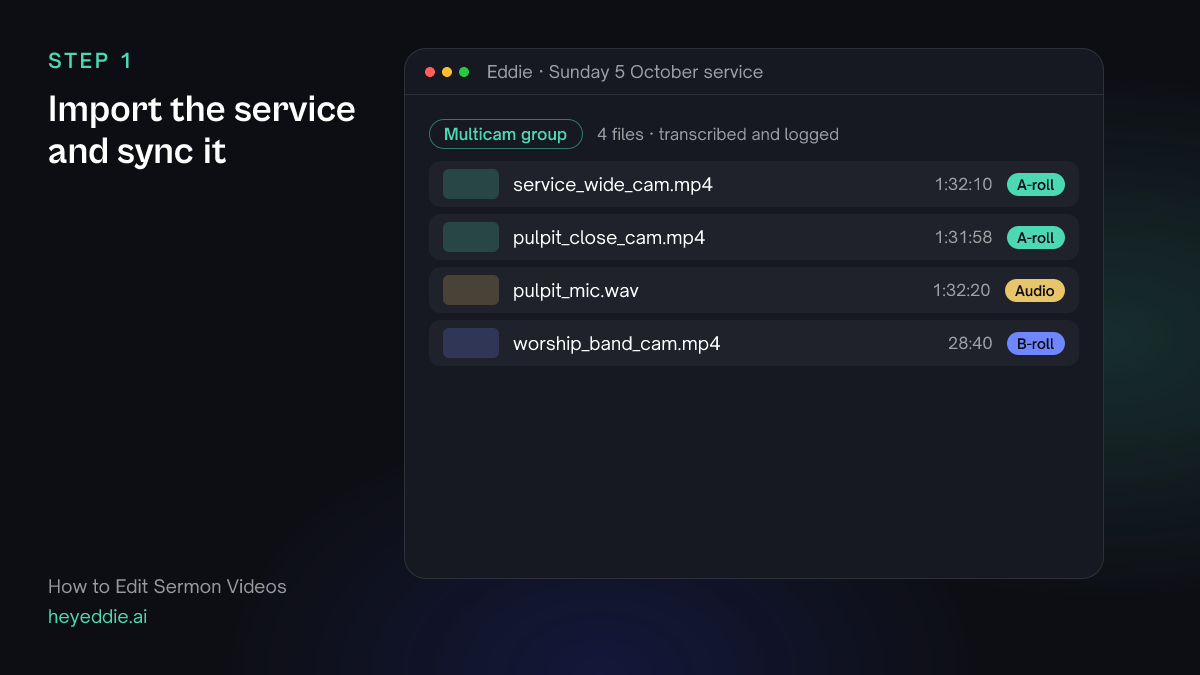
Upload the service cameras and the board or pulpit microphone recording. Group them so every angle uses the clean microphone.
What you type “Sync the wide camera, the pulpit close camera and the pulpit mic as one multicam group, and use the pulpit mic as the audio.”
What Eddie does
- Transcribes the service and syncs the files by sound.
- Sets the pulpit microphone as the group's audio for every cut.
What you get: The full service, synced, with clear audio.
Step 2
Cut the service down to the sermon
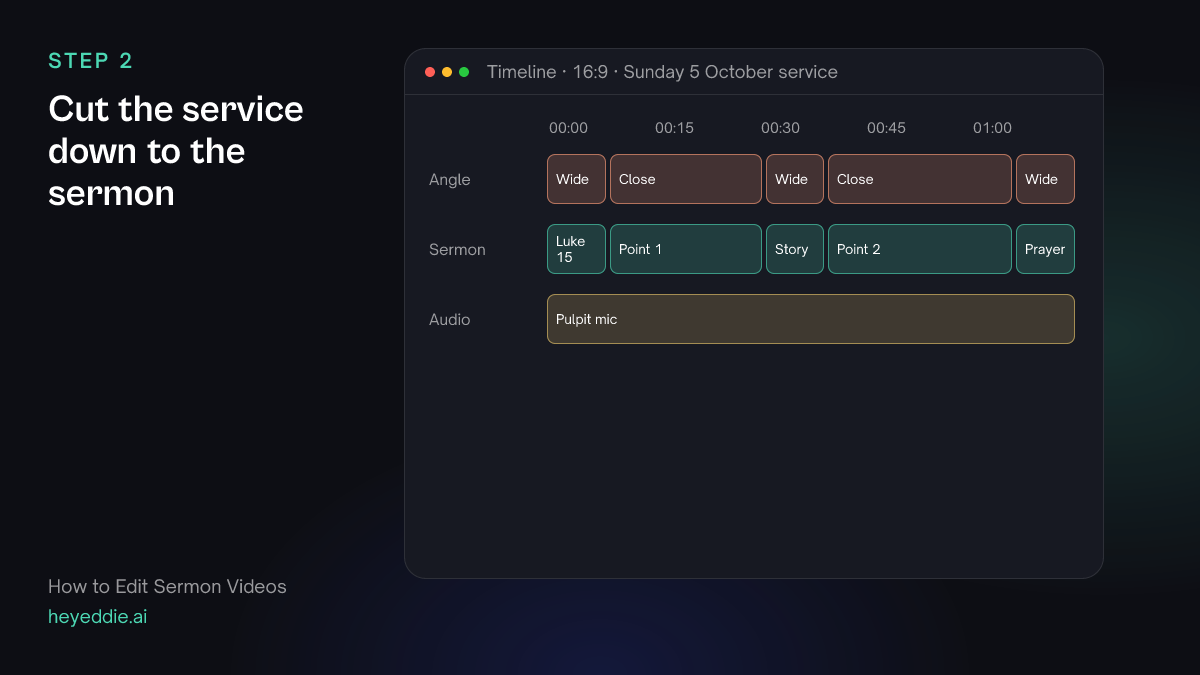
Ask for the sermon alone. Name where it starts and ends in words, so Eddie can find the boundaries in the transcript.
What you type “Make an edit of just the sermon, from "Please turn with me to Luke 15" to the end of the closing prayer. Remove the announcements in the middle, and cut to the close camera for the main points and the wide camera between them.”
What Eddie does
- Finds the opening and closing lines in the transcript and trims to them.
- Removes the stretch you named and assigns camera angles section by section.
What you get: The sermon as its own edit, ready to post.
Step 3
Add captions and a title
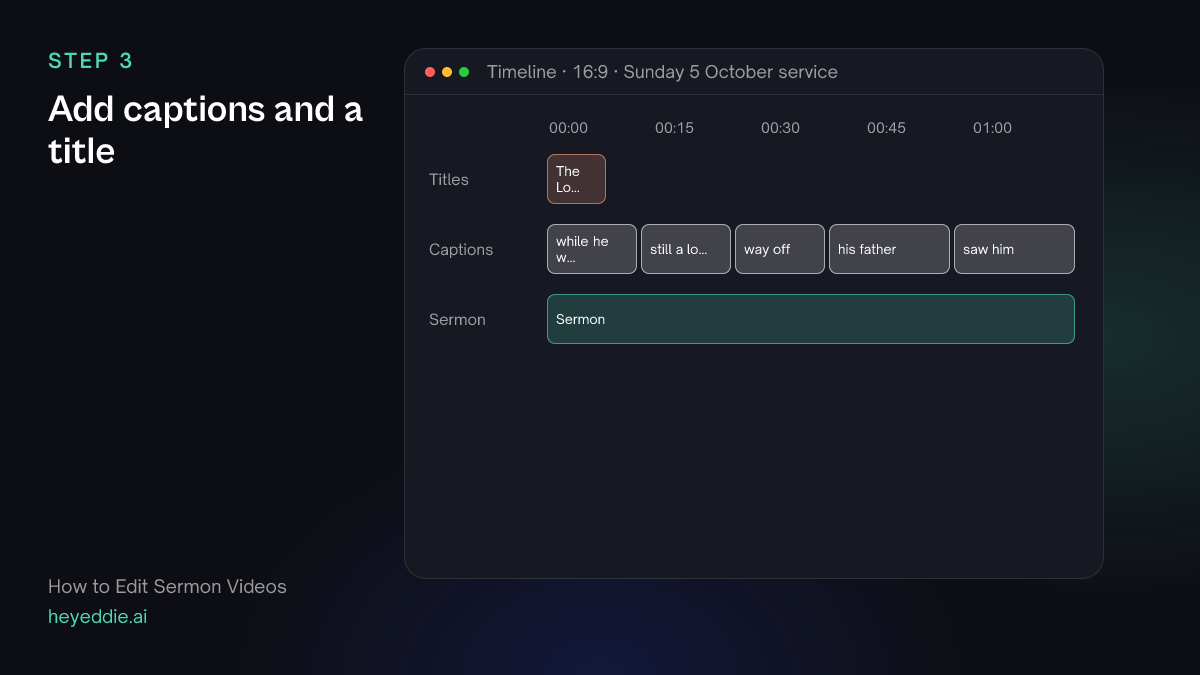
Captions make the sermon accessible and help people follow it in a noisy place. Add a title with the series and the passage at the start.
What you type “Add minimal captions at the bottom, two lines at most, and a title "The Lost Son, Luke 15" for the first five seconds.”
What Eddie does
- Adds captions from the word timings and leaves out filler words.
- Places the title at the start of the edit.
What you get: An accessible sermon video.
Step 4
Pull clips for the week
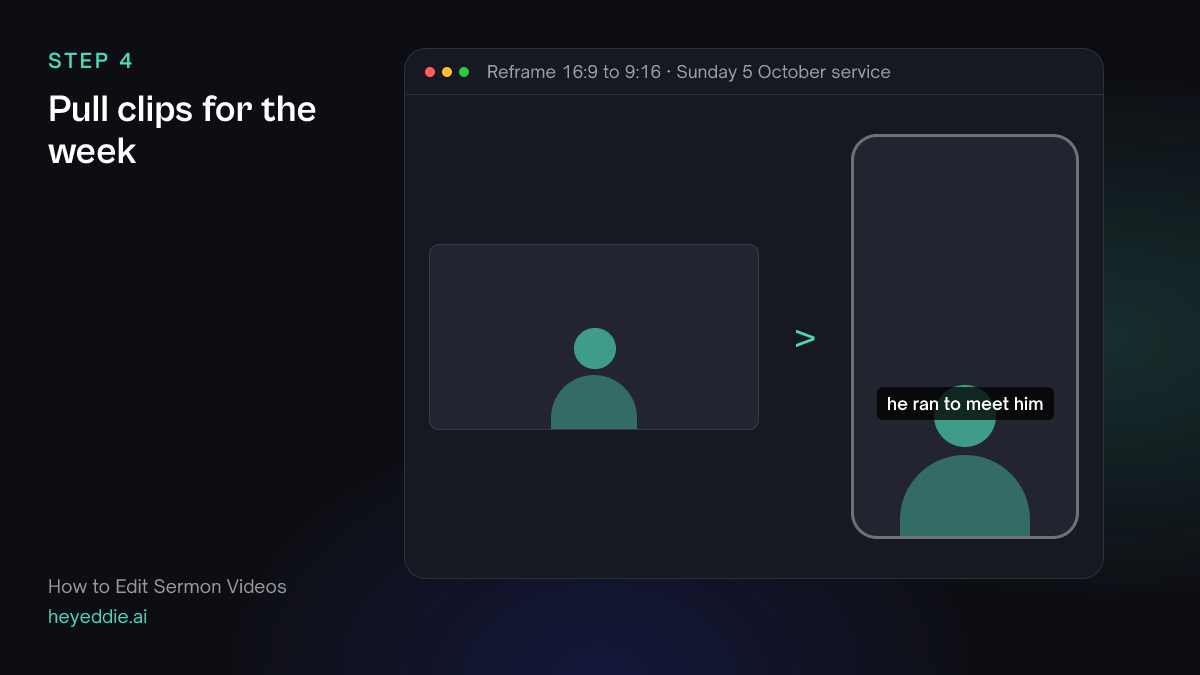
Short clips keep the message in front of the congregation through the week. Choose passages that make sense on their own.
What you type “Find the 4 most quotable passages of 30 to 60 seconds that make sense on their own, make each a vertical clip on the close camera with social captions, and name each one after its main line.”
What Eddie does
- Picks self-contained passages from the sermon transcript.
- Builds each as a vertical edit cropped to the pastor, with captions.
What you get: Four clips, one for each weekday post.
Step 5
Export, or translate
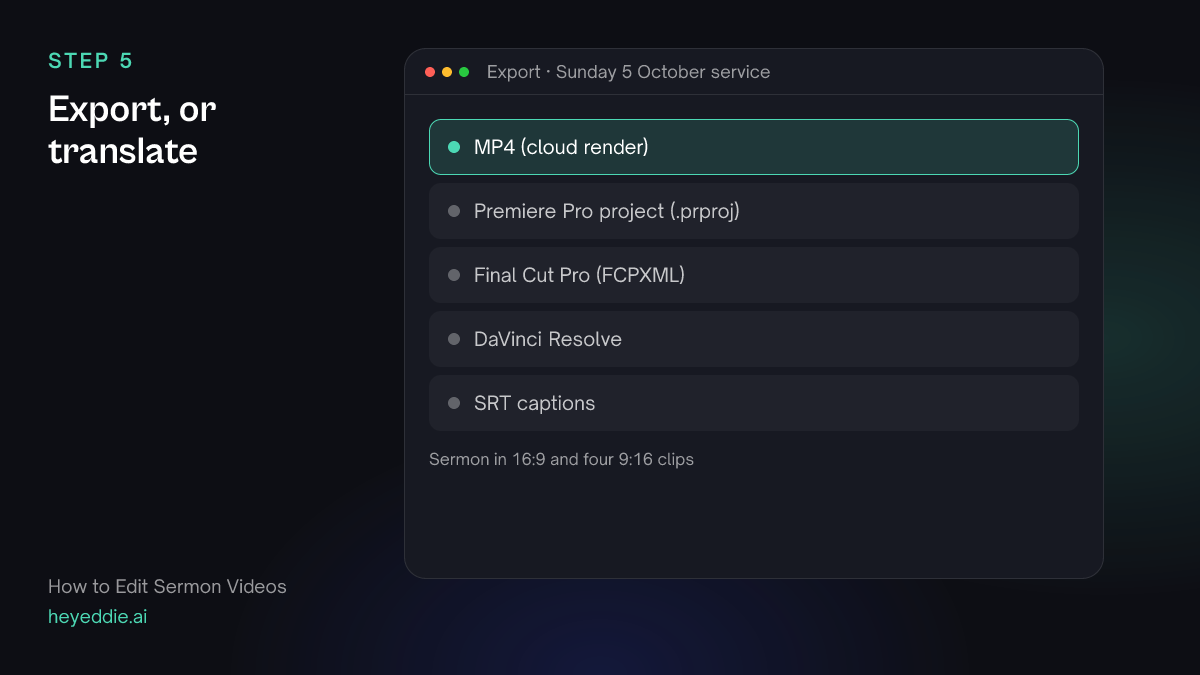
Export the sermon and the clips. If your church serves more than one language, Eddie can dub the finished sermon into another language.
What you type “Export the sermon as a 1080p MP4 and the four clips as vertical MP4s.”
What Eddie does
- Renders every edit in the cloud with captions burned in.
- Returns one download link per file.
What you get: The week's sermon content, ready to post.
What makes it work
- Record the pulpit microphone separately
- The camera's own microphone hears the room. A feed from the sound desk or a lav on the speaker makes every clip sound clear.
- Name the start and end in words
- Telling Eddie the sermon starts at "Please turn with me to" is faster and more reliable than finding a timecode.
- Use the same prompts every week
- Save your weekly prompts as a recipe in the workspace. A volunteer can run the same routine every Sunday and get the same result.
- Clip the passages, not the jokes
- A clip that carries the message of the sermon does more through the week than a funny aside with no context.
- Caption every version
- People watch sermon clips in places where they cannot play sound. Captions on the full sermon and on every clip mean the message reaches them anyway.
Questions
- Can volunteers use this?
- Yes. The prompts are plain language, and a saved recipe means a volunteer can run the same weekly routine without editing experience.
- Can Eddie remove the worship songs and keep only the sermon?
- Yes. Ask for the sermon from its first line to its last, and Eddie trims away the rest of the service.
- Can we post the sermon in Spanish too?
- Eddie can transcribe in many languages and can dub a finished edit into another language. See the dubbing page for the details.
- Does it work with our livestream recording?
- Yes. A livestream recording imports like any video file. Separate camera files give you more control over angles.
- How long does the weekly edit take?
- Most of the time is waiting for upload and render. The prompts themselves take a few minutes, and a saved recipe makes them the same every week.