
Features
- Rough cuts
- Multicam
- A-roll logging
- B-roll logging
- Speaker identification
- Scripted edits
- Social clips
- Exports to your editor
- Styles and color
- Motion graphics
- Captions & titles
- Stock B-roll
- Generate video
- Generated music
- Voiceover
- Dubbing
- Transcription in 97 languages
- Web app
- Mac and Windows
- Claude & ChatGPT
- Recipes
- Agents
- API + MCP
Solutions
Resources
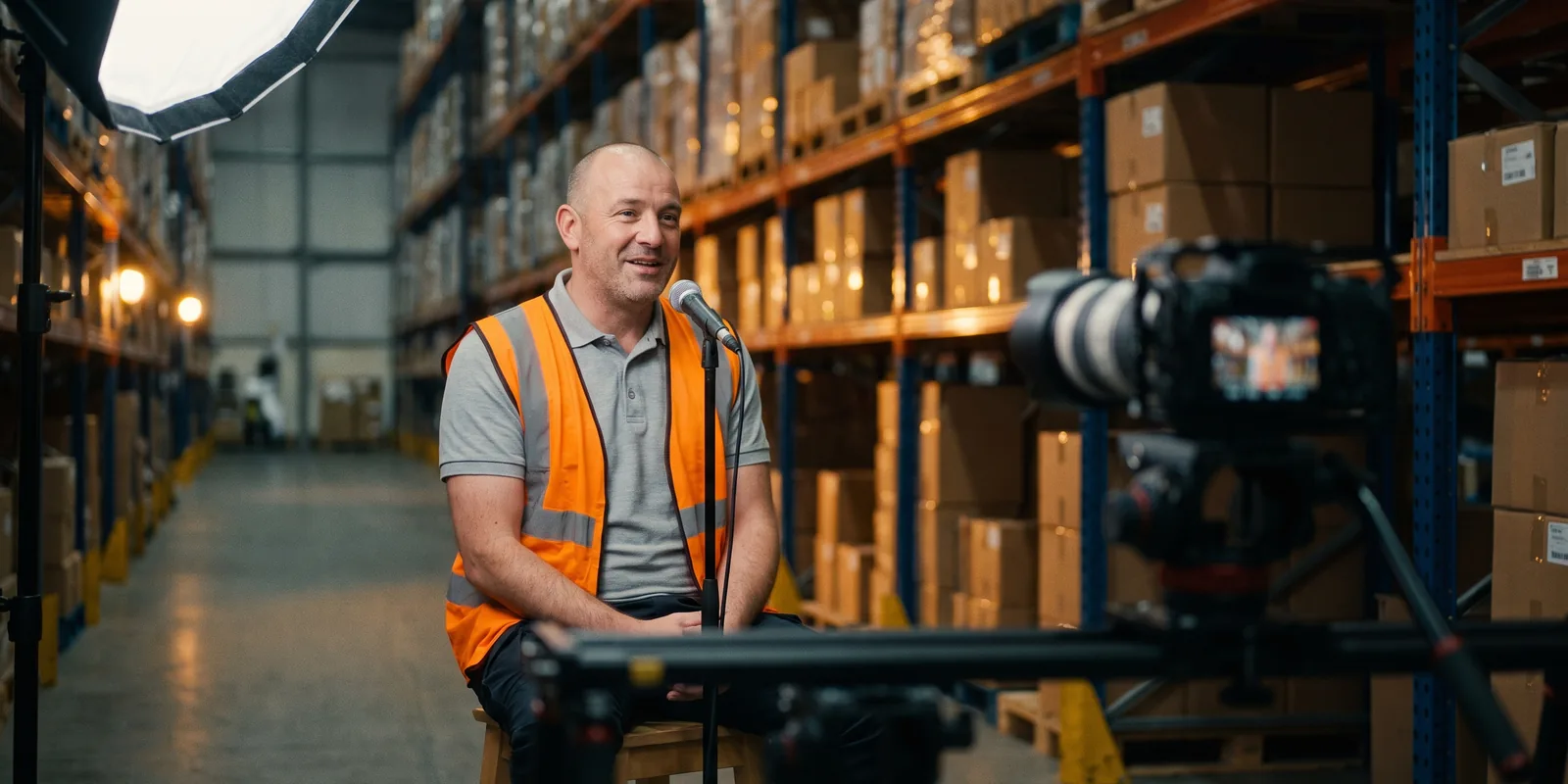
How to Edit Recruiting Videos
Candidates have seen the polished careers video with the drone shot of the campus and the word "family". They do not believe it. What they want to know is plain: what time the shift starts, who they will work with, what is hard, and whether people get promoted. A recruiting video that answers those questions, in employees' own words, gets better applicants. This guide covers careers-page films, day-in-the-life videos and the short cuts that go on a job post.
The short answer
A recruiting video shows a candidate what the job is really like, in the words of the people who do it. Interview two or three employees about a normal day, what surprised them and why they stay, cover the cuts with real footage of the work, and end on the role and how to apply. Make a 60 to 90 second careers-page film, then 15 to 30 second vertical cuts for job posts, one question each. Eddie finds the honest answers in the interviews, builds the day-in-the-life order, adds names, captions and the apply card, and makes the short cuts.
The deliverables
What you will end up with
- A 75-second careers film in the order of a real working day.
- Lower thirds with each employee's name, role and time in the job, and an apply card at the end.
- Badges and screens with customer data blurred.
- Three 20-second vertical cuts for job posts, each answering one question.
7 steps
Step by step
- 01Import the interviews and the day's footage
- 02Find the answers candidates want
- 03Build the day in the life
- 04Show the work and blur what you must
- 05Add names, captions and the apply card
- 06Cut one short per question
- 07Review with HR, then export
Step 1
Import the interviews and the day's footage
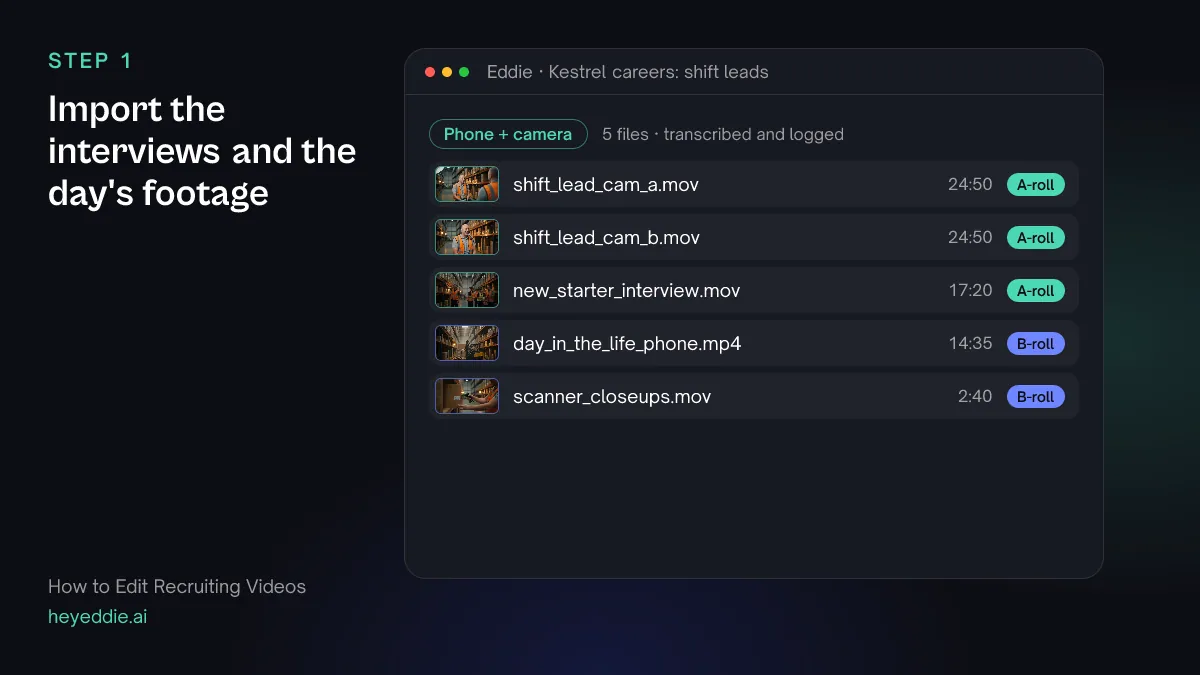
Upload the employee interviews and everything you filmed of the work, from the first clock-in to the end of the shift. Footage shot on a phone by the team is fine; it looks like the real job, which is the point.
What Eddie does
- Transcribes the interviews, names the speakers and groups the two cameras on the shift lead.
- Logs the day-in-the-life footage by what each shot shows.
What you get: Every answer searchable, and every shot of the work described.
Step 2
Find the answers candidates want
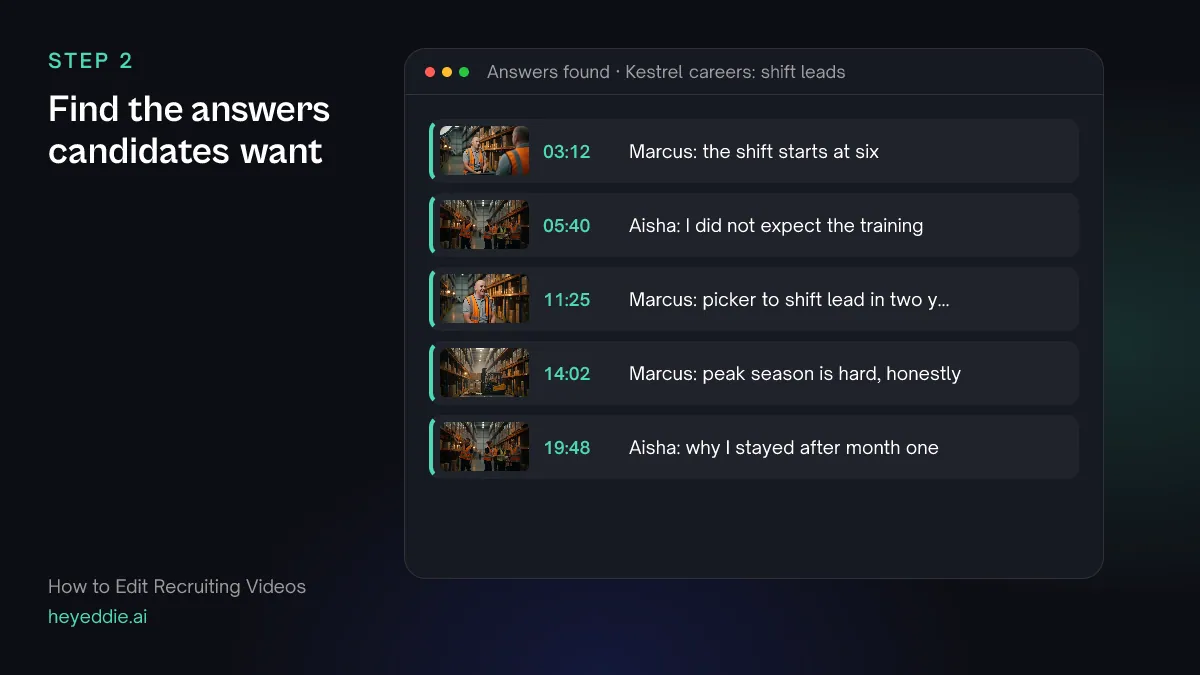
Search for the questions a candidate would ask, not for slogans. Include the hard part of the job: a careers film that admits one is easier to believe.
What you type “Find every answer about what a normal shift looks like, what surprised them in the first month, how promotion works here, and the hardest part of the job. List each with the speaker and the timestamp.”
What Eddie does
- Searches both interviews for each question and returns the matching answers.
- Lists each one with its speaker, time and the words around it.
What you get: The answers your film is made of, with who said them.
Step 3
Build the day in the life
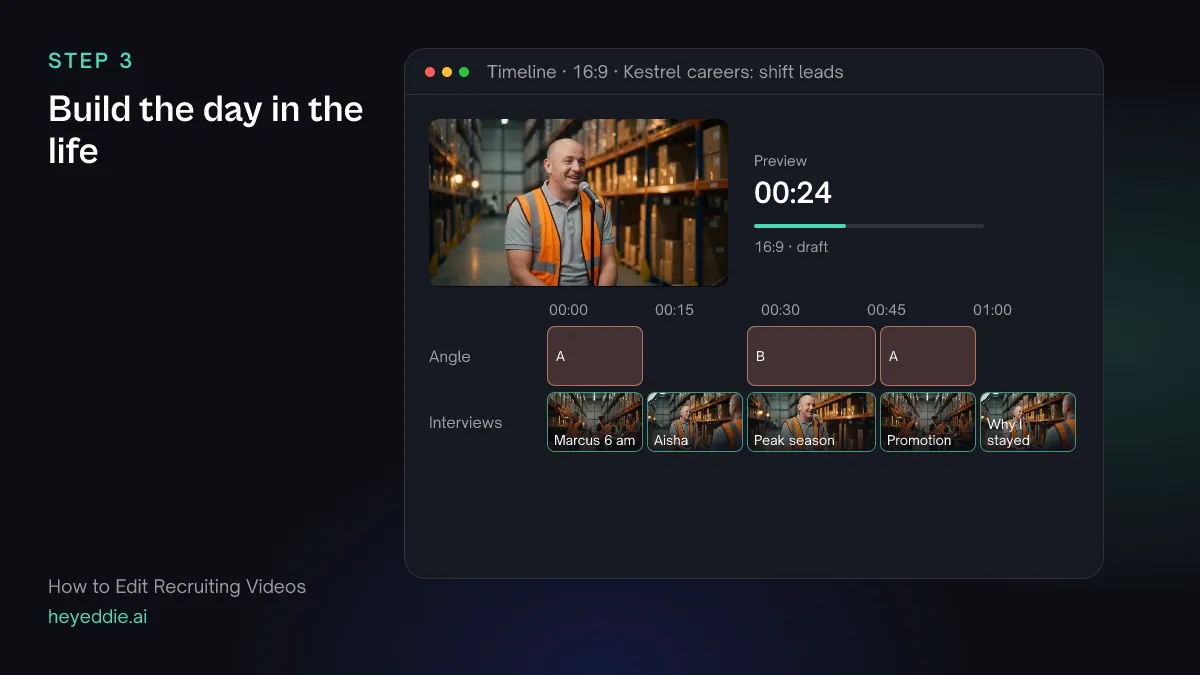
Order the answers like a working day: arriving, the work, the people, the way up, and why they stay. Keep the line about the hard part in the middle, where it reads as honest rather than as a warning.
What you type “Make a 75-second careers film in the order of a shift: Marcus on arriving at six, Aisha on her first month, Marcus on peak season and on going from picker to shift lead, and close on Aisha saying why she stayed. Cut between Marcus's two cameras on every trim, with natural pacing.”
What Eddie does
- Builds the edit from the answers you named, in the order you set, to the target length.
- Switches camera angle at the cuts on the shift lead, so trims inside an answer do not jump.
What you get: A careers film with the shape of a real day.
Step 4
Show the work and blur what you must
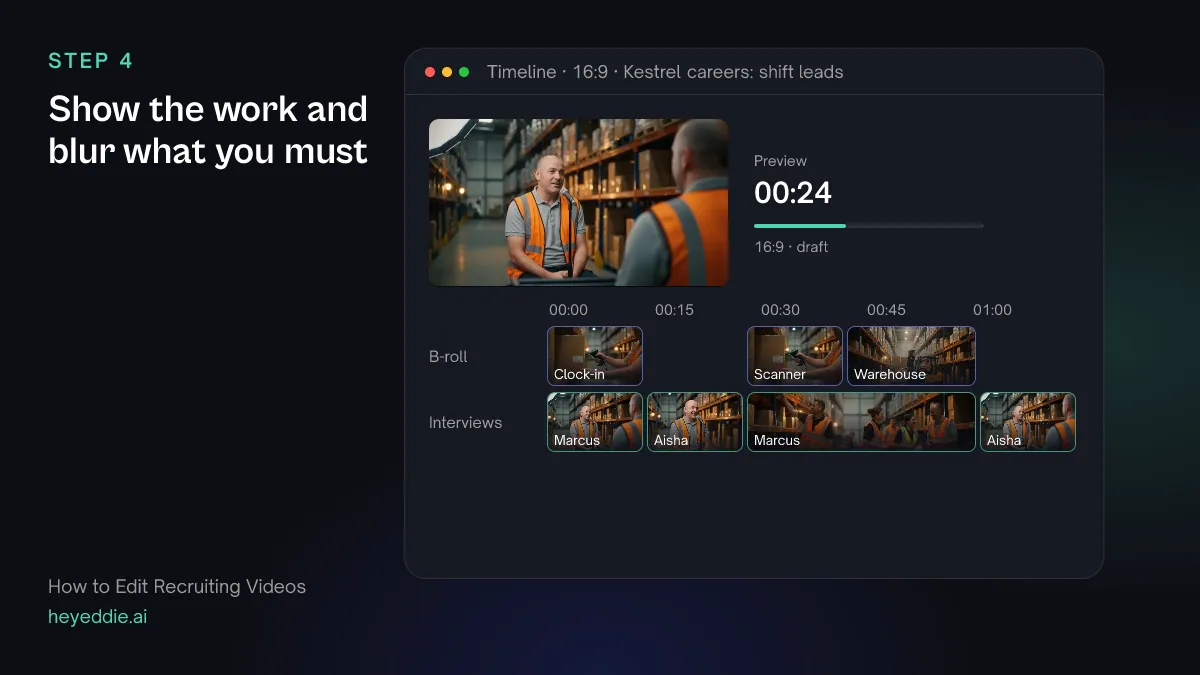
Cover the cuts with footage of the actual job. Then look for what a warehouse, office or clinic always catches on camera: a screen with customer data, a badge with a surname, an order list.
What you type “Cover the cuts with the day-in-the-life footage where it matches what they describe, and put the scanner close-ups over the part about the systems. In the scanner close-ups at 0:40, blur the screen.”
What Eddie does
- Places your footage over the matching answers.
- Blurs the region you described for the time it is on screen, in the player and in rendered video.
What you get: A film that shows the job without showing anything private.
Step 5
Add names, captions and the apply card
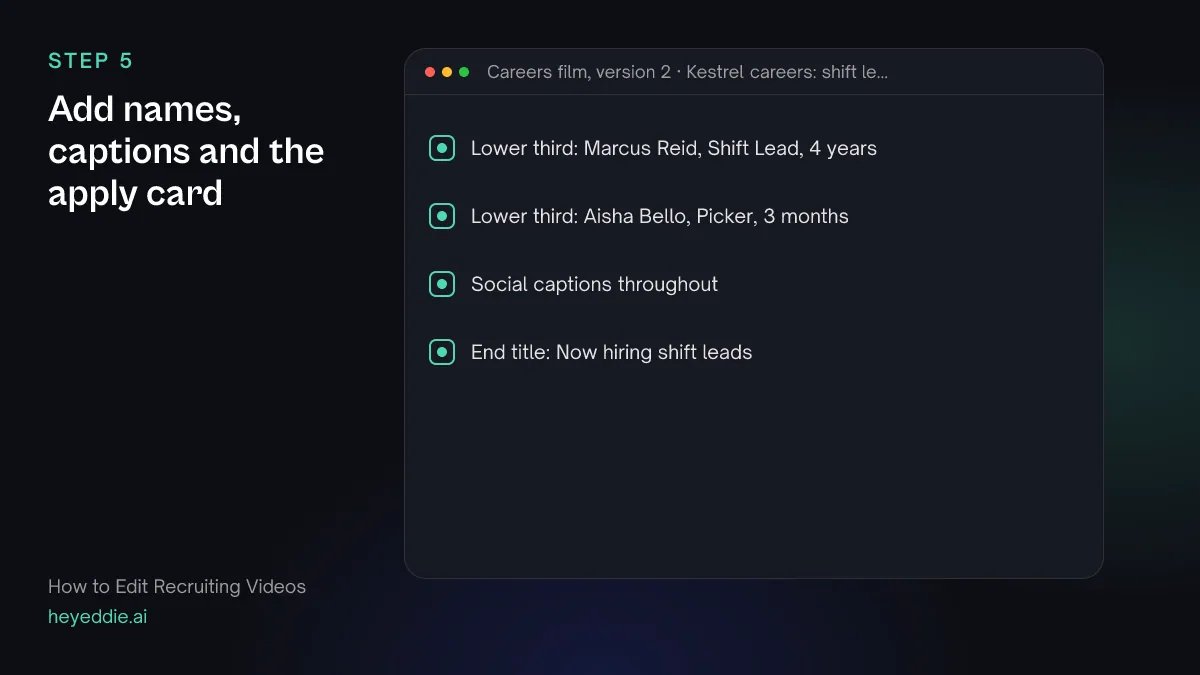
Name each person with their role and how long they have been there; time in the job is what candidates look for. End on the role and the one next step.
What you type “Add lower thirds "Marcus Reid, Shift Lead, 4 years" and "Aisha Bello, Picker, 3 months" the first time each speaks, social captions near the bottom, and an end title "Now hiring shift leads. Apply on our careers page" over the last 4 seconds.”
What Eddie does
- Adds the lower thirds from its graphics templates at each speaker's first appearance.
- Adds captions from the word timings and writes the end title onto the title track.
What you get: A finished careers film.
Step 6
Cut one short per question
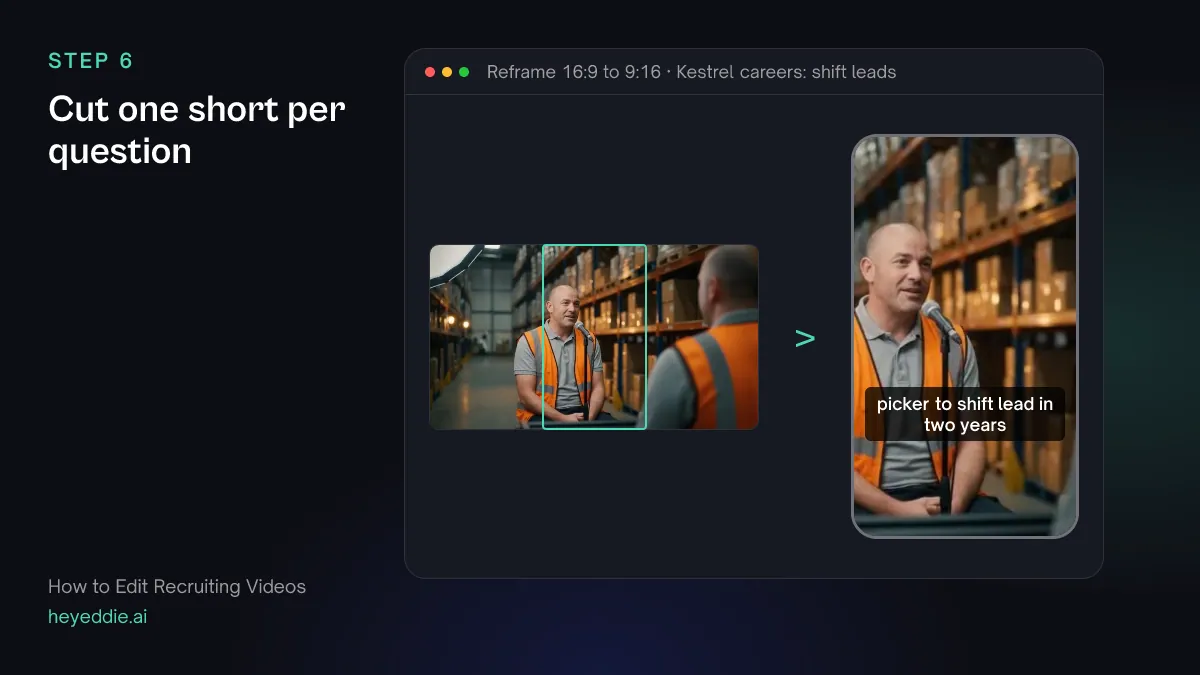
A job post has room for one answer. Make a short vertical cut for each question a candidate asks, so each post can carry the one that fits it.
What you type “Make three 20-second vertical cuts for job posts: one on what the shift is like, one on how promotion works, and one on why they stay. Crop each shot to the speaker's face, keep the captions and end each on the apply title.”
What Eddie does
- Builds three new edits from the answers that fit each question and reports their lengths.
- Sets a 9:16 canvas on each and crops every interview shot to the speaker's face.
What you get: Three short cuts, each ready for a different post.
Step 7
Review with HR, then export
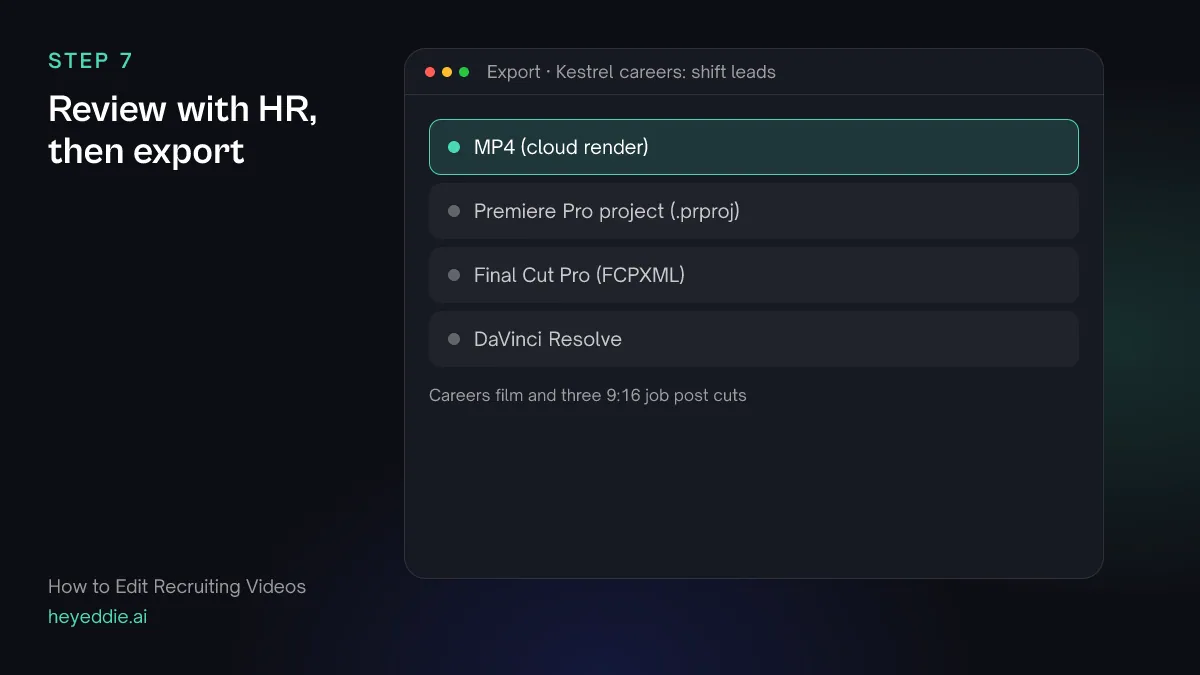
Have HR, and the people in the film, see the cut before it goes on a job board. Then export the long film for the careers page and the shorts for the posts.
What you type “Give me a review link for HR and the two employees, then export the careers film as a 1080p MP4 and the three shorts as vertical MP4s.”
What Eddie does
- Creates a review page where reviewers leave comments at the timecode without an Eddie account.
- Renders each edit in the cloud with its captions, titles and blur.
What you get: Approved videos for the careers page and every job post.
Craft
What makes it work
- Admit one hard thing
- A careers film where everything is perfect reads as an advert. One honest line about the hard part makes everything else in it believable.
- Interview the newest person too
- A three-month starter remembers what they wished they had known. That is exactly what a candidate wants to hear.
- Ask about a day, not about culture
- "Walk me through yesterday" gives you usable answers. "Describe our culture" gives you slogans.
- One question per short
- A 20-second cut that answers one question works on a job post. One that tries to answer three answers none.
- Check with the people in it
- Employees will see themselves on job boards and in feeds. Show them the cut before it is posted, and remove anyone who asks.
FAQ
Questions
- How long should a recruiting video be?
- 60 to 90 seconds for a careers page, and 15 to 30 seconds for a job post or a social ad. Make the long film first and cut the short ones from it.
- Should we use real employees or actors?
- Real employees. Candidates are looking for the truth about the job, and they can tell the difference.
- Can I make versions for different roles from the same shoot?
- Yes. Every edit in the project draws on the same interviews and footage, so you can ask for a version built around a different role or location without starting again.
- Can Eddie hide badges and screens?
- Yes. Eddie blurs, pixelates or covers a rectangle of the picture for the time you give, in playback and in rendered MP4s. The rectangle stays where you place it, so check shots where the camera moves.
- Can I make a square version for LinkedIn?
- Yes. Ask for a square canvas instead of a vertical one; Eddie sets the aspect ratio of the edit and crops each shot to fit.
Edit your next recruiting video with Eddie
Sign up, add your footage and type the first prompt above. New accounts start with free credits.