
Features
- Rough cuts
- Multicam
- A-roll logging
- B-roll logging
- Speaker identification
- Scripted edits
- Social clips
- Exports to your editor
- Styles and color
- Motion graphics
- Captions & titles
- Stock B-roll
- Generate video
- Generated music
- Voiceover
- Dubbing
- Transcription in 97 languages
- Web app
- Mac and Windows
- Claude & ChatGPT
- Recipes
- Agents
- API + MCP
Solutions
How to Edit Travel Videos
Travel footage piles up fast: a hundred short phone clips a day, some sideways, most of them the same view from a slightly different angle. Nobody wants to watch all of it. A good travel edit is a selection, held together by music and a clear sense of where you are. This guide covers a trip montage with an optional piece to camera, for YouTube, Instagram or the family.
The short answer
Sort the clips by day or by place, keep only the best two to four seconds of each, and choose one thread to carry the video: the route, one day, or what the trip changed. Cut the montage to a music track on the beat, put a short location title on each new place, and let one or two moments of your voice or natural sound break up the music. Then make a vertical version for social. Eddie logs every clip by what it shows, cuts out the best moments, builds the montage in the order you describe and snaps it to the beat, then adds the titles and the vertical cut.
The deliverables
What you will end up with
- Every clip logged by what it shows, so you can ask for "the boats at sunset" instead of scrolling.
- A three-minute montage told in trip order, built from the best seconds of each clip.
- Cuts on the beat, a title at each new place, and sideways or shaky clips fixed.
- A vertical reel for social from the same project.
6 steps
Step by step
- 01Upload the trip and tag the places
- 02Pull the best seconds from every clip
- 03Build the montage in trip order, on the beat
- 04Let one moment breathe
- 05Fix the picture and add location titles
- 06Make the vertical reel and export
Step 1
Upload the trip and tag the places
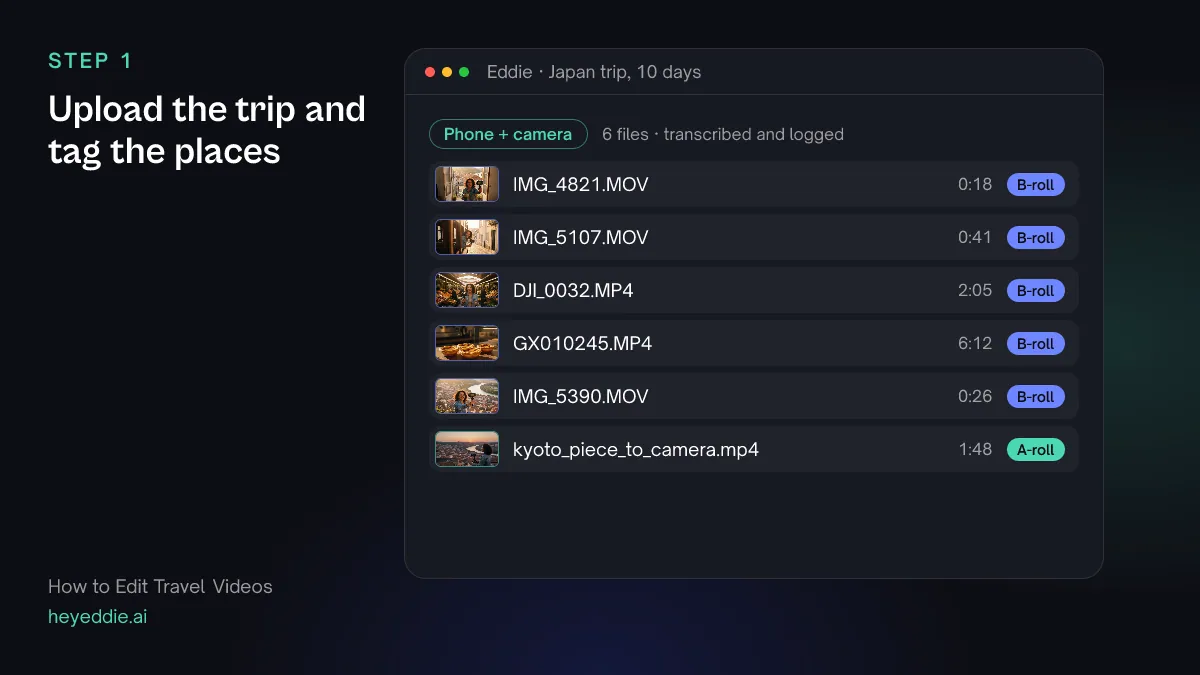
Upload everything at once, phone, drone and action camera clips together. Eddie logs every clip by what it shows. Then tell it where each batch was shot, so you can ask for footage by place. Phone files are numbered in the order you shot them, which makes this quick.
What you type “Tag the clips with where they were shot: IMG_4800 to IMG_5060 are Tokyo, IMG_5061 to IMG_5300 and all the GoPro clips are Kyoto, and the rest are Hiroshima. Treat the piece to camera as A-roll.”
What Eddie does
- Logs every b-roll clip with a short description and its best stretches, such as "crossing from above, crowds surge".
- Writes the location into each file's metadata, so you can ask for footage by place.
- Transcribes the piece to camera and keeps it apart from the b-roll.
What you get: A trip you can search by place and by what is in the shot.
Step 2
Pull the best seconds from every clip
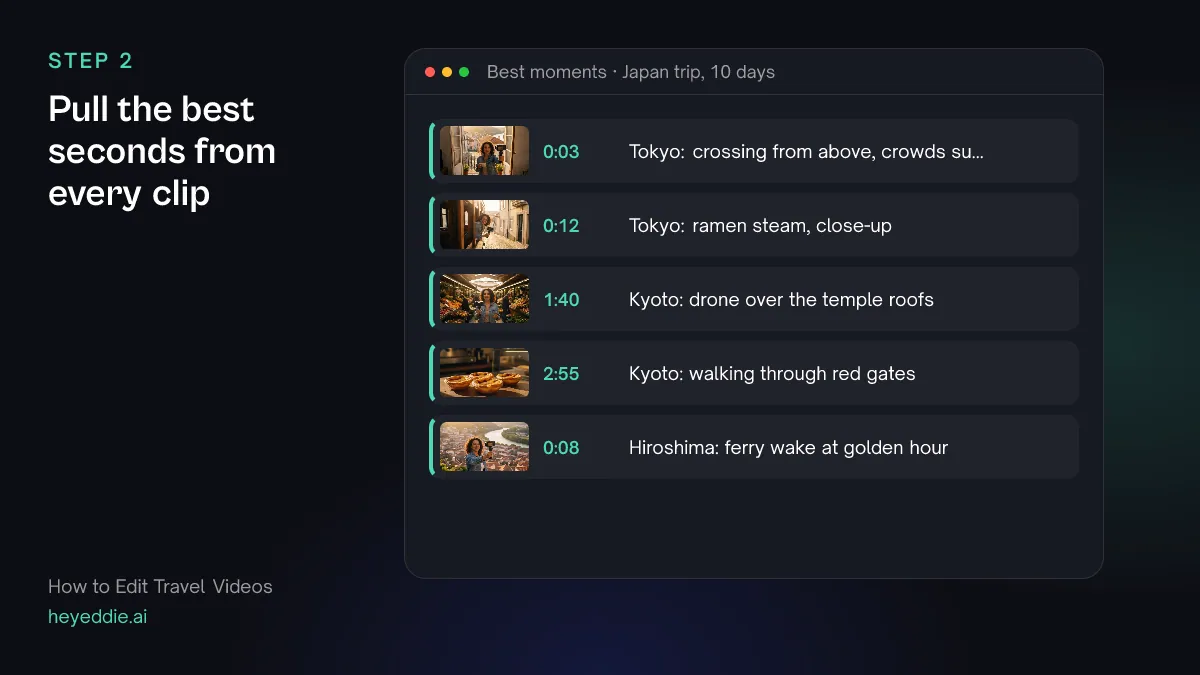
Most travel clips are long and hold three good seconds. Describe what a good moment looks like and let Eddie cut those out as subclips.
What you type “Cut subclips of the best 2 to 4 second moments from all the b-roll: movement through the frame, food close-ups, signs and street details, and anything at golden hour. Skip the shaky starts and the ends where I lower the phone.”
What Eddie does
- Quotes the credits for the run, then cuts your b-roll into subclips that match your guidance and adds them to the b-roll library.
- Lists the best moments in each clip with a short description and a rating.
What you get: A library of short, usable moments instead of hours of raw clips.
Step 3
Build the montage in trip order, on the beat
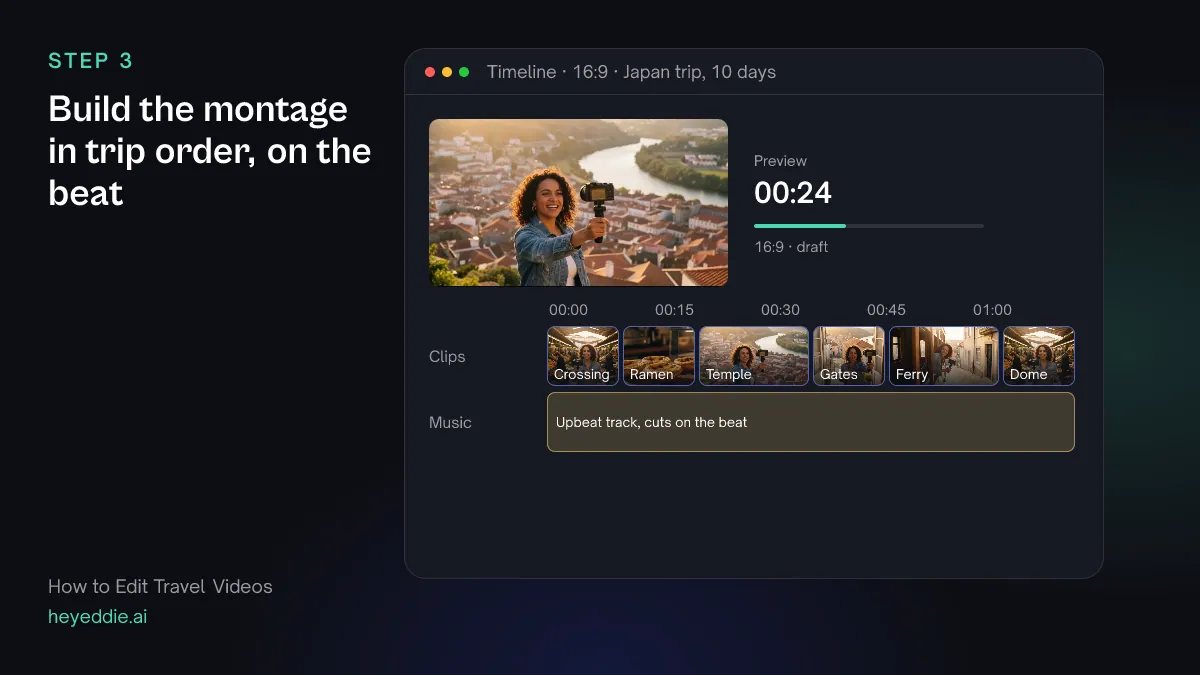
Choose the track before you cut, because it sets the length and the pace. Then ask for the montage in the order you travelled.
What you type “Make a 3-minute montage from the best subclips in trip order, Tokyo, then Kyoto, then Hiroshima. Use an upbeat track from our music library and snap every cut to the beat.”
What Eddie does
- Builds a clip sequence from the subclips in the order you named.
- Attaches the track, measures its beat grid and moves each cut onto the nearest beat, then lists the cuts it moved.
What you get: A montage that moves with the music, city by city.
Step 4
Let one moment breathe
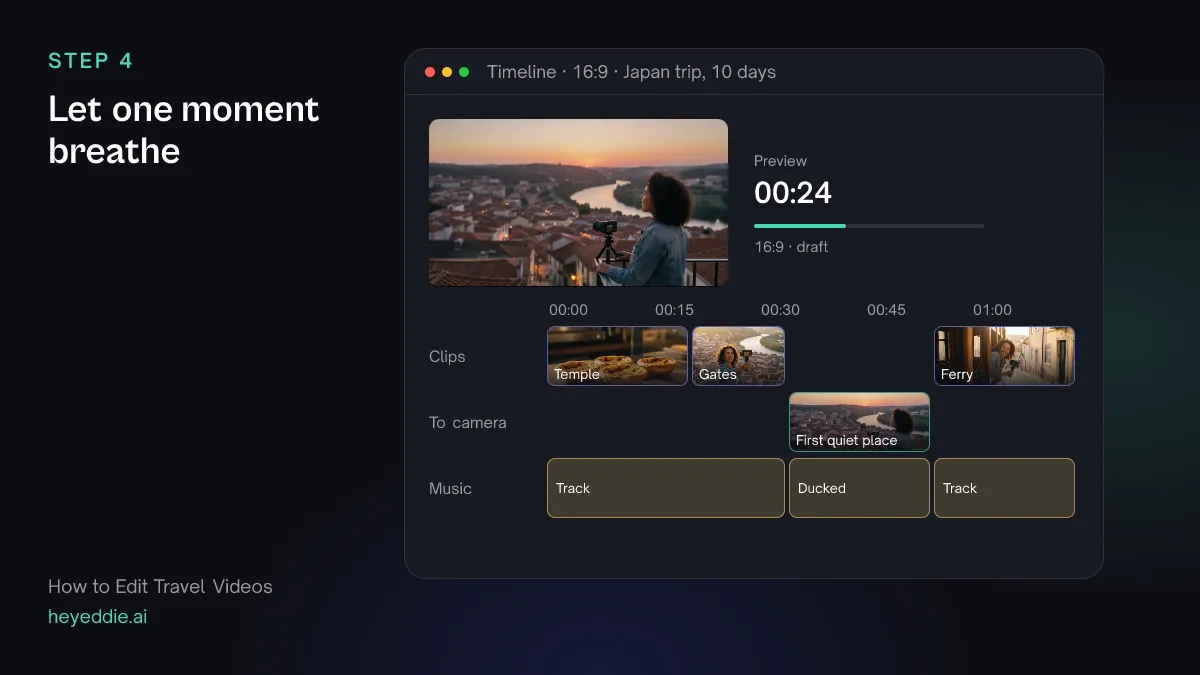
Three minutes of music and pictures gets tiring. Break it once with your voice or a natural sound, such as a line to camera or a temple bell.
What you type “Halfway through Kyoto, add the line from my piece to camera where I say "this is the first quiet place we've found", keep it under 15 seconds, and duck the music right down under it.”
What Eddie does
- Finds the line in the transcript of your piece to camera and adds it to the montage at the point you named.
- Lowers the music under your voice, then lets it come back up.
What you get: A montage with a human moment in the middle.
Step 5
Fix the picture and add location titles
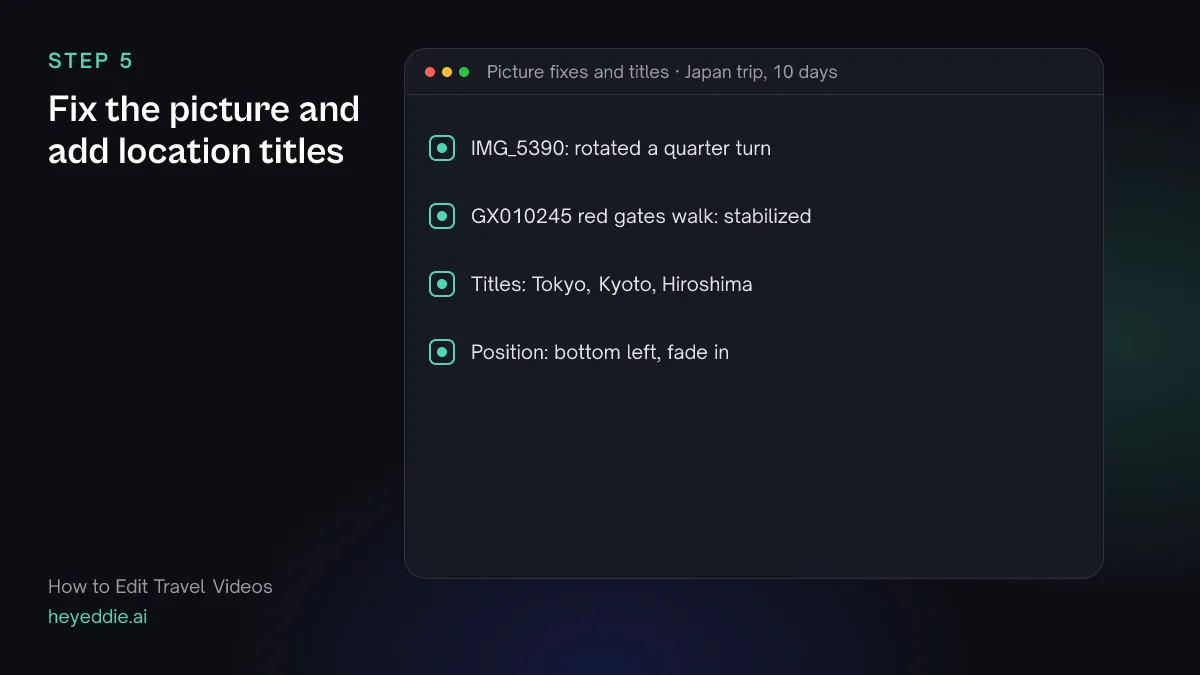
Phone clips come in sideways and handheld walking shots wobble. Fix both by naming the clips, then put the name of each place on screen as it arrives.
What you type “Rotate the sideways clip IMG_5390, stabilize the walking shots at the red gates, and add a location title at the start of each city: "Tokyo", "Kyoto", "Hiroshima", bottom left, fading in.”
What Eddie does
- Turns the sideways clip a quarter turn so it plays upright. A rotated portrait clip plays pillarboxed in a 16:9 edit unless you also crop it.
- Flags the shaky clips for stabilization and uses the steady version in the render.
- Writes each title onto the title track at the start of its city, with a fade-in.
What you get: Steady, upright shots and a clear sense of where you are.
Step 6
Make the vertical reel and export
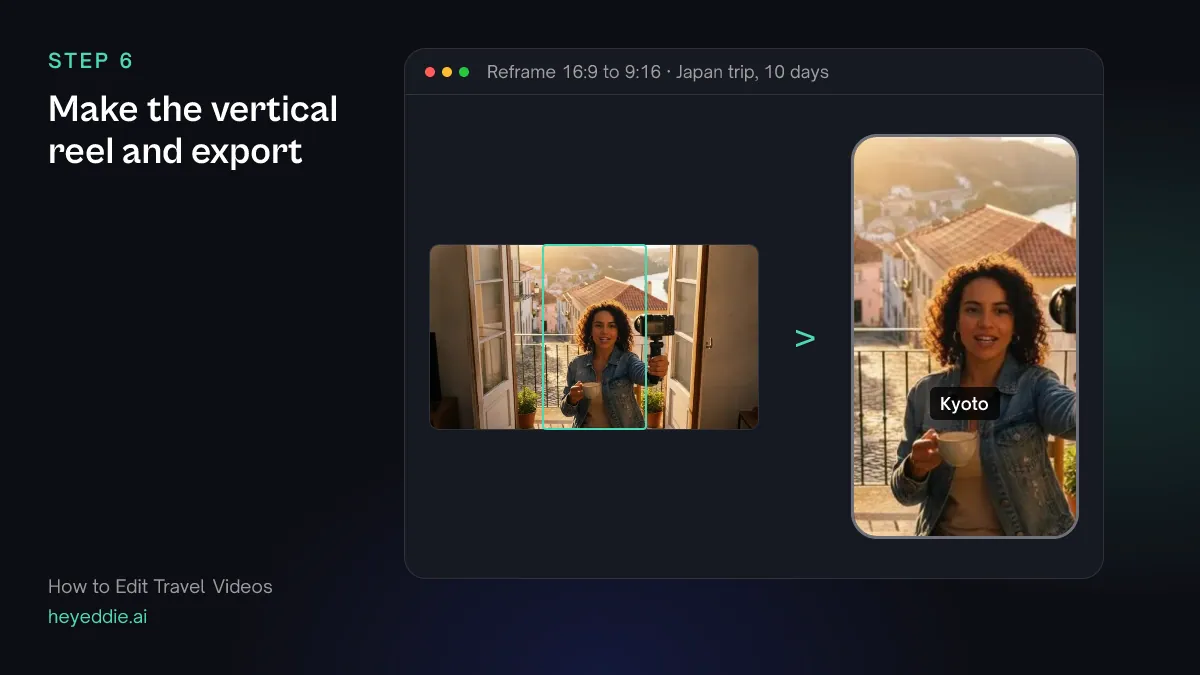
The best 30 seconds of the trip makes a vertical reel for Instagram or TikTok. Build it as its own edit so the long version stays as it is.
What you type “Make a 30-second 9:16 reel of the best moments from the whole trip, keep the city titles inside the frame, then export the reel and the 3-minute montage as MP4.”
What Eddie does
- Builds the reel as its own edit with a vertical canvas and fits each shot to it.
- Renders both versions in the cloud and gives you download links.
What you get: A long version for YouTube and a reel for social, from one project.
Craft
What makes it work
- Shoot clips, not recordings
- Five to ten seconds per clip, started and stopped on purpose, is far easier to edit than one long recording. It also gives every shot a clean start and end.
- Hold the camera the same way
- Pick horizontal or vertical for the trip and stick with it for most shots. Mixed orientations mean black bars or tight crops in the edit.
- Record sound, not just pictures
- Ten seconds of a market, a train or the sea gives you natural sound to break up the music. Point the camera at the source and stay still.
- Pick one thread
- A video about everything is about nothing. Choose the route, a single day, or one question, and cut what does not serve it.
- Shoot a few pieces to camera
- Two or three short lines on location, saying where you are and how it feels, give the montage a voice and a reason to watch.
FAQ
Questions
- How long should a travel video be?
- For Instagram or TikTok, 15 to 60 seconds. For YouTube, a music-led montage works at two to four minutes. A travel vlog with a lot of talking can run longer if the story holds.
- What is the best way to organize travel footage?
- By place or by day, whichever matches how you will tell the story. Tag clips by place as soon as you import them, and delete obvious mistakes like pocket shots before you start.
- How do I make a travel video look cinematic?
- Use only the best few seconds of each clip, favour steady shots, cut on the music, use slow motion on movement, and grade every clip to one look so phone and camera shots match. Eddie can add speed ramps and a colour grade to the edit.
- Can Eddie edit a travel video with no talking in it?
- Yes. When there is no speech, Eddie builds the video as a sequence of trimmed clips in the order you describe, then adds music, titles and transitions on top.
- Can I mix phone, drone and camera footage?
- Yes. All of them import into the same project, and mixed frame rates and orientations are fine. Eddie can rotate a clip that was filmed sideways.
- What if I forgot to film a place?
- Eddie can search stock footage for it, or generate a short shot when stock has nothing that fits. It quotes the credits before it generates anything. For a personal travel video, you may prefer to leave the gap.
Edit your travel video with Eddie
Sign up, add your footage and type the first prompt above. New accounts start with free credits.