
Features
- Rough cuts
- Multicam
- A-roll logging
- B-roll logging
- Speaker identification
- Scripted edits
- Social clips
- Exports to your editor
- Styles and color
- Motion graphics
- Captions & titles
- Stock B-roll
- Generate video
- Generated music
- Voiceover
- Dubbing
- Transcription in 97 languages
- Web app
- Mac and Windows
- Claude & ChatGPT
- Recipes
- Agents
- API + MCP
Solutions

How to Edit an Explainer Video
An explainer has one job: someone who did not understand a thing at the start understands it at the end. That might be how your product works, what a new policy changes or how a concept fits together. The script does most of the work; the edit makes sure the viewer is always looking at what the voice is talking about. This guide covers product, concept and how-it-works explainers of one to three minutes.
The short answer
Lay the voiceover first and cut every picture to it. Show the screen or the thing being explained while the voice describes it, zoom in on the part that matters, and use a simple animated diagram for the idea that has no picture. Add captions, keep the music quiet, and make 16:9, square and vertical versions from the same edit. Eddie lays the voiceover from your script, places and crops the screen recordings, animates diagrams from a description and builds each size from a prompt.
The deliverables
What you will end up with
- A voiceover laid from your script, from a recording or generated.
- Screen recordings placed under the lines they show, zoomed to the part that matters.
- An animated diagram for the idea that has no footage.
- Captions, light music and a review link for sign-off.
- 16:9, 1:1 and 9:16 versions of the same explainer.
6 steps
Step by step
- 01Lay the voiceover from the script
- 02Animate the idea that has no picture
- 03Show the screen and zoom to what matters
- 04Add captions, labels and music
- 05Get sign-off on a review link
- 06Make every size and export
Step 1
Lay the voiceover from the script
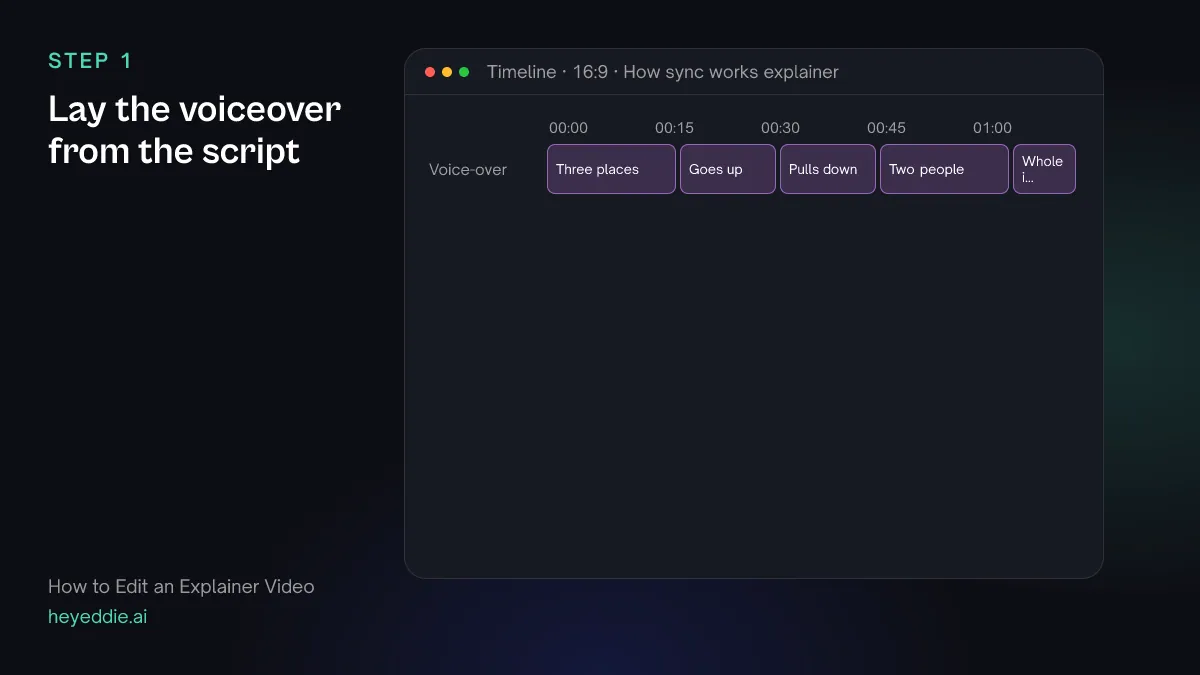
Write the script so each line explains one thing, and record it, or let Eddie voice it. Short lines are easier to cover with a matching picture and easier to change later.
What you type “Generate a voice-over in a calm, clear voice from these lines, in order: "Your files live in three places: your laptop, your team's laptops and the cloud." "When you save, the change goes up first." "Then every other device pulls it down." "If two people edit at once, you choose which version wins." "That is the whole idea."”
What Eddie does
- Picks a voice that fits the description, or refuses with the reason if no voice fits, before anything is charged.
- Generates each line and places it on the voice-over track.
What you get: A timed narration to cut every picture to.
Step 2
Animate the idea that has no picture
Concepts like sync, a supply chain or a pricing model have no footage. A simple diagram that builds as the voice speaks makes them clear. Describe it in plain words, one element per line of narration.
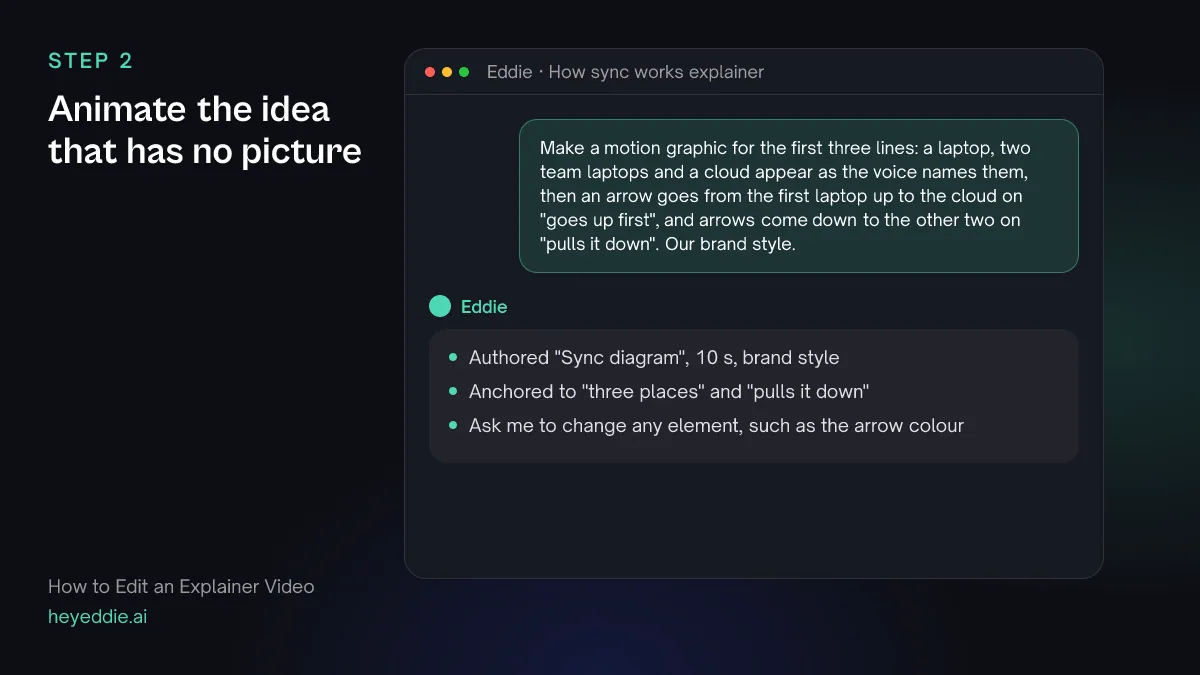
What you type “Make a motion graphic for the first three lines: a laptop, two team laptops and a cloud appear as the voice names them, then an arrow goes from the first laptop up to the cloud on "goes up first", and arrows come down to the other two on "pulls it down". Our brand style.”
What Eddie does
- Authors the graphic from your description in the workspace's brand style, after telling you the credits.
- Anchors it to the spoken words so each element arrives with its line.
What you get: The core idea shown, not just said.
Step 3
Show the screen and zoom to what matters
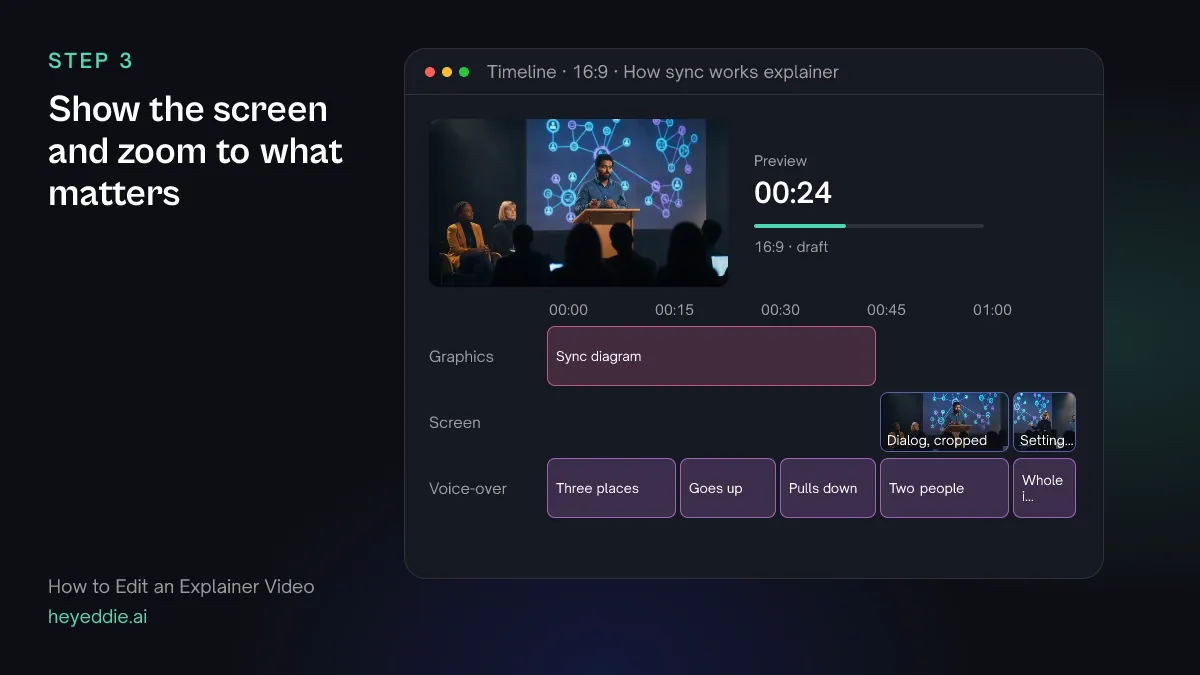
A full-screen recording of an app is too small to read on a phone. Put each recording under the line that describes it, and crop in on the button, menu or dialog the voice is talking about.
What you type “Put the conflict dialog recording under "you choose which version wins", cropped to the dialog in the centre of the screen. Put the settings panel recording under the closing line, cropped to the left half, with a slow push-in.”
What Eddie does
- Places your screen recordings over the lines you named.
- Crops each one to the region you described and adds a slow push-in where you asked for one.
What you get: Screens a viewer can read, timed to the words.
Step 4
Add captions, labels and music
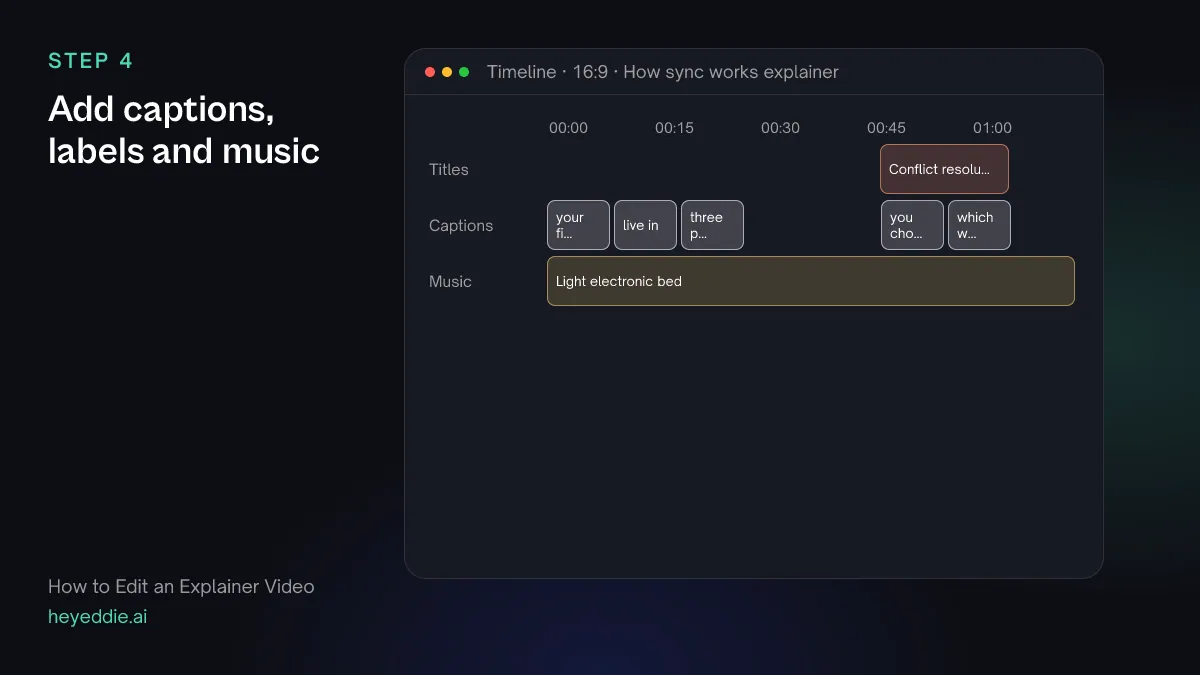
Captions help viewers on mute and in a second language. A short label on screen names the feature the viewer is looking at. Keep music light: an explainer is understood, not felt.
What you type “Add editorial captions at the bottom, a title "Conflict resolution" over the dialog shot, and a light, curious electronic bed ducked well under the voice.”
What Eddie does
- Adds captions from the word timings in the editorial look.
- Places the title at the shot you named, and attaches the music with ducking under the voice.
What you get: An explainer that works with or without sound.
Step 5
Get sign-off on a review link
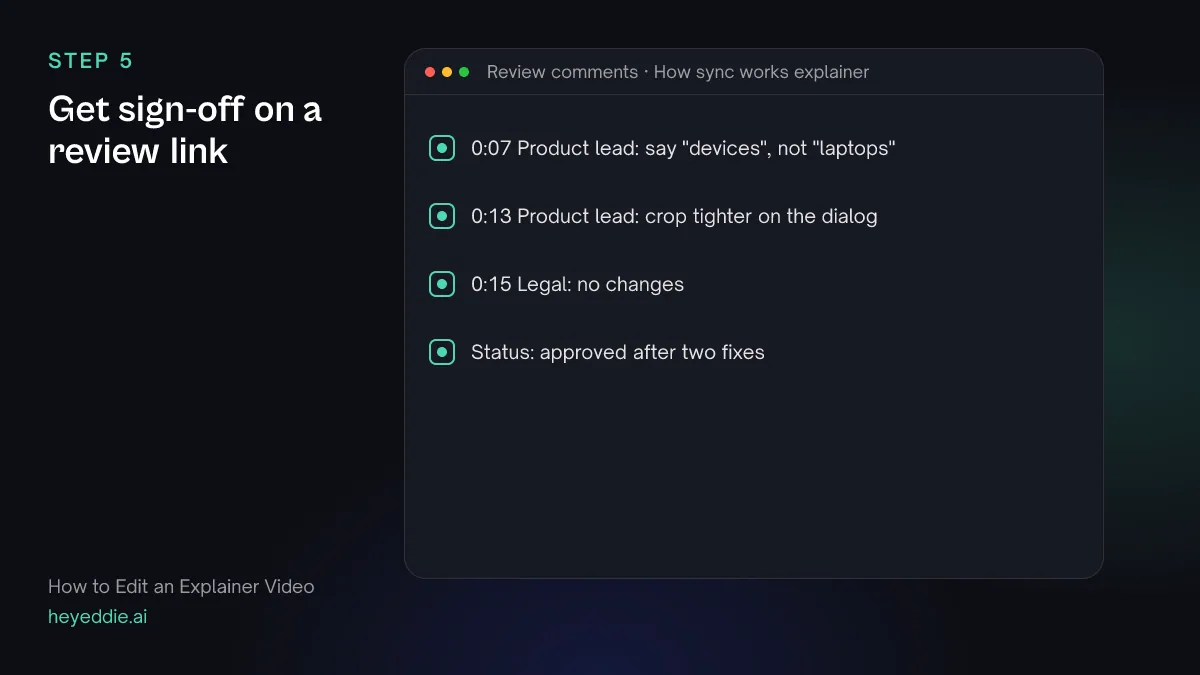
Explainers usually need approval from product, legal or a subject expert. A review link lets them comment at the exact moment they mean instead of sending a list of timecodes.
What you type “Give me a review link for the explainer so the product lead can comment at the timecode, then read me any comments left on it.”
What Eddie does
- Creates a review page for the edit that needs no Eddie account to open.
- Reads back the timeline comments with their time and author.
What you get: Approval notes pinned to the moments they are about.
Step 6
Make every size and export
The same explainer goes on a website, in a help article, on LinkedIn and on vertical social. Build the other sizes from the approved edit rather than starting again.
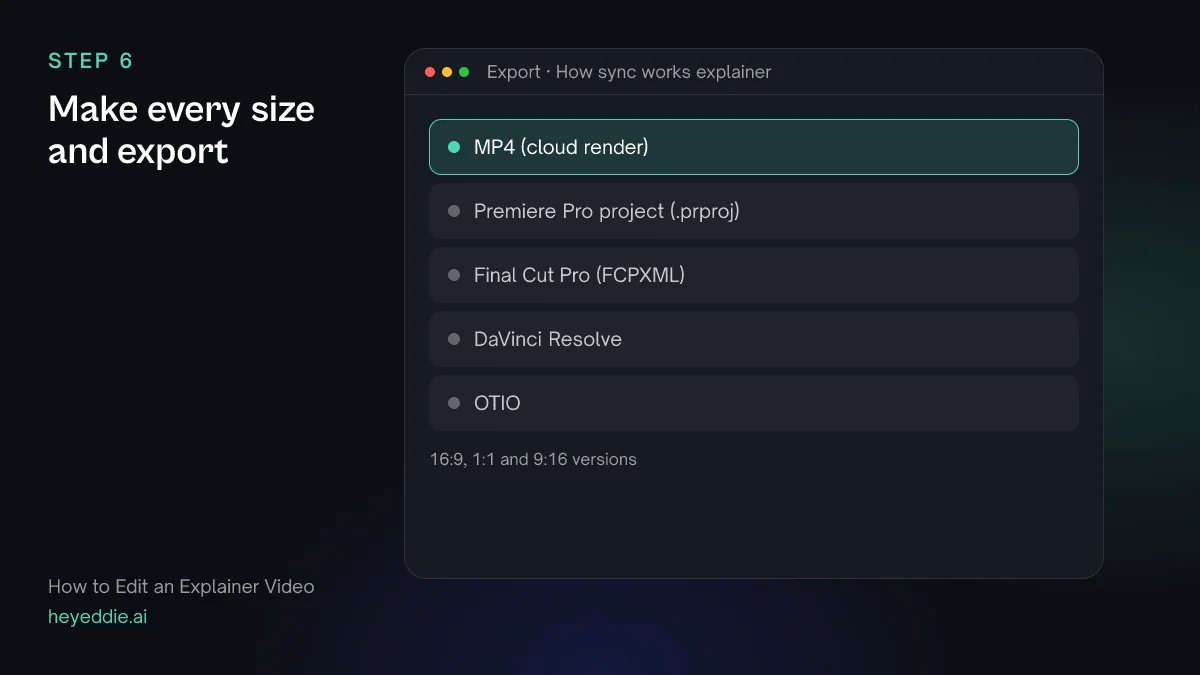
What you type “Make a 1:1 version and a 9:16 version of the approved explainer, keeping the diagram and the cropped screens centred, then export all three as 1080p MP4s.”
What Eddie does
- Sets a square and a vertical canvas on new versions of the edit and places the picture on each.
- Renders all three in the cloud with captions, titles and graphics.
What you get: One explainer in every shape you need.
Craft
What makes it work
- One idea per line of script
- If a sentence explains two things, split it. Each line then gets its own picture, and a change to one idea does not force a re-edit of the next.
- Record screens at the size you will show them
- Make the app window large, the text big and the cursor slow before you record. Hide personal bookmarks, notifications and test data you would not want on screen.
- Explain the problem before the product
- Open on what goes wrong without the thing you are explaining. Viewers follow a solution more closely once they recognise the problem.
- Plan for square and vertical early
- Keep important screen detail and diagram elements near the centre of the frame, so the 1:1 and 9:16 versions do not crop them off.
- Keep it under three minutes
- Most explainers lose people after two or three minutes. If yours runs longer, it is probably two explainers.
FAQ
Questions
- How long should an explainer video be?
- Sixty to 120 seconds for a product or concept explainer on a website or in an ad; up to three minutes for a detailed how-it-works video. Shorter is easier to watch to the end and easier to update.
- Can I make an explainer video without animation software?
- Yes. Describe the diagram in plain words and Eddie authors an animated graphic in your brand style, then you change any element with another prompt. Template graphics such as lower thirds and stat callouts are also available.
- Do I need a professional voiceover?
- A clear, well-recorded voice matters more than a famous one. Record it yourself or have a colleague read it, or ask Eddie to generate the voice-over from your script lines.
- How is an explainer different from a product video or a training video?
- A product video sells features with detail shots. A training video teaches a procedure step by step. An explainer makes one idea understood, usually with a diagram and a few screens.
- Can I hide private data in a screen recording?
- Yes. Ask Eddie to blur, pixelate or cover a region of the screen for the time it is visible. The rectangle is fixed, so re-record if the private detail moves around a lot.
- Can I update the explainer when the product changes?
- Yes. Record the new screen, add it to the project and ask Eddie to swap it under the same line. Change the voiceover line too if the wording changes.
Edit your next explainer with Eddie
Sign up, add your footage and type the first prompt above. New accounts start with free credits.