In Summary Yes, Claude can edit videos, but only through a connector to a video editor. On its own it cannot open your footage or write a timeline. Import your footage into Eddie, add Eddie in Claude as a custom connector (Customize > Connectors > "+ Add" > "Add custom connector"), sign in, and describe the video you want. Claude builds the cut inside Eddie, and you export a timeline to Premiere Pro, DaVinci Resolve or Final Cut Pro. Custom connectors work on every Claude plan, including Free, which allows one.
The short answer
Claude does not edit video by itself. It has no access to your media, no timecode, and no way to write a sequence your editing app can open.
It is good at the part editors spend most of their time on: reading an hour of talking, working out the story, and choosing which twelve of four hundred sentences belong in the cut. Give it a tool that holds the footage and that judgement becomes an edit. Claude reaches outside tools through the Model Context Protocol (MCP), and Eddie is an AI video editor built on MCP, so Claude can work in your Eddie projects once you add the connector.
So getting Claude to edit a video for you takes two things: your footage imported into Eddie, and the Eddie connector added to Claude. The five steps below cover both, using Anthropic's own menu names as of its help article updated October 30, 2026.
Where Claude stops, precisely
| Task | Claude alone | Claude + Eddie connector |
|---|---|---|
| Read a 14,000-word transcript and find the arc | Yes, if you paste it in | Yes |
| Choose the better of two similar takes | Only from wording | Yes, with frames |
| Know when a line was said | No | Yes, from the transcript timings |
| Assemble a sequence | No | Yes |
| Hand off to Premiere / Resolve / FCP | No | Yes |
| Upload your video files from the chat | No | No: import them in Eddie first |
The trap people fall into: paste a transcript into a chat and Claude will write a good paper edit. But a paper edit is a document. Turning it into a timeline means finding every one of those lines by hand. With the connector, the timings never get separated from the words, so the cut comes out as a cut.
The footage in this walkthrough
Three interviews with Jessica Hernandez and her daughter Alizé, who run Simply Men's Barbershop in West Chester, PA. It is a mother-and-daughter business that came together during covid.
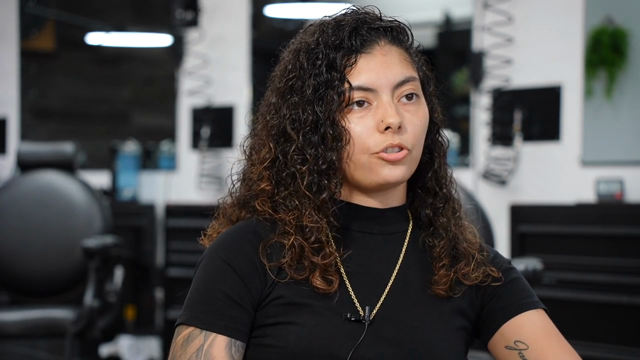
As it arrived:
- 3 interviews: 8:20, 24:59 and 30:38, 1 hour 4 minutes in total
- 13,675 words of transcript
- 3 speakers, plus interviewers, separated automatically
This is the demo project that ships inside Eddie, so you can run every step below on the same footage.
Step 1: Import your footage into Eddie
Do this first. Your chat client cannot upload or import your own video files into Eddie, so the footage has to be in an Eddie project before Claude can touch it. Eddie's help article on adding footage when you work from a chat gives these steps:
- Open the Eddie web app.
- To start a new project, choose New project. To add to a project you already have, open it and click + Add next to Media.
- Drag your files onto the drop zone, or pick a cloud source such as Google Drive or Dropbox.
- Click Import.
- Wait for the files to finish. Eddie transcribes and analyzes each clip.
An import costs 250 credits for each hour of footage, billed in 15-minute blocks, and Eddie shows the cost before you click Import. New files appear in the chat after they finish processing. Teams whose footage lives in Frame.io or iconik have their own workflow pages.
Step 2: Add the Eddie connector to Claude
Use these values. They are on Eddie's connector page:
- Name: Eddie AI
- URL:
https://mcp.heyeddie.ai/api/mcp - Authentication: OAuth. You sign in with your Eddie account. There is no token or client secret to paste.
Use that URL exactly. Do not substitute app.heyeddie.ai.
On a Pro or Max plan
These are Anthropic's steps for an individual Pro or Max plan. Eddie's setup article uses the same Customize > Connectors path and says it works on Free too, where Claude allows one custom connector.
- Navigate to Customize > Connectors.
- Click "+ Add", then "Add custom connector."
- Enter a name for the connector:
Eddie AI. - Add the remote MCP server URL,
https://mcp.heyeddie.ai/api/mcp. Click "Continue." - Review the authentication settings Claude detected. Click "Continue."
- The next screen has Authentication, OAuth client and Request headers settings. Finish configuring the connector by clicking "Add."
- Click Connect next to the connector and sign in to Eddie.
If you see OAuth client ID or secret fields, Eddie's connector page says to leave them blank. Your client discovers the Eddie sign-in automatically.
When you connect, a sign-in page opens at auth.heyeddie.ai. That is Eddie's own sign-in page, so this is expected. Sign in with the same account you use in the web app.
On a Team or Enterprise plan
Here the connector is added once for the whole organization. On Team plans, only Owners and Primary Owners can add it. On Enterprise plans, Owners, Primary Owners, and people with a custom role that includes Manage access to Libraries can add it. Anthropic's steps for them:
- Navigate to Organization settings > Connectors.
- Click "Add."
- Hover over "Custom," then select "Web."
- Enter a name (
Eddie AI) and the remote MCP server URL. Click "Continue." - Review the authentication settings Claude detected. Click "Continue."
- The same Authentication, OAuth client and Request headers settings follow. Finish configuring the connector by clicking "Add."
Then each member connects on their own:
- Navigate to Customize > Connectors.
- Find the connector your Owner added. It usually has a "Custom" label.
- Click "Connect" and sign in to Eddie.
Turn it on in a chat
Connectors are switched on per conversation. Click the "+" button on the lower left of the chat, then "Connectors", and make sure the toggle next to Eddie is on.
If you would rather have Claude walk you through setup, Eddie's Claude & ChatGPT page gives this prompt to paste:
Read https://www.heyeddie.ai/mcp to install the Eddie AI MCP connector in Claude and set up a new task for me.
In Claude Code
In the terminal, run:
claude mcp add --transport http eddie https://mcp.heyeddie.ai/api/mcp
Add --scope user after add to use Eddie in all your projects. Then start Claude Code, type /mcp, select eddie, choose Authenticate, and sign in to Eddie in the browser window that opens. The Claude Code page has more.
Step 3: Describe the video you want
Start by asking Claude to list the sources in the project, so you know it sees the footage you imported. Then describe the edit. On this footage:
Create a story about Alizé's journey as a female barber in a mostly male field.
No timecodes, no clip names, no shot list. Claude searches the transcripts of all three interviews, picks the lines that carry that story, and builds an edit from them. You can give a target length, and Eddie reports the finished length against the source.
What works well on interview material:
- Thematic pulls. "Find everything about opening during covid" searches across all three files at once.
- Ordering for meaning. Ask it to open on the strongest line. Choosing that line is a reading problem, and reading is what Claude is good at.
- Cutting on request. "Cut this to 90 seconds and lose anything that repeats."
For footage without much talking, Eddie can also search the picture and sound for moments you describe. It quotes the price first and only runs the search when you confirm.
The same prompting works on other dialogue-led footage: a Zoom recording, a talking head video, or a multicam interview or podcast. The interview prompt library has more starting points.
Step 4: Treat the first cut as a first cut
You get an edit you can play in Eddie. Then you give notes, as you would to an assistant editor:
- "Too slow out of the gate. Start on her first day at the shop."
- "You used the same anecdote twice. Keep the better read."
- "Take 30 seconds out of the middle."
Each note is another prompt. Eddie keeps saved versions of an edit, so you can ask Claude to restore an earlier one or undo the last change. You can also ask for a review of the cut: Eddie renders it and returns notes on story, pacing and the hook, with timestamps. That review uses credits.
When the structure holds, the finishing passes are prompts too:
- Captions from the transcript's word timings, in a chosen look. Filler words are left out of the caption text by default. See captions and titles.
- B-roll placed over the interview from your project's b-roll library. The first call returns the price and places nothing; a second call with your confirmation places the clips.
- A vertical cut for social clips, with the canvas set to 9:16.
- A review link, so a client can watch the cut and leave notes at the timecode without an Eddie account.
Step 5: Export a timeline to your editing app
This is the step that decides whether the work was worth it. Ask Claude to export a timeline: Final Cut Pro, DaVinci Resolve, a native Premiere Pro project, Premiere XML or OpenTimelineIO. You open a sequence of real clips you can keep cutting, not a flattened file.
A cloud-rendered MP4 is there too, for when the deliverable really is just a video. Timeline exports and renders use credits.
For the round trip in each editor, including relinking to the camera originals, see the Premiere Pro, DaVinci Resolve and Final Cut Pro workflows.
If Eddie stops working in Claude
- It asks you to sign in again, or fails with an error. A connector added before October 15, 2026 can do this. Click Connect or Reconnect next to Eddie, if you see it, and sign in with the same Eddie account. If that does not work, go to Customize > Connectors > Eddie, choose Disconnect or Remove, and add it again with the same URL. Your projects, footage and credits do not change.
- You typed the wrong URL. To change a custom connector's details, Anthropic says to remove it first, then re-add it using the updated details.
- You see different projects than in the web app. You signed in with a different Eddie account. A different account shows different projects and credits.
- Tools seem missing or old. Disconnect and reconnect the connector to get the current tools.
What it will not do
- Upload from the chat. Footage goes into Eddie through the web app or desktop app. Claude can then list it and cut it.
- Generate new music, AI voice-over or AI b-roll. These stay in the Eddie web app. Make them there and they are in the same project when you go back to your chat.
- Check every frame for you. Claude works from the transcript and pulls frames when asked. Soft focus, a boom in shot, someone crossing behind: you catch those.
- Replace your finishing pass. Dialogue-led footage plays to its strengths: interviews, podcasts, testimonials. Colour, mix and the taste calls are still yours, which is why the timeline export matters more than the render.
FAQ
Can Claude edit videos?
Yes, through a connector. Claude cannot open media or write a timeline on its own. Connected to Eddie over MCP, it can search your transcripts, build an edit, add captions and b-roll, and export a timeline you finish in your editing app.
Can Claude edit a video for me?
It can build the first cut and the revisions you ask for. Import your footage into Eddie, add the Eddie connector in Claude, and describe the video you want. You still review the cut and do the final pass in Premiere, Resolve or Final Cut.
Does Claude AI edit videos by itself?
No. It needs a tool that holds the footage. With Eddie, the chat and the web app share the same projects, footage and credits, so work started in a chat shows up in the web app.
Can I upload a video to Claude and have it edited?
Not into Eddie. Eddie's help article says your chat client cannot upload or import your own video files. Add the files in the Eddie web app or desktop app, then go back to the chat and ask Claude to list the sources.
Do I need a paid Claude plan?
No. Anthropic lists custom connectors on Free, Pro, Max, Ultra, Team and Enterprise plans. Free is limited to one custom connector.
Who adds the connector on a Team or Enterprise plan?
On Team plans, Owners and Primary Owners. On Enterprise plans, Owners, Primary Owners, and people with a custom role that includes Manage access to Libraries. After that, each member clicks Connect in Customize > Connectors.
Should I just paste my transcript into Claude?
You will get a good paper edit, but the timecode is gone, so every line has to be found by hand before it becomes a cut.
Claude or ChatGPT for this?
Both can drive Eddie. The tools are the same whichever client you connect from; the assistants may word things differently or take a different route to the same edit. See how to edit video with ChatGPT.
How long before I can start?
Import has to finish first: Eddie transcribes and analyzes each clip, and new files appear in the chat after they finish processing. For a shorter version of this workflow aimed at interviews, see how to edit interviews with Claude.
Sources
- Anthropic, Get started with custom connectors using remote MCP (updated October 30, 2026; checked November 5, 2026)
- Claude Code Docs, Connect Claude Code to tools via MCP (checked November 5, 2026)
- Eddie AI, Use Eddie from Claude, ChatGPT, Codex, Cursor or any MCP client
- Eddie AI, Add your own footage when you work from Claude or ChatGPT
Rather try it on the same barbershop interviews than your own footage? It is the demo project inside Eddie. Open it and prompt it.