
Features
- Rough cuts
- Multicam
- A-roll logging
- B-roll logging
- Speaker identification
- Scripted edits
- Social clips
- Exports to your editor
- Styles and color
- Motion graphics
- Captions & titles
- Stock B-roll
- Generate video
- Generated music
- Voiceover
- Dubbing
- Transcription in 97 languages
- Web app
- Mac and Windows
- Claude & ChatGPT
- Recipes
- Agents
- API + MCP
Solutions

How to Edit a Zoom Recording
A remote interview, an expert call or a podcast recorded over Zoom has good content and bad packaging: a grid of webcams, two different microphones, a few seconds of frozen video and five minutes of small talk at each end. This guide is for conversations, where the back-and-forth is the point. For a presentation with Q&A, see the webinar guide instead.
The short answer
Start from the best files the platform gives you: Zoom can save an active-speaker view and a gallery view, and in local recording a separate audio file for each participant, while Teams and Google Meet usually give one file with mixed audio. Cut the joining chatter, the "can you hear me" moments and the connection freezes, keep the conversation, and switch between speakers instead of sitting on the gallery grid. Level the laptop microphones so everyone sounds the same, then add names and captions. Eddie syncs the files, names the speakers, finds the freezes and dead air in the transcript and builds the cut from prompts.
The deliverables
What you will end up with
- Every file from the call synced as one recording, with each speaker named.
- The small talk, connection problems and reconnects removed.
- A cut that shows whoever is talking instead of the gallery grid.
- Name titles, speaker-coloured captions and a vertical clip.
7 steps
Step by step
- 01Upload every file the call produced
- 02Name the speakers and fix the crosstalk
- 03Find the dead air and the freezes
- 04Build the conversation cut
- 05Show whoever is talking
- 06Add names, captions and a clip
- 07Export and level the voices
Step 1
Upload every file the call produced
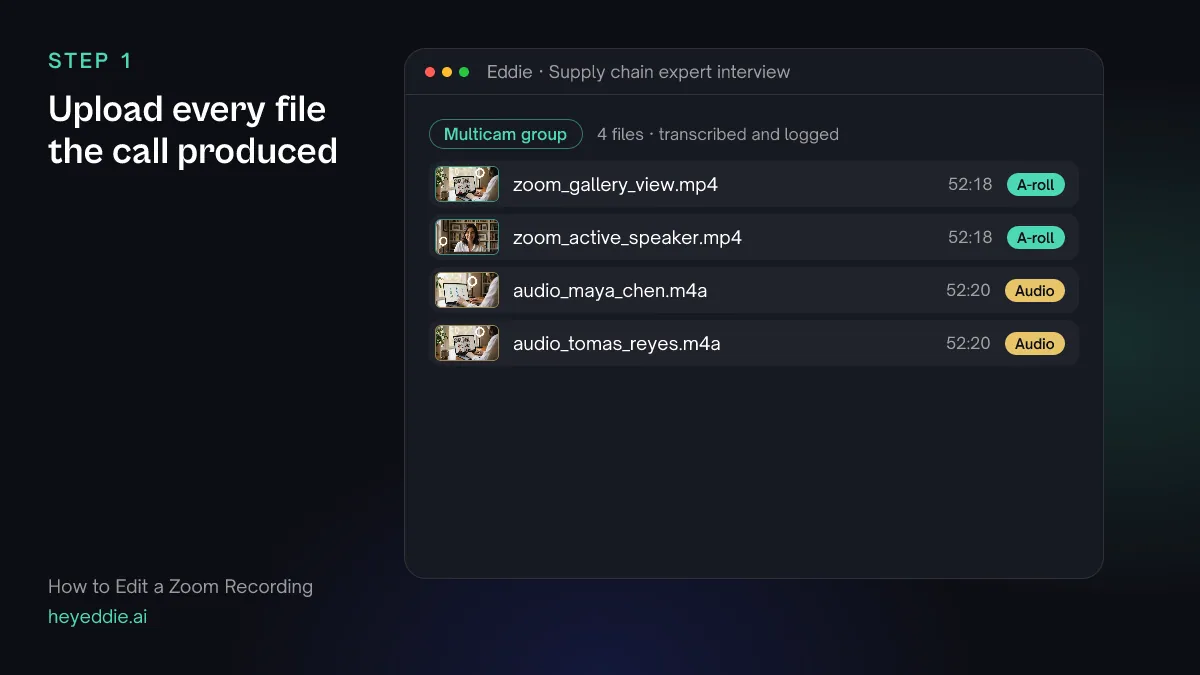
Download the recording and upload all of it: the active-speaker and gallery files from a Zoom cloud recording, or the separate participant audio files from a local recording. Each file is another option in the edit. Teams and Meet usually give one file, which works too.
What you type “Sync the gallery view, the active speaker view and both participant audio files as one multicam group, with the gallery view as the reference.”
What Eddie does
- Measures each file's offset against the gallery view and groups them as one recording.
- Transcribes the call so every line is searchable.
What you get: The whole call as one synced, searchable recording.
Step 2
Name the speakers and fix the crosstalk
Transcription labels voices as Speaker 1 and Speaker 2. Name them once. Where two people talked over each other, check that each line sits with the right person, because captions and clips will credit whoever the transcript says.
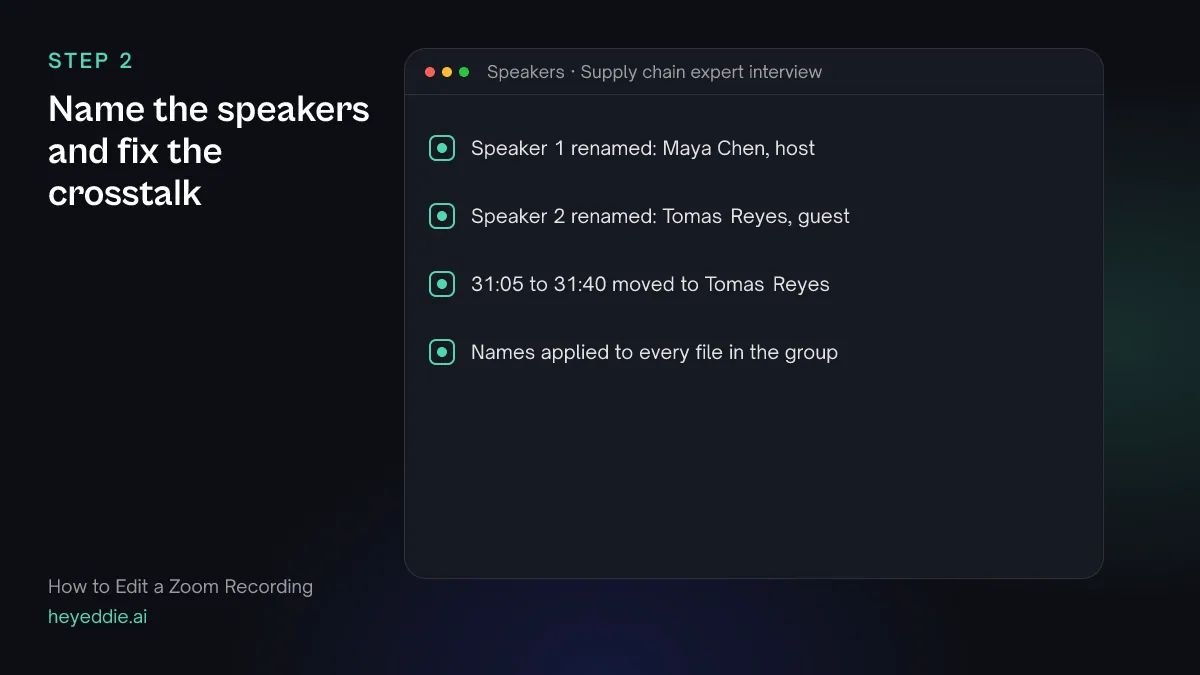
What you type “Rename Speaker 1 to Maya Chen and Speaker 2 to Tomas Reyes, and move the lines between 31:05 and 31:40 to Tomas; we were talking over each other there.”
What Eddie does
- Renames the speakers across every file in the group.
- Moves the lines you named to the right speaker, so captions and clips credit the right person.
What you get: A transcript that says who said what.
Step 3
Find the dead air and the freezes
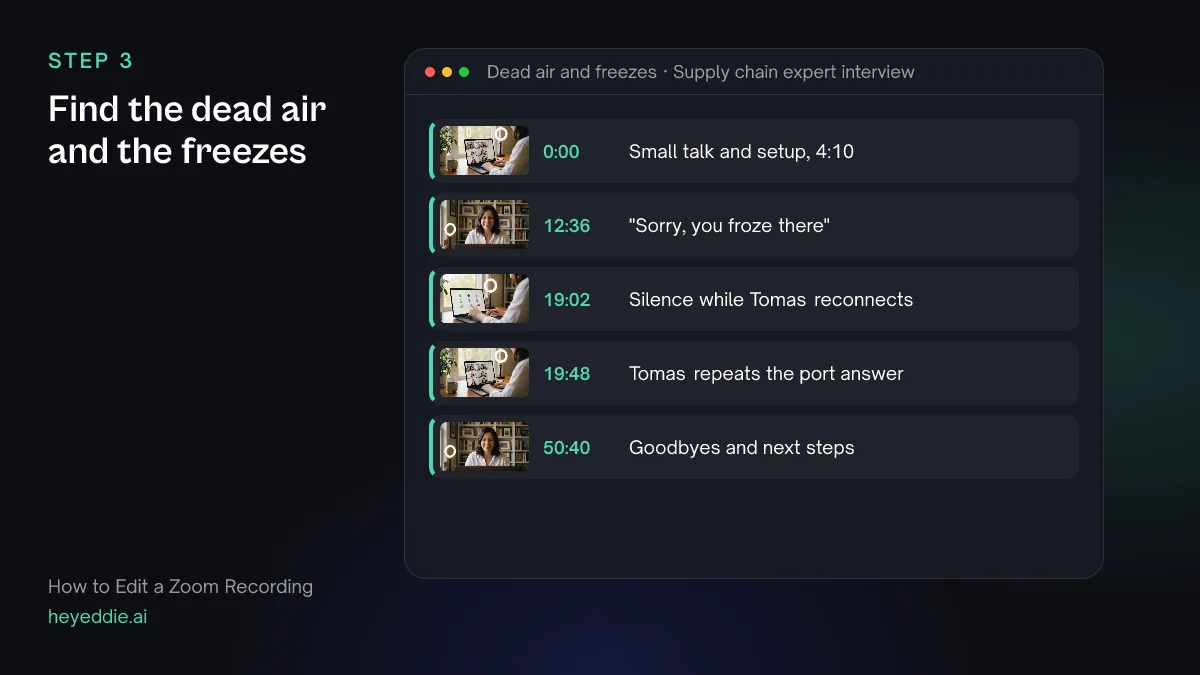
Connection problems leave traces in the transcript: someone asks if they can be heard, says the other person froze, or repeats an answer. Find all of them, plus the small talk before and after the interview.
What you type “Find the small talk before the first question, every "can you hear me", "you froze" or "you cut out", any long silence while someone reconnected, and the goodbyes after the last answer. List them with timestamps.”
What Eddie does
- Searches the transcript for the phrases you named, and for long silences.
- Returns each stretch with its start time and the words around it.
What you get: A list of everything that is the call, not the conversation.
Step 4
Build the conversation cut
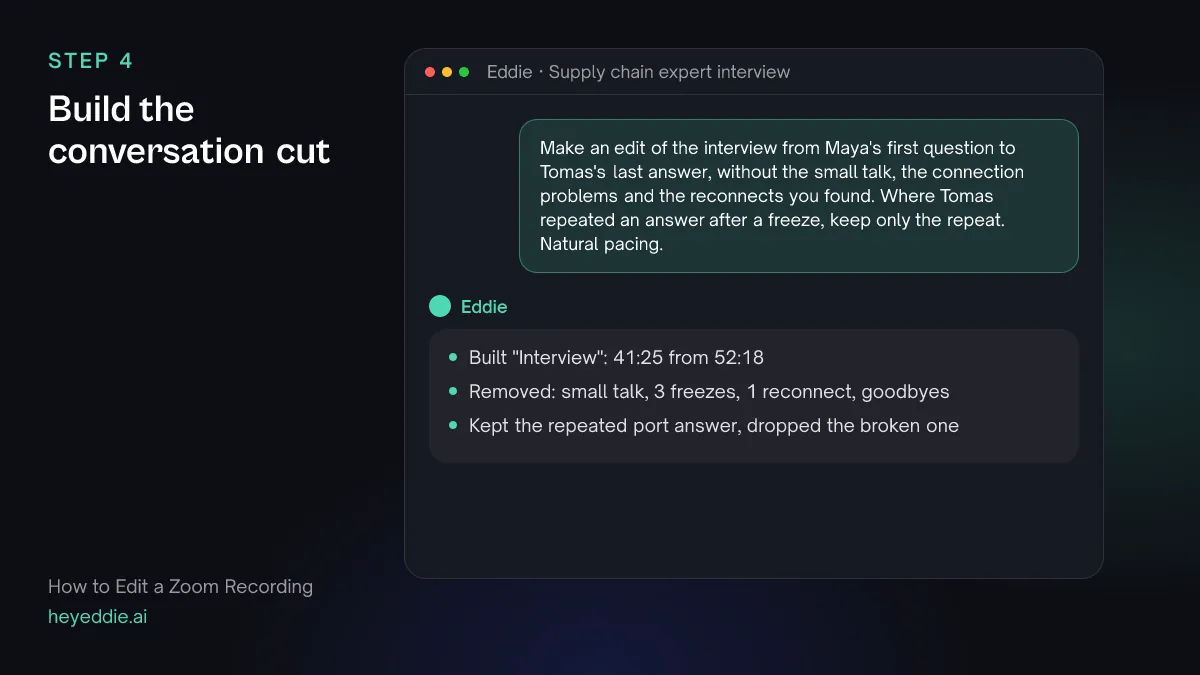
Cut from the first real question to the last answer. Where a freeze swallowed part of an answer and the guest repeated it, keep the repeat and drop the broken version.
What you type “Make an edit of the interview from Maya's first question to Tomas's last answer, without the small talk, the connection problems and the reconnects you found. Where Tomas repeated an answer after a freeze, keep only the repeat. Natural pacing.”
What Eddie does
- Builds the edit from the conversation and leaves out the stretches you listed.
- Closes the gaps to a natural pause and reports the finished length against the call.
What you get: The conversation without the call around it.
Step 5
Show whoever is talking
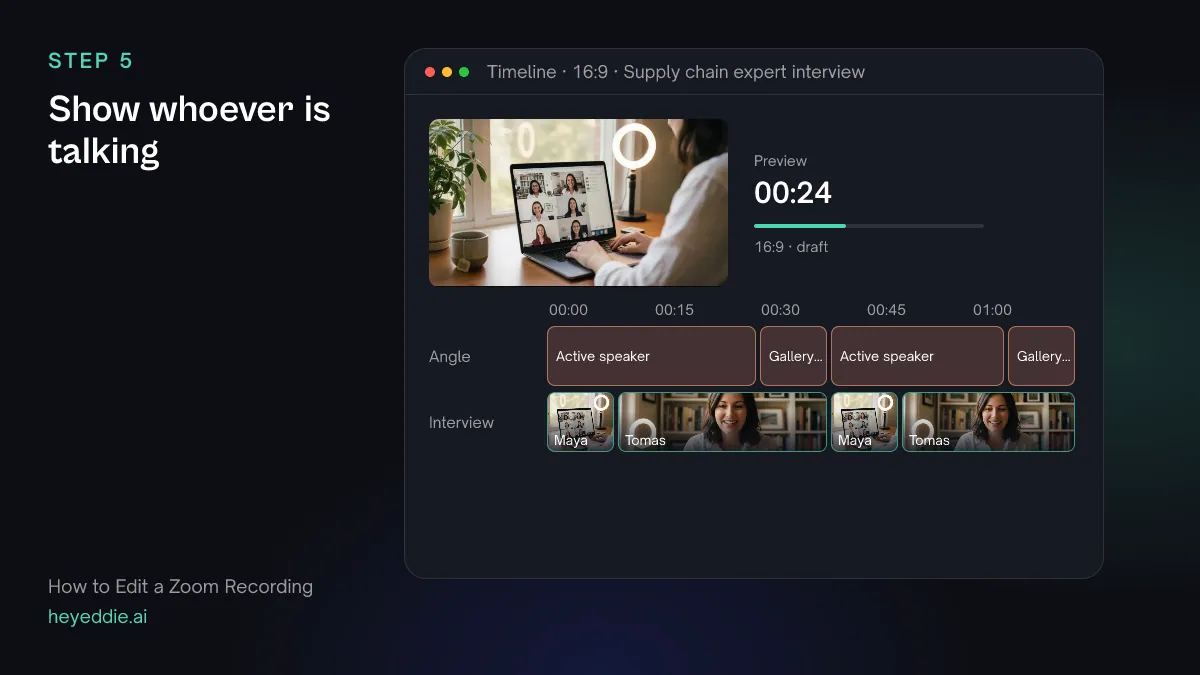
A gallery grid for forty minutes looks like a meeting. Use the active-speaker file for most of the cut, and the gallery view for laughter and quick exchanges, cropped so the empty parts of the grid are gone.
What you type “Use the active speaker view for most of the interview. Where we laugh or talk over each other, cut to the gallery view cropped to just our two tiles.”
What Eddie does
- Assigns the camera angle for each segment of the edit.
- Crops the gallery view to the rectangle around the two tiles on those segments.
What you get: A cut that follows the conversation.
Step 6
Add names, captions and a clip
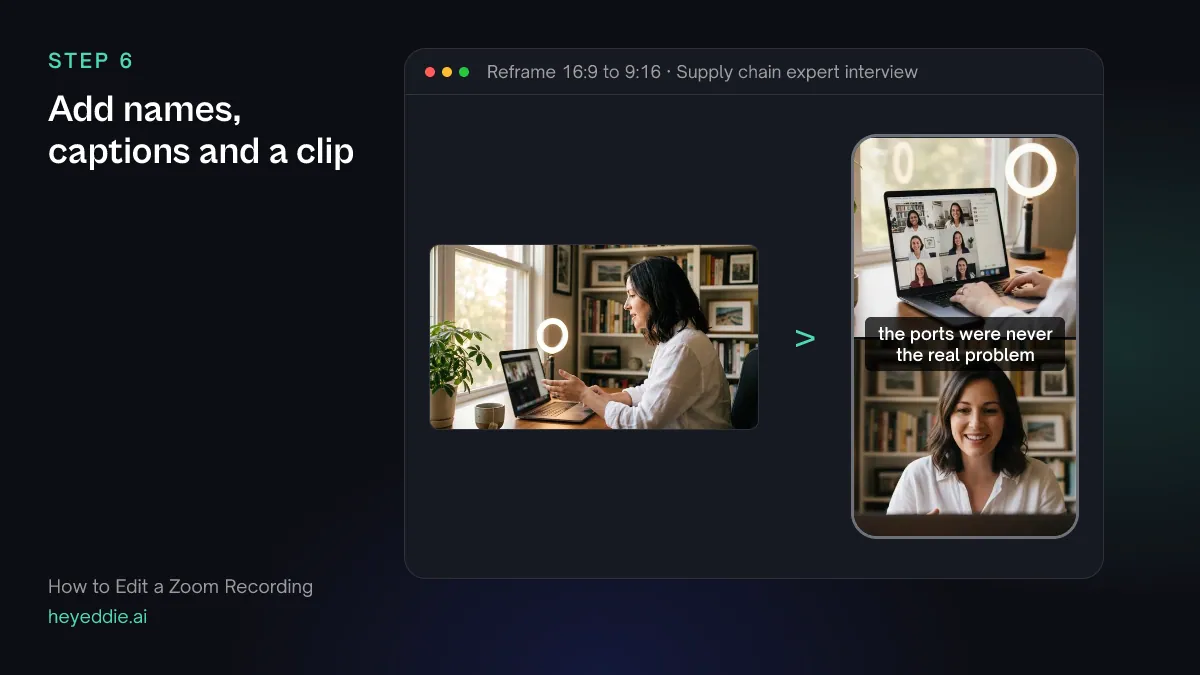
Name both people on screen, caption the conversation with a colour per speaker, and pull one answer that stands on its own for social.
What you type “Add a lower third with each person's name and role at their first answer, captions coloured by speaker, and a 45-second vertical clip of Tomas's answer about port delays with the two of us stacked.”
What Eddie does
- Adds lower-third graphics from its template set at each speaker's first answer.
- Builds captions from the word timings, in a colour per speaker.
- Makes a separate 9:16 edit with the two of you stacked.
What you get: A finished interview and a clip to promote it.
Step 7
Export and level the voices
Two laptop microphones never match. If you have a separate audio file per person, level each voice on its own track in your editor and reduce room echo there; with one mixed file, level the whole track and accept small differences.
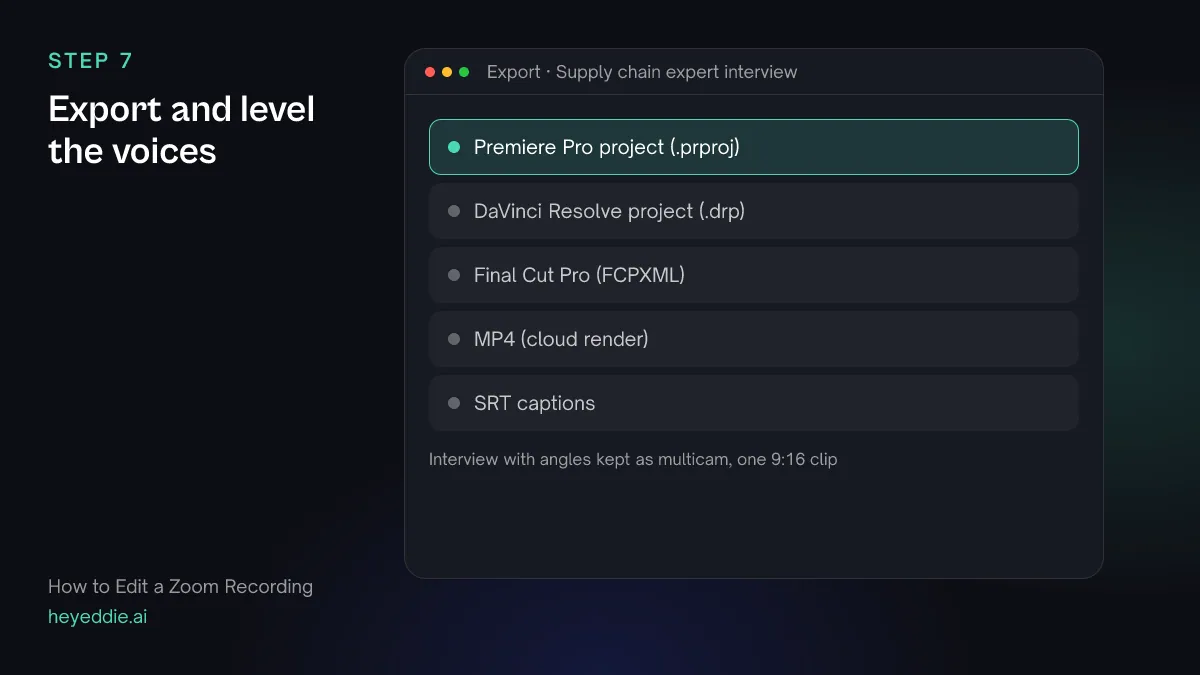
What you type “Export the interview as a Premiere Pro project with the angles kept as multicam, and the vertical clip as a 1080p MP4.”
What Eddie does
- Writes a native Premiere Pro project pointing at your original files, with the angles as multicam.
- Renders the clip in the cloud and returns a download link.
What you get: An interview ready for the audio pass, and a clip ready to post.
Craft
What makes it work
- Change the recording settings before the call
- In Zoom's recording settings you can save the active speaker and gallery view as separate files for cloud recordings, and a separate audio file for each participant for local recordings. They cannot be created afterwards.
- Ask guests to wear headphones
- Without headphones, each laptop picks up the other person from its own speakers, and that echo is on the recording for good. Wired earbuds are enough.
- Ask for a repeat when the line drops
- If an answer breaks up, ask the guest to say it again there and then. A clean repeat is easy to keep; a broken answer cannot be repaired in the edit.
- Crop gallery tiles with care
- Each tile in a gallery recording is a fraction of the frame, so a crop to one tile is soft. Use it for short reactions, and the active-speaker file for long answers.
- Fix the names before the captions
- Speaker names and crosstalk fixes carry into every caption and clip built afterwards. Do them first and you do them once.
FAQ
Questions
- Where does Zoom save recordings?
- Cloud recordings are in the Recordings section of your Zoom account on the web, where you can download each file. Local recordings are saved to a Zoom folder on your computer, by default inside Documents.
- Can I get a separate audio track for each person?
- In Zoom, turn on the option to record a separate audio file for each participant before you start a local recording. Teams and Google Meet recordings usually come as one mixed file, so if audio quality matters, ask each person to record their own audio as a backup.
- How do I fix a frozen video in a Zoom recording?
- You cannot recover the missing frames. Cut the frozen stretch, keep a repeated answer if the guest gave one, or cover a short freeze with a cutaway while the audio continues. If the audio also dropped, the words are gone.
- How do I edit out crosstalk?
- With a separate audio file per person you can lower one voice under the other in your editor. With one mixed file you cannot separate them, so cut the overlap or keep it when it sounds natural. Either way, check that the transcript credits each line to the right person.
- Does Eddie connect to my Zoom account?
- No. Download the recording from Zoom, Teams or Meet and upload the files to Eddie. Any recording file imports.
- How is this different from editing a webinar?
- A webinar is a presentation with a Q&A, and the edit is about trimming the housekeeping and showing the slides. A recorded conversation is about the back-and-forth: who is talking, who reacts and how the exchange sounds.
Edit your next recorded call with Eddie
Sign up, add your footage and type the first prompt above. New accounts start with free credits.