
Features
- Rough cuts
- Multicam
- A-roll logging
- B-roll logging
- Speaker identification
- Scripted edits
- Social clips
- Exports to your editor
- Styles and color
- Motion graphics
- Captions & titles
- Stock B-roll
- Generate video
- Generated music
- Voiceover
- Dubbing
- Transcription in 97 languages
- Web app
- Mac and Windows
- Claude & ChatGPT
- Recipes
- Agents
- API + MCP
Solutions

How to Edit Talking Head Videos
A talking head is one person, one camera and one take that wanders: a founder update, a LinkedIn explainer, a lesson recorded in a single sitting without a script. There is no second angle to cut away to, so every repair has to come from the same frame. This guide turns an unscripted recording into a tight video and a vertical clip, and shows how to make one locked-off shot feel edited rather than chopped.
The short answer
Cut every flub, restart and long pause so each sentence starts clean, then break up the single static shot: punch in to a tighter crop at the cuts and on the lines that matter, and lay b-roll over the jumps a crop cannot hide. Add captions, because much of the audience watches on mute, and make a vertical cut-down of the strongest minute for social. Eddie finds the flubs and pauses in the transcript, then builds the clean cut, the punch-ins, the b-roll, the captions and the vertical version from prompts.
The deliverables
What you will end up with
- A clean cut without the stumbles, restarts, filler words and long pauses.
- Punch-ins that turn jump cuts into deliberate changes of shot size.
- Your own b-roll and screen recordings over the explanations.
- Captions on the main video and a 60-second vertical version for social.
7 steps
Step by step
- 01Import the recording and the cutaways
- 02Find the flubs before you cut
- 03Build the clean cut
- 04Punch in to hide the jump cuts
- 05Cover what a crop cannot
- 06Caption it and make the vertical cut-down
- 07Get notes and export
Step 1
Import the recording and the cutaways
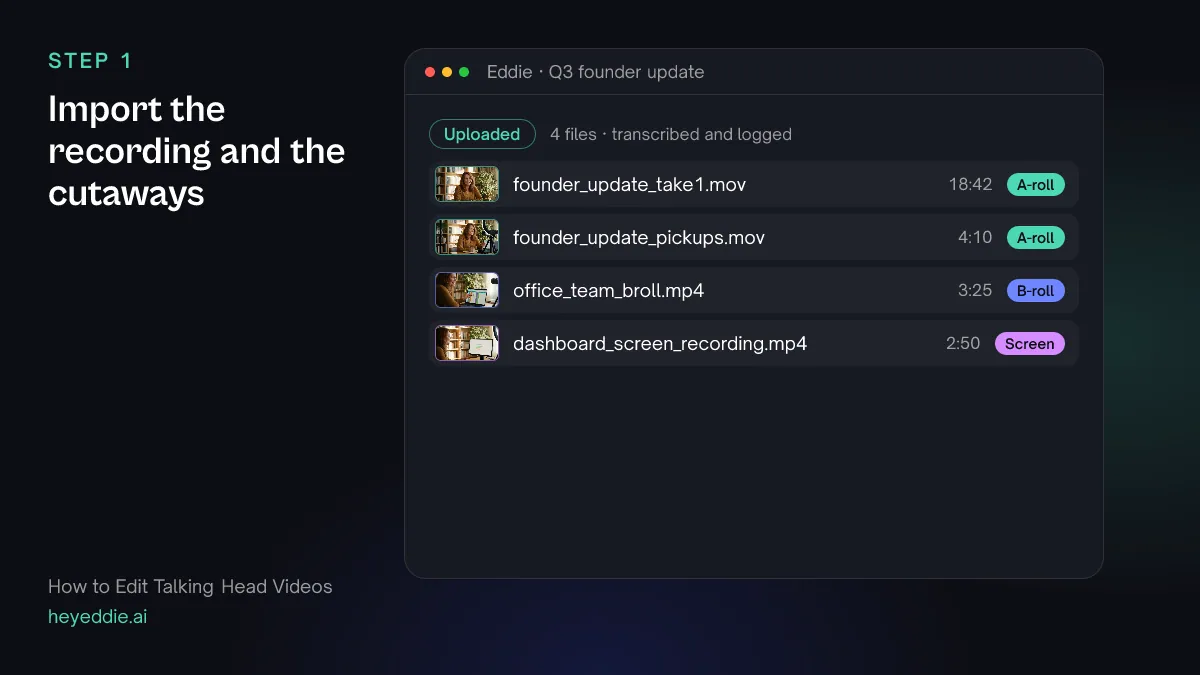
Upload the main take, any pickup lines you recorded afterwards, and anything you can cut away to: screen recordings, product shots, footage of the team. Cutaways are what you will use where a punch-in is not enough.
What Eddie does
- Transcribes the recording with word timings, so every restart and pause has a timestamp.
- Sorts the files into talking footage and cutaways; you can reclassify any file it gets wrong.
What you get: A searchable recording and a small library of cutaways.
Step 2
Find the flubs before you cut
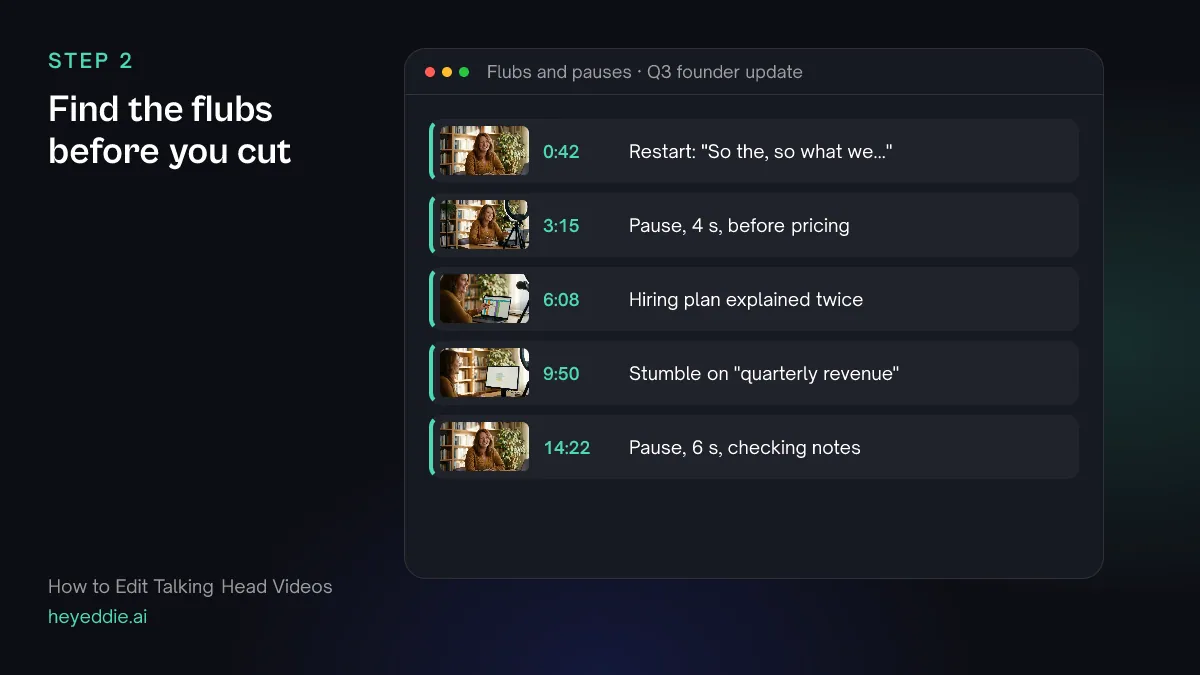
Unscripted takes repeat themselves. Get a list of the stumbles, the restarted sentences and the points you made twice, and decide what goes before anything is cut.
What you type “List every place I stumble, restart a sentence or make the same point twice, and every pause longer than two seconds, with timestamps. Do not cut anything yet.”
What Eddie does
- Reads the transcript for restarts and repeated points, and looks for long silences.
- Returns each one with its timestamp and the words around it, so you can choose which version of a point to keep.
What you get: A list of everything that should not survive the edit.
Step 3
Build the clean cut
Keep the cleanest version of each point and remove the filler. Natural pacing keeps a breath between thoughts; tight pacing suits short social videos better than a five-minute update.
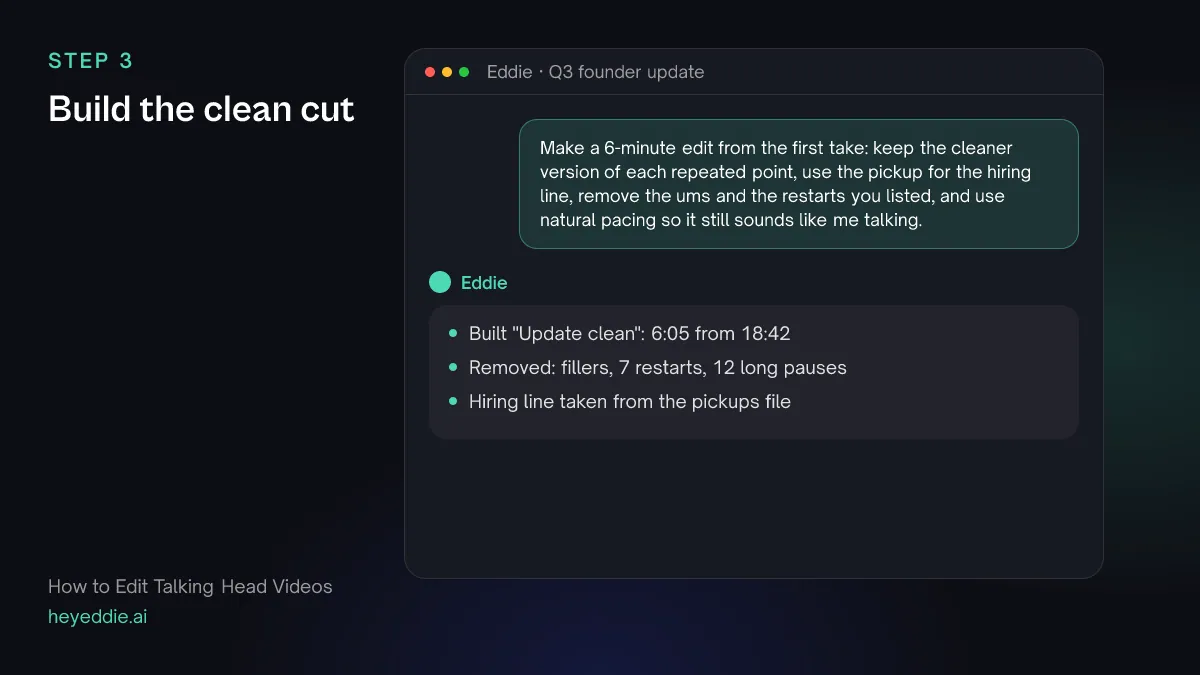
What you type “Make a 6-minute edit from the first take: keep the cleaner version of each repeated point, use the pickup for the hiring line, remove the ums and the restarts you listed, and use natural pacing so it still sounds like me talking.”
What Eddie does
- Builds the edit from the passages you keep, taking the pickup line in place of the stumbled one.
- Marks the filler words and restarts as removed in the transcript, so later edits skip them too; any of them can be restored.
- Closes the long pauses to a natural breath and reports the finished length.
What you get: A six-minute cut from nineteen minutes of rambling.
Step 4
Punch in to hide the jump cuts
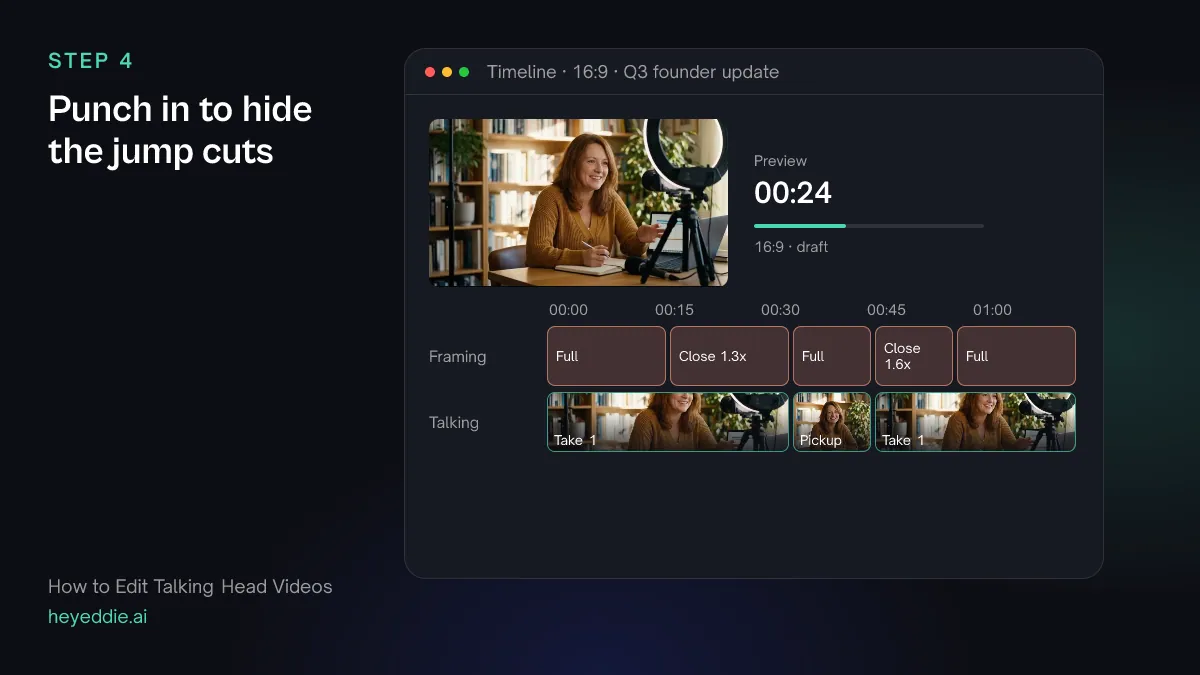
A cut inside one locked-off shot makes the head jump. Change the shot size at the cut and the jump reads as a new angle. Alternate between the full frame and a close-up, and save the tightest crop for the lines you want to land.
What you type “At every cut inside an answer, alternate between the full frame and a close-up crop on my face at about 1.3x, and use a tighter 1.6x crop for the three lines about the new pricing.”
What Eddie does
- Detects your face in the frames and places a close-up crop at the zoom you set, segment by segment.
- Reports any segment where it found no face, and leaves that segment as it was.
What you get: One camera that looks like two.
Step 5
Cover what a crop cannot
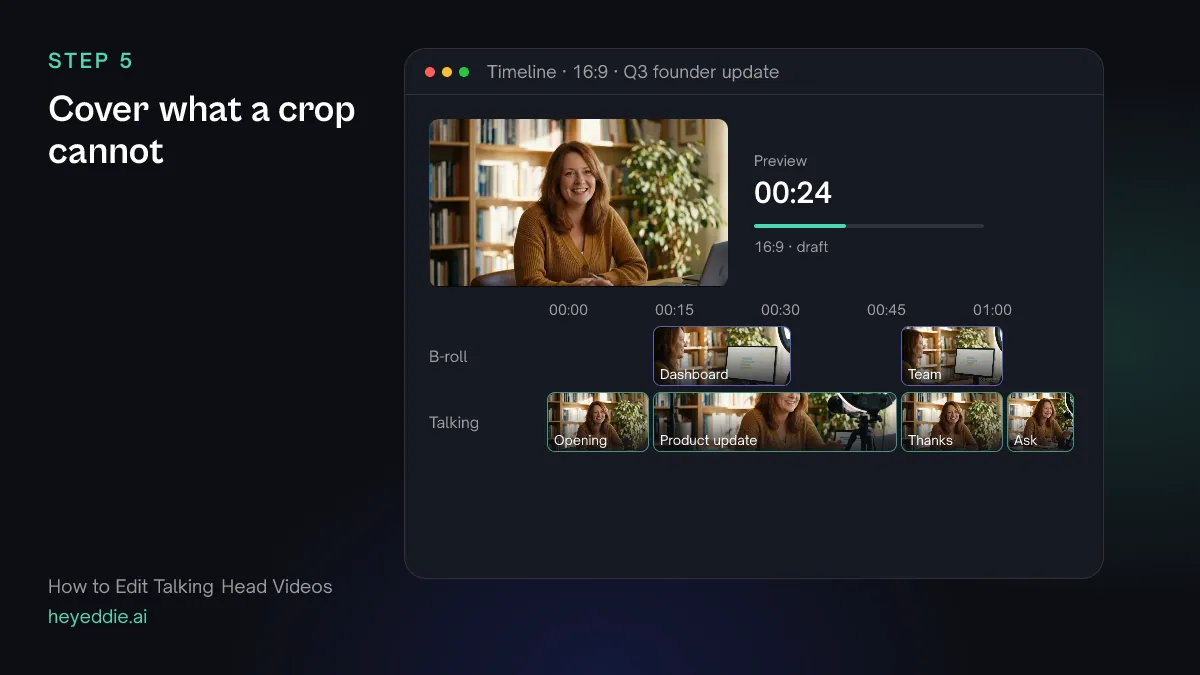
Some stretches need more than a punch-in: a run of short cuts, or an explanation of something the viewer should see. Put b-roll there, and stay on your face for the opening line and the ask.
What you type “Cover the cuts in the section about the dashboard with the dashboard screen recording, and put the team b-roll over the part where I thank the team. Keep me on screen for the first line and the ask at the end.”
What Eddie does
- Places your screen recording and team footage over the matching lines, from your own b-roll library.
- Leaves the opening and the closing ask on your face.
What you get: An edit that shows what you are talking about.
Step 6
Caption it and make the vertical cut-down
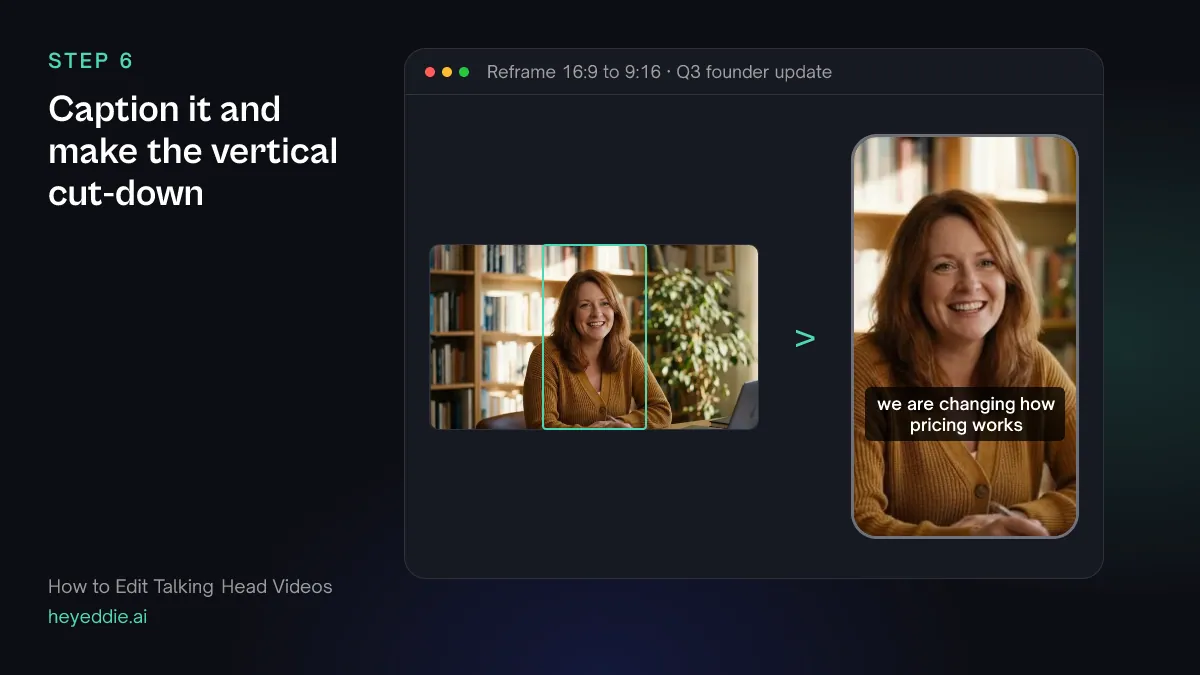
Caption the main video for viewers on mute. Then make a separate vertical edit from the one section that works with no context; a vertical clip is a new edit, not the main video squeezed into 9:16.
What you type “Add minimal captions at the bottom of the main edit. Then make a separate 60-second vertical version from the pricing section, cropped to my face, with social captions in the middle of the frame.”
What Eddie does
- Adds a caption track from the word timings, with filler words left out of the caption text.
- Builds a new 9:16 edit from the pricing section, with a crop centred on your face and its own caption look.
What you get: A captioned main video and a vertical clip.
Step 7
Get notes and export
Before you publish, get a second opinion on the first ten seconds and the pace. Then export for posting, or for finishing in your editor.
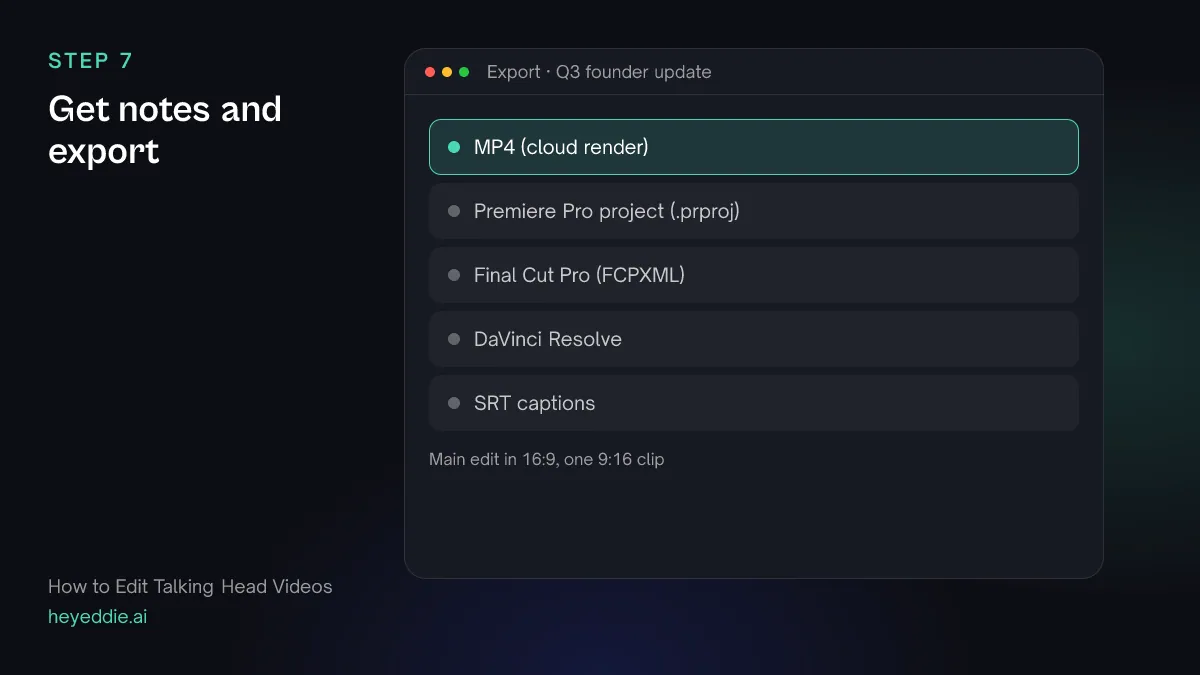
What you type “Watch the main edit and tell me if the opening hooks and where the pace drags, with timestamps. Then export it as a 1080p MP4 and a Premiere Pro project, and the vertical clip as an MP4.”
What Eddie does
- Renders the edit and returns notes on the hook, pacing and audio from a video-understanding model, with timestamps.
- Renders the MP4s in the cloud and writes a native Premiere Pro project pointing at your original files.
What you get: Notes to act on, and files ready to post.
Craft
What makes it work
- Pause instead of saying um
- When you lose a sentence while recording, stop, take a breath and start the whole sentence again. A clean pause gives the edit a clean place to cut; a sentence repaired halfway does not.
- Make the punch-in obvious
- A crop that changes the frame only slightly looks like a mistake. Change the shot size enough that it reads as a new angle, and record in 4K if you can, so the close-up stays sharp.
- Do not remove every breath
- Cutting every pause makes a person sound breathless and nervous. Remove the dead air, and keep the short pause before a point you want to land.
- Use b-roll with a reason
- Cover a cut with footage of the thing you are describing. Generic office footage over a personal update makes it feel like an advert.
- Keep your face on the ask
- The opening line and the call to action should be on camera. People trust a face more than a cutaway at the moment you ask them for something.
FAQ
Questions
- How do you hide jump cuts in a talking head video?
- Change the shot size at the cut with a punch-in, cover the cut with b-roll or a screen recording, or keep the jump on purpose in a fast-paced edit. A punch-in hides most cuts; b-roll covers runs of short cuts that would otherwise flicker between sizes.
- Can I remove ums and uhs automatically?
- Yes. Name the filler words you want gone and Eddie marks them as removed in the transcript, so edits skip them, and captions leave filler words out by default. Listen to the result: removing every filler can clip a breath, and a few natural ones sound more human.
- What is a punch-in?
- A punch-in is a tighter crop of the same shot, used at a cut so the change of size hides the jump, or on a key line for emphasis. It is a digital zoom, so it works best on footage recorded at a higher resolution than you deliver.
- Do I need a script for a talking head video?
- No. Many talking heads are recorded from a few bullet points. Describe what you want to keep and the length, and Eddie builds the cut from the transcript. With a script, follow the YouTube video guide instead, which matches takes to scripted lines.
- Do I need two cameras?
- No. One camera and punch-ins cover most talking heads. A second angle helps for long videos where the same two framings start to repeat, but it adds lighting and syncing work.
- How long should a talking head video be?
- As long as one idea takes. Short social posts usually make one point, while explainers and updates can run longer if every minute earns its place. Cut the long version first, then make the short versions from it.
Edit your next talking head video with Eddie
Sign up, add your footage and type the first prompt above. New accounts start with free credits.