
Features
- Rough cuts
- Multicam
- A-roll logging
- B-roll logging
- Speaker identification
- Scripted edits
- Social clips
- Exports to your editor
- Styles and color
- Motion graphics
- Captions & titles
- Stock B-roll
- Generate video
- Generated music
- Voiceover
- Dubbing
- Transcription in 97 languages
- Web app
- Mac and Windows
- Claude & ChatGPT
- Recipes
- Agents
- API + MCP
Solutions
How to Edit a Video Essay
A video essay is a narration with pictures. The writing carries it, so the edit has two jobs: make the voice tight and easy to follow, and give every sentence something worth looking at. The second job is where essays take weeks. This guide covers YouTube essays, analysis videos and narrated explainers on history, film, culture or science.
The short answer
Lock the voiceover first: cut the false starts, keep one clean take of each line and leave a short pause between chapters. Then cover every line with a picture that shows or supports what it says, using your own footage, archive stills with slow movement and stock where you have nothing. Put quotes and numbers on screen as graphics so viewers can read what they hear, and keep a low music bed under the narration. In Eddie you build the narration from your script, then ask for the b-roll, stills, graphics and music line by line.
The deliverables
What you will end up with
- A tight voiceover built from your best take of each scripted line.
- Every line covered by your footage, an archive still or stock.
- Quote cards and stat callouts for the lines viewers need to read.
- Chapter titles and a low music bed ducked under the voice.
- Timestamped notes on pacing and the hook before you publish.
7 steps
Step by step
- 01Import the voiceover and the script
- 02Tighten the narration
- 03Cover the lines with your footage and archive
- 04Fill the gaps with stock
- 05Put quotes and numbers on screen
- 06Add a music bed and get notes
- 07Export for YouTube or your editor
Step 1
Import the voiceover and the script
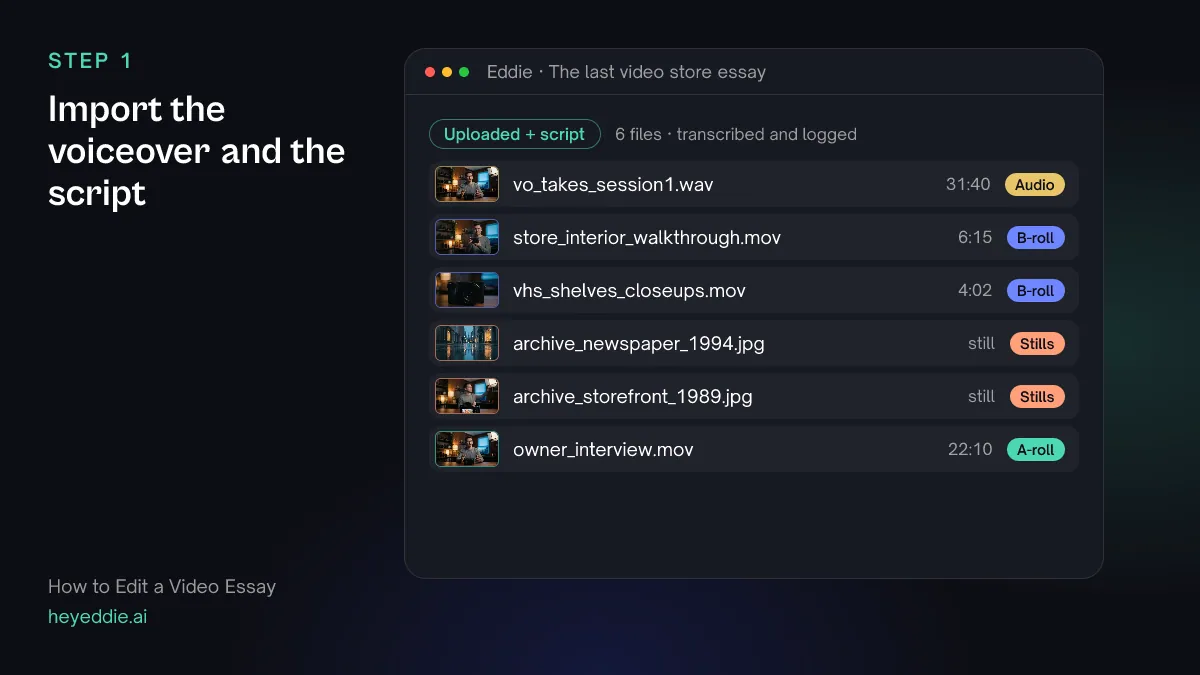
Upload the voiceover recording, your footage, the archive stills and any interview, and attach the script you read from. Record the narration in one quiet session if you can, so the voice sounds the same all the way through.
What Eddie does
- Transcribes the voiceover and the interview so every line can be found by its words.
- Logs the footage by what each shot shows, and reads the attached script.
What you get: Narration, footage and stills in one project, searchable by what is said and shown.
Step 2
Tighten the narration
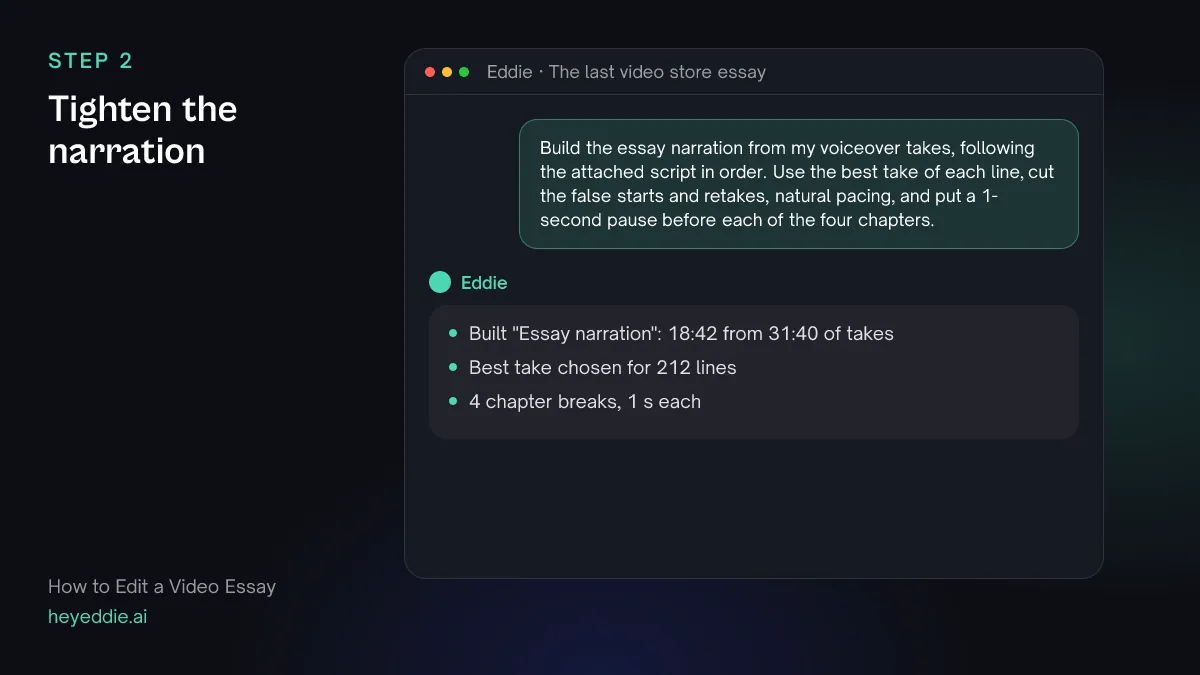
Build the voiceover spine before you touch a picture. Ask for the best take of each line in script order, with the stumbles gone, and a breath between chapters so the structure is audible.
What you type “Build the essay narration from my voiceover takes, following the attached script in order. Use the best take of each line, cut the false starts and retakes, natural pacing, and put a 1-second pause before each of the four chapters.”
What Eddie does
- Matches each scripted line to its takes and keeps the cleanest delivery.
- Closes the pauses inside chapters, inserts a short break between them, and reports the finished length and any line it could not find.
What you get: A locked narration to cut every picture against.
Step 3
Cover the lines with your footage and archive
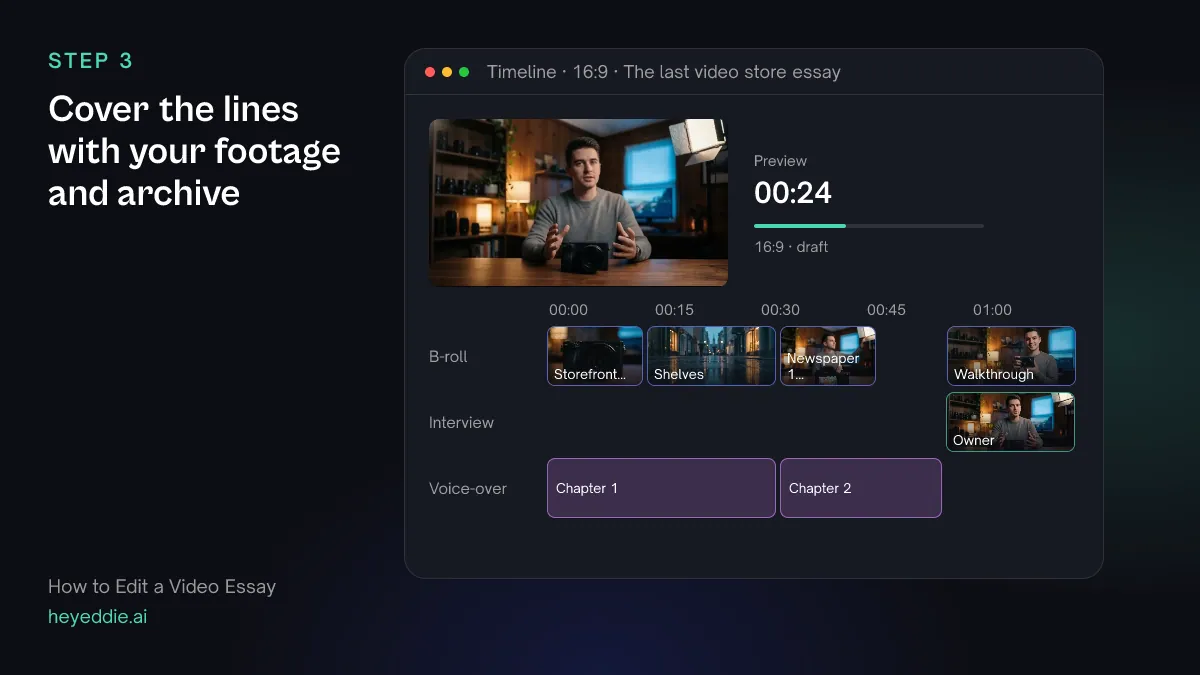
Start with what you shot and collected. Archive stills need slow movement, or they read as a slideshow. Let the interview play on screen for the lines where a real person says it better than you can.
What you type “Cover the narration with my footage where it matches: the shelf close-ups over the chapter about the VHS boom, the walkthrough over the store today. Put the 1989 storefront photo over "it opened in 1989" and the 1994 newspaper over the headline line, each with a slow push-in. Use two short lines from the owner interview where she describes closing night.”
What Eddie does
- Places your footage and stills over the lines you named and adds a slow push or pan to each still.
- Adds the interview lines you named to the edit, on screen with their own sound.
What you get: The essay's own pictures, in the right places.
Step 4
Fill the gaps with stock
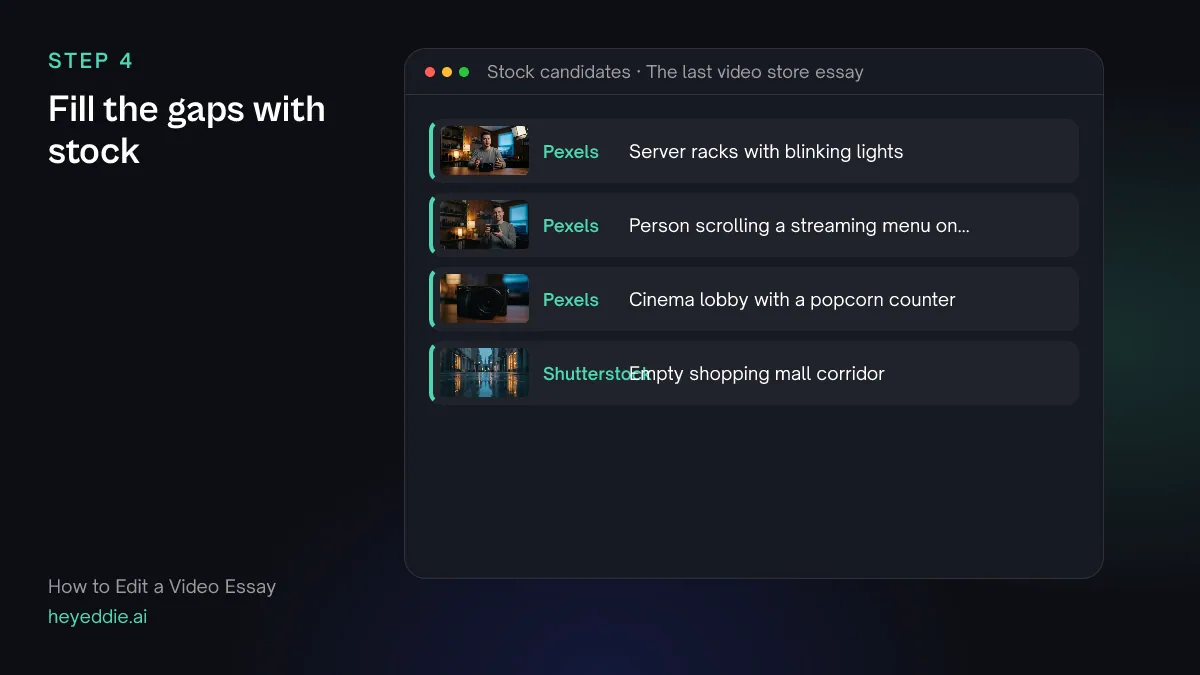
Some lines talk about things you could never film: a 1990s multiplex, a streaming server farm. Stock footage covers them. Check every pick, because a wrong decade or country undercuts an argument.
What you type “For the lines with no picture yet, about the rise of streaming and the multiplex opening in town, find stock footage that fits and show me the options before you import anything.”
What Eddie does
- Searches free Pexels footage, and your own Shutterstock catalog if it is connected, on the themes of those lines.
- Shows candidates with previews, then imports the ones you choose as b-roll.
What you get: No line left on a blank or repeated shot.
Step 5
Put quotes and numbers on screen
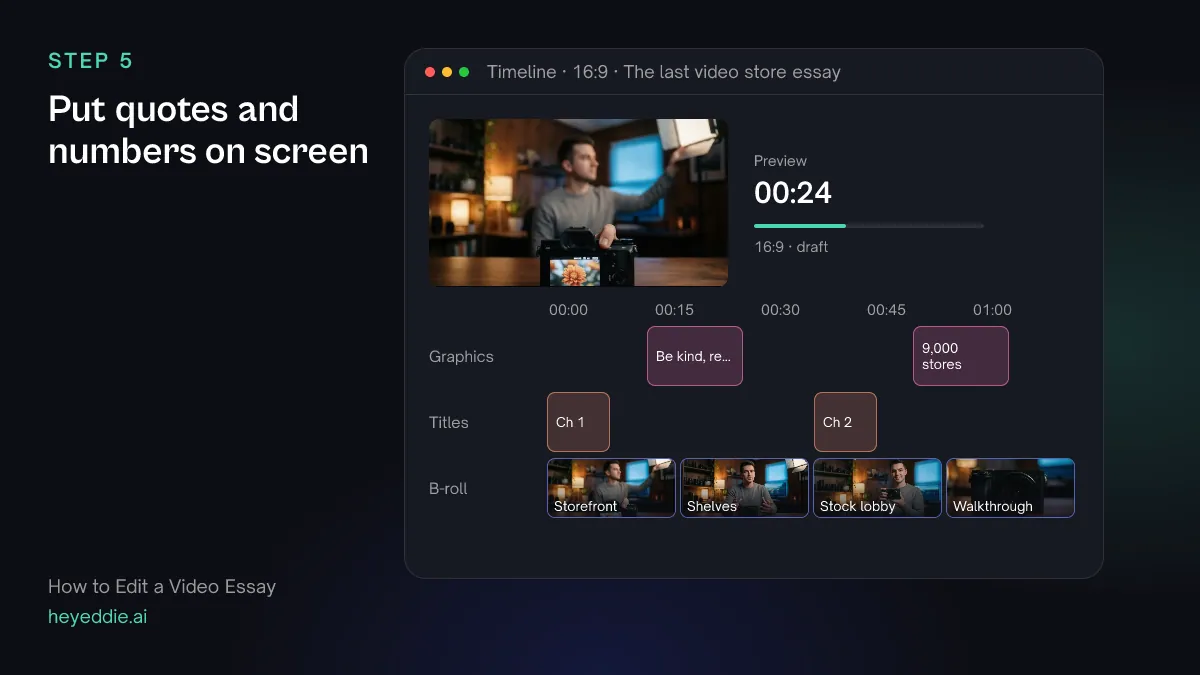
When the narration quotes someone or gives a figure, show it. Viewers remember what they read and hear at once. Set one graphic style first so every card in the essay matches.
What you type “Use a clean editorial style pack for the graphics. Add a quote card with "Be kind, rewind" when I read the sticker line, a stat callout "9,000 stores" when I give the 2004 store count, and a chapter title at the start of each of the four chapters.”
What Eddie does
- Sets one style pack shared by every graphic on the edit.
- Places the quote card and stat callout from its template set at the words you named, and adds the chapter titles.
What you get: The essay's key lines on screen, in one consistent look.
Step 6
Add a music bed and get notes
Music in an essay sets the mood and fills the pauses; it should never compete with the voice. Then get a second opinion on pacing before you publish, especially on the first minute.
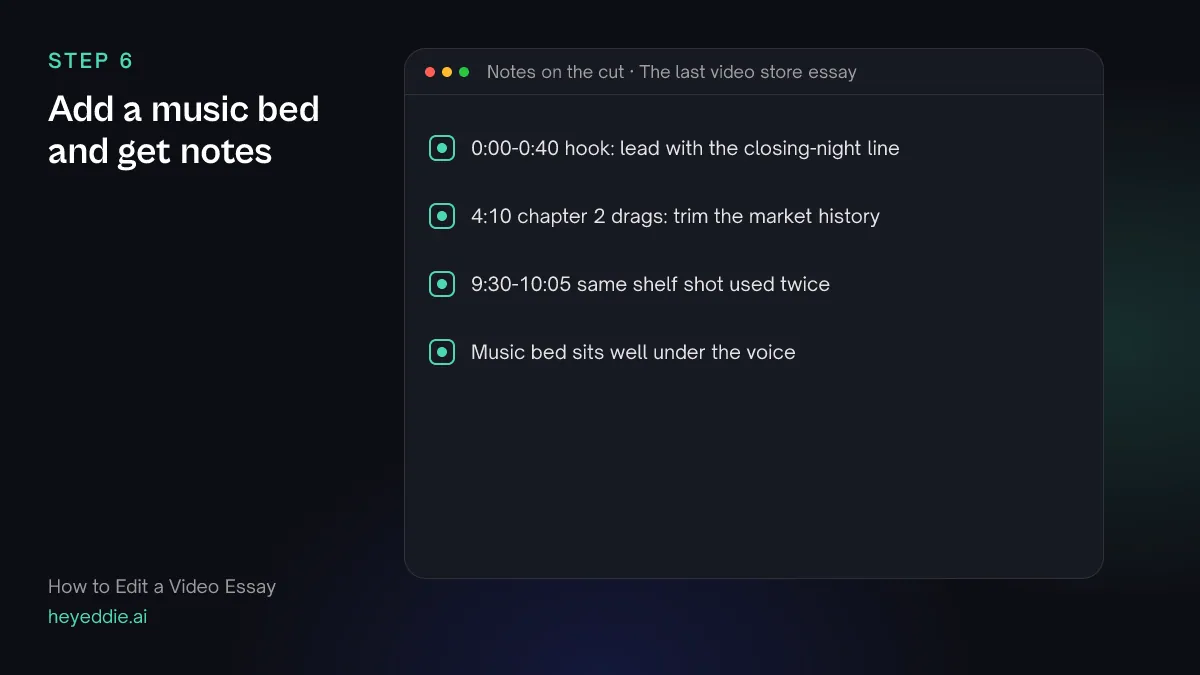
What you type “Add a low ambient piano bed under the whole essay, ducked under the voice. Then watch the cut and give me timestamped notes on the hook, the pacing of each chapter, and any stretch where the picture repeats.”
What Eddie does
- Attaches the track to the music lane with ducking under speech, at the level you set.
- Renders the edit and returns editorial notes on story, pacing and the hook, with timestamps.
What you get: A scored essay and a list of fixes before it goes live.
Step 7
Export for YouTube or your editor
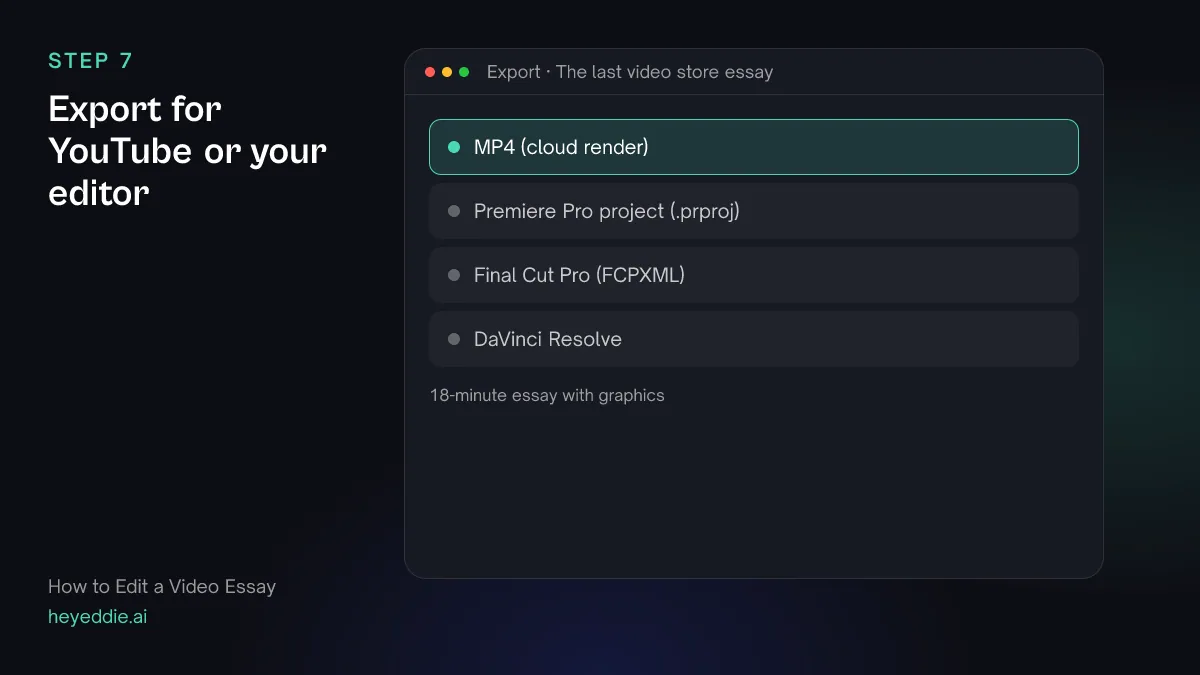
Export an MP4 to upload, or a timeline if you grade and mix in your own editor. Export a still for the thumbnail from the same project.
What you type “Export the essay as a 1080p MP4 with web loudness, and as a Premiere Pro project so I can do the final sound mix.”
What Eddie does
- Renders the edit in the cloud with the graphics and titles in it.
- Writes a Premiere Pro project that points at your original files.
What you get: An essay ready to upload, and a project to finish if you want to.
Craft
What makes it work
- Write for the ear, then cut for the eye
- Read the script aloud before recording. Sentences that are hard to say are hard to follow. Once the narration is locked, every picture decision gets easier.
- Something new every few seconds
- A video essay holds attention when the picture changes about as often as the idea does. A single shot held over a long paragraph tells viewers to look at their phone.
- Move the stills
- Give every photo or scan a slow push or pan, and vary the direction. Static stills read as a slideshow; the same move on every still reads as a template.
- Show the source
- When you quote a newspaper, a study or a person, show the quote or the document on screen. It makes the argument easier to trust and easier to remember.
- Keep stock honest
- Use stock to illustrate, not to stand in for a specific real event. If a shot could be mistaken for the actual place or day you describe, use archive or say on screen that it is illustrative.
FAQ
Questions
- How long should a video essay be?
- As long as the argument needs. Many popular essays run 10 to 30 minutes, but a tight 8-minute essay beats a padded 20-minute one. Cut any section that repeats a point the viewer already has.
- Do I need to record the voiceover myself?
- Your own voice usually builds more trust with an audience. If you cannot record, Eddie can generate a voice-over from the lines you write, in a voice you describe, and place each line on the timeline.
- Where do I get footage for a video essay?
- From footage you shoot, archive you have the rights to, and stock. Eddie places your own footage first, searches free Pexels clips and your own Shutterstock catalog when you connect it, and imports only the picks you choose.
- Can I use clips from films or TV in my essay?
- That depends on copyright law where you publish and on how you use the clip, such as short excerpts for commentary or criticism. Keep clips short, comment on them, and check the rules for your country and platform. Eddie edits only the files you upload.
- What microphone setup do I need for the voiceover?
- A decent USB or XLR microphone in a quiet, soft-furnished room is enough. Speak 15 to 20 centimetres from the mic and record every session in the same place so the voice matches.
- Can I finish the essay in Premiere Pro or DaVinci Resolve?
- Yes. Export a Premiere Pro project, a Final Cut Pro timeline or a DaVinci Resolve timeline that points at your original media, then grade and mix there.
Edit your next video essay with Eddie
Sign up, add your footage and type the first prompt above. New accounts start with free credits.