In Summary At a rough cut, judge the story: is the message clear, is the order right, is it the right length, and is anything missing? Leave color, sound mix, graphics and caption styling for the fine cut, because those parts are usually still rough on purpose. Write every note against a timecode, say what is wrong rather than how to fix it, and send one consolidated set of notes from your whole team. Below is a checklist to watch with and a note template you can copy into an email, a doc or your review tool.
The short answer
A rough cut is the first version where the story is all there but the polish is not. Frame.io's workflow guide describes it as the stage where sound "will have rough edges" and visual effects are only "very basic simplified versions". RedShark's editing series puts it the same way from the editor's side: the rough cut is where the editor revises the structure "to make sure that the story is clear and concise, as well as correct in timing."
So your job as a reviewer is to answer four questions:
- Story. Does the video say the one thing it is meant to say?
- Order. Do the parts come in the right sequence?
- Length. Is it the right length for where it will run?
- Gaps. Is anything missing, or anything included that should not be?
Everything else can wait. Notes on color, music levels and title fonts at this stage tend to get changed again later, and they pull attention away from the four questions that are cheap to fix now and expensive to fix after picture lock.
What to judge now, and what to leave for later
The split below is a working practice, not an industry standard. Stage names vary between teams, so agree with your editor which version you are looking at before you watch it.
| Judge at the rough cut | Leave for the fine cut or finishing |
|---|---|
| The main message and whether it lands | Color and the overall look |
| The opening: does it earn the next ten seconds? | Sound mix, music levels, room tone |
| The order of sections and speakers | Final music choice (temp music is normal) |
| Total length against the target | Motion graphics, lower thirds, logo animation |
| Missing people, products, facts or proof points | Caption styling and on-screen text design |
| Anything that must come out (legal, brand, accuracy) | Exact frame trims and transition timing |
| Whether a speaker comes across well | Spelling in titles and credits |
| Claims or quotes that need sign-off from someone else | Export formats and delivery specs |
Two items on the right are worth a quick note anyway if you spot them: a factual error in on-screen text, and a name spelled wrong. RedShark lists "Is everyone's name spelled correctly in the credits?" as a fine cut check, so flag it once and let the editor fix it in that pass.
The items on the left matter more now because they change what the editor builds next. Frame.io's guide explains why the timing counts: once the picture is locked, color, sound and finishing work begins, and changes after that hand-off "can cause all sorts of issues (and extra costs)".
The checklist to watch with
Watch the whole cut once without stopping, the way your audience will. Then watch it again and take notes. On the first pass, only answer these:
Story
- Can you say the video's main point in one sentence after one viewing?
- Is that the point the brief asked for?
- Is there a moment where you lost interest or got confused? Note the timecode.
Order
- Does the opening tell the viewer who this is about and why it matters?
- Does each section follow from the one before it?
- Does the ending feel like an ending, with a clear next step if the brief needs one?
Length
- What is the running time, and what is the target for the channel it is made for?
- Which sections feel long? Which feel rushed?
Gaps and risks
- Is any person, product, location or message from the brief missing?
- Is anything on screen that cannot be published: a confidential slide, a competitor's logo, a person who did not sign a release, an outdated claim?
- Who else must approve a quote or a number before this goes out?
RedShark suggests similar questions for test viewers: "is there anything that isn't clear?" and "are there any points in the film that you feel lost?" Those work just as well for a comms or marketing review.
How to write a note an editor can act on
A good note has four parts: where, what kind, what you noticed, and how much it matters. Describe the problem, not the fix. RedShark's advice to editors is to ask reviewers what is and is not working "but avoid any detailed advice about how exactly to fix it". As a reviewer you can follow the same rule from the other side: tell the editor what you felt, and leave the cut to them. If you do have a fix in mind, add it as a suggestion, not an order.
Compare these:
-
Hard to act on: "The middle drags. Can we make it punchier?"
-
Easy to act on: "01:12 to 01:40, Order: the warehouse section repeats what the CEO already said at 00:35. Feels long. Must fix."
-
Hard to act on: "Change the music."
-
Easy to act on: "Whole cut, Fine cut: the temp music feels more playful than the brand. Not urgent now, flag for the music pass."
Always write the timecode from the version you watched, and name that version in the subject line. Timecodes move as soon as the editor changes the cut, so a note against "v2" can point to the wrong moment in "v3".
The note template
Copy this into an email, a shared doc or your review tool. One block per note, all notes in one message.
Project: [name]
Version reviewed: [e.g. Rough cut v2, 3:10]
Reviewed by: [names of everyone whose notes are included]
Deadline for these notes: [date]

Overall (2–3 sentences)
- Does the main message land? [yes / partly / no, and why]
- Length vs target: [running time] vs [target]
- Top 3 must-fix items: [1] [2] [3]

Timecoded notes
[00:00:35] – [00:00:52] | Type: Story / Order / Length / Gap / Risk / Fine cut
What I noticed: [describe the problem, not the edit]
Priority: Must fix / Should fix / Nice to have
Suggestion (optional): [only if you have one]

Decisions the editor needs from us
- [e.g. Keep or cut the second customer? Owner: ___]

Still to come (not in this round)
- [e.g. Legal review of the pricing claim on [date]]
The "Type" field does two things. It lets the editor sort notes by kind, and it lets you see when half your notes are fine cut notes that can wait.
One consolidated round
Many editors ask for one set of notes from the whole team, not five separate emails. It is a practice, not a rule, but the reason is simple: when two reviewers disagree, the editor cannot know which note wins.
- Pick one owner for the review. That person collects the notes and sends them.
- Set a deadline and share the review link with everyone who must comment.
- Everyone watches the same version. Downloaded copies and screen recordings drift out of date.
- The owner merges the notes into the template, removes duplicates and settles conflicts before sending. If two people want opposite things, the owner decides or writes it under "Decisions the editor needs from us".
- Send it once. Late notes go into the next round.
- Ask what the next version will be. Usually a revised rough cut or a fine cut, with a date.
Frame.io's guide makes one more point that is useful for marketing teams: a client who is not used to rough cuts "may not have the experience to judge it properly", and it can be better to show them a more polished version. If your senior approver will fixate on temp music, tell them in the review email what is still rough, or wait for the fine cut.
Leaving notes in your editing app or review tool
If your team reviews inside an editor or a review platform, timecoded notes become markers the editor can jump to.
- Premiere Pro with the Frame.io (Legacy) panel: reviewer comments made in Frame.io can be imported into the sequence. These steps are for the Frame.io (Legacy) panel, which in Premiere 25.6 and later is under Window > Frame.io > Frame.io (Legacy). Adobe says Frame.io V4 accounts are not compatible with it; V4 uses the Frame.io V4 panel (Window > Frame.io > Frame.io V4). In the Legacy panel, a purple badge on a clip means it is linked to your sequence. Once the sequences are linked, choose Show comments > Download comments > Import Comments. Adobe notes that the comments, collaborators and comment times then show in markers on the timeline. Premiere's Comment Marker type is meant for "notes or comments about specific parts of your timeline", and the Markers panel (Window > Markers) lists them all. See our Premiere markers answer and Premiere share for review answer.
- Final Cut Pro: an editor can turn notes into to-do markers. Apple's guide classifies markers as standard (blue), chapter (orange), to-do items (red) and completed to-do items (green). Press Option-M (Mark > Markers > Add Marker and Modify) to add a marker and show its information, type the note, then click the To Do button at the top of the marker controls. Or Control-click an existing marker and choose To Do.
- DaVinci Resolve: see our Resolve markers answer and Resolve share for review answer.
Where Eddie fits
If your editor works in Eddie, the review round can stay in one place.
- Share one review link. Eddie gives each edit a review link: a web page where reviewers watch that cut and leave notes at the timecode without an Eddie account. Asking for the link again returns the same one, so everyone comments on the same cut.
- Collect the notes. Eddie can list the timeline comments on an edit with author, time and position. It can show only the notes that came in through the review link, or only the unresolved ones, which is a quick way to build the consolidated list.
- Leave the editor's own notes. Comments can be added at a point in the cut or across a range. Each comment can be replied to or resolved in the review panel.
- Act on a note. Every comment carries a ✨ spark. Clicking it puts the note into the Prompt Eddie box as a timestamped instruction; nothing changes until you press run. When Eddie implements a comment, it replies in that thread. See Eddie implements your comments.
- Keep every version. Eddie lists the saved versions of an edit and can compare two of them: segments added, removed, moved and trimmed, plus b-roll, music and titles that changed. If a round of notes made the cut worse, Eddie can write the earlier version back as a new edit and leave the current one as it is. The restore brings back the cuts, their order and the b-roll.
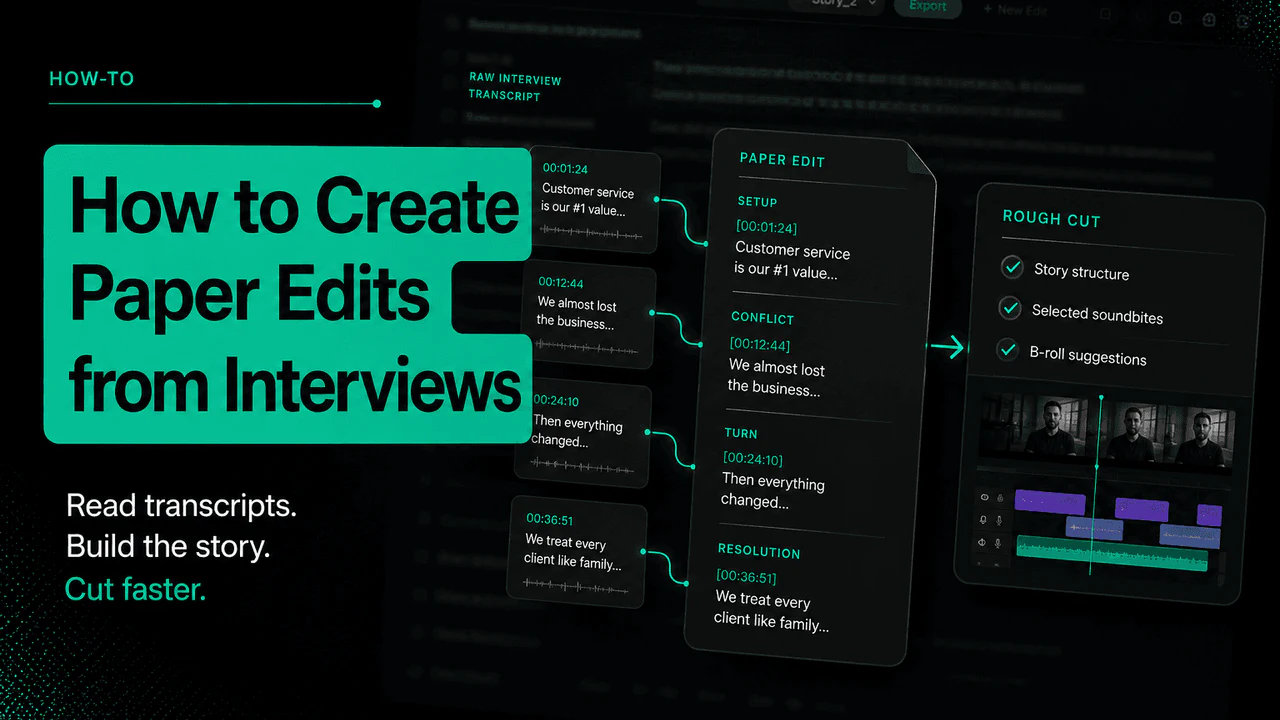
If your team already reviews in Frame.io, Eddie's Frame.io workflow sends a rendered cut there, and reviewer comments come back onto the Eddie timeline. When you export the edit to Premiere Pro or Final Cut Pro, each comment thread becomes a marker at that moment in the edit. Start from Eddie's rough cut feature, or read our guide to building a rough cut from an interview transcript.
What it will not do
- It does not judge the brief for you. The checklist and the tools collect notes. Whether the story is right is still your team's call.
- A view-only share link is not a review link. Eddie's project share links are always view-only. Use the edit's review link for timestamped notes, or invite someone by email as a Commenter.
- Late Frame.io comments do not come back. Eddie checks Frame.io for new comments for up to 14 days per send. If a review restarts after that, send the edit again first.
- Markers do not reach every format. Comment markers are not carried in the DaVinci Resolve .drp or the Resolve FCPXML, or in Avid AAF. For Resolve, the OTIO export keeps them.
- A restored version is a new edit, without its treatments. Restoring writes the older version next to the current one. Captions, titles, music, color grades and crops attached to the edit do not come back; ask for them again on the restored edit. See Recover a deleted edit.
FAQ
How do you give feedback on a rough cut?
Watch it once straight through, then again with notes. Judge story, order, length and what is missing. Write each note with a timecode, the type of issue and a priority, and send one consolidated set from your team.
What should I ask on a rough cut review?
Ask whether the main point is clear after one viewing, whether the opening and ending work, whether the length fits the channel, and whether anything is missing or must come out. Ask where you lost interest.
Should I comment on color and music at the rough cut?
Usually not. Both are normally rough at this stage and will be worked on later. Note it once under "Fine cut" if it worries you, so it is on the list without taking over the round.
How many rounds of rough cut notes are normal?
It depends on the project and the contract. Agree the number of rounds before the edit starts. One consolidated round per version keeps the count honest.
What is the difference between a rough cut and a fine cut?
The rough cut settles the structure and the story. The fine cut is the clean-up pass: small trims, swapped shots, consistent sound levels and spelling. RedShark calls fine cutting "the last 'clean-up' stage" where you make "only minor tweaks and changes". Our stringout, selects and assembly guide covers the stages before the rough cut.
Who should see the rough cut?
The people who own the message and can approve it. Frame.io's guide notes that rough cuts usually go to the client or producers, but that a less experienced client may judge better from a more polished version.
Sources
- Frame.io, Stages of the editing process (assembly, rough cut, fine cut and picture lock; rough sound and simplified effects at rough cut; clients who may not be able to judge a rough cut)
- RedShark News, How to Edit, Part 3: The Edit Itself (rough cut as the structure and timing pass; feedback questions; fine cut as the clean-up stage)
- Adobe, Import Frame.io comments as markers in Premiere Pro (Frame.io (Legacy) panel only; purple badge for a linked sequence; Show comments > Download comments > Import Comments)
- Adobe, Markers overview in Premiere (Comment Marker type, Markers panel)
- Apple, Intro to markers in Final Cut Pro for Mac (to-do markers), Add and remove markers (Option-M) and Edit and move markers (Edit marker information and change marker types: To Do)
Cutting the next version yourself? Start a project for free and share one review link for the whole team.