
Related tutorial.
Full tutorialSupplemental tutorial · Release compatibility unconfirmed. Follow the written steps for Resolve 21.1.2.
THE SHORT ANSWER
Here's the approach.
IntelliSearch in Resolve Studio 21.1.2 searches analyzed media. Install the required AI models before starting; analysis time depends on the selected mode and footage.
Step by step.
Resolve 21.1.2- 01
Install the model
Open DaVinci Resolve > Extras Download Manager and install an IntelliSearch model.
- 02
Analyze the media
Choose Faster or Better in the Media Pool options. In AI Clip Analysis, enable Analyze for IntelliSearch and run Analyze.
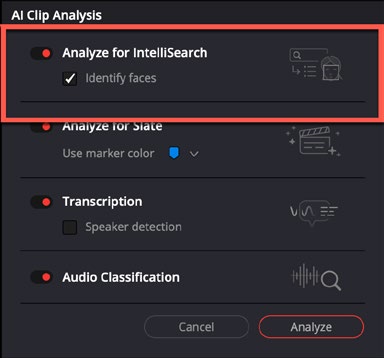
Choose the analysis options before indexing media.DaVinci Resolve 21.1 · Blackmagic Design - 03
Search and check
Open Media Pool search, choose visual or transcript search and enter your terms. Preview each result before using it.
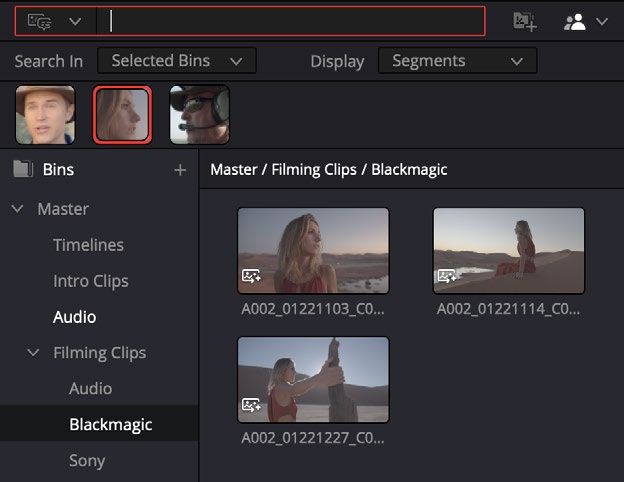
Search indexed media and inspect the returned shots.DaVinci Resolve 21.1 · Blackmagic Design
Sources & version notes
Written for DaVinci Resolve 21.1.2. Menu names and available features can differ in other versions.
- Blackmagic Resolve 21.1 reference manual
- Current stable release notes
- Blackmagic release catalogue, 27 October 2026