
See the workflow.
Full tutorialTHE SHORT ANSWER
Here's the approach.
Media Composer 2026.8 Auto Cut needs PhraseFind AI transcripts and speaker-to-angle assignments. Unassigned speakers do not trigger a switch.
Step by step.
Media Composer 2026.8- 01
Assign the speakers
Open the Transcript Tool and map each speaker to the corresponding camera angle.
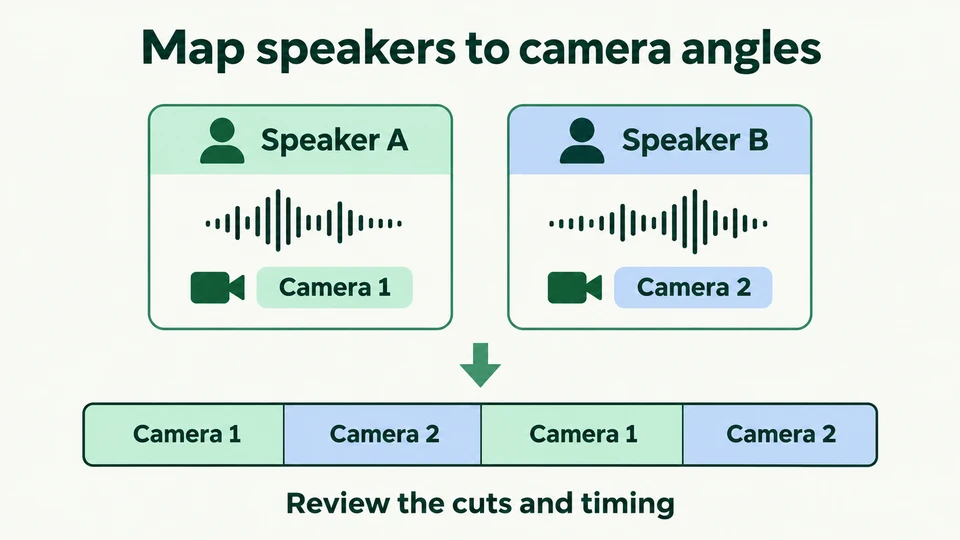
Assign speakers to angles, then review the cuts.Workflow illustration · Media Composer 2026.8 - 02
Apply Auto Cut
Edit the group clip into a sequence. Select its timeline segment with the Segment tool, right-click and choose Auto Cut.
- 03
Review the edit
Adjust timing and minimum speech duration as needed. Review speaker changes, reactions and audio before delivery.
Sources & version notes
Written for Avid Media Composer 2026.8. Menu names and available features can differ in other versions.
Version reference: Media Composer 2026.8