
Related tutorial.
Full tutorialSupplemental tutorial · Release compatibility unconfirmed. Follow the written steps for Final Cut Pro 12.4.
THE SHORT ANSWER
Here's the approach.
In Final Cut Pro 12.4, Generate Captions creates subtitle title clips from speech. It requires Apple silicon and supports U.S. English; the first run downloads a language model.
Step by step.
Final Cut Pro 12.4- 01
Select the speech
Select the speaking clips in the timeline. Choose Edit > Generate Captions > Subtitles.
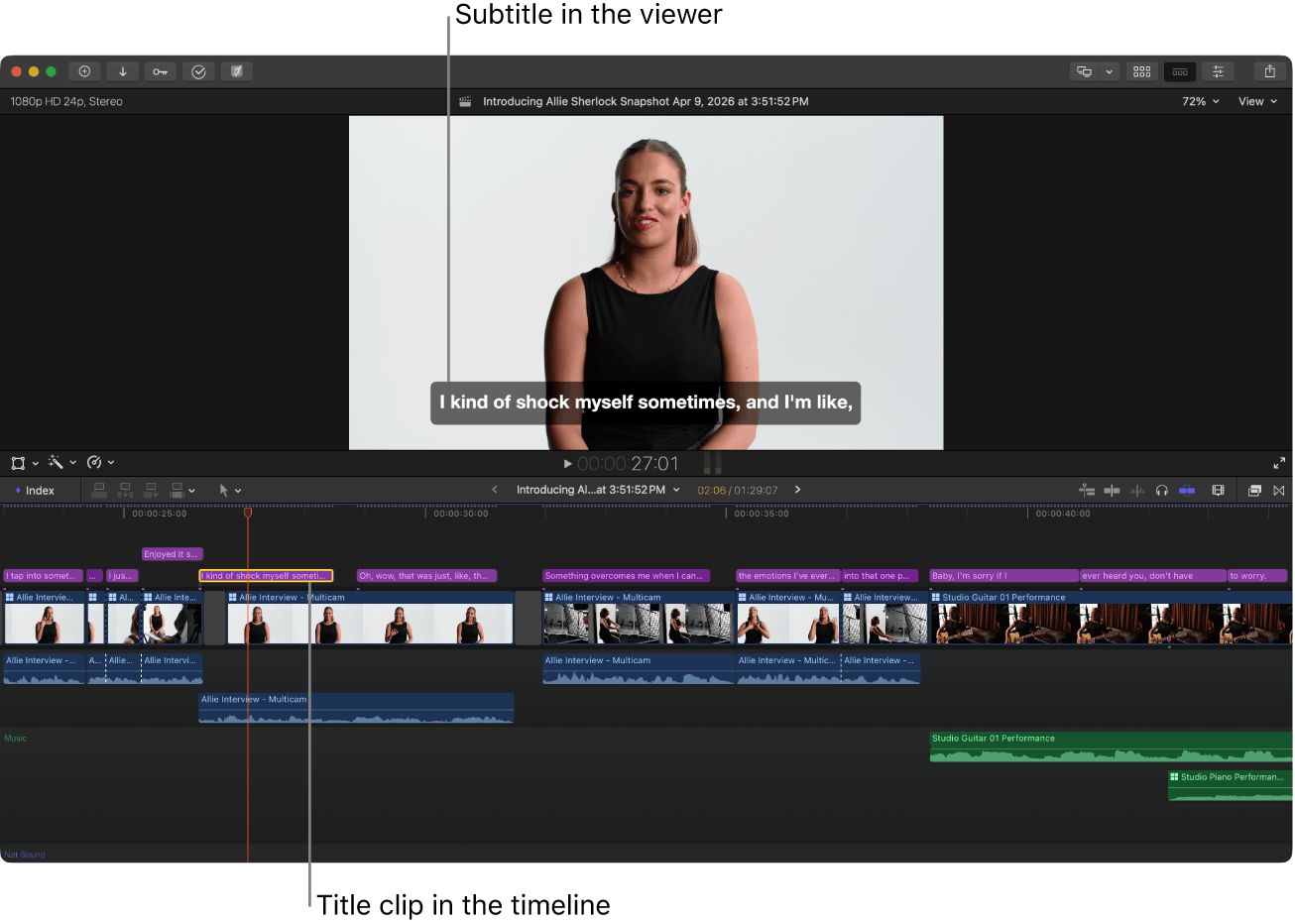
Generated subtitles sit above the video in the timeline.Final Cut Pro 12.4 · Apple - 02
Correct the words
Read every subtitle against the audio and adjust wording and timing.
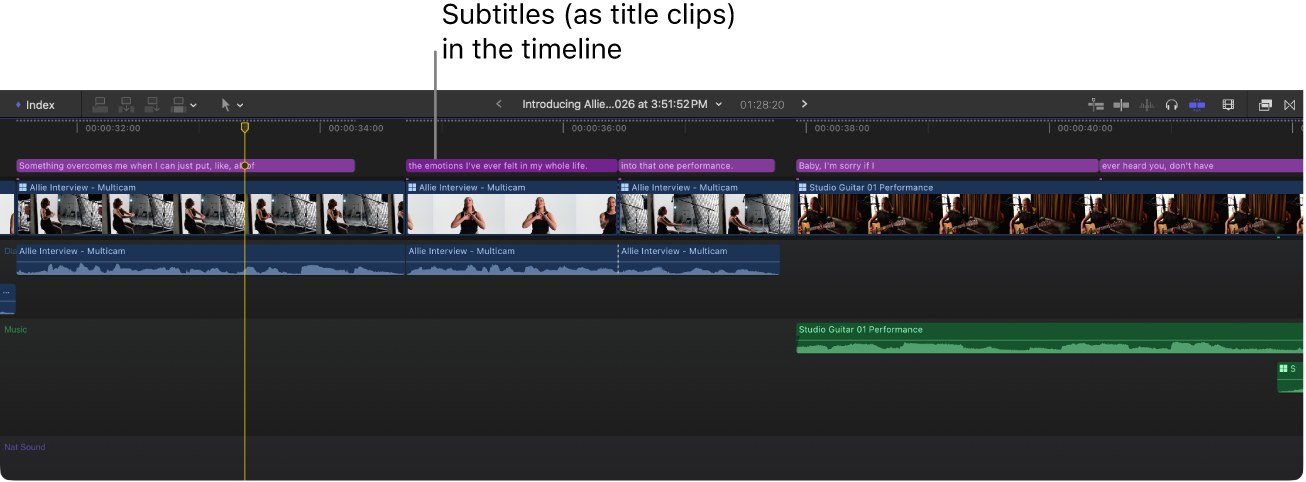
Select a subtitle clip to correct its text.Final Cut Pro 12.4 · Apple - 03
Style for delivery
Select subtitle clips and use the Title inspector for animation and appearance. Check vertical-video safe areas when needed.
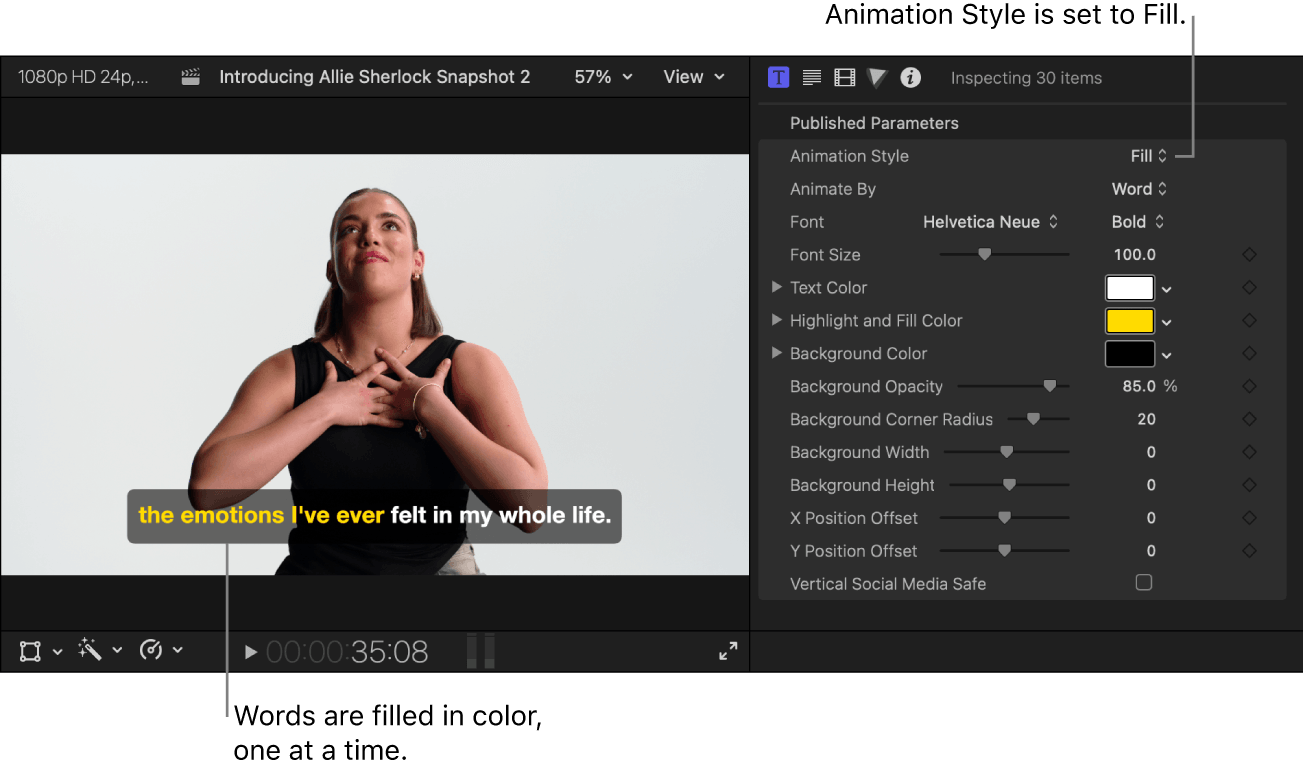
Preview the subtitle appearance in the viewer.Final Cut Pro 12.4 · Apple
Sources & version notes
Written for Final Cut Pro 12.4. Menu names and available features can differ in other versions.
Version reference: Final Cut Pro 12.4