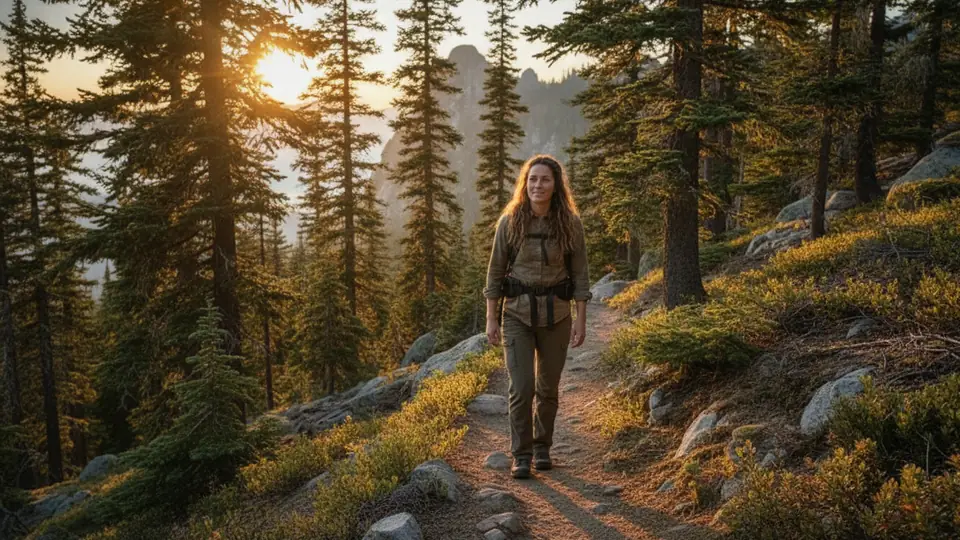
 9:16
9:16Explore a vertical, square or landscape composition.
Your destination.
Your composition.
Clips & formats
Resize videos for vertical, square or landscape
Import your video, choose a 9:16 frame and a framing preference, and review the resulting crop in Eddie. Refine the composition before exporting.
- Bring
- A video you want to use in another aspect ratio
- Make
- A reframed video to preview and export
Start with your files
Your recording, ready for the next step.
Choose video or audio from your device. Continue in Eddie to sign in and start the import.
Sign in in the Eddie tab. Review any required credits before paid processing. Your files and choices transfer directly between these browser tabs.
From your files to your result
A new frame for a new audience.
01
Choose the destination shape
Bring your video and choose 9:16, 4:5 or square. Pick speaker framing or fit the whole picture.
02
Reframe the actual edit
Eddie adjusts the canvas and the segment crops. Speaker framing can emphasize the active person; fit keeps the source picture within the new shape.
03
Watch beyond the first frame
Scrub the full result. Adjust crops around movement, multiple speakers, captions and important details before rendering.
Made for your media
A crop is a decision about what stays in the story.
A landscape interview and a vertical feed show different parts of the same shot. The right crop depends on your subject and what happens over time, not just a centered box.
Workflow illustration · your preview uses your recording
- 01Portrait · 9:16
- A starting point for full-height mobile viewing.
- 02Feed · 4:5
- More vertical space while keeping a little more width.
- 03Square · 1:1
- A balanced frame for square placements and mixed layouts.
Out of Eddie. Into your workflow.
Your footage, in its next format.
Keep the subject
Speaker crop
Review the segment framing; this is not continuous motion tracking.
Keep the whole shot
Fit
Preserve the source picture inside the target frame, with room around it as needed.
Take it to the feed
Video export
Render after checking the full sequence at the intended aspect ratio.
Before you start
How do I convert a landscape video into a vertical video?
Import your video, choose a 9:16 frame and a framing preference, and review the resulting crop in Eddie. Refine the composition before exporting.
Do I need an Eddie account?
You can choose files and settings on this page. Eddie keeps that selection when you continue, then asks you to sign in to import and process the media.
What does it cost?
Processing and exports follow Eddie’s current credit and pricing rules. Eddie shows any required price or credit confirmation before a paid action. Selecting a file here does not purchase anything.
Can I review the result before exporting?
Yes. Review a reframed video to preview and export in Eddie, adjust the result and choose an available download or export.