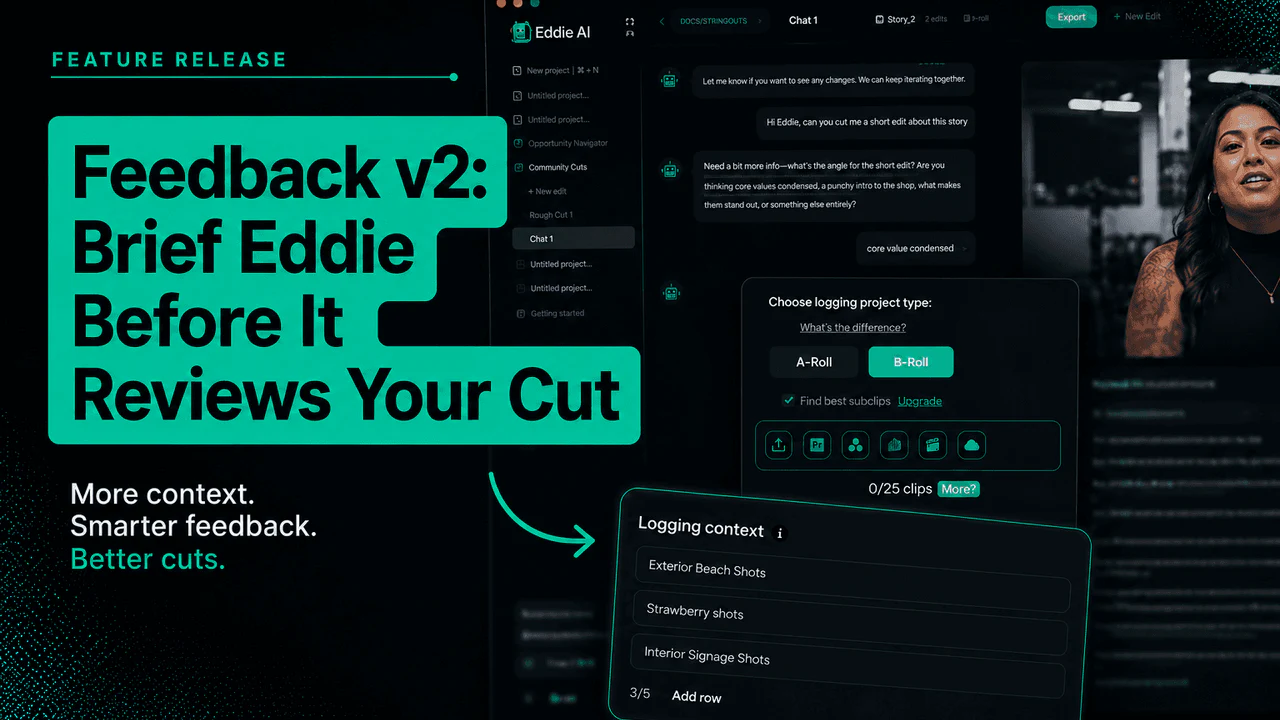
In Summary Feedback v2 lets you brief Eddie before it reviews your cut, video type, platform, goal, and edit stage, so you get timestamped notes aimed at the edit you're actually making.
Eddie has been giving feedback on edits for a while, timestamped notes on story, pacing, clarity, the hook, emotional impact, and platform fit. You upload a cut, Eddie watches it, and you get a second set of eyes before you publish, send to a client, or move to the next version.
But feedback is only useful if it's aimed at the right thing. A YouTube explainer and a client review cut don't need the same notes. A social ad lives or dies on its first three seconds; a documentary scene lives on its arc. Until now, Eddie had to infer all of that from the video itself, and you'd spend the back half of a session steering it toward the feedback you actually wanted.
Feedback v2 changes that. You can now tell Eddie what you're making before it reviews, so the notes come back aimed at your edit, not a generic one.
What's new
Structured questions. Before Eddie reviews, you can brief it on the essentials: the video type (YouTube explainer, documentary scene, brand film, social ad, course lesson, trailer, product demo), the objective (inform, teach, sell, persuade, entertain, improve retention, drive action), the platform (YouTube, TikTok, Instagram, LinkedIn, website, client delivery), the feedback focus (hook, story, pacing, clarity, structure, emotional impact, edit polish), and the edit stage (assembly, rough cut, fine cut, review cut, or near-final). The notes come back shaped around what you told Eddie matters, not what it guessed.
Custom prompt. If you already know exactly what you want reviewed, skip the structured questions and just tell Eddie directly, "Review this as a YouTube documentary; focus on story structure, pacing, and whether the emotional arc is clear," or "Review this as a paid social ad; focus on the hook, clarity of the offer, and whether the edit moves quickly enough." Use structured questions or a custom prompt, not both.
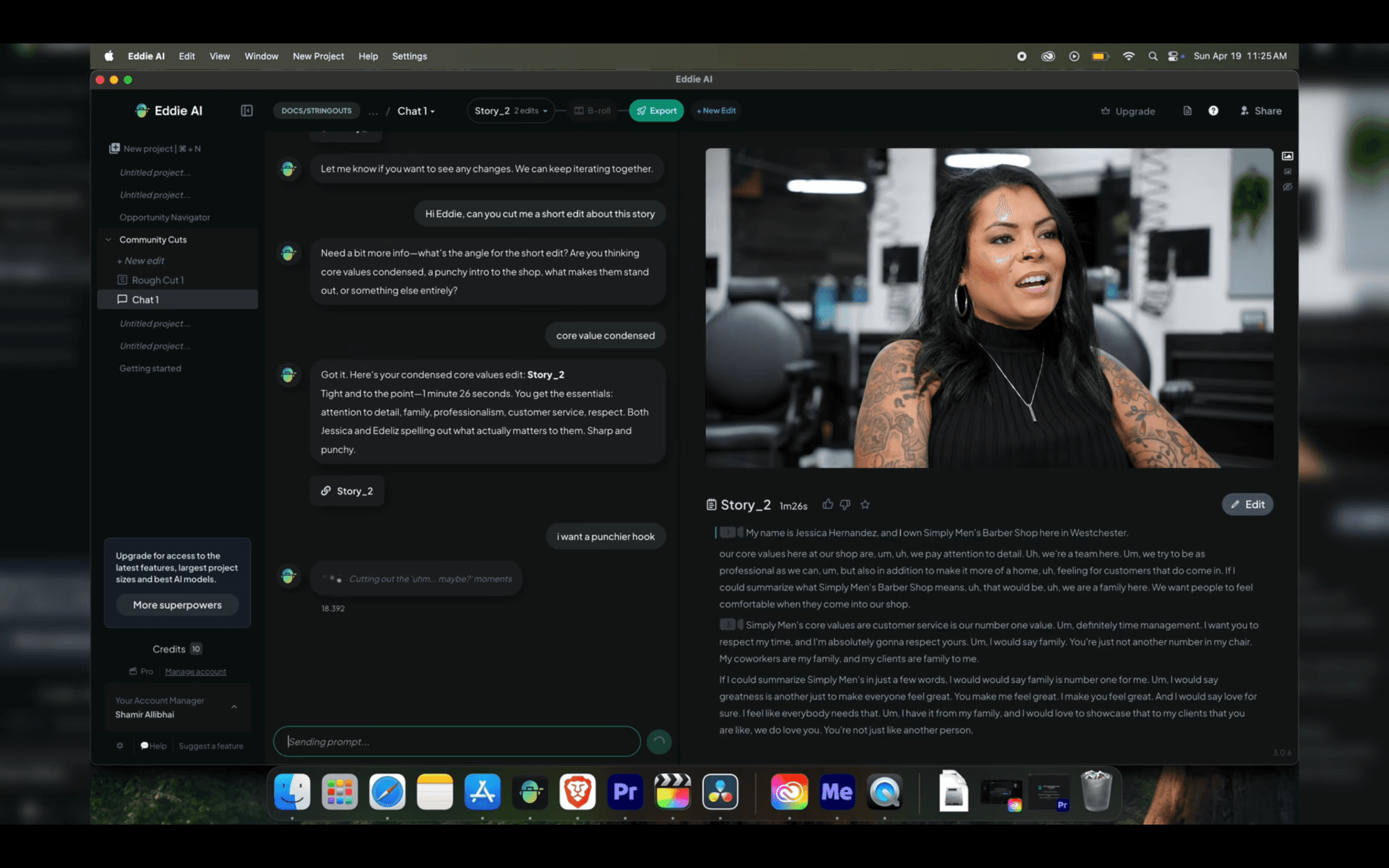
Timestamped notes. Where it helps, Eddie includes timestamps so you can jump straight to the moment it's talking about instead of hunting for it.
Why this matters
Feedback you have to correct isn't a second set of eyes, it's a first draft of a conversation. If Eddie doesn't know whether it's looking at a rough cut or a near-final delivery, a TikTok or a client review, its notes hedge, and you spend your time re-prompting toward what you meant.
Briefing it up front closes that loop. It's the same principle as handing an edit to a colleague: the more they know about what you're making and where it's going, the more useful their notes are the first time. Eddie's feedback is built to support your judgment, not replace it, a fast way to spot what you might have missed and get to the next version sooner.
How to use it
-
Open Eddie and click New Project.
-
Choose Show Me All Modes, then select Feedback Mode.
-
Upload your video.
-
Brief Eddie one of two ways: answer the structured questions (video type, objective, platform, feedback focus, edit stage, plus any additional direction), or write a custom prompt.
-
Let Eddie review. Once your video has been processed, it returns notes shaped by your brief, with timestamps where useful.
A couple of things worth knowing: Feedback Mode is free to use, and for now it's one-and-done, you can't follow up with additional prompts after the review yet.
Tips for better feedback
The more specific your brief, the sharper the notes. Tell Eddie what kind of video you're making, where it'll be used, what the goal is, and what kind of feedback matters most. "Focus on whether the opening 30 seconds are strong enough" or "this is for a client review, so prioritize clarity and brand message" will get you further than uploading the cut cold.
Try it now
Feedback Mode is live and free on every tier. Open Feedback Mode, or download Eddie and start a new project.